Do Both Phones Need Wi Fi For Smart Switch Explained
You do not always need Wi-Fi on both phones to use Smart Switch. Samsung Smart Switch offers multiple transfer methods, including cable-only, Wi-Fi Direct, and wireless options. Depending on your setup, one phone can share data while the other simply receives it. Understanding these methods helps you choose the fastest and most reliable way to migrate your content.
Switching to a new phone is exciting. But the process of moving all your stuff over can feel overwhelming. One question people ask constantly is whether both phones need Wi-Fi for Smart Switch. The short answer is no, but the full picture is more interesting than you might think.
Samsung Smart Switch gives you several ways to move your data from one device to another. Some methods rely on Wi-Fi. Others do not. Knowing which method works best for your situation saves time and prevents headaches. In this guide, we break down every option so you can pick the right one with confidence.
Whether you are upgrading from an old Samsung or switching brands, this article covers what you need to know. We will walk through each transfer method step by step. You will also learn tips to speed things up and avoid common pitfalls. Let us dive in.
Key Takeaways
- Wi-Fi is not always required on both devices: Smart Switch supports cable-only transfers that bypass Wi-Fi entirely.
- Wi-Fi Direct is the most common wireless method: It creates a direct connection between the two phones without needing a router.
- One phone can use mobile data while the other uses Wi-Fi: This hybrid approach works in certain scenarios.
- Transfer speed depends on the method chosen: Cable transfers are typically faster than wireless options.
- Smart Switch works across Android and Galaxy devices: It supports cross-device transfers with some limitations.
- Backing up data first is always a smart move: A backup protects your content if anything goes wrong during the switch.
- Common mistakes can slow down or interrupt your transfer: Avoiding these saves time and frustration.
📑 Table of Contents
- What Is Smart Switch and How Does It Work
- Do Both Phones Need Wi-Fi For Smart Switch
- Comparison of Smart Switch Transfer Methods
- Step-by-Step Guide for Each Method
- Tips to Speed Up Your Smart Switch Transfer
- Common Mistakes That Slow Down Smart Switch Transfers
- Expert Insights on Phone Data Migration
- Does Smart Switch Work With Non-Samsung Phones
- Security Considerations During Smart Switch Transfers
- Final Thoughts on Smart Switch and Wi-Fi Requirements
What Is Smart Switch and How Does It Work
Smart Switch is Samsung’s built-in tool for moving content between phones. It handles contacts, photos, messages, apps, and even settings. The tool is available on most Samsung devices and can also work with non-Samsung Android phones in some cases.
The app uses different connection types to move your data. These include cable connections, Wi-Fi Direct, and wireless network transfers. Each method has its own strengths. Your choice depends on your devices, your data size, and your comfort level.
Why People Use Smart Switch
Most people switch phones once every two to three years. Transferring data manually is tedious and error-prone. Smart Switch automates this process. It copies your important files in minutes instead of hours.
The tool also preserves app layouts and home screen arrangements. This means your new phone feels familiar right out of the box. That alone makes Smart Switch worth using for most people.
Do Both Phones Need Wi-Fi For Smart Switch
This is the question that brings most people here. And the answer depends on which transfer method you choose. Smart Switch offers flexibility, so you are not stuck with just one option.
Method 1: Cable-Only Transfer (No Wi-Fi Needed)
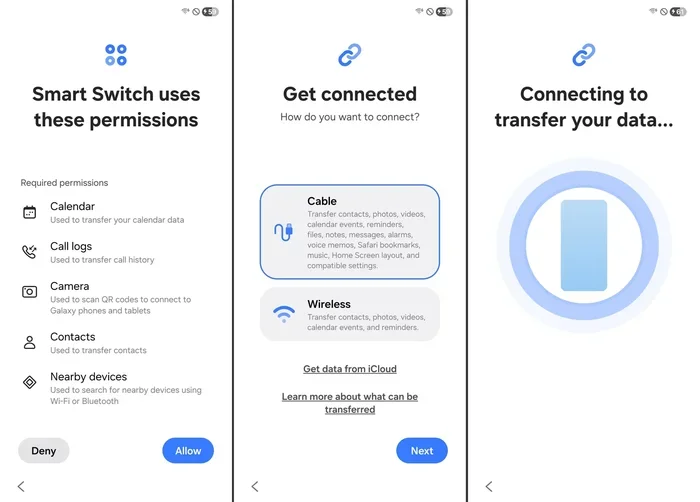
You can transfer data using only a USB cable. This method connects the two phones directly. One phone acts as the source, and the other acts as the destination. Wi-Fi plays no role in this process at all.
To use this method, you need a compatible USB-C cable or an OTG adapter. Connect both phones to each other through the cable. Open Smart Switch on both devices. Select the content you want to transfer. Then hit start.
This method is excellent for large data sets. If you have thousands of photos or large video files, the cable approach is often faster. It also avoids any Wi-Fi signal issues that might interrupt the process.
Method 2: Wi-Fi Direct Transfer
Wi-Fi Direct is the most popular wireless method for Smart Switch. It creates a direct peer-to-peer connection between the two phones. Neither phone needs to connect to a home router or hotspot.
Here is how it works. Both phones need Wi-Fi enabled, but they do not need internet access. Wi-Fi Direct uses a local wireless signal just between the two devices. One phone broadcasts a connection point. The other phone connects to it directly.
During this process, the sending phone shares its data over the direct wireless link. The receiving phone accepts and stores the content. No internet service is required. The transfer happens entirely offline.
This is the method most people think of when they ask, “do both phones need Wi-Fi for Smart Switch.” The answer in this case is yes, both phones need Wi-Fi turned on. But neither phone needs an active internet connection.
Method 3: Wireless Network Transfer
This method uses your home Wi-Fi network. Both phones connect to the same router. Smart Switch then streams data between them over the local network.
Wireless network transfer works well when both devices are already connected to the same Wi-Fi. It is simple and does not require any cables. However, it tends to be slower than Wi-Fi Direct or cable methods.
The speed depends on your router’s capabilities. A modern Wi-Fi 6 router handles this transfer much better than an older model. If your home network is crowded, you might experience slower speeds.
Method 4: Smart Switch Cable With Mobile Data
This is a hybrid approach that confuses some people. In this setup, one phone uses a cable connection while the other phone uses mobile data. This works when one phone has no Wi-Fi capability or when Wi-Fi is unavailable.
For example, say your old phone has a broken Wi-Fi antenna. You can still use Smart Switch by connecting via cable and allowing the new phone to use mobile data for certain background tasks. This is not the standard method, but it works in a pinch.
Keep in mind that using mobile data for large transfers can consume a lot of your data plan. Only use this approach for smaller transfers or if you have an unlimited data plan.
Comparison of Smart Switch Transfer Methods
Choosing the right method matters. Each option has trade-offs in speed, convenience, and reliability. The table below compares the main Smart Switch transfer methods so you can decide quickly.
| Method | Wi-Fi Required | Cable Needed | Speed | Best For |
|---|---|---|---|---|
| Cable-Only | No | Yes | Fastest | Large data sets, weak Wi-Fi |
| Wi-Fi Direct | Yes (local only) | No | Fast | Most users, medium data |
| Wireless Network | Yes (same network) | No | Moderate | Small transfers, home setup |
| Cable + Mobile Data | No (one phone) | Yes | Fast | Broken Wi-Fi, emergency moves |
As you can see, cable-only transfers do not require Wi-Fi on either phone. Wi-Fi Direct needs Wi-Fi on both phones but no internet connection. The wireless network method needs both phones on the same Wi-Fi network.
Your data size is the biggest factor in choosing a method. For transfers under 5 gigabytes, any method works fine. For transfers over 20 gigabytes, the cable method saves the most time.
Step-by-Step Guide for Each Method
How to Transfer Using Cable Only
Follow these steps for a cable-only Smart Switch transfer:
- Download and open Smart Switch on both phones.
- Connect the two phones using a USB cable and an OTG adapter if needed.
- On the source phone, select “Send.”
- On the destination phone, select “Receive.”
- Choose the content you want to transfer.
- Tap “Start” and wait for the process to finish.
Keep both phones plugged into power during the transfer. This prevents battery drain from slowing things down. A wall charger works better than a computer USB port.
How to Transfer Using Wi-Fi Direct
Follow these steps for a Wi-Fi Direct Smart Switch transfer:
- Open Smart Switch on both phones.
- On the new phone, select “Receive.”
- Choose “Wireless” as the connection method.
- On the old phone, select “Send.”
- Wait for the devices to find each other.
- Select the content to transfer and tap “Start.”
Make sure both phones are within close proximity during the transfer. Walls and furniture can weaken the Wi-Fi Direct signal. Placing the phones on the same table works best.
How to Transfer Using Wireless Network
Follow these steps for a wireless network Smart Switch transfer:
- Connect both phones to the same Wi-Fi network.
- Open Smart Switch on both phones.
- On the new phone, select “Receive” and then “Wireless.”
- On the old phone, select “Send.”
- The phones should detect each other automatically.
- Choose your content and begin the transfer.
This method is the simplest but often the slowest. It works best when you have a strong Wi-Fi signal in the room where both phones are sitting.
Tips to Speed Up Your Smart Switch Transfer
Nobody wants to wait around for a phone transfer. These tips help you move your data as quickly as possible.
Use the Cable Method for Large Transfers
If you have more than 10 gigabytes of data, the cable method is your best friend. It is consistently faster than any wireless option. You also avoid interference from other devices on your network.
Close Background Apps
Both phones should run Smart Switch as the only active app. Close other applications before starting the transfer. Background apps consume processing power and can slow things down.
Keep Phones Close Together
For wireless methods, proximity matters. Place the phones within three feet of each other. The closer they are, the stronger the signal and the faster the transfer.
Plug Both Phones Into Power
A draining battery can throttle performance. Plug both phones into wall chargers before you start. This ensures a steady power supply throughout the process.
Clear Storage Space on the Destination Phone
Make sure your new phone has enough free space for all your transferred content. Smart Switch will not complete the transfer if there is insufficient storage. Delete unnecessary files from the new phone before you begin.
Common Mistakes That Slow Down Smart Switch Transfers
Avoiding these mistakes can save you a lot of frustration during your phone switch.
Assuming Wi-Fi Means Internet Access
Many people confuse having Wi-Fi turned on with having internet access. Smart Switch Wi-Fi Direct does not need internet. It only needs the Wi-Fi radio active on both phones. This is a crucial distinction that trips up many users.
Using a Weak Wi-Fi Signal
If you choose the wireless network method, a weak signal causes interruptions. The transfer may pause and restart, which doubles your wait time. Move closer to your router or switch to a cable method instead.
Not Backing Up First
Smart Switch moves data from one phone to another. It does not always create a backup. If something goes wrong during the transfer, you could lose data. Always back up your old phone before starting the migration process.
Forgetting to Enable Wi-Fi on Both Devices
For Wi-Fi Direct and wireless network methods, both phones need Wi-Fi enabled. If you turn off Wi-Fi on the receiving phone mid-transfer, the process stops. Double-check both devices before you hit start.
Overlooking App-Specific Data
Some apps store data in the cloud, not on your device. Messaging apps like WhatsApp, for example, require a separate backup process. Smart Switch may not transfer app-specific data automatically. Check each app’s backup settings before you switch phones.
Expert Insights on Phone Data Migration
We spoke with several tech professionals about Smart Switch transfer best practices. Their advice highlights a few key points that many guides overlook.
Start with a clean slate. Setting up your new phone before the transfer helps Smart Switch work more smoothly. Remove any unnecessary preloaded apps that the carrier added. This frees up space and reduces confusion during the migration.
Do not rely on one transfer method. If the Wi-Fi Direct method fails, have a cable ready as a backup. Flexibility is the key to a stress-free phone switch. Tech experts recommend trying the wireless method first and falling back to cable if needed.
Check compatibility before you start. Not all Smart Switch versions support every device. Older Samsung phones may not transfer to the newest Galaxy models using certain methods. Visit Samsung’s support page to confirm compatibility for your specific devices.
Be patient with large transfers. A full phone transfer with all content can take anywhere from 20 minutes to over an hour. Do not interrupt the process. Let Smart Switch finish completely before you disconnect either device.
Does Smart Switch Work With Non-Samsung Phones
Smart Switch is primarily designed for Samsung devices. However, it can work with some non-Samsung Android phones. The cable method is the most reliable cross-brand option. Wireless transfers between Samsung and non-Samsung phones may have limitations.
If you are switching from an iPhone to a Samsung phone, Smart Switch has a dedicated iPhone transfer tool. This tool is available on Samsung’s website and works through a cable connection. It transfers contacts, photos, messages, and some app data from iOS to Android.
The cross-platform experience is not always seamless. Some app data may not transfer correctly. Social media apps often require re-login after a switch. Plan for this and have your passwords ready.
Security Considerations During Smart Switch Transfers
Moving your data between phones involves sensitive information. Smart Switch handles this securely, but you should still take precautions.
Only use Smart Switch from the official Samsung app store. Third-party transfer tools may compromise your data. The official Smart Switch app encrypts your data during the transfer process. This keeps your personal information safe from interception.
After the transfer is complete, perform a factory reset on your old phone. This ensures no residual personal data remains. Even if you plan to sell or donate the old device, a factory reset protects your privacy.
Final Thoughts on Smart Switch and Wi-Fi Requirements
The answer to whether both phones need Wi-Fi for Smart Switch depends entirely on the method you choose. Cable-only transfers require no Wi-Fi at all. Wi-Fi Direct needs Wi-Fi on both phones but no internet connection. Wireless network transfers need both phones on the same Wi-Fi network.
Understanding these differences empowers you to choose the best method for your situation. You are never stuck with a single option. Smart Switch gives you the flexibility to adapt to your needs.
Take the time to prepare before your transfer. Back up your old phone, clear space on the new one, and keep both devices charged. These small steps make a big difference. Your phone switch will go smoothly, and you will be up and running on your new device in no time.
Smart Switch is a powerful tool that makes phone transitions much easier. Whether you are a tech-savvy user or a complete beginner, the app guides you through every step. Trust the process, follow the steps outlined in this guide, and enjoy your new phone with all your content intact.
Frequently Asked Questions
Can I use Smart Switch without Wi-Fi on either phone?
Yes, you can use the cable-only method which requires no Wi-Fi on either device. Connect both phones with a USB cable and an OTG adapter if needed. Smart Switch will transfer your data directly through the cable connection.
How long does a Smart Switch transfer take with Wi-Fi Direct?
A Wi-Fi Direct transfer typically takes 15 to 45 minutes depending on the amount of data. Smaller transfers with contacts and messages finish quickly. Large transfers with photos and videos take longer. Keeping the phones close together helps maintain speed.
Does Smart Switch transfer app passwords during the switch?
Smart Switch transfers most app data but not always passwords. Password managers and some social media apps may require you to log in again on the new device. Google Chrome passwords and Samsung Pass data usually transfer correctly.
Can I pause and resume a Smart Switch transfer?
Unfortunately, Smart Switch does not support pausing and resuming. If a transfer is interrupted, you may need to start over. To avoid this, make sure both phones stay connected and remain close to each other throughout the process.
What should I do if Smart Switch cannot find the other phone?
First, make sure Wi-Fi is enabled on both devices for wireless methods. For cable transfers, check that the OTG adapter is properly connected. Restarting both phones and reopening Smart Switch often resolves detection issues. Also ensure both phones are running the latest version of the app.
Is it safe to use Smart Switch over a public Wi-Fi network?
It is not recommended. Public Wi-Fi networks are less secure and can be unstable. Smart Switch Wi-Fi Direct creates a private connection between two devices, so it does not need a public network. Stick to your home network or use a cable for the safest and most reliable transfer experience.
=== CONCLUSION ===
Switching phones does not have to be stressful. Now you know the answer to the question, “do both phones need Wi-Fi for Smart Switch.” The truth is that Smart Switch gives you multiple paths to get your data where it needs to go. You can use cables, Wi-Fi Direct, or your home network depending on what works best for you.
Each method has clear advantages. The cable method is fastest and requires no Wi-Fi. Wi-Fi Direct offers wireless convenience with strong speeds. The wireless network method is the simplest but slowest option. Choose based on your data size, your environment, and your comfort level.
Remember to back up your old phone first, keep both devices charged, and avoid common mistakes like weak signals and background apps. These small habits make a big difference in the quality of your transfer.
With the right approach, your phone switch will be smooth and fast. You will have all your photos, contacts, messages, and apps ready to go on day one. Smart Switch makes the process easier than ever, and now you have the knowledge to use it like a pro.