Did Airdrop Use Wi Fi Here Is What You Need To Know
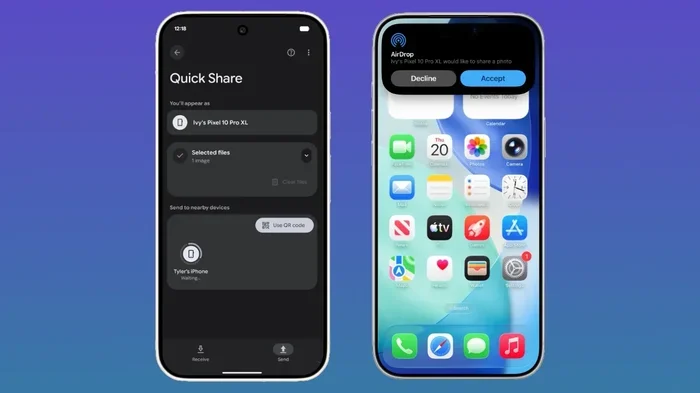
Did Airdrop Use Wi Fi? The short answer is yes and no. AirDrop uses a clever mix of Bluetooth and Wi-Fi to transfer files between Apple devices. It does not need an active internet connection or a Wi-Fi network to work. Understanding how AirDrop file transfer actually works helps you troubleshoot issues and get the best wireless sharing speeds.
Have you ever tried to send a photo to a friend and wondered, Did Airdrop Use Wi Fi? It is a fair question. We all use AirDrop every day, but how many of us actually understand what is happening behind the scenes?
The truth might surprise you. AirDrop does not just use one connection. It uses a smart combination of Bluetooth and Wi-Fi to get your files from one device to another. And here is the best part, you do not even need the internet to make it work.
In this guide, we will break down exactly how AirDrop wireless sharing works. We will cover the technology behind it, why it is so fast, and what to do when things go wrong. Whether you are a casual user or someone who relies on file transfer daily, this article has you covered.
Key Takeaways
- AirDrop uses both Bluetooth and Wi-Fi: Bluetooth handles discovery and pairing, while Wi-Fi handles the actual file transfer.
- No internet connection is required: AirDrop works without Wi-Fi or cellular data, making it perfect for offline sharing.
- It creates a peer-to-peer Wi-Fi network: Devices connect directly to each other without needing a router.
- Transfer speeds are fast: Using Wi-Fi Direct-like technology, AirDrop can move large files in seconds.
- Works across Apple devices: AirDrop is available on iPhones, iPads, and Macs running modern operating systems.
- Common issues are fixable: Simple steps like toggling Wi-Fi and Bluetooth can resolve most AirDrop problems.
📑 Table of Contents
- So Did Airdrop Use Wi Fi or Not
- How Airdrop Wireless Sharing Actually Works
- Airdrop Settings and How They Affect Wi-Fi Usage
- Comparing Airdrop to Other Wireless File Transfer Methods
- Common Airdrop Problems and Wi-Fi Related Fixes
- Expert Tips for Getting the Best Airdrop Performance
- Does Airdrop Use Data or Wi-Fi Bandwidth
- Frequently Asked Questions
- Conclusion
So Did Airdrop Use Wi Fi or Not
The answer is both yes and no. AirDrop uses Wi-Fi technology, but not the way you might think. It does not connect to your home router or use your internet service provider. Instead, it creates a direct, peer-to-peer Wi-Fi connection between two devices.
This is similar to Wi-Fi Direct, which lets devices communicate without a central network. Bluetooth handles the initial handshake. It finds nearby devices and sets up the connection. Then Wi-Fi takes over to move the actual data at high speeds.
Think of it like this. Bluetooth is the host who introduces two people at a party. Wi-Fi is the conversation that follows. Both are needed for the interaction to happen. This dual-technology approach is why AirDrop file transfer is so reliable and fast.
Why Apple Chose This Two-Step Process
Apple designed AirDrop this way for a reason. Bluetooth uses very little power. It is perfect for scanning and discovery. But Bluetooth alone is too slow for large files. A single high-resolution photo might take forever over Bluetooth alone.
That is where Wi-Fi comes in. Once the devices are introduced, Wi-Fi handles the heavy lifting. The transfer speeds are impressive. You can send a video or a folder full of photos in just seconds. This combination gives you the best of both worlds. Low energy for finding devices and high speed for moving data.
How Airdrop Wireless Sharing Actually Works
Understanding AirDrop at a deeper level helps you use it better. Let us walk through the step-by-step process of what happens when you hit that share button.
Step One: Device Discovery
When you open AirDrop on your iPhone or Mac, it starts broadcasting a signal. This signal goes out over Bluetooth. It is like a digital shout that says, “Hey, I am here and I can share files.”
Nearby Apple devices pick up this signal. They check if AirDrop is set to allow connections. If both devices are ready, they form a temporary peer-to-peer network. This whole process takes just a second or two.
Step Two: Wi-Fi Connection Setup
Once the devices find each other, they establish a Wi-Fi connection between them. This is not a connection to any router. It is a direct device-to-device link. Your phone or Mac creates a local network just for this transfer.
Apple uses a technology very similar to Wi-Fi Direct. This means the devices act as both the client and the access point. No external Wi-Fi network is needed. You can be in a dead zone with no internet, and AirDrop will still work perfectly.
Step Three: File Transfer
Now the real magic happens. Your files start moving over the Wi-Fi link. Because this is a direct connection, the speeds are excellent. You are not sharing bandwidth with other devices on a network.
Apple has optimized this process heavily. The transfer files are compressed when possible. The connection is kept stable even if you move slightly during the transfer. This is why AirDrop feels so seamless compared to other wireless sharing methods.
Airdrop Settings and How They Affect Wi-Fi Usage
Not all AirDrop settings are the same. Your choices can affect how Wi-Fi and Bluetooth are used during a transfer. Let us look at the different options and what they mean.
Receiving Options
There are three AirDrop receiving settings on your device:
- Receiving Off: No one can send you files. Your device will not broadcast over Bluetooth either.
- Contacts Only: Only people in your address book can send you files. This uses Apple ecosystem verification.
- Everyone: Any nearby Apple device can send you files. This is the most open setting.
All three settings still use Bluetooth and Wi-Fi in the background when you are actively sending or receiving. The only difference is who can see your device during the discovery phase.
Wi-Fi and Bluetooth Toggle Effects
Here is something many people do not know. You need both Wi-Fi and Bluetooth turned on for AirDrop to work. But you do not need a Wi-Fi network to be active.
If you turn off Wi-Fi completely, AirDrop will not work. Even though you are not connected to a network, the Wi-Fi radio still needs to be on. This is because AirDrop uses Wi-Fi to create its own temporary network for the transfer.
Similarly, turning off Bluetooth will break the discovery process. The devices will not find each other in the first place. So both radios must stay active for AirDrop to function.
Comparing Airdrop to Other Wireless File Transfer Methods
How does AirDrop stack up against other ways to share files wirelessly? Let us compare some popular options.
| Feature | AirDrop | Bluetooth Transfer | Cloud Upload | Email Attachment |
|---|---|---|---|---|
| Uses Wi-Fi | Yes (direct) | No | Yes (internet) | Yes (internet) |
| Uses Bluetooth | Yes | Yes | No | No |
| Needs Internet | No | No | Yes | Yes |
| Speed | Very Fast | Slow | Depends on connection | Depends on attachment size |
| Max File Size | Very Large | Small | Depends on cloud storage | Usually 25 MB |
| Works Offline | Yes | Yes | No | No |
| Device Compatibility | Apple only | Most devices | Any device | Any device |
As you can see, AirDrop has a clear advantage when it comes to speed and offline capability. The fact that it uses direct Wi-Fi instead of relying on the internet makes it incredibly convenient. You can share files with someone sitting right next to you without needing any network at all.
Bluetooth-only transfers are much slower. Cloud uploads require you to wait for the file to go up and then come back down. Email attachments have strict size limits. For quick, local sharing between Apple devices, nothing beats AirDrop.
Common Airdrop Problems and Wi-Fi Related Fixes
Even though AirDrop is designed to be simple, things can go wrong. Many issues are related to Wi-Fi and Bluetooth settings. Here are the most common problems and how to fix them.
Airdrop Not Finding Devices
If AirDrop is not showing other devices, the first thing to check is your Bluetooth connection. Go to Settings and make sure Bluetooth is turned on. Then check that Wi-Fi is also on. You do not need to connect to a network, but the radio must be active.
Sometimes restarting both devices helps. This refreshes the Bluetooth and Wi-Fi radios. It clears out any temporary glitches that might be blocking the discovery process.
Slow Transfer Speeds
If your file transfer is taking too long, check your distance. AirDrop works best when devices are close to each other. Walls and obstacles can weaken the Wi-Fi signal between devices.
Also make sure neither device has too many apps running in the background. Heavy processor usage can slow down the transfer files process. Closing unused apps frees up resources for AirDrop to do its job.
Airdrop Keeps Disconnecting
Intermittent disconnections are frustrating. This often happens when one device switches Wi-Fi networks automatically. Go to your Wi-Fi settings and turn off auto-join for networks you do not need. This prevents your device from getting distracted by other networks during a transfer.
Another fix is to toggle Airplane Mode on and then off again. This resets all wireless connections, including Bluetooth and Wi-Fi. It is a quick and easy way to refresh your connection.
Expert Tips for Getting the Best Airdrop Performance
Want to squeeze every bit of speed out of your AirDrop transfers? Here are some tips from people who know their way around Apple devices.
Keep Both Devices Charged
Low battery can affect how well Wi-Fi and Bluetooth perform. Devices in low power mode may throttle their wireless radios. This can slow down your file transfer or even cause drops. Keep both devices charged for the best results.
Turn Off Personal Hotspot
If one of the devices has a personal hotspot running, it can interfere with AirDrop. The hotspot creates its own Wi-Fi network which can conflict with the direct peer-to-peer connection. Turn it off before sending files.
Use the Same Apple ID When Possible
When both devices use the same Apple ID or are linked through Contacts, AirDrop works more smoothly. The Apple ecosystem recognizes trusted devices faster. This reduces the time spent in the discovery phase.
Update Your Software
Apple regularly improves AirDrop performance through software updates. New versions of iOS and macOS often include better Wi-Fi and Bluetooth handling. Keeping your devices updated ensures you get the latest improvements to wireless sharing.
Restart Wi-Fi and Bluetooth Before Troubleshooting
This is the simplest fix that many people overlook. Turn off Wi-Fi and Bluetooth, wait ten seconds, and turn them back on. This clears the active connections and forces fresh pairing. It solves most minor AirDrop issues instantly.
Expert Insight
According to networking professionals, the beauty of AirDrop lies in its use of Wi-Fi Direct principles. Most users do not realize they are using a technology similar to what printers and smart TVs use for direct connections. Apple has simply wrapped it in a beautiful, seamless interface that makes wireless sharing feel effortless.
Does Airdrop Use Data or Wi-Fi Bandwidth
This is a great question that many people have. The answer is that AirDrop does not use your cellular data or your home Wi-Fi bandwidth. It creates its own temporary network using the Wi-Fi radio hardware in your device.
Your internet connection stays completely untouched. You can be in a building with no Wi-Fi signal at all, and AirDrop will still work. The transfer happens entirely over the direct device-to-device link.
This is a huge advantage. You do not have to worry about using up your data plan. You do not have to find a Wi-Fi hotspot. AirDrop works anywhere, anytime, as long as both devices are nearby and have Bluetooth and Wi-Fi turned on.
What About Mobile Data
Some people wonder if AirDrop uses mobile data when there is no Wi-Fi network available. The answer is no. Mobile data is not involved in AirDrop transfers at all. The Wi-Fi radio creates a local network just between the two devices.
This makes AirDrop perfect for travel, conferences, or any situation where you do not have internet access. You can still share photos, videos, and documents with anyone nearby who has an Apple device.
Frequently Asked Questions
Does Airdrop work without Wi-Fi?
Yes, AirDrop works without an active Wi-Fi network. It uses Bluetooth to discover devices and creates its own direct Wi-Fi connection for the transfer. You do not need internet access of any kind. This is one of the biggest advantages of AirDrop over other file sharing methods.
Can I use Airdrop if both Wi-Fi and Bluetooth are off?
No, you cannot. Both Wi-Fi and Bluetooth must be turned on for AirDrop to work. Bluetooth handles device discovery, and Wi-Fi handles the actual file transfer. You do not need to connect to a Wi-Fi network, but the radio must be active.
Is Airdrop faster than Bluetooth file transfer?
Absolutely. AirDrop is significantly faster than Bluetooth-only transfers. This is because AirDrop uses Wi-Fi for the actual data transfer, which is much faster than Bluetooth. A file that might take minutes over Bluetooth can transfer in seconds with AirDrop.
Does Airdrop use cellular data?
No, AirDrop does not use cellular data at all. The transfer happens over a direct Wi-Fi and Bluetooth connection between devices. Your cellular plan is not affected in any way. You can use AirDrop even in airplane mode as long as you turn on Wi-Fi and Bluetooth manually.
Why does Airdrop need Wi-Fi if it does not use the internet?
AirDrop needs the Wi-Fi radio turned on because it uses Wi-Fi technology to create a direct connection between devices. It does not connect to the internet. Instead, it forms a peer-to-peer network using the same Wi-Fi hardware. This allows for much faster data speeds than Bluetooth alone could provide.
Can Airdrop transfer files between an iPhone and a Windows PC?
No, AirDrop only works between Apple devices. It relies on both Bluetooth and Wi-Fi protocols that are built into iOS, iPadOS, and macOS. Windows PCs do not support AirDrop. For cross-platform sharing, you can use alternatives like Snapdrop, Send Anywhere, or cloud-based file transfer services.
Conclusion
So, Did Airdrop Use Wi Fi? The answer is clear. AirDrop uses both Bluetooth and Wi-Fi to deliver fast, reliable file transfer between Apple devices. It does not need the internet, a router, or even a Wi-Fi network to function.
The beauty of AirDrop lies in its simplicity and efficiency. Apple built a system that uses low-energy Bluetooth for discovery and high-speed Wi-Fi for the actual transfer. This two-step process makes wireless sharing feel magical. Files move in seconds, connections are secure, and everything works without any setup.
Now that you understand how AirDrop really works, you can troubleshoot issues faster and get the most out of every transfer. Keep both Wi-Fi and Bluetooth on, stay close to the other device, and keep your software updated. These simple steps will keep your AirDrop experience smooth and hassle-free.
Next time someone asks you, Did Airdrop Use Wi Fi, you will have a clear and confident answer. Share this knowledge with friends and family. The more people understand how their devices work, the better they can use them every day.