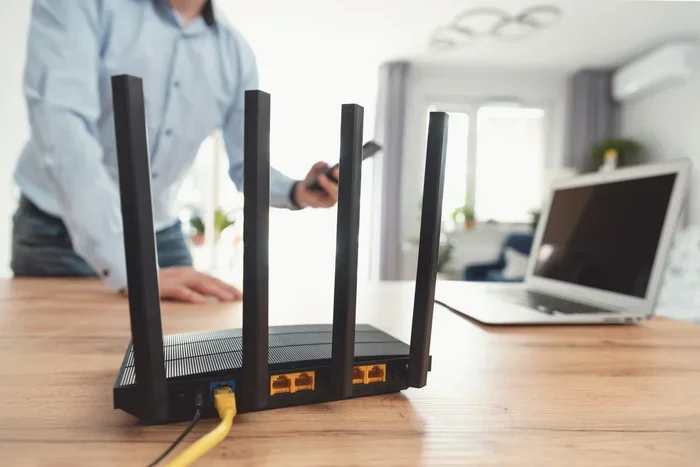
Can I Use A Different Router With Cox Internet Service
Yes, you can use a different router with Cox Internet service. Whether you want better Wi-Fi coverage, faster speeds, or more control over your network, swapping out the Cox gateway for a third-party router is possible. This guide walks you through compatibility checks, setup steps, and the best router options for Cox cable internet.
So you are paying for Cox Internet every month, and you have noticed that your Wi-Fi signal is not what it used to be. Maybe the router they gave you keeps dropping connections, or perhaps you just want more control over your home network. Whatever the reason, you are probably wondering, can I use a different router with Cox Internet service?
The short answer is yes. You absolutely can use a different router with Cox. But there are a few things you need to know before you make the switch. This guide will walk you through everything step by step. We will cover compatibility, setup, benefits, and common pitfalls so you do not run into any surprises.
Whether you are a casual internet user or someone who works from home and needs a rock-solid connection, this article has you covered. Let us dive in and get you set up with a router that works for you.
Key Takeaways
- Cox allows third-party routers: You can use your own router as long as it works with your Cox modem or gateway.
- Bridge mode is key: You will likely need to enable bridge mode on your Cox gateway to avoid double NAT issues.
- Better performance is possible: A third-party router can offer faster speeds, wider coverage, and more features than the Cox-provided gateway.
- Check compatibility first: Not all routers work with Cox. Look for DOCSIS 3.1 support and verify the router meets Cox requirements.
- Setup is straightforward: The process involves connecting your router to the modem, changing IP settings, and configuring Wi-Fi networks.
- You can switch back anytime: If you do not like your new router, you can always revert to the Cox gateway device.
📑 Table of Contents
- Understanding How Cox Internet and Routers Work Together
- How to Check if Your Router Is Compatible with Cox
- Benefits of Using a Different Router with Cox Internet
- Step-by-Step Guide to Setting Up a Different Router with Cox
- Common Problems When Using a Different Router with Cox and How to Fix Them
- Best Routers to Use with Cox Internet Service
- Can You Use Any Router Brand With Cox?
- Should You Switch to a Different Router? Here Is What to Consider
- Final Thoughts on Using a Different Router with Cox
Understanding How Cox Internet and Routers Work Together
Before you swap out any equipment, it helps to understand how Cox cable internet connects to your home. Cox provides you with a device called a gateway. This gateway is basically a combo unit that acts as both a modem and a router. It takes the internet signal from Cox and splits it into Wi-Fi and wired connections for your devices.
What Is a Cox Gateway?
The Cox Panoramic WiFi gateway is the most common device they send to customers. It combines a cable modem and a wireless router into one box. While this is convenient, it is not always the best option. Many users find that the built-in router in the gateway is limited in speed and range.
Here is something important to know. Cox charges a monthly rental fee for this gateway, usually around $10 to $15. Over a year, that adds up fast. Using your own third-party router can save you money in the long run.
Why Does Compatibility Matter?
Not every router on the shelf will work with Cox. Router compatibility depends on the type of internet connection you have and the modem you are using. Cox primarily uses DOCSIS 3.1 technology for its cable internet plans. Your modem must support this standard to deliver the fastest speeds.
When you add a separate router to the mix, the router needs to communicate properly with the modem. If the two devices do not get along, you could face slow speeds, dropped connections, or even a complete loss of internet. That is why checking compatibility before you buy is so important.
How to Check if Your Router Is Compatible with Cox
Not sure if your router will work with Cox? There are a few simple steps you can take to find out. Let us break it down.
Check the DOCSIS Standard
If your Cox modem is a standalone unit (not a gateway), you need a DOCSIS 3.0 or DOCSIS 3.1 compatible router. Most modern routers support this, but it is always worth double-checking the product specifications on the box or the manufacturer’s website.
Look for Bridge Mode Support
This is a big one. When you use a separate router with Cox, you will need your Cox gateway to operate in bridge mode. Bridge mode turns off the router functions inside the Cox gateway and lets your new router handle all the heavy lifting. Without bridge mode, you will run into double NAT issues, which can cause problems with gaming, port forwarding, and video calls.
Not all Cox gateways support bridge mode, so check your specific model. Popular Cox gateway models like the Arris Surfboard and Technicolor TC8305C do support it.
Verify the Router’s WAN Settings
Your new router will need to support DHCP and accept a public IP address from the Cox modem. Most routers do this by default, but some advanced models may need manual configuration. Look for routers that support dynamic IP or DHCP client mode.
Benefits of Using a Different Router with Cox Internet
Why bother going through the trouble of setting up a new router? There are some real advantages that make it worth the effort.
Faster Wi-Fi Speeds
The Cox Panoramic WiFi gateway is decent, but it is not built for high performance. A dual-band router or a tri-band router can deliver significantly faster download speed and upload speed, especially if you have a Cox Gigablast or similar high-tier plan.
Better Coverage and Range
If you have a larger home, the stock Cox gateway might not reach every room. A mesh network system or a high-powered router can eliminate dead zones and give you strong Wi-Fi coverage throughout your house.
More Features and Control
Third-party routers come with advanced features that the Cox gateway simply does not offer. These include:
- Parental controls to manage screen time for kids
- QoS (Quality of Service) settings to prioritize bandwidth for work or gaming
- Guest networks to keep visitors off your main network
- VPN support for secure browsing
- Advanced security features like WPA3 encryption
Save Money on Rental Fees
This one is simple. Stop paying $10 to $15 every month for a Cox gateway that you do not even own. A good third-party router pays for itself within a year or two.
Step-by-Step Guide to Setting Up a Different Router with Cox
Ready to make the switch? Here is exactly how to set up a different router with your Cox Internet service.
Step 1: Enable Bridge Mode on Your Cox Gateway
Log into your Cox gateway admin panel. You can usually do this by typing 192.168.0.1 or 10.0.0.1 into your web browser. Look for a setting called bridge mode or gateway mode and enable it. This will turn off the router functions in the Cox device.
Step 2: Connect Your New Router to the Cox Modem
Use an Ethernet cable to connect the LAN port on your Cox gateway to the WAN port on your new router. Make sure the cable is securely plugged in on both ends.
Step 3: Power On and Wait
Turn on your new router and give it a minute or two to boot up. You should see the power light and the internet light come on steady. If the internet light blinks or stays off, double-check your Ethernet connection.
Step 4: Configure Your Router Settings
Open a web browser and type your new router’s IP address into the address bar. This is usually something like 192.168.1.1 or 192.168.50.1 (check your router’s manual). From here, you can set up your Wi-Fi network name, password, and other preferences.
Step 5: Test Your Connection
Once everything is set up, connect a device to your new router and run a speed test. You should see speeds that match or exceed what you were getting with the Cox gateway. If not, go back and check your DNS settings and make sure bridge mode is properly enabled.
Quick Tips for a Smooth Setup
- Restart both devices before connecting them
- Use a high-quality Ethernet cable for the best connection
- Write down your router’s default login credentials before changing anything
- Update your router’s firmware right after setup
- Keep your Cox gateway firmware updated as well
Common Problems When Using a Different Router with Cox and How to Fix Them
Switching routers is not always a seamless process. Here are some issues you might run into and how to solve them.
No Internet Connection After Setup
This is the most common problem. Usually, it means bridge mode was not properly enabled on the Cox gateway. Log back into the gateway admin panel and double-check the setting. Also, make sure your Ethernet cable is plugged into the correct ports.
Slow Internet Speeds
If your speeds are slower than expected, it could be because your router is not handling the full speed of your Cox plan. Check if your router supports the speed tier you are paying for. Older routers with Fast Ethernet ports max out at 100 Mbps, which will bottleneck gigabit plans.
Double NAT Issues
Double NAT happens when two routers are both doing network address translation. This can cause problems with online gaming, VPN connections, and some streaming services. Enabling bridge mode on the Cox gateway fixes this almost every time.
Wi-Fi Keeps Disconnecting
Interference from other devices or neighboring networks can cause dropouts. Try changing your Wi-Fi channel in the router settings. Switching to the 5 GHz band can also reduce interference and improve stability.
Best Routers to Use with Cox Internet Service
If you are ready to buy a new router, here are some great options that work well with Cox Internet.
| Router | Type | Key Feature | Price Range |
|---|---|---|---|
| Netgear Nighthawk AX12 | Wi-Fi 6 | Fast speeds, great range | $150 – $200 |
| ASUS RT-AX86U | Wi-Fi 6 | Excellent for gaming | $180 – $250 |
| TP-Link Archer AX73 | Wi-Fi 6 | Budget-friendly and reliable | $100 – $130 |
| Google Nest WiFi Pro | Mesh System | Easy setup, whole-home coverage | $200 – $300 |
| Linksys Velop MX10 | Mesh System | Premium mesh with Wi-Fi 6E | $400 – $500 |
Each of these routers pairs well with Cox Internet. If you have a smaller home, a single Wi-Fi 6 router like the TP-Link Archer AX73 is a great choice. For larger homes with multiple floors, a mesh network system like the Google Nest WiFi Pro or Linksys Velop will give you complete coverage.
Can You Use Any Router Brand With Cox?
Yes, Cox does not lock you into a specific router brand. You can use routers from Netgear, ASUS, TP-Link, Linksys, Google, or any other reputable brand. The key requirement is that the router works with your Cox modem or gateway and supports bridge mode if you are using a combo device.
Cox will not prevent you from using your own router. They cannot block third-party equipment on their network. However, they will not provide technical support for issues related to your personal router. If something goes wrong, you will need to troubleshoot on your own or contact the router manufacturer.
Should You Switch to a Different Router? Here Is What to Consider
Before you make the switch, think about your internet habits. If you live alone in a small apartment and your Cox gateway works fine, there may be no need to buy a new router. But if you have a family, work from home, stream a lot of content, or game online, a better router can make a noticeable difference.
Also consider the cost. A decent third-party router costs between $100 and $300. Compare that to paying $15 per month for the Cox gateway rental, and you can see how the investment pays off quickly.
One more thing to keep in mind. If you ever decide to go back to the Cox gateway, you can simply unplug your new router and reconnect the Cox device. Everything will go back to normal with no permanent changes to your account.
Final Thoughts on Using a Different Router with Cox
So, can I use a different router with Cox Internet service? Absolutely. The process is straightforward, the benefits are real, and the savings are worth it. Whether you want faster speeds, better coverage, or just more control over your home network, a third-party router is a great choice.
Just remember to check compatibility, enable bridge mode, and follow the setup steps carefully. With the right router and a little patience, you will have a better internet experience in no time. Give it a try, and your home network will thank you.
Frequently Asked Questions
Will Cox charge me extra if I use my own router?
No, Cox will not charge you extra for using a personal router. You will still pay your regular internet bill, but you can stop paying the monthly gateway rental fee. This can save you $120 or more per year.
Do I need to contact Cox before switching to a different router?
No, you do not need to contact Cox. Using your own router is completely within your rights as a customer. Just make sure your equipment is compatible and that you enable bridge mode if needed.
Can I use a mesh Wi-Fi system with Cox Internet?
Yes, mesh Wi-Fi systems work great with Cox Internet. You just need to connect the main mesh node to your Cox gateway using an Ethernet cable and set up the satellites around your home for full coverage.
What happens if I do not enable bridge mode on my Cox gateway?
If you skip bridge mode, both the Cox gateway and your new router will try to manage the network. This causes double NAT, which can lead to connectivity issues with online gaming, streaming, and some apps. Always enable bridge mode before using a separate router.
Will using my own router improve my Cox Internet speed?
It can. If your Cox gateway’s built-in router is limiting your speeds, a better third-party router can unlock faster performance, especially on higher-tier Cox plans like Gigablast or Contour. However, the router alone cannot make your internet plan faster than what you are paying for.
How do I find my Cox gateway IP address?
You can find your Cox gateway IP address by typing 192.168.0.1 or 10.0.0.1 into your web browser. If those do not work, open Command Prompt on your computer, type ipconfig, and look for the Default Gateway address listed there.


