Can You Use Ethernet With A Wi Fi Card For Faster Internet
Yes, you can use Ethernet with a Wi-Fi card to get faster, more stable internet. A USB Ethernet adapter or PCIe network card lets your device connect to a wired network even if it only has wireless capability. This simple upgrade can boost your download speed, reduce latency, and improve overall network performance for gaming, streaming, and work.
Can you use Ethernet with a Wi-Fi card? The short answer is yes. Many people don’t realize that their wireless adapter can work alongside a wired connection. This opens up a world of faster speeds and better stability. If you have ever wondered about getting more out of your network, you are in the right place.
In this guide, we will walk you through everything you need to know. We will cover how it works, what hardware you need, and whether it is worth the effort. Whether you are a gamer, a remote worker, or just someone who wants better internet, this article has you covered. Let us dive in.
Key Takeaways
- Ethernet works with Wi-Fi cards: You can add a wired connection to any device with a Wi-Fi adapter using a USB adapter or PCIe card.
- Wired connections are faster: Ethernet typically delivers higher speeds and lower latency than wireless connections.
- USB adapters are easy to use: Plug-and-play options make setup simple for beginners.
- PCIe cards offer better performance: Internal cards provide faster speeds and more reliable connections than USB options.
- Dual connectivity is possible: Some setups let you run Ethernet and Wi-Fi at the same time for maximum flexibility.
- Speed depends on your hardware: The adapter type, cable quality, and router all affect your final speeds.
- It’s affordable: Most Ethernet adapters cost between $10 and $50, making this a budget-friendly upgrade.
📑 Table of Contents
- What Is a Wi-Fi Card and How Does It Work?
- Can You Use Ethernet With A Wi-Fi Card? The Short Answer
- How to Connect Ethernet to a Device With a Wi-Fi Card
- Ethernet vs. Wi-Fi: Which Is Faster?
- Benefits of Using Ethernet With Your Wi-Fi Card
- Common Mistakes to Avoid When Using Ethernet With a Wi-Fi Card
- Expert Tips for Getting the Best Performance
- Can You Run Ethernet and Wi-Fi at the Same Time?
- Is It Worth Using Ethernet With a Wi-Fi Card?
- Conclusion
What Is a Wi-Fi Card and How Does It Work?
A Wi-Fi card is a small hardware component that lets your device connect to wireless networks. It can be built into your laptop or added as an external device. Most modern computers come with one already installed. These cards communicate with your router using radio waves.
There are two main types of Wi-Fi cards. The first is an internal card. This is a small chip or module inside your laptop or desktop. The second is an external adapter, often called a Wi-Fi dongle. You plug it into a USB port, and it gives your device wireless access.
How Wi-Fi Cards Connect to Networks
Your Wi-Fi card sends and receives signals from your router. It translates those signals into data your computer can understand. The speed and range depend on the card’s standard. For example, Wi-Fi 6 cards offer faster speeds than older Wi-Fi 5 models. But even the best wireless card has limits compared to a wired connection.
Wireless connections are convenient. You can move around freely. You do not need to plug in any cables. But convenience comes at a cost. Wi-Fi signals can weaken through walls. They can also slow down when multiple devices connect to the same network. This is where Ethernet comes in.
Can You Use Ethernet With A Wi-Fi Card? The Short Answer
Yes, you absolutely can. A Wi-Fi card handles wireless connections. But it does not stop you from adding a wired connection. You just need the right adapter. This lets your device use both Wi-Fi and Ethernet at the same time or switch between them.
Here is the key idea. Your Wi-Fi card manages wireless signals. An Ethernet adapter handles wired signals. They work independently. Your computer can use both at once. This means you can have a stable wired connection for heavy tasks while keeping Wi-Fi for other devices.
Why People Combine Ethernet With Wi-Fi Cards
There are many reasons people do this. Some want faster download speeds for gaming. Others need a rock-solid connection for video calls. Some users have a weak Wi-Fi signal in their office or bedroom. Adding Ethernet solves that problem easily.
Another reason is redundancy. If your Wi-Fi drops, the wired connection keeps you online. This is especially important for people who work from home. A backup connection can save you from frustrating disconnections.
How to Connect Ethernet to a Device With a Wi-Fi Card
Setting up a wired connection with a Wi-Fi card is straightforward. You have a few options depending on your device and needs. Let us look at each method in detail.
Option 1: USB Ethernet Adapter
A USB Ethernet adapter is the easiest way to add a wired connection. It is a small dongle that plugs into a USB port. Most adapters support speeds of 100 Mbps to 1 Gbps. They work with laptops, desktops, and even some tablets.
Here is how you set one up:
- Buy a USB Ethernet adapter that matches your needs.
- Plug it into an available USB port on your device.
- Wait for your operating system to recognize it.
- Plug an Ethernet cable from the adapter to your router or modem.
- Your device should connect automatically.
Most modern adapters are plug-and-play. This means you do not need to install drivers manually. Windows and macOS usually handle everything for you. If not, the manufacturer’s website will have the drivers you need.
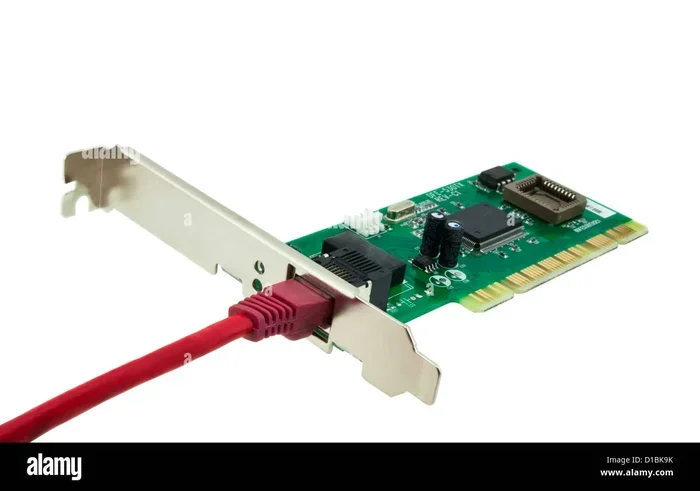
Option 2: PCIe Ethernet Network Card
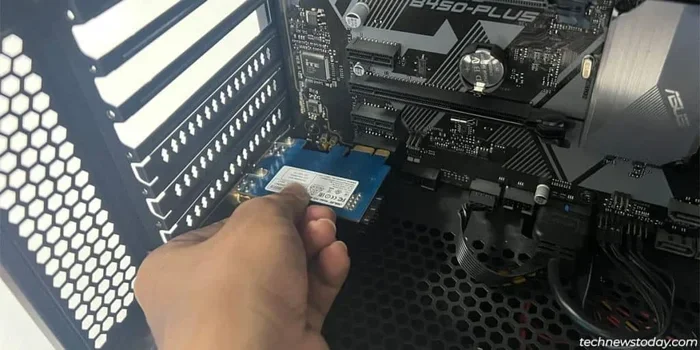
For desktop computers, a PCIe Ethernet card is a great choice. You install it directly into a motherboard slot. This gives you a faster and more stable connection than USB adapters. PCIe cards support gigabit speeds and sometimes even faster.
Here is what you need to do:
- Turn off your computer and unplug it.
- Open the computer case.
- Find an available PCIe slot on the motherboard.
- Insert the Ethernet card firmly into the slot.
- Secure it with a screw.
- Close the case and plug in your Ethernet cable.
- Turn on your computer and let it install the drivers.
A PCIe card is more permanent than a USB adapter. But it offers better performance. If you want the fastest possible speeds, this is the way to go.
Option 3: Thunderbolt or USB-C Ethernet Adapter
If your device has USB-C or Thunderbolt ports, you can use a specialized adapter. These adapters support higher speeds and are more compact. They are perfect for modern laptops that do not have traditional USB-A ports.
Thunderbolt adapters can handle speeds up to 10 Gbps. USB-C adapters typically max out at 1 Gbps. Both options are small and portable. You can carry them with you if you travel for work.
Ethernet vs. Wi-Fi: Which Is Faster?
This is the question everyone asks. And the answer is clear. Ethernet is almost always faster than Wi-Fi. A wired connection gives you a direct path to your router. There are no walls or interference to slow things down.
Speed Comparison
Let us look at a quick comparison of typical speeds:
- Wi-Fi 5 (802.11ac): Up to 866 Mbps in ideal conditions.
- Wi-Fi 6 (802.11ax): Up to 1.2 Gbps in ideal conditions.
- Gigabit Ethernet: 1,000 Mbps (1 Gbps) consistently.
- 10 Gigabit Ethernet: 10,000 Mbps (10 Gbps) for advanced setups.
As you can see, Ethernet matches or beats Wi-Fi in most cases. But real-world speeds vary. Your internet plan, router quality, and cable type all matter. A cheap Ethernet cable can limit your speeds. Always use a Cat5e or Cat6 cable for best results.
Latency: The Hidden Advantage of Ethernet
Speed is not the only factor. Latency matters too. Latency is the time it takes for data to travel from your device to the server and back. Lower latency means smoother gameplay and faster response times.
Ethernet typically has much lower latency than Wi-Fi. This is why serious gamers prefer wired connections. If you play competitive games, even a small reduction in latency can make a big difference. Your Wi-Fi card gives you wireless freedom. But Ethernet gives you precision and speed.
Benefits of Using Ethernet With Your Wi-Fi Card
Combining Ethernet with your Wi-Fi card gives you the best of both worlds. Here are the main benefits you can expect.
1. Faster and More Stable Speeds
A wired connection is not affected by interference. Microwaves, baby monitors, and neighboring networks do not slow it down. Your Ethernet speed stays consistent. This is especially helpful for streaming 4K video or downloading large files.
2. Better Network Performance for Multiple Tasks
When you use Ethernet for heavy tasks, your Wi-Fi bandwidth stays free for other devices. Your phone, tablet, and smart home gadgets can use the wireless connection without slowdowns. This creates a balanced and efficient home network.
3. Improved Security
Wired connections are harder to hack than wireless ones. Data travels through the cable, not through the air. This makes Ethernet more secure for sensitive tasks like online banking or working with confidential files.
4. Lower Ping for Gaming
Gamers know the frustration of lag. A wired connection reduces ping significantly. Your actions register faster on the server. This gives you a competitive edge in online games. Even casual players notice the difference.
5. Cost-Effective Upgrade
You do not need to buy a new router or upgrade your internet plan. A simple Ethernet adapter can transform your connection. Most adapters cost between $10 and $50. This is one of the cheapest ways to improve your internet experience.
Common Mistakes to Avoid When Using Ethernet With a Wi-Fi Card
Even though this setup is simple, there are some mistakes people make. Avoiding these will save you time and frustration.
Using the Wrong Cable
Not all Ethernet cables are the same. An older Cat5 cable may limit your speeds to 100 Mbps. If your adapter supports gigabit speeds, use a Cat5e or Cat6 cable. This small change can double or triple your performance.
Ignoring Driver Updates
Your Ethernet adapter needs the right drivers to work properly. Outdated drivers can cause slow speeds or connection drops. Check the manufacturer’s website regularly for updates. This is an easy step that many people skip.
Plugging Into the Wrong Port
Not all ports on your router are the same. Some routers have regular LAN ports and special uplink ports. Always plug your Ethernet cable into a standard LAN port. If you are unsure, check your router’s manual or try different ports.
Assuming All Adapters Are Equal
Cheap adapters may advertise gigabit speeds but deliver much less. Look for reputable brands and check user reviews. Spending a little more on a quality adapter saves you from disappointment later.
Forgetting to Disable Wi-Fi When Testing Speeds
If you want to test your Ethernet speed accurately, turn off Wi-Fi first. Your device might use the wireless connection for some traffic. This skews your speed test results and gives you a false reading.
Expert Tips for Getting the Best Performance
Want to squeeze every bit of speed out of your setup? Here are some tips from networking experts.
Use a Powered USB Hub for USB Adapters
Some USB Ethernet adapters draw a lot of power. If your laptop has a weak USB port, the adapter might not perform at its best. Use a powered USB hub to give the adapter a stable power source. This can improve speeds and reduce connection drops.
Keep Your Adapter Cool
Adapters can get warm during long use. Heat can slow them down or cause disconnections. Keep your adapter in a well-ventilated area. Do not bury it under papers or other objects.
Choose the Right Ethernet Speed for Your Needs
You do not always need gigabit speeds. If your internet plan is 50 Mbps, a 100 Mbps adapter is plenty. Save money by choosing an adapter that matches your plan. There is no point paying for speeds your internet provider does not deliver.
Use Quality Ethernet Cables
A good cable makes a real difference. Cat6 cables support speeds up to 10 Gbps over short distances. They are future-proof and affordable. Avoid flat cables for long runs. Round cables handle interference better and last longer.
Monitor Your Network Traffic
Use built-in tools or free apps to monitor your network. You can see which devices use the most bandwidth. This helps you decide when to switch to Ethernet for heavy tasks. Knowledge is power when managing your home network.
Can You Run Ethernet and Wi-Fi at the Same Time?
Yes, you can. Most modern operating systems support simultaneous connections. Your device can stay on Wi-Fi while using Ethernet for specific tasks. This is called dual connectivity or hybrid networking.
Windows and macOS handle this differently. Windows usually prioritizes the wired connection for internet traffic. macOS may balance traffic across both connections. You can check your network settings to control which connection handles what.
Some advanced users set up their computers to use Ethernet for downloads and Wi-Fi for video calls. This keeps everything running smoothly. It takes a little setup, but the results are worth it.
You can also use Ethernet for your desktop while sharing the Wi-Fi connection with other devices. This turns your computer into a mini hub. It is a clever trick for households with limited Ethernet ports on the router.
Is It Worth Using Ethernet With a Wi-Fi Card?
The answer depends on your needs. If you game, work from home, or stream a lot of content, Ethernet is a game-changer. The speed and stability improvements are noticeable right away. Even casual users benefit from a more reliable connection.
On the other hand, if you only browse the web and check email, Wi-Fi is probably fine. The convenience of wireless outweighs the small speed gains. But if you ever experience slow internet or frequent disconnections, adding Ethernet is an easy fix.
Think of it this way. Your Wi-Fi card gives you freedom. Ethernet gives you power. Using both gives you the best possible internet experience. It is a simple and affordable upgrade that anyone can make.
Conclusion
So, can you use Ethernet with a Wi-Fi card? Absolutely. Whether you choose a USB adapter, a PCIe card, or a USB-C dongle, adding a wired connection to your setup is easy and effective. You get faster speeds, lower latency, and a more stable connection. Your Wi-Fi card continues to handle wireless devices while Ethernet takes care of the heavy lifting.
This is one of the best upgrades you can make for your home network. It costs little, takes minutes to set up, and delivers real results. Try it today and feel the difference in your internet experience.
Frequently Asked Questions
Do I need a special Wi-Fi card to use Ethernet?
No, you do not need a special Wi-Fi card. Any standard Wi-Fi card or adapter works with an Ethernet adapter. The Ethernet adapter connects separately and handles the wired connection. Your Wi-Fi card continues to manage wireless connections as usual.
Will using Ethernet slow down my Wi-Fi connection?
No, using Ethernet will not slow down your Wi-Fi. They operate on different channels and use separate hardware. In fact, using Ethernet for heavy tasks can free up Wi-Fi bandwidth for other devices. This can actually improve your overall network performance.
What speed can I expect from a USB Ethernet adapter?
Most USB Ethernet adapters support speeds of 100 Mbps to 1 Gbps. The actual speed depends on the adapter model, your USB port version, and the Ethernet cable you use. USB 3.0 adapters generally deliver faster speeds than USB 2.0 models.
Can I use Ethernet and Wi-Fi on the same device at the same time?
Yes, most modern computers support simultaneous Ethernet and Wi-Fi connections. Your operating system will manage traffic across both connections. You can prioritize one connection over the other in your network settings for specific tasks.
Is Ethernet really faster than Wi-Fi 6?
Yes, in most real-world scenarios, Ethernet is faster and more consistent than Wi-Fi 6. While Wi-Fi 6 can theoretically reach 1.2 Gbps, real-world speeds are often lower due to interference and distance. Ethernet delivers its rated speed reliably without signal degradation.
How much does an Ethernet adapter cost?
USB Ethernet adapters typically cost between $10 and $40. PCIe internal cards range from $20 to $60. Thunderbolt adapters can cost $50 or more. The price depends on the brand, speed rating, and features. For most users, a $15 to $25 adapter provides excellent value.
=== CONCLUSION ===
Using Ethernet with a Wi-Fi card is one of the simplest and most effective ways to improve your internet experience. You get the convenience of wireless connectivity and the speed of a wired connection. Whether you are a gamer, a streamer, or a remote worker, this setup delivers real results.
Start with a USB Ethernet adapter if you want a quick and easy solution. Choose a PCIe card if you need maximum performance. Either way, you are making a smart investment in your network. Your Wi-Fi card and Ethernet adapter work together to give you the best of both worlds.
Try it today and see the difference for yourself. Faster internet is just one adapter away.