Can You Share Wi Fi Between Iphone And Samsung Easily
Yes, you can share Wi-Fi between iPhone and Samsung devices using several easy methods. Whether you use hotspot tethering, Bluetooth pairing, QR code sharing, or USB connections, this guide covers every practical way to get your Samsung phone connected to a Wi-Fi network your iPhone has already joined. You will learn fast, simple steps that work in real life, not just theory.
Key Takeaways
- iPhone Hotspot Method: The easiest way to share Wi-Fi between iPhone and Samsung is by turning your iPhone into a mobile hotspot.
- QR Code Sharing: Some Samsung phones can scan Wi-Fi QR codes displayed on your iPhone screen.
- Bluetooth Tethering: You can pair an iPhone and Samsung device via Bluetooth and share an internet connection.
- USB Tethering: A wired connection through a USB cable offers the fastest and most stable shared connection.
- Wi-Fi Direct and Quick Share: Samsung’s built-in features allow wireless file and connection sharing without a router.
- Common Mistakes: Avoid pitfalls like incorrect hotspot passwords, outdated software, and disabled Bluetooth permissions.
- Multiple Methods Exist: You have at least five reliable ways to share Wi-Fi across these two platforms.
📑 Table of Contents
- Can You Share Wi-Fi Between iPhone and Samsung? Yes, Here Is How
- Method 1: Use iPhone Hotspot to Share Wi-Fi With Samsung
- Method 2: Share Wi-Fi Using QR Code on iPhone and Samsung
- Method 3: Bluetooth Tethering Between iPhone and Samsung
- Method 4: USB Tethering for Fast and Stable Sharing
- Method 5: Use Samsung Quick Share and Wi-Fi Direct
- Common Mistakes to Avoid When Sharing Wi-Fi
- Expert Insights on Cross-Platform Wi-Fi Sharing
- Key Takeaways
- Conclusion
Can You Share Wi-Fi Between iPhone and Samsung? Yes, Here Is How
You just walked into a room. Your iPhone is already connected to the Wi-Fi network. Your Samsung phone sits in your hand with no internet access. What do you do? You do not need to type in a long password again. You can share Wi-Fi between iPhone and Samsung in just a few simple steps.
The good news is that Apple and Samsung devices can talk to each other more easily than you might think. Several built-in tools make this possible. You do not need expensive apps or technical skills. This guide walks you through every reliable method. Each method works in real-world situations. You will be back online in minutes.
Sharing Wi-Fi between iPhone and Samsung is useful in many situations. Maybe your Samsung phone has no SIM card. Maybe you are traveling and your Samsung data plan is low. Maybe you just want to save your Samsung phone’s mobile data. Whatever the reason, you are in the right place. Let us get started.
Method 1: Use iPhone Hotspot to Share Wi-Fi With Samsung
The iPhone hotspot feature is the most popular way to share Wi-Fi between iPhone and Samsung. It turns your iPhone into a wireless router. Your Samsung phone connects to the iPhone just like it connects to any home router. This method works every time. It is simple and reliable.
How to Set Up iPhone Hotspot
Follow these steps to turn your iPhone hotspot on:
- Open the Settings app on your iPhone.
- Tap Personal Hotspot.
- Toggle Allow Others to Join to ON.
- Set a Wi-Fi password. Make it easy to remember but hard to guess.
- Note the Wi-Fi network name shown on your screen.
How to Connect Your Samsung Phone
Now connect your Samsung device:
- Open Settings on your Samsung phone.
- Tap Connections or Network and Internet.
- Select Wi-Fi.
- Find your iPhone hotspot name in the list.
- Enter the password you set earlier.
- Tap Connect.
That is it. Your Samsung phone is now online through your iPhone. You can browse the web, stream videos, and use any app that needs internet. The connection stays active as long as your iPhone has cellular data and the hotspot is turned on.
Quick Tip: Keep your iPhone plugged into a charger when using hotspot for a long time. Hotspot use drains battery fast. A portable charger works great too.
Pros and Cons of iPhone Hotspot
Every method has strengths and weaknesses. Here is a quick look at what to expect with hotspot sharing:
- Pros: Fast setup, stable connection, works with all Samsung models, no extra apps needed.
- Cons: Uses your iPhone battery quickly, drains your cellular data plan, range is limited to about 30 feet.
Method 2: Share Wi-Fi Using QR Code on iPhone and Samsung
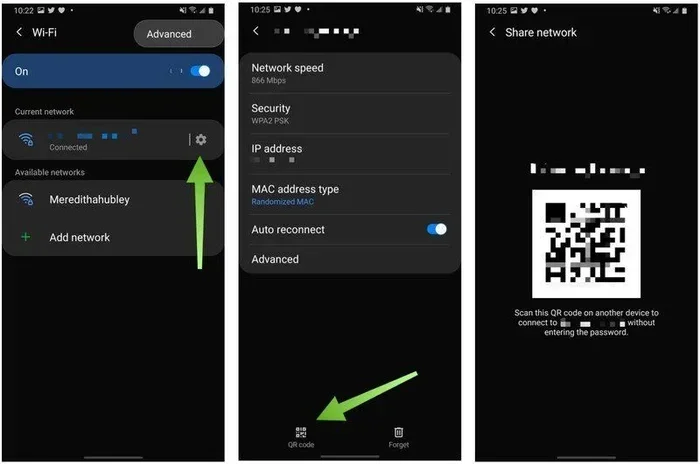
Did you know you can share Wi-Fi using a QR code? This method is quick and avoids typing passwords. Both iPhone and Samsung support QR code Wi-Fi sharing in different ways. It is one of the most convenient options for sharing Wi-Fi between iPhone and Samsung.
How iPhone Displays Wi-Fi QR Codes
Apple introduced a built-in Wi-Fi QR code feature in iOS 16 and later. Here is how it works:
- Make sure your iPhone is connected to the Wi-Fi network you want to share.
- Open the Settings app.
- Tap on the Wi-Fi network name at the top.
- Tap the QR code icon next to the password field.
- Point your Samsung phone camera at the QR code.
How Samsung Scans and Connects
Samsung phones can read Wi-Fi QR codes using the built-in camera:
- Open the Camera app on your Samsung phone.
- Point it at the QR code on your iPhone screen.
- A notification will pop up. Tap it.
- The Samsung phone will ask to join the Wi-Fi network.
- Tap Connect and you are online.
This method is perfect when you are in a hurry. No typing. No errors. Just scan and connect. It works on most Samsung Galaxy phones running One UI 4.0 or later.
Quick Tip: If the camera does not scan the QR code, try opening the Google Lens icon in the camera app. It often works better for Wi-Fi QR codes.
Method 3: Bluetooth Tethering Between iPhone and Samsung
Bluetooth tethering is another way to share internet from your iPhone to your Samsung phone. It is slower than Wi-Fi hotspot but very useful in certain situations. For example, when you do not want to drain your iPhone battery fast or when you are in a crowded area with many Wi-Fi signals fighting for space.
Setting Up Bluetooth Between iPhone and Samsung
First, you need to pair the two devices:
- Open Settings on your iPhone.
- Tap Bluetooth and turn it ON.
- Open Settings on your Samsung phone.
- Go to Connections and tap Bluetooth.
- Make sure Bluetooth is ON.
- Your iPhone should appear under Available Devices on your Samsung phone.
- Tap the iPhone name and accept the pairing request on both devices.
Enabling Bluetooth Tethering
Once paired, you can share the connection:
- On your iPhone, go to Settings > Bluetooth.
- Find your Samsung phone in the My Devices list.
- Tap the info icon (i) next to your Samsung phone.
- Turn on Internet Sharing.
- On your Samsung phone, go to Settings > Connections > Mobile Networks.
- Enable Bluetooth Tethering.
Your Samsung phone now shares the iPhone’s internet through Bluetooth. The connection is slower than Wi-Fi but it uses less battery on both devices. It works well for basic tasks like checking emails or browsing light websites.
When to Use Bluetooth Tethering
This method shines in specific scenarios:
- You are in a crowded place with lots of wireless interference.
- You want to save battery on both devices.
- You only need light internet use like messaging or email.
- You do not have enough cellular data for a full hotspot session.
Method 4: USB Tethering for Fast and Stable Sharing
USB tethering gives you the fastest and most stable connection when you share Wi-Fi between iPhone and Samsung. It uses a USB cable to create a direct wired link between the two devices. This method is often overlooked but it is incredibly reliable.
What You Need
- A USB-C to Lightning cable or USB-C to USB-C cable depending on your iPhone model.
- Both devices powered on.
- A Samsung phone that supports USB tethering.
Steps to USB Tethering
- Connect your iPhone to your Samsung phone using the USB cable.
- On your iPhone, tap Trust This Computer if prompted.
- On your Samsung phone, go to Settings > Connections > Mobile Networks.
- Toggle USB Tethering to ON.
- Your Samsung phone will now share the iPhone’s internet connection.
USB tethering gives you the best speeds because it uses a physical cable. There is no wireless interference. No password needed. No signal loss. It is perfect when you need a strong, stable connection for video calls or large downloads.
Quick Tip: If USB tethering does not show up in the Samsung settings, try a different USB cable. Some cables are charge-only and do not support data transfer.
Comparison Table: Wi-Fi vs Bluetooth vs USB Tethering
| Feature | Wi-Fi Hotspot | Bluetooth | USB Tethering |
|---|---|---|---|
| Speed | Fast | Slow | Very Fast |
| Battery Use | High | Low | Low |
| Range | Up to 30 feet | Up to 30 feet | Cable Length Only |
| Stability | Good | Moderate | Excellent |
| Setup Difficulty | Easy | Moderate | Easy |
| Best For | General use | Light browsing | Heavy tasks |
Method 5: Use Samsung Quick Share and Wi-Fi Direct
Samsung phones come with built-in features like Quick Share and Wi-Fi Direct. These tools let Samsung devices connect directly to other devices without a traditional Wi-Fi network. While they do not share Wi-Fi passwords directly, they can help you share internet and files between iPhone and Samsung.
How Quick Share Works
Quick Share is Samsung’s version of AirDrop. It uses a combination of Bluetooth and Wi-Fi Direct to create a direct connection between devices. Here is how you can use it:
- Open Quick Share on your Samsung phone. You can swipe down from the top of the screen and tap the Quick Share icon.
- Make sure both devices have Quick Share enabled.
- Select your iPhone when it appears in the device list.
- Choose what you want to share: files, links, or even a Wi-Fi connection.
- Accept the transfer on your iPhone.
Using Wi-Fi Direct for Internet Sharing
Wi-Fi Direct creates a direct wireless link between two devices. Your Samsung phone can connect to your iPhone through Wi-Fi Direct without needing a router. This is useful when you want to share a Wi-Fi network connection without turning on the full hotspot.
- Go to Settings > Connections > Wi-Fi on your Samsung phone.
- Tap the three dots in the top right corner.
- Select Wi-Fi Direct or Advanced.
- Choose your iPhone from the list of available devices.
- Follow the on-screen prompts to complete the connection.
Wi-Fi Direct is faster than Bluetooth and uses less power than a full hotspot. It is a great middle-ground option for everyday use.
Common Mistakes to Avoid When Sharing Wi-Fi
Even though sharing Wi-Fi between iPhone and Samsung is straightforward, people still make mistakes. Here are the most common ones and how to avoid them.
Mistake 1: Forgetting to Enable Personal Hotspot
The most common error is turning on the hotspot but forgetting to allow others to join. Always double-check that Allow Others to Join is toggled ON in your iPhone settings. Without this, your Samsung phone will not see the hotspot network.
Mistake 2: Using Wrong Password
It sounds obvious but people type the wrong password all the time. Make sure you are entering the hotspot password, not your Apple ID password or your home Wi-Fi password. These are different passwords.
Mistake 3: Outdated Software
Old software can cause connection problems. Always update both your iPhone and Samsung phone before trying to share Wi-Fi. Go to Settings > General > Software Update on iPhone. On Samsung, go to Settings > Software Update.
Mistake 4: Ignoring Bluetooth Permissions
When using Bluetooth tethering, both devices need permission to share connections. On your iPhone, make sure Bluetooth is on and your Samsung phone is trusted. On your Samsung phone, make sure it has permission to access shared network resources.
Mistake 5: Using a Charge-Only USB Cable
Not all USB cables support data transfer. If USB tethering does not work, try a different cable. Look for cables labeled data sync or high-speed on the packaging.
Expert Insights on Cross-Platform Wi-Fi Sharing
Sharing Wi-Fi between iPhone and Samsung is more common than ever. People carry both platforms in their homes and workplaces. Here are some expert insights from networking professionals.
Use hotspot for daily needs. Most tech experts agree that iPhone hotspot is the go-to method for everyday sharing. It is fast, reliable, and works with every Samsung model. The only downside is battery drain, which you can manage with a charger.
QR code sharing is the future. Apple and Google are both investing in QR code Wi-Fi sharing. This method will likely become the standard way to share Wi-Fi across all devices. It eliminates password errors and saves time.
USB tethering for power users. If you need a rock-solid connection for work or gaming, USB tethering is the best choice. It bypasses all wireless interference issues and gives you the most stable speeds possible.
Keep both devices updated. Software updates often include fixes for cross-platform connection bugs. Keeping both your iPhone and Samsung phone on the latest version prevents most sharing problems.
Key Takeaways
- iPhone Hotspot is the Easiest Method: Turn on personal hotspot on your iPhone and connect your Samsung phone to it. This is the most straightforward way to share Wi-Fi between iPhone and Samsung.
- QR Code Sharing Saves Time: Use the built-in Wi-Fi QR code feature on iOS 16+ and scan it with your Samsung camera. No typing required.
- Bluetooth Tethering Works for Light Use: Pair your devices via Bluetooth and enable tethering for a low-battery alternative.
- USB Tethering is the Fastest: A USB cable connection provides the best speeds and most stable link between iPhone and Samsung.
- Quick Share and Wi-Fi Direct Add Flexibility: Samsung’s built-in tools offer additional ways to share connections and files wirelessly.
- Avoid Common Mistakes: Check hotspot settings, use the right password, update software, and use the correct USB cable.
- Multiple Methods Give You Options: You are never stuck. If one method fails, try another. There are at least five reliable ways to share Wi-Fi between iPhone and Samsung.
Conclusion
Sharing Wi-Fi between iPhone and Samsung is easier than most people think. You have multiple methods at your fingertips. Whether you use iPhone hotspot, QR code sharing, Bluetooth tethering, USB tethering, or Samsung Quick Share, you can get your Samsung phone online quickly and easily.
The best method depends on your situation. Need speed? Use USB tethering. Need convenience? Use the hotspot. In a hurry? Scan the QR code. Each method has its place and each one works well when you follow the steps correctly.
Remember to keep both devices updated. Avoid the common mistakes we covered. And do not be afraid to try more than one method if the first one does not work perfectly.
Now you have all the knowledge you need to share Wi-Fi between iPhone and Samsung with confidence. Try the method that fits your needs best and enjoy seamless internet on both devices. You will wonder why you did not do this sooner.
Frequently Asked Questions
Can I share my iPhone Wi-Fi password directly with a Samsung phone?
Apple and Samsung do not have a built-in password-sharing feature like Apple devices do with each other. However, you can use the iPhone hotspot method or QR code sharing to get your Samsung phone connected to the same network without manually typing the password.
Why does my Samsung phone not find my iPhone hotspot?
This usually happens when the hotspot is not turned on properly or the password is incorrect. Make sure Personal Hotspot is enabled on your iPhone and that Allow Others to Join is toggled on. Also check that both devices have Bluetooth and Wi-Fi turned on.
Does sharing Wi-Fi from iPhone to Samsung use my cellular data?
Yes, when you use iPhone hotspot or Bluetooth tethering, your Samsung phone uses your iPhone’s cellular data plan. Keep an eye on your data usage to avoid extra charges from your carrier.
Can I share Wi-Fi between iPhone and Samsung without an internet connection?
No, at least one device needs an active internet connection to share. The iPhone must have cellular data or be connected to a Wi-Fi network to share with the Samsung phone through hotspot or tethering methods.
Is USB tethering faster than Wi-Fi hotspot between iPhone and Samsung?
Yes, USB tethering generally provides faster and more stable speeds because it uses a physical cable connection. It avoids wireless interference and signal drops that can affect Wi-Fi hotspot performance.
Will sharing Wi-Fi drain my iPhone battery quickly?
Yes, using iPhone hotspot drains the battery faster than normal use. To reduce battery drain, keep your iPhone plugged into a charger while sharing the connection, or use Bluetooth tethering which uses less power.