Can You Receive Calls On T Mobile Wi Fi Without The Hassle
Yes, you can receive calls on T-Mobile Wi-Fi with WiFi calling enabled on your device. This feature lets you make and take calls even when you have weak or no cell signal, as long as you are connected to a Wi-Fi network. Setting it up is simple, and once configured, T-Mobile WiFi calling works seamlessly in the background.
Have you ever been in a spot where your T-Mobile cell signal drops to nothing? Maybe you are at the basement of your home, inside a big office building, or traveling in a rural area. In moments like these, a phone call can feel impossible. But here is the good news. Can you receive calls on T-Mobile Wi-Fi? Absolutely yes. T-Mobile WiFi calling is a powerful feature that lets you make and receive calls using a Wi-Fi connection instead of relying on the traditional cellular network. It is a game changer for anyone who has dealt with dropped calls or poor reception. In this guide, we will walk you through everything you need to know about WiFi calling on T-Mobile. We will cover how it works, how to set it up, common problems, and pro tips to get the best experience.
WiFi calling is not a new concept, but many T-Mobile users still do not know it exists or how to use it. The technology behind it is called VoWiFi, which stands for Voice over Wi-Fi. It routes your voice calls through your internet connection rather than cell towers. This means that even if you are in a dead zone, as long as you have Wi-Fi access, you can stay connected. T-Mobile has built this feature right into its network and devices, making it easy to activate. Whether you use an iPhone or an Android phone, the process is straightforward. And the best part? It does not cost extra. T-Mobile includes WiFi calling at no additional charge on most plans.
Key Takeaways
- WiFi calling on T-Mobile lets you receive calls over a Wi-Fi connection, even without cell signal.
- You need a compatible device and an active T-Mobile plan to use this feature.
- Setting up T-Mobile Wi-Fi calling takes just a few minutes on both iPhone and Android.
- Troubleshooting call issues over Wi-Fi is straightforward with a few simple steps.
- WiFi calling works internationally, making it great for T-Mobile travelers abroad.
- VoWiFi (Voice over Wi-Fi) technology ensures clear call quality on a stable network.
- You can use T-Mobile home internet and still receive calls without any extra equipment.
📑 Table of Contents
- What Is T-Mobile WiFi Calling?
- Can You Receive Calls on T Mobile Wi Fi Without Extra Equipment?
- How to Set Up WiFi Calling on T-Mobile
- Common Issues and How to Fix Them
- Benefits of Using T-Mobile WiFi Calling
- Quick Tips for the Best WiFi Calling Experience
- Expert Insights on T-Mobile WiFi Calling
- Is WiFi Calling Safe and Secure?
- Final Thoughts
What Is T-Mobile WiFi Calling?
T-Mobile WiFi calling is a feature that allows your phone to place and receive calls over a Wi-Fi network. Instead of connecting to a nearby cell tower, your phone sends your voice data through your home or office Wi-Fi. This is especially useful in areas where the T-Mobile cellular network is weak or unavailable. The feature works with both voice calls and text messages. You do not need any special app or extra equipment. It is built right into your phone and your T-Mobile account.
The technology uses something called VoWiFi, or Voice over Wi-Fi. Think of it like making a call through a messaging app, but it works exactly like a regular phone call. Your contacts see your same phone number. The call quality depends on your Wi-Fi speed and stability. A fast and reliable connection gives you crystal clear audio. T-Mobile has optimized this feature over the years, and it now works smoothly on most modern devices. You can even use it when traveling internationally, which is a huge benefit for T-Mobile travelers who want to avoid roaming charges.
How Does WiFi Calling Work on T-Mobile?
When you make a call with WiFi calling turned on, your phone checks for available Wi-Fi networks. If it finds one, it routes the call through that network instead of the cell tower. The process is automatic and mostly invisible to you. Here is a simple breakdown of how it works:
- Your phone connects to a Wi-Fi network.
- The T-Mobile network recognizes your device as a WiFi calling-enabled phone.
- Your voice is converted into data packets.
- Those packets travel through your Wi-Fi router to the internet.
- The data reaches the T-Mobile network and connects to the recipient.
This whole process happens in seconds. You do not need to press any extra buttons or switch modes. As long as WiFi calling is enabled, your phone handles everything in the background. The quality of your call depends on your Wi-Fi speed. A strong and stable connection gives you the best experience. If your Wi-Fi is slow or unstable, you might notice slight delays or lower audio quality.
Can You Receive Calls on T Mobile Wi Fi Without Extra Equipment?
The short answer is yes. You do not need any special equipment to receive calls on T-Mobile Wi-Fi. Your phone does all the work. As long as you have a compatible device and an active T-Mobile plan, you are good to go. You just need a working Wi-Fi connection. This could be your home Wi-Fi, office Wi-Fi, or even a public Wi-Fi network at a coffee shop or airport.
Here are the basic requirements to get started:
- A compatible smartphone (most iPhones and Android phones made after 2016 work).
- An active T-Mobile SIM card and plan.
- A stable Wi-Fi connection with decent speed.
- WiFi calling enabled in your phone settings.
- The latest version of your phone software.
That is it. No extra boxes, no special adapters, no monthly fees. T-Mobile has designed this feature to be as simple as possible. You can start using it today with just a few taps on your phone screen. Many users set it up once and forget about it, because it works so well in the background.
Which T-Mobile Plans Support WiFi Calling?
Most T-Mobile plans include WiFi calling at no extra cost. Whether you are on Magenta, Magenta Plus, Essentials, or even older plans, WiFi calling is likely already available. T-Mobile has made this a standard feature across its lineup. Here is a quick look at the support:
- Magenta and Magenta Plus: Full WiFi calling support, including international WiFi calling.
- Essentials and Prepaid Plans: WiFi calling is included on most plans.
- T-Mobile Home Internet: You can use WiFi calling on devices connected to T-Mobile home internet without any issues.
If you are unsure about your specific plan, you can check by logging into your T-Mobile account online or calling customer support. They can confirm if WiFi calling is active on your line.
How to Set Up WiFi Calling on T-Mobile
Setting up T-Mobile WiFi calling is quick and easy. The process is slightly different depending on whether you use an iPhone or an Android phone. Below, we walk you through both setups step by step.
Setting Up WiFi Calling on iPhone
iPhones make it very simple to turn on WiFi calling. Follow these steps:
- Open the Settings app on your iPhone.
- Tap on Phone.
- Select WiFi Calling.
- Toggle on WiFi Calling on This iPhone.
- Enter your T-Mobile address for emergency services (required).
- Tap Enable.
Once you complete these steps, your iPhone will automatically use Wi-Fi for calls when the cell signal is weak. You will see a small Wi-Fi icon next to your carrier name in the status bar when WiFi calling is active.
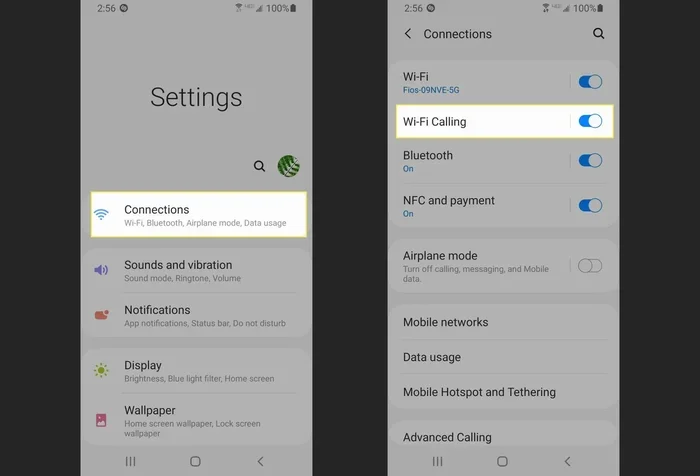
Setting Up WiFi Calling on Android
Android phones also offer a straightforward setup. The exact steps may vary slightly depending on your phone brand and model, but the general process is similar:
- Open the Settings app on your Android phone.
- Go to Network and Internet or Connections (the name varies by brand).
- Tap on Mobile Network or SIM Card Settings.
- Look for WiFi Calling and toggle it on.
- Enter your address for emergency services if prompted.
- Save your settings.
On some Android phones, you might find WiFi calling under Connections or Calling Settings. If you cannot find it, try searching for “WiFi Calling” in your settings search bar. T-Mobile also offers a WiFi calling app for some Android devices, but most modern phones have it built in.
Common Issues and How to Fix Them
Even though T-Mobile WiFi calling works well most of the time, you might run into occasional issues. Here are the most common problems and how to fix them quickly.
WiFi Calling Not Turning On
If you cannot turn on WiFi calling, the first thing to check is your T-Mobile account status. Make sure your line is active and your plan supports the feature. Next, check if your phone is compatible. Older phones might not support WiFi calling. Also, make sure your phone software is up to date. Sometimes a simple software update fixes the problem. You can also try toggling airplane mode on and off to refresh your connection.
Poor Call Quality Over Wi-Fi
If your calls sound choppy or delayed, your Wi-Fi connection might be the issue. Here are some quick fixes:
- Move closer to your Wi-Fi router.
- Reduce the number of devices using the same network.
- Restart your router.
- Switch to a 5 GHz Wi-Fi band if available.
- Check your internet speed and upgrade your plan if needed.
A strong and stable Wi-Fi connection is the key to great call quality. If you are using public Wi-Fi, the connection might be slower or less stable, which can affect your calls.
Calls Not Routing Through Wi-Fi
Sometimes your phone might not use Wi-Fi for calls even when it is connected. This can happen if your cell signal is still strong enough. T-Mobile phones are designed to prefer the cellular network when available. To force your phone to use Wi-Fi, you can turn on Airplane Mode and then turn Wi-Fi back on. This disables the cellular connection and forces calls through Wi-Fi.
Emergency Calls Not Working
WiFi calling requires you to register your address for emergency services. If you have not done this, emergency calls might not route correctly. Go to your phone settings and make sure your address is up to date. This is especially important if you have moved recently or are using WiFi calling at a different location.
Benefits of Using T-Mobile WiFi Calling
T-Mobile WiFi calling offers several great benefits that make it worth using. Here are the top advantages:
- Better Coverage: You can make and receive calls in areas with weak or no cell signal, as long as you have Wi-Fi.
- No Extra Cost: WiFi calling is included at no additional charge on most T-Mobile plans.
- Clear Call Quality: With a good Wi-Fi connection, calls sound just as clear as traditional calls.
- International Use: You can use WiFi calling abroad to avoid high roaming charges. This is a huge benefit for T-Mobile travelers.
- Seamless Experience: The feature works automatically in the background. You do not need to switch modes or use a separate app.
- Works with T-Mobile Home Internet: You can use WiFi calling on devices connected to T-Mobile home internet without any special setup.
- No Extra Equipment: You do not need signal boosters or special hardware. Your phone handles everything.
Quick Tips for the Best WiFi Calling Experience
Want to get the most out of T-Mobile WiFi calling? Here are some quick tips that make a big difference:
- Keep your phone software updated. Updates often include improvements to WiFi calling performance.
- Use a dual-band router. A 5 GHz connection offers better call quality than a 2.4 GHz connection.
- Restart your phone regularly. This clears temporary glitches that might affect WiFi calling.
- Check your Wi-Fi speed. A minimum of 1 Mbps upload and download speed is recommended for clear calls.
- Enable WiFi calling on all devices. If you have a phone and a tablet, set up WiFi calling on both.
- Contact T-Mobile support if issues persist. Sometimes the issue is on the network side, and a support agent can help resolve it quickly.
Expert Insights on T-Mobile WiFi Calling
T-Mobile WiFi calling has come a long way since it was first introduced. The network has invested heavily in VoWiFi technology to ensure a smooth experience for users. According to T-Mobile network engineers, WiFi calling now handles over millions of calls daily across the United States. The feature is especially popular in rural areas and large buildings where cell signals tend to be weak.
Experts recommend that users always keep their T-Mobile account settings up to date and enable WiFi calling as a default fallback option. This ensures that you never miss a call, even in challenging signal environments. T-Mobile customer support teams also suggest testing WiFi calling at home before relying on it in critical situations. A quick test call can confirm everything is working properly.
One thing to keep in mind is that WiFi calling quality depends on your internet connection. If your Wi-Fi is shared among many devices or running slowly, your calls might suffer. Using a dedicated router or a mesh Wi-Fi system can significantly improve the experience. T-Mobile home internet users especially benefit from this, since their Wi-Fi is optimized for the T-Mobile network.
Is WiFi Calling Safe and Secure?
Many users wonder about the security of WiFi calling. The good news is that T-Mobile WiFi calling is encrypted. This means your voice data is protected as it travels through the internet. The encryption follows industry standards, making it very difficult for anyone to intercept your calls. T-Mobile takes network security seriously and continuously updates its systems to keep users safe.
However, you should still use caution when connecting to public Wi-Fi networks. While T-Mobile WiFi calling is encrypted, public networks can sometimes be less secure overall. If you frequently use public Wi-Fi for calls, consider using a VPN for an extra layer of protection. For home and office use, your Wi-Fi network is generally safe, especially if you use a strong password and updated router firmware.
Final Thoughts
Can you receive calls on T-Mobile Wi-Fi? Yes, and it is one of the most useful features T-Mobile offers. T-Mobile WiFi calling gives you the freedom to stay connected no matter where you are. Whether you are at home in a dead zone, at work in a big building, or traveling abroad, WiFi calling keeps you in touch. The setup is simple, the cost is zero, and the quality is excellent when you have a good Wi-Fi connection.
We have covered how it works, how to set it up, common issues, and expert tips. Now it is your turn to try it. Go ahead and enable WiFi calling on T-Mobile today. You will wonder how you ever managed without it. Stay connected, stay covered, and never miss a call again.
Frequently Asked Questions
Can I receive calls on T-Mobile Wi-Fi if I have no cell signal?
Yes, you can. As long as you have a working Wi-Fi connection and WiFi calling is enabled, your phone can receive calls over the internet. This is one of the biggest advantages of T-Mobile WiFi calling. It works even when your cell signal is completely gone.
Do I need a special phone to use WiFi calling on T-Mobile?
No, you do not need a special phone. Most modern smartphones, including iPhones and Android devices, support WiFi calling on T-Mobile natively. Check your phone settings to see if the option is available. If your phone was made after 2016, it likely supports the feature.
Is there any extra cost for WiFi calling on T-Mobile?
No, there is no extra cost. T-Mobile includes WiFi calling at no additional charge on most of its plans. You use your existing data and Wi-Fi connection to make and receive calls. It does not count against your cellular minutes.
Can I use WiFi calling internationally with T-Mobile?
Yes, you can. T-Mobile WiFi calling works internationally on many plans, allowing you to make and receive calls abroad without roaming charges. This is a huge benefit for T-Mobile travelers. Check your specific plan details to confirm international WiFi calling support.
Why does my WiFi call drop sometimes?
WiFi calls can drop if your Wi-Fi connection is weak or unstable. Moving closer to your router, reducing network congestion, or switching to a 5 GHz band can help. If drops continue, contact T-Mobile customer support for further troubleshooting.
How do I know if WiFi calling is active on my T-Mobile line?
You can check by looking at your phone’s status bar. On most devices, a small Wi-Fi icon appears next to your carrier name when WiFi calling is active. You can also go to your phone settings and verify that WiFi calling is turned on under the Phone or Connections menu.
=== CONCLUSION ===
Receiving calls on T-Mobile Wi-Fi is simple, free, and incredibly useful. T-Mobile WiFi calling ensures you stay connected even in areas with poor cell coverage. With just a few minutes of setup, you can enjoy clear, reliable calls over your Wi-Fi network. Whether you are at home, at work, or traveling the world, this feature has you covered. Enable it today and experience the difference for yourself.