Can You Just Buy A Router And Have Wifi Right Here
Yes, you can buy a router and get WiFi, but only if you have an active internet connection from an ISP. A router alone creates a local wireless network, but it will not give you internet access on its own. This guide explains exactly what you need, how routers work, and how to set up your WiFi connection the right way from day one.
Key Takeaways
- A router creates a local network: It broadcasts WiFi signals to your devices, but it needs an internet source to provide actual web access.
- You still need an ISP: Without an internet service provider and a plan, your router has nothing to distribute to your devices.
- Modem vs. router matters: Many people confuse these two devices. A modem brings the internet in; a router spreads it around your home.
- Router placement is critical: Where you put your router directly affects your WiFi coverage and wireless signal strength throughout your house.
- Not all routers are the same: Single-band, dual-band, and mesh systems offer different levels of internet speed and network settings customization.
- Setup is simpler than you think: Most modern routers come with easy router setup wizards that walk you through the process in minutes.
📑 Table of Contents
- Can You Just Buy A Router And Have Wifi?
- What Does a Router Actually Do?
- What You Need Beyond Just a Router
- How a Router Creates WiFi in Your Home
- Types of Routers You Can Buy
- Setting Up Your Router for WiFi
- Common Mistakes That Keep WiFi from Working
- When Should You Buy a New Router?
- Final Thoughts
Can You Just Buy A Router And Have Wifi?
The short answer is yes and no. Let me explain. If you buy a wireless router and plug it into a working internet source, you will get WiFi. But if you just buy a router and connect it to nothing, you will have a local network with no internet access. Your devices will connect to the router, but they will not reach the web.
This is one of the most common misunderstandings people have about home networking. They walk into a store, grab a wireless router, bring it home, and wonder why they cannot browse the internet. The truth is that a router is only one piece of the puzzle. You need a few other things working together to get a full WiFi connection up and running.
In this article, I will walk you through everything you need to know. I will explain what a router does, what else you need, and how to set things up the right way. Whether you are a complete beginner or someone who has struggled with home network setup before, this guide will help you out.
Let us start with the basics. Understanding how your wireless networking works at home makes the whole process much less confusing.
What Does a Router Actually Do?
A router is a device that takes an internet signal and shares it with multiple devices. Think of it as a traffic cop for your home network. It directs data back and forth between your modem and your phones, laptops, tablets, and smart home gadgets.
Here is what a wireless router does in simple terms:
- It receives an internet signal from your modem.
- It creates a local network inside your home.
- It broadcasts a wireless signal that your devices can connect to.
- It assigns each device a local IP address.
- It manages traffic so everything runs smoothly.
Without a router, you could only connect one device directly to your modem using an Ethernet cable. A router lets you go wireless. That is why most people want one. It gives every device in the house the freedom to connect without wires.
But here is the key point most people miss. A router does not create internet. It only distributes what it receives. If there is no internet coming in, there is nothing for the router to distribute. That is why Can You Just Buy A Router And Have Wifi is such a common question. The answer depends on what you already have set up.
Router vs. Modem: What Is the Difference?
This is where most people get confused. A modem and a router are two different devices, even though many people use the words interchangeably.
A modem connects your home to the internet. It talks to your internet service provider, also known as your ISP. The modem brings the signal into your house.
A router takes that signal and spreads it around. It creates the WiFi connection that your phone, laptop, and smart TV can use.
Some devices combine both functions. These are called gateway devices or modem-router combos. If you rent equipment from your ISP, you might already have one of these. In that case, you do not need to buy a separate router. But if you want better WiFi coverage or faster internet speed, buying your own wireless router is a smart move.
What You Need Beyond Just a Router
So you have decided to buy a wireless router. Great. But before you can enjoy WiFi at home, you need a few more things in place.
An Active Internet Plan
You need an internet plan from an internet service provider. This is a subscription that gives you access to the broader internet. Without it, your router has nothing to share.
Popular ISPs include companies like Comcast Xfinity, AT&T, Spectrum, Verizon Fios, and Cox. Each company offers different ISP plans with varying speeds and prices. You will want to pick a plan that matches how you use the internet.
If you stream a lot of video, play online games, or work from home, you need faster speeds. A basic broadband plan might be enough for light browsing and email. But heavy users should look for plans with higher download and upload speeds.
A Modem or Gateway Device
As I mentioned, you need a modem to bring the internet signal into your home. Your ISP may provide one for free or for a small monthly fee. You can also buy your own modem, which can save money over time.
Make sure the modem is compatible with your ISP. Not all modems work with all providers. Check your ISP’s website for a list of approved modems before you buy one.
An Ethernet Cable for Initial Setup
Most routers come with a short Ethernet cable in the box. You use this cable to connect the modem to the router during router setup. Once everything is configured, you can go wireless. But that first connection needs to be wired.
A Device for Configuration
You will need a phone, tablet, or computer to set up your router. Most modern routers use a simple app or web-based dashboard. You log in, follow the prompts, and your wireless network is ready to go.
How a Router Creates WiFi in Your Home
Now that you know what you need, let me explain how the WiFi connection actually works. This helps you understand why placement and settings matter so much.
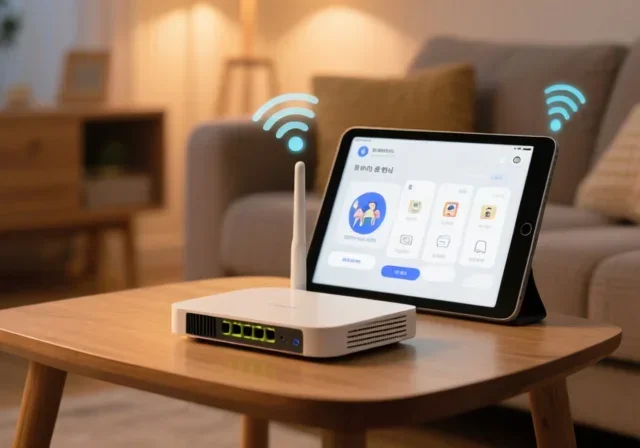
When you plug your router in and connect it to the modem, the router starts broadcasting a wireless signal. This signal is like an invisible bubble that extends outward from the device. Your phones, laptops, and smart devices pick up this signal and connect to the home network.
The router uses radio frequencies to send and receive data. Most modern routers operate on two bands:
- 2.4 GHz band: This band has a longer range but slower speeds. It works well for basic browsing and connecting devices that are far from the router.
- 5 GHz band: This band offers faster internet speed but has a shorter range. It is great for streaming, gaming, and devices that are close to the router.
Routers that support both bands are called dual band routers. They give you the best of both worlds. You can connect close devices to the fast 5 GHz band and distant devices to the reliable 2.4 GHz band.
The wireless signal can be affected by walls, floors, furniture, and other obstacles. This is why where you place your router matters so much. We will cover placement tips in a later section.
Types of Routers You Can Buy
Not all routers are created equal. The market is full of options, and choosing the right one can feel overwhelming. Let me break down the main types so you can make a confident decision.
Single-Band Routers
These are the most basic and affordable routers. They operate on the 2.4 GHz band only. They work fine for light internet use, but they can get crowded in homes with many devices. If you live alone or with one other person and only browse the web and check email, a single-band router might be enough.
Dual-Band Routers
These routers offer both 2.4 GHz and 5 GHz bands. They are the most popular choice for families and home offices. The dual WiFi bands let you spread out your devices and get better performance. Most wireless routers in the mid-range price bracket are dual-band.
Tri-Band Routers
Tri-band routers add a second 5 GHz band on top of the standard setup. This is ideal for large households with many connected devices. If you have a smart home with dozens of gadgets, a tri-band router can handle the load much better.
Mesh WiFi Systems
Mesh systems are a step above traditional routers. They use multiple units placed around your home to create seamless WiFi coverage. There are no WiFi dead zones because the units work together to blanket your entire house with a strong signal.
Popular mesh systems include Google Nest WiFi, Eero, TP-Link Deco, and Netgear Orbi. These are more expensive than standard routers, but they solve the router range problem that plagues many homes.
WiFi Extenders and Boosters
If you already have a router but it does not reach every room, a WiFi extender can help. These devices pick up your existing signal and rebroadcast it to areas that are hard to reach. They are not as powerful as a full mesh system, but they are a budget-friendly fix for WiFi coverage issues.
Setting Up Your Router for WiFi
Setting up a wireless router is much easier than most people think. You do not need to be a tech expert. Here is a simple step-by-step guide to get your home network running.
Step 1: Place Your Router in a Central Location
Where you put your router has a huge impact on your WiFi signal. Ideally, place it in the center of your home. Keep it elevated, like on a shelf or a table. Avoid hiding it inside a closet or behind furniture. Walls and metal objects block the wireless signal and weaken your WiFi coverage.
Step 2: Connect the Modem to the Router
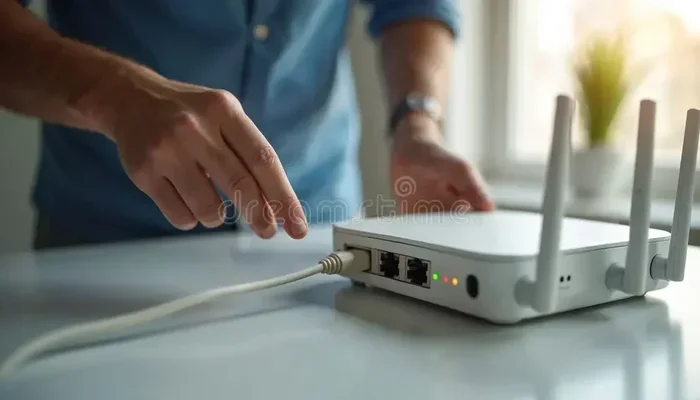
Use the Ethernet cable that came with your router. Plug one end into the modem and the other end into the router’s WAN or Internet port. This creates the link between your internet source and your wireless network.
Step 3: Power Everything On
Plug in your modem first. Wait about one to two minutes for it to fully start up. Then plug in your router and wait for the lights to stabilize. The power light and the internet light should show a steady glow.
Step 4: Configure Your Router
Open a web browser on your phone or computer. Type in the router’s default IP address, which is usually printed on a sticker on the router itself. Common addresses are 192.168.1.1 or 192.168.0.1. Follow the on-screen prompts to set your WiFi name, WiFi password, and network settings.
Choose a strong password that you can remember but others cannot guess. This keeps your home network secure from unwanted visitors.
Step 5: Connect Your Devices
Once the router is set up, go to the WiFi settings on your phone, laptop, or tablet. Find your new network name, enter the password, and connect. You should be online within seconds.
Repeat this for every device you want to connect. Most routers allow many devices at once, but too many connections can slow down your internet speed.
Quick Tips for Better Setup
- Update your router’s firmware right after setup. This fixes bugs and improves security.
- Change the default admin password to something unique.
- Name your network something recognizable so you can find it easily.
- Keep your router in a well-ventilated area to prevent overheating.
Common Mistakes That Keep WiFi from Working
Even when you have everything in place, small mistakes can prevent your WiFi connection from working properly. Here are the most common ones I see.
Placing the Router in a Bad Spot
I cannot stress this enough. Where you put your router matters. Putting it in a corner, in a basement, or behind a TV cabinet kills your wireless signal. Keep it out in the open, centered in your home, and elevated off the floor.
Not Paying Your Internet Bill
This sounds obvious, but it happens more often than you think. If your ISP plan is not active or you have missed a payment, your broadband connection goes down. Your router will still broadcast a network, but it will have no internet to share. Always make sure your internet service provider account is in good standing.
Using an Old or Outdated Router
Older routers may not support modern internet speed standards. If your router is more than five years old, it might be time for an upgrade. Newer routers support faster WiFi standards like WiFi 6, which delivers noticeably better performance.
Connecting Too Many Devices
Every device connected to your network uses bandwidth. If you have twenty smart home devices, multiple phones, laptops, tablets, and streaming boxes all connected at once, your internet speed will suffer. Consider upgrading your plan or getting a more powerful router if you have a lot of devices.
Ignoring Interference from Other Devices
Microwaves, baby monitors, cordless phones, and even neighboring routers can interfere with your wireless signal. If your WiFi is slow or drops frequently, try changing your router’s channel in the network settings. Switching to the 5 GHz band can also reduce interference.
When Should You Buy a New Router?
You do not need to buy a new router every year. But there are clear signs that it is time for an upgrade. If your WiFi coverage has gotten worse, if your internet speed feels slower than what your plan promises, or if your router cannot handle the number of devices in your home, it is time to shop for a new one.
Also, if you have moved to a bigger house, your old router might not reach everywhere anymore. A mesh WiFi system or a higher-powered router can solve this problem and eliminate WiFi dead zones in your home.
Buying a wireless router is a worthwhile investment. It gives you more control over your home network, better security, and often faster internet speed than the equipment your ISP provides for free.
Final Thoughts
Can You Just Buy A Router And Have Wifi Right Here at home? Yes, you can. But you need more than just the router box. You need an active internet plan, a modem to bring the signal in, and a bit of patience during setup. Once you have all of that in place, you will enjoy a strong WiFi connection throughout your home.
The process is simpler than most people expect. You do not need to be a networking expert. Just follow the steps, place your router in a good spot, and enjoy the freedom of wireless networking. With the right equipment and a little know-how, you will be online and connected in no time.
Take the time to understand your home network. Learn what your router can do, how to optimize your WiFi coverage, and when it is time to upgrade. This knowledge will save you money, frustration, and hours of troubleshooting in the long run.
Now that you know the full picture, you are ready to make the right choice for your home. Buy the right equipment, set it up properly, and enjoy seamless WiFi every single day.
Frequently Asked Questions
Do I need an internet plan if I just buy a router?
Yes, you absolutely do. A router by itself creates a local network, but it cannot provide internet access without an active connection from an ISP. You need both a modem and an internet plan for the router to distribute web access to your devices.
Can I use my own router instead of the one my ISP provides?
Yes, you can. In fact, buying your own wireless router often gives you better performance, more features, and can save you money on monthly rental fees. Just make sure the router is compatible with your ISP before you purchase it.
Why is my WiFi signal weak in some rooms?
This usually happens because of router placement, thick walls, or distance from the router. Moving your router to a central, elevated location can improve WiFi coverage significantly. If the problem persists, a WiFi extender or a mesh WiFi system can help eliminate weak spots.
What is the difference between WiFi and the internet?
The internet is the global network that connects you to websites, streaming services, and online content. WiFi is the wireless signal your router broadcasts inside your home. Your devices use WiFi to access the internet, but WiFi itself is not the same as the internet connection coming into your house.
How many devices can one router handle?
Most modern routers can handle between 20 and 50 devices at once. However, the more devices you connect, the more your internet speed may drop. If you have a large household with many connected gadgets, consider a dual-band or tri-band router for better performance.
Do I need to restart my router regularly?
Restarting your router once a month or so can help keep things running smoothly. It clears the memory and refreshes your network settings. If you notice slow speeds or connection issues, a quick restart often fixes the problem without any technical knowledge.