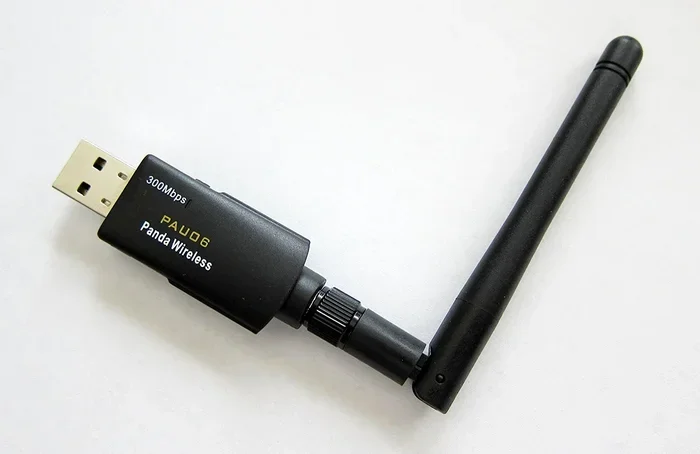
Can You Get Wi Fi On A Usb For Wireless Connectivity
Yes, you can absolutely get Wi-Fi on a USB device using a USB Wi-Fi adapter or dongle. These small plug-and-play tools turn any computer into a wireless-enabled device in seconds. Whether you need internet on a desktop, an older laptop, or a smart TV, a USB Wi-Fi solution works fast. This guide covers everything from choosing the right adapter to setting up your wireless connection step by step. You will learn about speed options, compatibility, and expert tips for the best performance.
Have you ever sat down at a desktop computer and realized it has no Wi-Fi capability? Maybe you are using an older laptop that lacks a built-in wireless card. Or perhaps you need internet on a device that only has a USB port. The good news is that you can get Wi-Fi on a USB device with a simple adapter. A USB Wi-Fi adapter solves this problem quickly and affordably.
In this guide, we will walk you through everything you need to know about using a USB Wi-Fi dongle for wireless connectivity. You will learn how these devices work, which type to choose, and how to set them up in minutes. By the end, you will feel confident picking the right adapter for your needs. Let us dive in and explore how you can bring wireless connectivity to any device with a USB port.
Key Takeaways
- USB Wi-Fi adapters are affordable and easy to use: They plug directly into any available USB port and deliver instant wireless connectivity.
- Multiple types exist for different needs: From basic USB Wi-Fi dongles to dual-band wireless adapters, there is a solution for every user.
- Setup is simple and fast: Most devices work plug-and-play without needing complex installation or technical skills.
- Speed and range vary by adapter type: Choosing the right Wi-Fi receiver ensures you get the best internet performance for your needs.
- USB Wi-Fi works on many devices: Desktops, laptops, smart TVs, and even gaming consoles can benefit from a USB network adapter.
- Common mistakes can slow your connection: Avoiding placement issues and choosing the right band makes a big difference.
📑 Table of Contents
- What Is a USB Wi-Fi Adapter and How Does It Work?
- Can You Get Wi-Fi on Any USB Device?
- How to Choose the Right USB Wi-Fi Adapter
- Setting Up Your USB Wi-Fi Adapter
- Common Mistakes People Make with USB Wi-Fi Adapters
- USB Wi-Fi Adapters vs. Other Wireless Solutions
- Frequently Asked Questions About Wi-Fi on USB
- Final Thoughts on Getting Wi-Fi Through USB
What Is a USB Wi-Fi Adapter and How Does It Work?
A USB Wi-Fi adapter is a small device that plugs into a USB port and allows your computer to connect to a wireless network. Think of it as a tiny wireless receiver that catches the wireless signal from your router. It acts as a network adapter, replacing the need for a built-in Wi-Fi card. Most models are small enough to stay plugged in permanently without blocking other ports.
The way it works is straightforward. Your router broadcasts a wireless signal through the air. The USB adapter picks up that signal and translates it into data your computer can understand. In return, it sends your data back to the router. This two-way communication happens fast, giving you access to the internet without any cables. The process is called wireless connectivity, and it has become the standard way people get online.
Types of USB Wi-Fi Adapters
Not all USB Wi-Fi adapters are the same. Different types serve different purposes. Here is a quick look at the most common options:
- Basic USB Wi-Fi dongle: Small and cheap. Great for simple browsing and email. These usually support the 2.4 GHz band and offer decent speeds for light use.
- Dual-band USB Wi-Fi adapter: Supports both 2.4 GHz and 5 GHz bands. This gives you more flexibility and faster speeds, especially in crowded areas with many networks nearby.
- High-performance USB Wi-Fi dongle: Designed for gaming or heavy streaming. These adapters offer the fastest speeds and the strongest range.
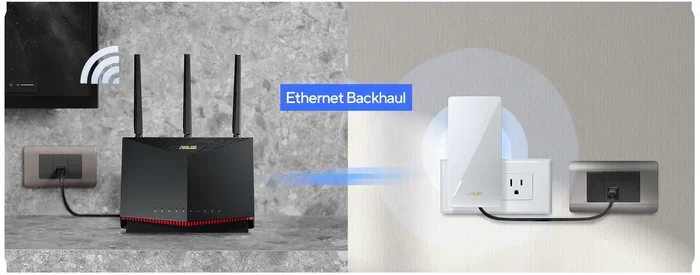
- USB Wi-Fi extender: Boosts an existing wireless signal and extends its reach. Useful if your router is far from your workspace.
Can You Get Wi-Fi on Any USB Device?
The short answer is yes, with some conditions. Most computers and laptops with a free USB port can use a USB Wi-Fi adapter. However, the device you plug it into needs to support the adapter. For example, a Windows PC, a Mac, or even a Linux machine can all use a USB Wi-Fi dongle. Smart TVs and streaming devices sometimes support them too, but you need to check compatibility first.
Here are some common devices that work well with a USB network adapter:
- Desktop computers without built-in Wi-Fi
- Older laptops that only have Ethernet ports
- Mini PCs and Chromeboxes
- Smart TVs with USB ports
- Raspberry Pi and other single-board computers
The key is to check whether the device recognizes the adapter. Most modern operating systems include drivers for popular Wi-Fi adapters out of the box. This means you can plug it in and start using it right away. Older systems might need a driver download, but this process is usually simple and free.
What About USB Tethering?
Another way to get Wi-Fi through a USB connection is called USB tethering. This method uses your smartphone’s mobile data connection and shares it with your computer through a USB cable. While this is not the same as a Wi-Fi dongle, it achieves a similar goal. You get internet on your computer using a USB link to your phone.
USB tethering works well in a pinch. It is fast and reliable because you use a direct cable connection. However, it drains your phone battery and uses your mobile data plan. It is best for temporary use rather than a long-term solution. If you need constant wireless connectivity, a dedicated USB Wi-Fi adapter is a much better choice.
How to Choose the Right USB Wi-Fi Adapter
With so many options on the market, picking the right USB Wi-Fi adapter can feel overwhelming. But it does not have to be. You just need to know what to look for. Here are the most important factors to consider before buying.
Speed and Band Support
Speed matters if you stream videos, play games, or download large files. Look for an adapter that supports at least Wi-Fi 5 (802.11ac) or Wi-Fi 6 (802.11ax). These standards offer much faster speeds than older versions. A dual-band adapter gives you the option to switch between 2.4 GHz and 5 GHz bands depending on your needs.
The 2.4 GHz band covers a wider range but is slower. The 5 GHz band is faster but has a shorter range. For most users, a dual-band USB Wi-Fi adapter is the best balance of speed and coverage.
Size and Portability
Some USB Wi-Fi dongles are tiny and barely stick out of the port. Others are bulkier and may block nearby ports. If you need to keep the adapter plugged in all the time, choose a compact design. Some adapters come with a USB extension cable so you can place them away from the computer for better signal reception.
Compatibility and Operating System Support
Before you buy, make sure the adapter works with your operating system. Most adapters support Windows and macOS. Some also work with Linux and Chrome OS. Check the manufacturer’s website for a full list of supported systems. This one step saves you from buying an adapter that does not work with your device.
Price Range
USB Wi-Fi adapters come in a wide price range. Basic models cost as little as $10 to $15. Mid-range dual-band adapters run between $20 and $40. High-end models with the latest Wi-Fi standards can cost $50 or more. You do not need to spend a lot to get good performance for everyday tasks. A budget-friendly Wi-Fi receiver handles browsing, email, and light streaming with ease.
Setting Up Your USB Wi-Fi Adapter
Setting up a USB Wi-Fi adapter is easier than most people think. In most cases, you can be online in under five minutes. Here is a simple step-by-step guide to get you started.
- Plug the adapter into a free USB port. A rear USB port on a desktop works best because it gives a stronger signal.
- Wait for your computer to recognize the device. Most modern systems install drivers automatically.
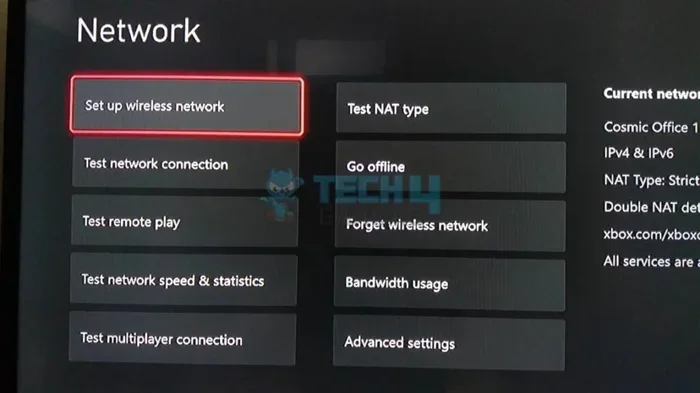
- Open your Wi-Fi settings. You should see the adapter listed as a new network option.
- Select your Wi-Fi network and enter your password. Just like connecting any other device.
- Test your connection. Open a browser and visit a website to confirm everything works.
If your computer does not recognize the adapter right away, do not panic. Try a different USB port or restart your computer. Some adapters come with a driver CD or a download link on the manufacturer’s website. Follow the instructions provided, and you will be online in no time.
Quick Tips for Best Performance
- Place the adapter near a window for the strongest wireless signal reception.
- Avoid plugging the adapter into a USB hub if possible. A direct connection to the computer gives better results.
- Use the 5 GHz band for streaming and gaming. Use the 2.4 GHz band for general browsing.
- Keep your adapter’s drivers updated for the best internet speed and stability.
- If you experience slow speeds, try switching the USB port or moving the adapter closer to your router.
Common Mistakes People Make with USB Wi-Fi Adapters
Even though setting up a USB Wi-Fi dongle is simple, some common mistakes can cause problems. Knowing what to avoid saves you time and frustration.
Using a cheap, low-quality adapter: A very cheap adapter might seem like a good deal, but it often delivers poor speeds and weak signals. Stick to reputable brands and read reviews before buying.
Ignoring driver updates: Outdated drivers can cause slow speeds or connection drops. Check for updates regularly, especially after a major operating system update.
Plugging the adapter into a USB hub: USB hubs can weaken the signal and reduce performance. Plug the adapter directly into the computer whenever possible.
Choosing the wrong band: If your router supports both bands, make sure you connect to the right one. The 5 GHz band is faster but has a shorter range. The 2.4 GHz band reaches farther but is slower.
Placing the adapter in a bad location: Walls, metal objects, and other electronics can block the wireless signal. Keep the adapter in an open area for the best results.
Expert Insight: Why a USB Wi-Fi Adapter Beats Built-in Options
Many people wonder why they should buy a USB Wi-Fi adapter when their device already has Wi-Fi built in. The answer comes down to flexibility and performance. A USB network adapter lets you upgrade an older device without opening the case or replacing internal components. It also gives you the freedom to move the adapter between devices. Need internet on your desktop today and your laptop tomorrow? Just unplug and plug in.
Some USB Wi-Fi adapters even outperform built-in wireless cards. This is especially true for newer adapters that support the latest Wi-Fi standards. A high-quality Wi-Fi receiver can deliver faster speeds and better range than the average built-in card that came with your computer years ago.
USB Wi-Fi Adapters vs. Other Wireless Solutions
There are several ways to get wireless connectivity on a device. A USB Wi-Fi adapter is just one option. Let us compare it with other popular solutions so you can make an informed choice.
| Feature | USB Wi-Fi Adapter | Built-in Wi-Fi | Mobile Hotspot | Wi-Fi Extender |
|---|---|---|---|---|
| Ports needed | 1 USB port | None (built-in) | None (uses phone data) | 1 USB or wall outlet |
| Portability | High | None (fixed) | High | Medium |
| Speed | Fast (varies by model) | Fast (varies by device) | Moderate | Good |
| Cost | $10 to $60 | Included | Uses phone data plan | $15 to $50 |
| Setup ease | Very easy | Already set up | Easy | Easy to moderate |
| Best for | Desktops, older laptops | Newer laptops | Temporary use | Extending existing Wi-Fi |
As you can see, a USB Wi-Fi adapter offers a great balance of cost, portability, and performance. It is the go-to choice for anyone who needs wireless connectivity on a device that does not have it built in.
Frequently Asked Questions About Wi-Fi on USB
Can I use any USB Wi-Fi adapter with my computer?
Most USB Wi-Fi adapters work with Windows, macOS, and Linux systems. However, you should always check the manufacturer’s compatibility list before buying. Some adapters are designed specifically for certain operating systems. Plugging in an incompatible adapter will not give you the wireless connectivity you need.
Does a USB Wi-Fi adapter slow down my computer?
No, a USB Wi-Fi adapter does not slow down your computer. In fact, it can improve your connection if your built-in Wi-Fi card is old or weak. The adapter uses minimal processing power and does not affect your computer’s overall performance.
What is the difference between a USB Wi-Fi dongle and a USB Wi-Fi adapter?
The terms are often used interchangeably. Both refer to a small device that plugs into a USB port and adds wireless connectivity to your computer. Some people use “dongle” for smaller, simpler models and “adapter” for more advanced devices with better range and speed.
Can I use a USB Wi-Fi adapter on a smart TV?
Some smart TVs with USB ports support external Wi-Fi adapters. However, compatibility varies by brand and model. Check your TV’s manual or the manufacturer’s website to see if it supports third-party adapters. If it does, a USB Wi-Fi dongle can give your smart TV a stronger and more reliable connection.
Do I need to install drivers for a USB Wi-Fi adapter?
Most modern adapters are plug-and-play and do not require manual driver installation. Windows 10 and 11, for example, automatically install drivers when you plug in a new device. If your system does not recognize the adapter, visit the manufacturer’s website to download the latest drivers. This is a quick and easy process.
How far can a USB Wi-Fi adapter reach from the router?
The range depends on the adapter and the environment. A basic Wi-Fi receiver might reach 30 to 50 feet indoors. A high-performance dual-band adapter can reach 100 feet or more. Walls, floors, and other obstacles reduce the range. Placing the adapter near a window or in an open area helps maximize your wireless signal.
Final Thoughts on Getting Wi-Fi Through USB
Getting Wi-Fi on a USB device is simple, affordable, and incredibly useful. Whether you are upgrading an old desktop, fixing a broken Wi-Fi card, or adding connectivity to a smart TV, a USB Wi-Fi adapter gets the job done. These small devices deliver big results and take only minutes to set up.
The key is choosing the right adapter for your needs. Consider your speed requirements, the devices you use, and your budget. A basic USB Wi-Fi dongle handles everyday tasks just fine. A dual-band or high-performance adapter is better for streaming, gaming, and heavy downloads.
Remember the quick tips we covered. Keep your drivers updated, place the adapter in a good location, and choose the right Wi-Fi band. Avoid the common mistakes that slow down your connection. With the right setup, you will enjoy fast, reliable wireless connectivity from any device with a USB port.
Now you know the answer to the question: can you get Wi-Fi on a USB device? The answer is a clear yes. Pick up a USB Wi-Fi adapter today, plug it in, and enjoy the freedom of wireless internet wherever you go.