Can You Generate A QR Code For Wi Fi Without Any Apps
Yes, you can generate a QR code for Wi-Fi without any apps. You can use free online tools, built-in smartphone features, or simple HTML to create a scannable code that shares your network name and password instantly. This guide shows you exactly how to do it, step by step, with no downloads required.
Yes, you can generate a QR code for Wi-Fi without any apps. You do not need to download a single program or visit an app store. A few simple tools built into your browser or phone can create a scannable code that shares your network name and password in a flash. Whether you are hosting a party, welcoming guests to your office, or setting up a smart home device, a QR code for Wi-Fi makes the process effortless. This guide walks you through every method, so you can share your connection in seconds.
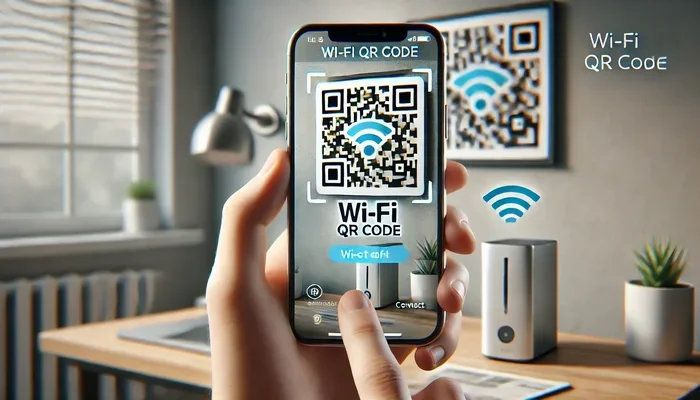
Imagine a friend walking into your home. Instead of mumbling your Wi-Fi password or squinting at a tiny label on the router, you hand them a printed card or show them a screen. They point their phone camera at the code, tap a notification, and they are connected. That is the power of a Wi-Fi QR code. No typing, no errors, no frustration. The whole process takes less than a minute once you know how.
You might think creating such a code requires a fancy app or a paid service. That is not true. Many free options exist right inside the tools you already use. This article will show you how to make a QR code for Wi-Fi without installing anything extra. We will cover web-based generators, built-in smartphone features, and even a simple HTML trick. By the end, you will have everything you need to share your network instantly and safely.
Sharing your Wi-Fi password out loud or in a text message can feel risky. A QR code for Wi-Fi keeps your credentials hidden yet easy to use. You can print the code, display it on a TV screen, or add it to a welcome booklet. Guests simply scan and connect. It is a small change that makes a big difference in guest experience. Let us dive into the details.
## What Is a QR Code for Wi-Fi and Why Use It?
A QR code for Wi-Fi is a special two-dimensional barcode that stores your network name (SSID) and password. When someone scans it with their phone camera, the device reads the code and automatically offers to join that network. You do not need to type anything. The phone handles the connection instantly.
### How QR Codes Store Wi-Fi Credentials
The code contains a specific text format that phones understand. It usually looks like this: `WIFI:T:WPA;S:YourNetworkName;P:YourPassword;;`. The letters T, S, and P stand for the security type, the network name, and the password. Your phone’s camera app or a built-in scanner reads this string and fills in the connection details automatically. This is why you do not need any extra app. The phone already knows how to read this format.
### Benefits of Sharing Wi-Fi via QR Code
Using a Wi-Fi QR code has many advantages. First, it eliminates typos. People often make mistakes when typing long passwords with uppercase letters, numbers, and symbols. Second, it speeds up the process. A guest can connect in two seconds. Third, it looks professional. A printed QR code on a nice card or frame shows you are organized. Fourth, it keeps your password private. You can change the code whenever you want without reprinting a long string of characters.
## Can You Generate a QR Code for Wi-Fi Without Any Apps?
The short answer is yes. You can create a QR code for Wi-Fi without downloading any application. The methods rely on web browsers, built-in phone features, or simple code. You do not need a separate QR generator app. Let us look at the three main ways you can do this right now.
### Using Online Generators on Desktop
Open your web browser on a computer. Visit any free QR code generator online. Type your network name and password into the fields. The tool builds the code for you instantly. You can download the image as a PNG or SVG file. This method works on Windows, Mac, or Linux. You do not need to install anything. The website runs in your browser.
### Using Built-in Smartphone Features
Both iPhones and Android phones now have native ways to share Wi-Fi as a QR code. On iPhone, you can use the Shortcuts app, which comes pre-installed. On Android, many phones have a built-in Wi-Fi sharing QR feature in the settings. These methods do not require you to visit a website or download a third-party tool. Your phone does all the work.
### Creating QR Codes with Simple HTML
If you know a little bit of HTML, you can create a QR code directly in a web page. You can use a free JavaScript library like QRCode.js. You write a few lines of code, open the file in your browser, and the code appears on screen. You can then save a screenshot or print the page. This method is perfect for tech-savvy users who want full control over the design.
## Step-by-Step: How to Create a Wi-Fi QR Code Without Apps
Let us walk through each method in detail. You can pick the one that suits your situation best. All of these methods are free and require no app installation.
### Method 1: Free Online QR Generators
This is the easiest and most popular way to create a QR code for Wi-Fi. Follow these steps:
1. Open your web browser and go to a free QR code generator online. Examples include qr-code-generator.com, qrcode-monkey.com, or goqr.me.
2. Look for the Wi-Fi option. Many sites have a dedicated tab for it.
3. Enter your network name (SSID). Make sure it is exact.
4. Enter your Wi-Fi password.
5. Choose the security type (WPA, WEP, or None). WPA2 is most common today.
6. Click Generate or Create.
7. Download the QR code image. Save it as a PNG file.
8. Print it or display it on your screen.
You can also customize the code. Many generators let you change the color, add a logo, or adjust the size. This is a great way to make the code match your brand or home decor.
### Method 2: Google Chrome’s Built-in Feature
If you use Google Chrome on Android or desktop, you might already have a built-in way to share Wi-Fi. On Android, Chrome can create a QR code for the current Wi-Fi network you are connected to. Here is how:
1. Connect your Android phone to the Wi-Fi network you want to share.
2. Open Chrome and tap the three-dot menu.
3. Tap Share or Find and share.
4. Look for an option to share the Wi-Fi network. Chrome will generate a QR code on screen.
5. Take a screenshot or use the share button to send it to others.
This method is super quick. You do not need to type anything. The phone reads the current network details and builds the code automatically.
### Method 3: iPhone’s Shortcuts App (Built-in)
iPhone users can use the Shortcuts app, which comes free with every iOS device. This is not a third-party app. It is a built-in automation tool. Follow these steps:
1. Open the Shortcuts app on your iPhone.
2. Tap the plus icon to create a new shortcut.
3. Tap Add Action.
4. Search for “QR code” and select the Make QR Code action.
5. In the text field, type the Wi-Fi string: `WIFI:T:WPA;S:YourNetworkName;P:YourPassword;;`
6. Tap Next and give the shortcut a name like “Share Wi-Fi.”
7. Tap the Play button to run the shortcut.
8. A QR code will appear on screen. You can save it to your photos or share it directly.
This method is completely offline. You do not need internet access to generate the code. It is a powerful no app QR code solution for iPhone users.
### Method 4: Android’s Native Wi-Fi QR Sharing
Many modern Android phones have a built-in Wi-Fi QR sharing feature. It is often hidden in the Wi-Fi settings. Here is how to find it:
1. Go to Settings on your Android phone.
2. Tap Network & Internet or Connections.
3. Tap Wi-Fi.
4. Find the network you are currently connected to.
5. Tap the gear icon or tap Share.
6. A QR code will appear on screen. You can scan it with another phone or save a screenshot.
This method is the most seamless on Android. It works without any extra app. The phone handles everything for you. It is a perfect example of a smartphone Wi-Fi sharing feature.
## Comparison Table: Online Generators vs. Built-in Methods
Here is a quick look at how the different methods compare. Use this table to decide which one fits your needs.
| Feature | Online Generators | Built-in Phone Methods |
|---|---|---|
| Need to download an app? | No | No |
| Works offline? | No (needs internet) | Yes (most methods) |
| Customization options | High (colors, logos, sizes) | Low (default design) |
| Speed | Fast | Very fast |
| Works on any device? | Yes (any browser) | Only on that phone |
| Privacy level | Depends on the site | High (local only) |
## Quick Tips for Designing and Using Wi-Fi QR Codes
A Wi-Fi QR code is only useful if people can scan it easily. Here are some quick tips to make your code work perfectly every time.
### Customizing Your QR Code
You can make your QR code look great without breaking it. Use a free online tool to add a center logo, change the color scheme, or round the corners. Just keep the contrast high. Dark modules on a light background work best. Avoid making the code too small. A minimum size of 2×2 inches on paper is ideal. If you display it on a screen, make sure it fills a good portion of the screen.
### Testing Before Sharing
Always test your code before you share it widely. Scan it with your own phone and with a friend’s phone. Make sure it connects to the correct network and the password is accepted. If you change your Wi-Fi password later, you must generate a new code. You can also place a small note under the code that says “Scan to connect.” This helps people who are not familiar with QR codes.
## Common Mistakes to Avoid When Generating Wi-Fi QR Codes
Even though the process is simple, people sometimes make avoidable errors. Here are a few common mistakes and how to prevent them.
– Using the wrong security type. If your network uses WPA2 but you select WEP or None, the code will fail. Always double-check the security type in your router settings.
– Typos in the network name or password. A single wrong letter will prevent connection. Copy and paste the details from your router if possible.
– Making the code too small. A tiny QR code is hard to scan. Print it large enough or display it prominently on a screen.
– Sharing the code on a public website without a guest network. If you put your home Wi-Fi QR code on a public blog, anyone can access your network. Use a guest network for visitors.
– Not updating the code when the password changes. If you change your Wi-Fi password, the old code will no longer work. Generate a new one and replace the old printouts.
– Using a low-quality generator. Some free sites add tracking or watermark their codes. Stick to reputable QR code generator online tools that do not store your data.
## Expert Insights: Why Businesses Love Wi-Fi QR Codes
Many businesses have adopted Wi-Fi QR codes to improve customer experience. Coffee shops, hotels, restaurants, and offices use them every day. A guest Wi-Fi QR code on the table or at the reception desk lets customers connect without asking staff for the password. This reduces wait times and frees up employees.
For businesses, a business Wi-Fi login QR code also looks professional. It shows that the company is tech-savvy and cares about convenience. You can design the code to match your brand colors and add your logo in the center. Some businesses even place the QR code on receipts or menus. It is a subtle but effective way to keep customers connected.
Experts also note that a digital QR code for router setup is useful for smart home devices. Many IoT gadgets require you to connect them to Wi-Fi through an app. A QR code can simplify this process. You just scan the code during setup, and the device joins the network automatically. This is a huge time-saver for smart home enthusiasts.
## Conclusion
Generating a QR code for Wi-Fi without any apps is easier than you think. You can use a free online tool, a built-in smartphone feature, or a simple HTML page. All of these methods are quick, free, and require no downloads. A Wi-Fi QR code makes life simpler for you and your guests. It eliminates password errors, speeds up connections, and looks professional.
Now you know how to create and share a QR code for Wi-Fi in minutes. Try one of the methods today. Print a code for your living room, your office lobby, or your next event. You will wonder how you ever managed without it. A small code can make a big difference in everyday convenience.
Key Takeaways
- You don’t need any app: You can create a Wi-Fi QR code using a web browser or built-in phone features.
- Quick sharing: Guests can connect in seconds by just scanning the code.
- Multiple free methods: Online generators, Chrome, iPhone Shortcuts, and Android native sharing all work without extra software.
- Customization is possible: You can add a logo, change colors, and size the QR code to fit your needs.
- Security matters: Always test the code and avoid sharing your password publicly without a guest network.
- Great for businesses: A Wi-Fi QR code improves customer experience and reduces help-desk questions.
Frequently Asked Questions
Do I need a special app to scan a Wi-Fi QR code?
No, most modern smartphones can scan Wi-Fi QR codes using their built-in camera app. You do not need to install any extra software. Just point the camera at the code and tap the notification that appears.
Is it safe to share a Wi-Fi QR code with guests?
It is safe if you use a guest network. A guest network keeps your main network and personal devices separate. You can change the guest password anytime without affecting your primary connection.
Can I create a Wi-Fi QR code offline?
Yes, you can create a Wi-Fi QR code offline using the iPhone Shortcuts app or Android’s built-in sharing feature. These tools work entirely on your device without needing an internet connection.
What format should the QR code image be in?
PNG format is the most common and widely supported. SVG format is also great if you need to scale the code to different sizes without losing quality. Both are free to download from most online generators.
Can I customize the design of my Wi-Fi QR code?
Yes, many free online generators let you change colors, add a logo, and adjust the size. Just make sure the code remains scannable by keeping enough contrast and not covering the corners with your logo.
How do I find my Wi-Fi network name and password?
You can usually find the network name (SSID) and password on a sticker on your router. You can also log in to your router’s admin panel through a web browser to view the current credentials.