Can You Connect A Usb Mic To A Phone And Start Recording
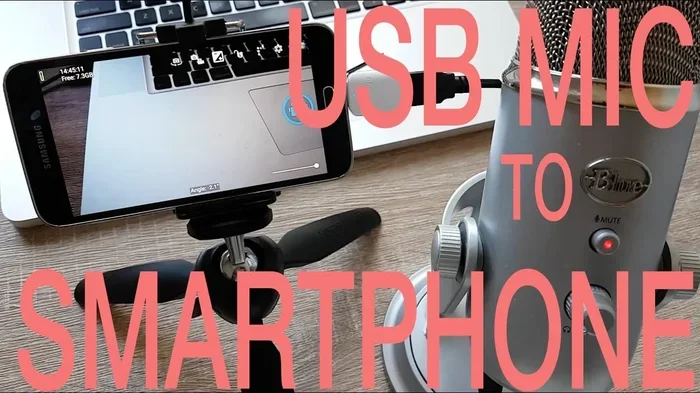
Yes, you can connect a USB mic to a phone and start recording right away. With the right adapter and a compatible device, your smartphone becomes a powerful recording studio. This guide covers everything from USB mic phone connection to the best apps, adapters, and tips for mobile podcasting success.
You have a great USB microphone sitting on your desk. You also have a powerful smartphone in your pocket. So why not use them together? The answer to can you connect a USB mic to a phone is a clear yes. But the “how” matters a lot.
Whether you want to record podcasts, voiceovers, or music on the go, connecting an external microphone to your phone opens up a world of possibilities. You no longer have to settle for the thin, hollow sound of your phone’s built-in mic. A good USB microphone can transform your audio quality in seconds.
In this guide, we walk you through every step. We cover compatibility, adapters, apps, and common pitfalls. By the end, you will know exactly how to set up your own USB mic phone connection and start recording like a pro.
Key Takeaways
- USB mics work with phones: You just need the right adapter or cable to make the USB mic phone connection seamless.
- Compatibility matters: Check if your phone supports USB-C or Lightning before buying gear.
- Apps make it easy: Many free and paid voice recording apps work perfectly with external USB microphones for mobile use.
- Audio quality improves: A dedicated USB microphone for smartphone setups delivers far better sound than built-in mics.
- Plug and play is real: Many modern USB microphones connect instantly without extra drivers.
- Avoid common mistakes: Using the wrong adapter or ignoring app settings can cause frustration.
📑 Table of Contents
Can You Connect A Usb Mic To A Phone And Start Recording?
The short answer is yes. Most modern smartphones support USB audio input through adapters. This means your phone can receive digital audio signals from a USB microphone just like a computer does.
But there is a catch. Not every phone handles USB microphones for mobile the same way. Some need a special cable. Others require a specific app. And a few older models may not support it at all. The good news is that most phones made in the last five years work great with the right setup.
The process of connect USB mic to phone is simpler than most people think. You plug in the adapter, connect the mic, and open a recording app. That is really it. Of course, there are details to get right, and we will cover all of them below.
Why Use a USB Mic with Your Phone?
Your phone’s built-in microphone does a decent job for casual videos. But when you need clean, professional audio, it falls short. A USB microphone for smartphone recording offers several clear advantages.
- Better audio quality: USB mics have larger diaphragms and better preamps. They capture richer, more detailed sound.
- Reduced background noise: Many USB microphones have built-in noise cancellation. This is huge for outdoor recordings.
- Consistent performance: Built-in mics pick up every touch and tap on the phone. A dedicated external microphone avoids this problem.
- Plug and play: Many modern USB microphones work instantly. No drivers, no software installs.
- Portability: You can carry a compact USB mic in your bag and record anywhere.
Understanding Phone Compatibility
Before you buy anything, you need to know what kind of phone you have. Not all phones accept USB audio the same way. Mic compatibility depends on your phone’s port and operating system.
USB-C Phones
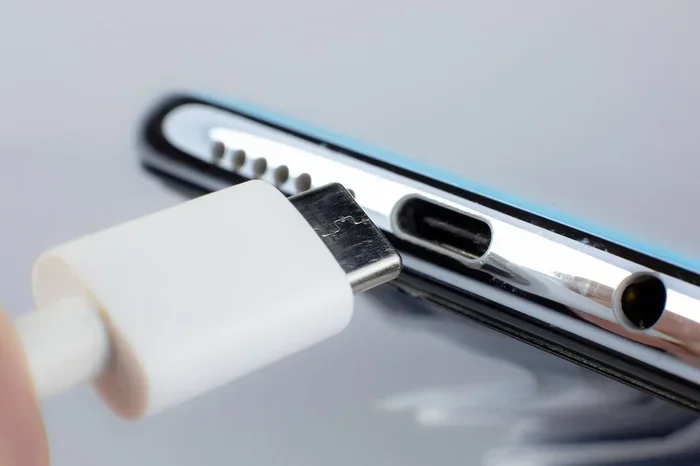
Most Android phones made after 2018 use USB-C. These phones generally support USB audio devices right out of the box. You plug in a USB-C to USB-A adapter, connect your mic, and you are ready to go.
Some phones even support USB-C microphones directly, without any adapter at all. Check your phone’s specifications to confirm. Look for terms like “USB audio support” or “OTG compatible.”
Lightning Port Phones
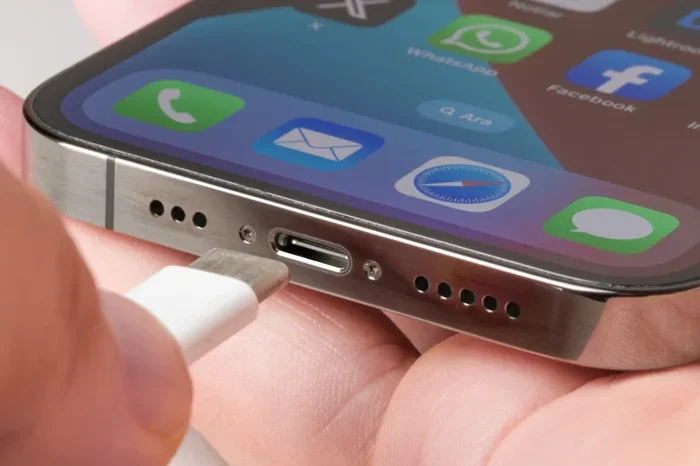
If you have an iPhone, you deal with the Lightning port. Apple does not support raw USB audio input through Lightning natively. You need a special adapter, such as the Lightning to USB 3 Camera Adapter. This adapter provides the power and data connection needed for most USB microphones for mobile devices.
Some Lightning-compatible USB mics exist too. Brands like Shure and Rode make mics that plug directly into iPhones using a Lightning cable. These are great for mobile podcasting on the go.
Older Phones and Micro-USB
If your phone uses a Micro-USB port, you can still connect a USB microphone. You will need a Micro-USB to USB-A adapter. However, support varies widely. Some older phones lack the processing power or software support for digital audio input.
Before buying any adapter, check online forums for your specific phone model. Other users have usually tested USB mic phone connection compatibility already.
What You Need to Get Started
Setting up a USB mic phone connection requires just a few pieces of gear. You do not need anything expensive to get started. Here is a simple list of what you need.
The USB Microphone
Choose a USB microphone that fits your needs. For podcasting, a condenser mic like the Blue Yeti or Audio-Technica AT2020 works great. For on-the-go recordings, a smaller dynamic mic like the Rode VideoMic Me is perfect.
Look for mics labeled “plug and play.” These do not require drivers or extra software. They work across computers, tablets, and smartphone recording setups.
The Right Adapter
The adapter is the bridge between your mic and your phone. Here are the most common options:
- USB-C to USB-A adapter: For Android phones with USB-C ports. Cheap and widely available.
- Lightning to USB 3 Camera Adapter: For iPhones. Apple’s official adapter works best.
- USB-C to USB-C cable: For phones and mics that both use USB-C. No adapter needed.
- OTG adapter (On-The-Go): A small, affordable adapter that enables USB host mode on Android phones.
A Good Recording App
Your phone needs an app that can access external audio input. Most built-in voice recorders do not support USB microphones for mobile. You need a dedicated app.
For Android, try Open Camera or RecForge II. Both support external mic input and give you control over gain levels. For iPhone, check out Ferrite Recording Studio or Voice Record Pro. These apps are designed for serious audio work on mobile devices.
Step-by-Step Setup Guide
Now let us walk through the actual setup process. Follow these steps carefully to ensure a smooth USB mic phone connection.
Step 1: Check Your Phone Settings
Before plugging anything in, go to your phone’s settings. On Android, look for “OTG” or “USB configuration.” Make sure USB host mode is enabled. On iPhone, you generally do not need to change settings. Just make sure your phone is updated to the latest iOS version.
Step 2: Connect the Adapter
Plug the adapter into your phone first. Then connect the USB cable from your USB microphone to the adapter. If you are using a USB-C mic with a USB-C phone, you can skip the adapter and plug directly.
Step 3: Open Your Recording App
Launch the recording app you chose. Go to the audio settings or preferences. Look for an option to select the input source. Your USB mic should appear as an available device. Select it and test the input level.
Step 4: Adjust Input Levels
Speak into the mic at your normal recording volume. Watch the input meter in your app. The levels should peak around -6 dB to -12 dB. If the levels are too high, reduce the gain. If they are too low, increase it.
Step 5: Start Recording
Once everything sounds good, hit record. Speak clearly and check for any buzzing or interference. If you hear noise, try a different USB port or a shorter cable. A clean USB mic phone connection should produce crisp, clear audio with minimal effort.
Common Mistakes to Avoid
Even with the right gear, people make mistakes that ruin their recordings. Here are the most common ones and how to avoid them.
- Using the wrong adapter: Not all adapters support audio data transfer. A simple charging-only cable will not work. Make sure your adapter supports USB audio.
- Ignoring app settings: Many recording apps default to the phone’s built-in mic. Always check the input source setting before you hit record.
- Overloading the input: Speaking too loudly into a sensitive USB microphone causes clipping and distortion. Keep your levels in check.
- Using long cables: Long USB cables can cause signal loss. Keep your cable as short as possible for the best audio quality.
- Forgetting to charge your phone: Some adapters draw power from your phone. Recording for long sessions can drain your battery fast.
- Skipping a test run: Always do a short test recording before a real session. This saves you from discovering problems mid-recording.
Best USB Mics for Phone Recording
Not all USB microphones are created equal. Some work better than others for phone recording. Here are a few top picks that deliver great USB mic phone connection performance.
| Microphone | Type | Best For | Price Range |
|---|---|---|---|
| Blue Yeti Nano | Condenser | Podcasting, voiceovers | $80-$100 |
| Rode VideoMic Me-C | Dynamic | On-the-go mobile recording | $60-$80 |
| Audio-Technica ATR2100x | Dynamic | Podcasting, streaming | $70-$90 |
| Shure MV88 | Condenser | iPhone recording, music | $100-$150 |
| Samson Q2U | Dynamic | Beginners, budget setups | $50-$70 |
Each of these mics supports USB audio input and works well with phones through the right adapter. The Shure MV88 is designed specifically for iPhone use, so it needs no adapter at all. The Rode VideoMic Me-C is another great option for mobile smartphone recording without extra gear.
What to Look For When Choosing
When shopping for a USB microphone for smartphone use, keep these factors in mind.
- Power requirements: Some mics need bus power from the phone. Others have their own power supply. Check compatibility before buying.
- Polar pattern: Cardioid mics pick up sound from the front and reject side noise. This is ideal for most mobile podcasting setups.
- Build quality: If you record on the go, choose a durable mic with a solid build. Metal bodies hold up better than plastic.
- Cable length: A shorter cable reduces signal loss and tangling. Look for mics with detachable cables for flexibility.
Expert Tips for Better Phone Recordings
Getting the gear right is only half the battle. How you use it matters just as much. Here are some expert-backed tips to improve your phone recording setup.
Use a Pop Filter
Hard consonants like “P” and “B” create harsh plosive sounds. A simple foam pop filter or a windscreen on your mic reduces these issues. This one small addition can make your recordings sound much more professional.
Record in a Quiet Space
Even the best USB microphone picks up background noise. Close windows, turn off fans, and avoid rooms with echo. A quiet space makes a massive difference in your final audio.
Keep Your Phone Still
Phone vibrations from typing or touching the device create unwanted noise. Place your phone on a stable surface or use a phone mount. A small phone tripod works wonders for USB mic phone connection setups.
Monitor Your Audio Live
Use wired headphones connected to your phone to monitor your recording in real time. This helps you catch issues like clipping, background noise, or low levels before they ruin your take.
Backup Your Recordings
Phones can crash, apps can freeze, and storage can fill up. Always save your recordings to cloud storage immediately after each session. A simple habit that saves you from losing hours of work.
Key Takeaways
- USB mics work with phones: You just need the right adapter or cable to make the USB mic phone connection seamless.
- Compatibility matters: Check if your phone supports USB-C or Lightning before buying gear.
- Apps make it easy: Many free and paid voice recording apps work perfectly with external USB microphones for mobile use.
- Audio quality improves: A dedicated USB microphone for smartphone setups delivers far better sound than built-in mics.
- Plug and play is real: Many modern USB microphones connect instantly without extra drivers.
- Avoid common mistakes: Using the wrong adapter or ignoring app settings can cause frustration.
Conclusion
The answer to can you connect a USB mic to a phone and start recording is a definitive yes. With the right adapter, a compatible USB microphone, and a good recording app, your phone becomes a portable studio. The USB mic phone connection process is straightforward and takes just minutes to set up.
Whether you are a podcaster, a content creator, or someone who just wants better audio, this setup delivers real results. You get professional-quality sound without the bulk of a full recording rig. Plus, the gear is affordable and portable.
Start with the basics. Get the right adapter. Choose a solid USB microphone for smartphone recording. Download a compatible app. Follow the setup steps, avoid the common mistakes, and you will be recording in no time. The quality of your audio will surprise you.
So go ahead. Plug in your mic, open your app, and hit record. Your best audio is just one connection away.
Frequently Asked Questions
Do I need an adapter to connect a USB mic to a phone?
In most cases, yes. Android phones with USB-C usually need a USB-C to USB-A adapter or an OTG cable. iPhones require Apple’s Lightning to USB 3 Camera Adapter. Some USB-C mics connect directly to USB-C phones without any adapter.
Will any USB microphone work with my phone?
Most modern plug-and-play USB mics work with phones. However, some mics require drivers or external power that phones cannot provide. Always check the mic’s specifications for mobile compatibility before purchasing.
Can I use a USB mic with an iPhone?
Yes. You need Apple’s Lightning to USB 3 Camera Adapter or a Lightning-compatible USB mic. Apps like Ferrite Recording Studio support external mic input on iPhones. The Shure MV88 is designed specifically for iPhone use without any adapter.
What is the best free app for USB mic recording on phones?
For Android, Open Camera and RecForge II are excellent free options. For iPhone, Voice Record Pro offers a solid free version. Both support external USB microphone input and give you control over audio settings.
Does connecting a USB mic drain my phone battery?
Yes, it can. USB audio devices draw power from your phone. For long recording sessions, keep your phone plugged into a charger. Using a shorter cable also reduces power draw and signal loss.
Can I use a USB mic for phone video recording?
Absolutely. Many video recording apps on both Android and iPhone support external USB microphones. Apps like Open Camera on Android and Filmic Pro on iPhone let you select your USB mic as the audio input for video recordings.