Can Usb C Be Used For Display And Everything You Need
Yes, USB C can absolutely be used for display output, and it has become one of the most versatile connection options available today. With USB-C Alt Mode, Thunderbolt support, and USB-C docking stations, you can easily connect your laptop, tablet, or phone to an external monitor using a single cable. This guide covers everything you need to know about USB-C display technology, cables, adapters, and compatible devices.
Have you ever looked at your laptop or phone and noticed the small, oval-shaped USB-C port? Maybe you have wondered if that little port could do more than just charge your device or transfer files. The answer is a strong yes. USB C can be used for display, and it has changed the way we connect screens to our devices.
In the past, you needed a bunch of different cables and adapters to hook up an external monitor. VGA cables. DVI connectors. HDMI cords. It was a mess. But now, USB-C connectivity has simplified things dramatically. One cable can carry video, audio, data, and even power all at the same time. This is why USB-C display technology has become so popular in just a few short years.
Whether you are working from home, setting up a dual-monitor desk, or just want to mirror your phone screen to a TV, understanding USB-C video output will save you time, money, and frustration. This guide covers everything from the basics of how USB-C carries video signals to the best docks, cables, and devices you can use today.
Key Takeaways
- USB-C supports video output: Most modern USB-C ports can carry display signals using Alt Mode or Thunderbolt technology.
- One cable does it all: USB-C can transmit video, data, and power through a single cable connection.
- Thunderbolt adds more power: Thunderbolt 3 and 4 offer higher bandwidth and support for multiple displays.
- Adapters and docks are essential: USB-C to HDMI, DisplayPort, and USB-C docking stations make connections simple.
- Not all USB-C ports are equal: Some only carry data and power, so always check your device specs before buying.
- Resolution and refresh rate depend on the standard: USB-C supports up to 8K resolution with the right technology and cable.
- Compatibility is wide: Laptops, tablets, phones, and desktops from most major brands support USB-C display output.
📑 Table of Contents
What Is USB-C and Why Does It Matter for Displays?
USB-C is a type of connector and cable standard that has taken over the electronics world. It is small, reversible, and incredibly fast. Unlike older USB-A ports that you had to flip three times to plug in, USB-C connectors go in either way. No more flipping, no more frustration.
But what makes USB-C special for display purposes is its ability to carry video signals. Not every USB port can do this. The older USB-A and USB-B ports were designed only for data transfer and charging. USB-C, on the other hand, was built from the ground up to handle much more.
The USB-C Standard Explained
The USB-C connector is just the physical shape of the port. The technology inside it determines what it can do. Think of it like a highway. The connector is the road, and the technology inside is the lanes of traffic. More lanes mean more data can flow through at once.
USB-C video output relies on two main technologies:
- USB-C Alt Mode: This allows a USB-C port to carry a DisplayPort or HDMI signal alongside regular data and power. Most modern laptops support Alt Mode.
- Thunderbolt: This is a more advanced standard that uses the USB-C connector but offers much higher bandwidth. Thunderbolt 3 and Thunderbolt 4 are the most common versions today.
When shopping for a USB-C monitor or cable, you will often see these terms on the box. Understanding the difference helps you make the right choice for your setup.
How USB-C Delivers Video Signals
So how does a tiny USB-C cable actually send a video signal to a big monitor? It comes down to the way data is encoded and transmitted. USB-C Alt Mode takes the DisplayPort protocol and wraps it inside the USB-C connection. This lets the port send high-definition video to an external screen.
Thunderbolt technology goes even further. It combines DisplayPort and PCI Express into one connection. This means Thunderbolt ports can handle video, data, and networking all at the same time without any slowdown.
Understanding USB-C Alt Mode
USB-C Alt Mode is built into most USB-C ports made after 2016. When a port supports Alt Mode, it can output a video signal without needing extra hardware. You just plug in a compatible cable or adapter, and the screen lights up.
Here are some key things to know about Alt Mode:
- It supports resolutions up to 4K at 60Hz on most devices.
- Some implementations support 5K or even 8K with Thunderbolt.
- Alt Mode works with both DisplayPort and HDMI protocols.
- You may need an adapter if your monitor does not have a USB-C input.
Thunderbolt 3 vs Thunderbolt 4 for Display
If you want the best USB-C display experience, Thunderbolt is the way to go. Here is a quick comparison of Thunderbolt 3 and Thunderbolt 4:
| Feature | Thunderbolt 3 | Thunderbolt 4 |
|---|---|---|
| Max Video Bandwidth | 40 Gbps | 40 Gbps |
| Max Resolution | 4K at 120Hz or dual 4K | 4K at 144Hz or dual 4K |
| Docking Support | Single display | Dual displays or one 4K |
| Power Delivery | Up to 100W | Up to 100W |
| Wake from Sleep | Not guaranteed | Yes, guaranteed |
| Security | Basic | Intel VT-D based |
As you can see, Thunderbolt 4 offers better guarantees for multi-display setups and security features. However, both standards deliver excellent USB-C video output for most users.
USB-C to HDMI vs USB-C to DisplayPort
When you want to connect a USB-C device to a monitor, you usually have two main cable options: USB-C to HDMI or USB-C to DisplayPort. Both work well, but they have some differences that matter depending on your setup.
USB-C to HDMI
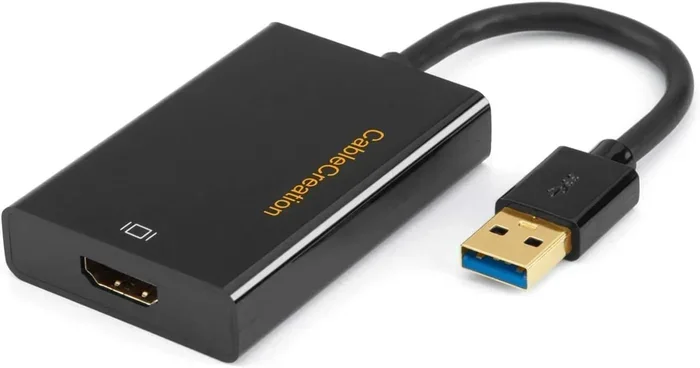
HDMI is the most common monitor connection in the world. Almost every TV, projector, and monitor has an HDMI port. A USB-C to HDMI cable or adapter lets you connect your laptop to any HDMI display with ease.
Here is what you should know:
- HDMI cables support most standard resolutions including 4K at 60Hz.
- Many USB-C adapters include HDMI output alongside USB-A ports and SD card readers.
- HDMI is great for connecting to TVs and projectors for presentations or movie nights.
- Some older HDMI standards may limit refresh rates at higher resolutions.
USB-C to DisplayPort
DisplayPort is the preferred connection for PC gamers and creative professionals. It offers higher bandwidth than HDMI in many cases, which means smoother gameplay and better color accuracy at high resolutions.
Key benefits of DisplayPort over HDMI include:
- Higher refresh rates at 4K resolution (up to 144Hz with DisplayPort 1.4).
- Better support for daisy-chaining multiple monitors.
- Superior color depth for photo and video editing work.
- More consistent performance with USB-C docking stations.
For most office workers, either option works perfectly fine. But if you are a gamer or a designer, DisplayPort might give you the edge you need.
Best USB-C Docks and Hubs for Display Connections
A USB-C docking station is one of the most useful accessories you can buy for your laptop. It turns one USB-C port into a whole workstation. You get video output, extra USB ports, ethernet, and sometimes even an SD card reader, all in one compact device.
What to Look for in a USB-C Dock
Not all docking stations are created equal. When shopping for a USB-C hub for display purposes, keep these factors in mind:
- Video Output Type: Make sure the dock has HDMI, DisplayPort, or both depending on your monitor.
- Resolution Support: Check that it supports the resolution and refresh rate you need.
- Power Delivery: A good dock can charge your laptop while also sending video to a monitor.
- Number of Displays: Some docks support only one external display, while others can drive two or more.
- Thunderbolt Compatibility: If your laptop has Thunderbolt, buy a Thunderbolt dock for the best performance.
Quick Tips for Choosing the Right Dock
Here are some practical tips to help you pick the right USB-C docking station:
- Check your laptop’s USB-C specs first. Does it support Thunderbolt? Alt Mode? Power Delivery?
- Buy from reputable brands like CalDigit, Anker, Belkin, or OWC for reliability.
- Read reviews that specifically test display performance, not just data speeds.
- Consider a dock with power delivery if you want to reduce cable clutter on your desk.
- Make sure the dock supports the resolution of your monitor before purchasing.
A USB-C hub is a smaller, more portable alternative to a full dock. It is perfect for travel or for users who only need one or two extra ports. A USB-C dongle is even smaller and great for quick adapters on the go.
Common Problems and How to Fix Them
Even though USB-C display technology is mature and reliable, you might run into some issues from time to time. Here are the most common problems and how to solve them.
No Signal on External Monitor
This is the most common complaint. If your monitor shows no signal when connected via USB-C, try these steps:
- Make sure the cable is fully plugged in on both ends.
- Check that your device supports video output over USB-C.
- Try a different cable or adapter to rule out a faulty connection.
- Restart your device and the monitor.
- Check your display settings and make sure the external output is enabled.
Low Resolution or Flickering Display
If your external monitor looks blurry or flickers, the issue is usually related to cable quality or bandwidth. USB-C video bandwidth matters a lot for high-resolution displays. Cheap cables may not support 4K at 60Hz even if the port does. Always use certified cables from trusted brands.
Monitor Not Charging Through USB-C
Some USB-C adapters pass video but not power. If your monitor charges through the USB-C connection, make sure your dock or cable supports USB-C power delivery (PD). Look for docks that explicitly mention PD charging support.
Which Devices Support USB-C Display Output?
The short answer is: almost every modern device made after 2018. But let us break it down by device type.
Laptops
Most modern laptops from Apple, Dell, HP, Lenovo, ASUS, and Microsoft feature at least one USB-C port with display output. Apple MacBooks have used only USB-C (now called Thunderbolt) ports since 2016. Windows laptops from these brands increasingly include Thunderbolt or Alt Mode support on their USB-C ports.
Tablets and Phones
Many Android phones and tablets now use USB-C connectivity for video output. Samsung Galaxy tablets, Google Pixel phones, and iPads (with USB-C models) all support external display connections. You can use a simple USB-C to HDMI adapter to mirror your screen to a TV or monitor.
Desktops and Mini PCs
Even some desktop computers and mini PCs now come with USB-C video output as a standard feature. This is especially common in compact desktops and all-in-one PCs where space is limited and USB-C serves as the primary video output.
Key Takeaways
- USB-C supports video output: Most modern USB-C ports can carry display signals using Alt Mode or Thunderbolt technology.
- One cable does it all: USB-C can transmit video, data, and power through a single cable connection.
- Thunderbolt adds more power: Thunderbolt 3 and 4 offer higher bandwidth and support for multiple displays.
- Adapters and docks are essential: USB-C to HDMI, DisplayPort, and USB-C docking stations make connections simple.
- Not all USB-C ports are equal: Some only carry data and power, so always check your device specs before buying.
- Resolution and refresh rate depend on the standard: USB-C supports up to 8K resolution with the right technology and cable.
- Compatibility is wide: Laptops, tablets, phones, and desktops from most major brands support USB-C display output.
Conclusion
USB C can be used for display, and it is arguably the best single-cable solution for connecting your devices to external monitors today. Whether you use a simple USB-C to HDMI adapter or invest in a full Thunderbolt docking station, the flexibility and convenience are hard to beat.
The key is understanding what your device supports. Check if your USB-C port has Alt Mode or Thunderbolt capability. Choose the right cable or dock for your monitor. And always use quality accessories from trusted brands to avoid frustrating connectivity issues.
USB-C display technology has made the days of carrying multiple cables and adapters mostly a thing of the past. One cable, one connection, and your external monitor is ready to go. As more devices adopt the USB-C connector standard, this ecosystem will only continue to grow and improve.
So go ahead and plug in that monitor. You might be surprised at how simple and powerful USB-C connectivity really is. It is one of those technologies that just works, and once you make the switch, you will wonder how you ever managed with all those old cables.
Frequently Asked Questions
Can any USB-C port be used for display output?
Not all USB-C ports support video output. Some USB-C ports only handle data transfer and charging. Look for labels like “DisplayPort Alt Mode,” “Thunderbolt,” or “USB-C with video output” in your device specifications to confirm support.
What is the difference between USB-C and Thunderbolt for display?
USB-C is a connector shape, while Thunderbolt is a technology that uses the USB-C connector. Thunderbolt offers higher bandwidth, which means it can support higher resolutions, refresh rates, and multiple external displays more reliably than standard USB-C Alt Mode.
Do I need a special cable to connect USB-C to a monitor?
It depends on your monitor. If your monitor has a USB-C input, a standard USB-C cable works. If your monitor has HDMI or DisplayPort inputs, you need a USB-C to HDMI or USB-C to DisplayPort adapter or cable.
Can I connect two external monitors using USB-C?
Yes, but it depends on your device. Thunderbolt 3 and Thunderbolt 4 ports can support dual displays. Standard USB-C Alt Mode typically supports only one external display. Check your laptop or dock specifications for multi-monitor support.
Does USB-C display support 4K resolution?
Yes, most USB-C display connections support 4K resolution at 60Hz. Thunderbolt 3 and 4 can push 4K even further, with some setups supporting 4K at 120Hz or higher refresh rates.
Can I use a USB-C dock to charge my laptop and connect a monitor at the same time?
Absolutely. Most USB-C docking stations support USB-C power delivery, which charges your laptop while simultaneously sending video to an external monitor. Look for docks rated for at least 60W or 85W power delivery for best results.
=== CONCLUSION ===
USB C can be used for display, and it has revolutionized how we connect our devices to screens. From USB-C docking stations to simple adapters, the options are plentiful and affordable. The key takeaway is to always verify your device’s capabilities before purchasing cables or docks. With the right setup, a single USB-C cable can handle video, data, and power, making your workspace cleaner and more efficient than ever before.