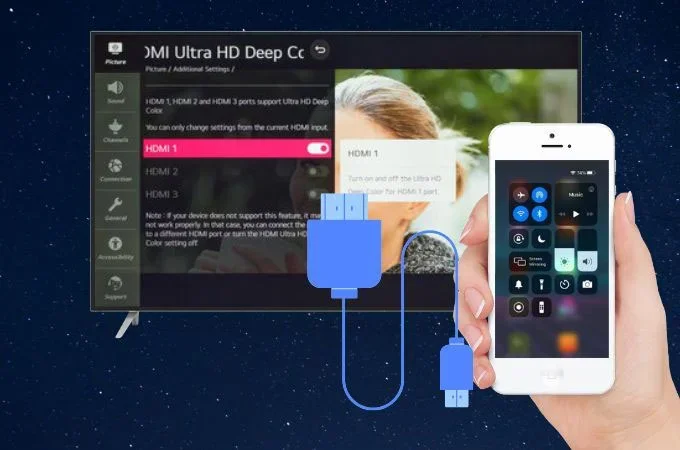
Can Lightning Cable Be Used With Hdmi For Streaming
Can Lightning Cable Be Used With HDMI for streaming? The short answer is no, not directly. You need a lightning to HDMI adapter or a digital AV adapter to bridge the gap between your Apple device and an HDMI display. This guide walks you through every option, common problems, and the best adapters for HDMI streaming from your iPhone or iPad.
Many people ask, can Lightning cable be used with HDMI for streaming their favorite shows, movies, or presentations to a bigger screen. The answer is not as simple as plugging one cable into another. A standard Apple Lightning cable carries power and data, but it does not send video signals to an HDMI display on its own.
However, with the right adapter, you absolutely can stream content from your iPhone or iPad to any screen with an HDMI port. Whether you want to share photos with family on a TV, give a presentation at work, or watch Netflix on a larger display, understanding how lightning to HDMI connections work is essential. This guide covers everything you need to know about HDMI streaming from Lightning devices.
We will break down the technical details in plain language, compare adapter options, troubleshoot common problems, and help you choose the best setup for your needs. By the end, you will know exactly what to buy and how to get it working in minutes.
Key Takeaways
- No Direct Connection: A plain Apple Lightning cable cannot plug into an HDMI port. You need an adapter.
- Digital AV Adapter Is Key: The official Apple digital AV adapter is the most reliable way to get video output from a Lightning device.
- Multiple Adapter Options Exist: Third-party adapters work too, but quality and cable compatibility vary widely.
- Common Issues Are Fixable: Problems like no signal, black screens, or no audio usually have simple solutions.
- USB-C to HDMI Is Different: Newer Apple devices use USB-C, not Lightning. Know the difference before buying.
- You Can Charge While Streaming: Some adapters support charging while streaming through a pass-through port.
- Resolution Matters: Most adapters support up to 1080p. Check resolution support before purchasing.
📑 Table of Contents
- What Is a Lightning Cable and How Does HDMI Work?
- Can You Directly Connect a Lightning Cable to HDMI?
- How to Stream From Lightning Devices Using HDMI
- Lightning to HDMI Adapter Options Compared
- Common Problems and How to Fix Them
- Lightning vs USB-C to HDMI: Key Differences
- Final Verdict: Is Lightning-to-HDMI Worth It?
What Is a Lightning Cable and How Does HDMI Work?
Understanding the Lightning Connector
The Apple Lightning cable has been the standard charging and data connection for iPhones and iPads since 2012. It is a small, reversible connector that carries both power and data. But here is the key thing many people miss: Lightning does not natively support video output. It was designed for charging and data transfer, not for sending high-definition video to a display.
This is why you cannot just take a Lightning cable and plug it into an HDMI port on your TV or monitor. The two technologies speak different languages. The Lightning connector communicates using Apple’s proprietary protocol, while HDMI uses a completely different digital signal standard for audio and video transmission.
How HDMI Handles Video and Audio
HDMI stands for High-Definition Multimedia Interface. It is a widely used wired connection standard for transmitting uncompressed video and audio from a source device to a display. Almost every modern TV, monitor, and projector has at least one HDMI port. HDMI cables carry both high-definition video and multi-channel audio through a single cable, which makes them incredibly convenient for streaming device setups.
When you want to display content from a small device like an iPhone on a big TV screen, you need a translator between these two different signal types. That translator is the adapter. Without it, the cable compatibility simply does not exist between Lightning and HDMI.
Can You Directly Connect a Lightning Cable to HDMI?
The direct answer is no. A plain Lightning cable has no HDMI capability built in. If you try to force a connection or use a cheap non-compatible cable, you will not get any video output. Your TV will show a blank screen, and your iPhone or iPad will not recognize the display.
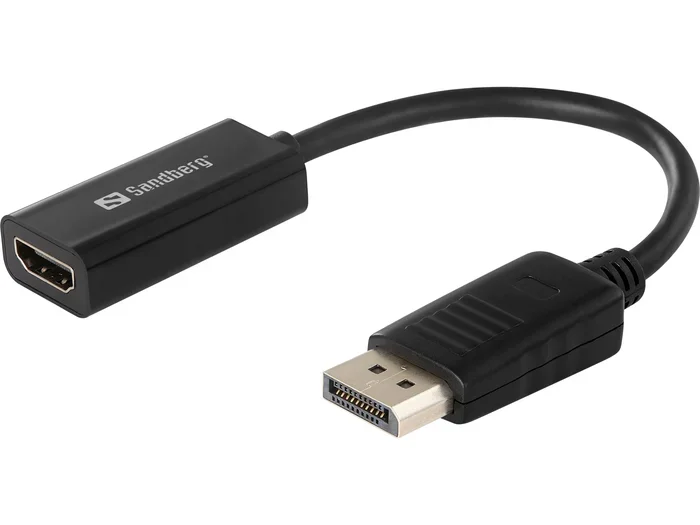
So what actually works? You need an intermediary device. The most common solution is a lightning to HDMI adapter, also known as a digital AV adapter. This small dongle plugs into the Lightning port on your iOS device on one end and has an HDMI output on the other end. Some adapters also include a USB-A or USB-C port for charging your device while you stream.
Why Apple Does Not Allow Direct Connections
Apple designed the Lightning connector as a proprietary digital interface. The company controls the licensing and authentication of accessories through its MFi program (Made for iPhone/iPad). This means third-party manufacturers must get Apple’s approval to make adapter cable products that work with Lightning devices. This control ensures quality but also limits what kind of direct connections are possible.
The official Apple digital AV adapter is the most trusted option for iPhone to HDMI or iPad HDMI output. It costs more than generic alternatives, but it offers reliable cable compatibility and consistent resolution support up to 1080p.
How to Stream From Lightning Devices Using HDMI
Step-by-Step Setup Guide
Setting up a wired connection between your Lightning device and an HDMI display is straightforward. Follow these steps for a smooth HDMI streaming experience:
- Get the right adapter. Purchase an Apple-certified lightning to HDMI adapter or a high-quality third-party alternative that supports iOS device video output.
- Plug the adapter into your iPhone or iPad. Insert the Lightning end firmly into your device’s charging port.
- Connect an HDMI cable. Plug one end of a standard HDMI cable into the adapter’s HDMI output port.
- Connect to your TV or monitor. Plug the other end of the HDMI cable into an available HDMI port on your display.
- Switch your TV to the correct input. Use your TV remote to select the HDMI input that matches the port you used.
- Check for a signal. Your iPhone or iPad screen should now mirror on the TV. If not, try disconnecting and reconnecting the adapter.
Quick Tips for the Best Streaming Experience
- Use a high-speed HDMI cable. A standard HDMI 1.4 cable works fine for 1080p streaming. For the best results, look for an HDMI cable rated for high-speed data transfer.
- Keep your device charged. Streaming video uses battery power quickly. If your adapter has a pass-through charging port, plug in your charging cable to keep your iPhone or iPad powered during long viewing sessions.
- Close background apps. Before you start HDMI streaming, close any apps running in the background. This frees up processing power and prevents lag or stuttering.
- Use a stable surface. If you are using your device as a streaming source, place it on a flat, stable surface to avoid accidental disconnections.
What Content Can You Stream?
You can mirror your entire iPhone or iPad screen to an HDMI display. This means you can stream Netflix, YouTube, Disney+, Hulu, and any other app that supports video playback. You can also display photos, presentations, games, and even your device’s home screen. However, some apps like Netflix may enforce DRM (Digital Rights Management) restrictions that prevent screen mirroring over certain wired connections. This is a content protection feature, not an adapter problem.
Lightning to HDMI Adapter Options Compared
Not all adapters are created equal. When shopping for a lightning to HDMI adapter, you will find many options at different price points. Here is a comparison of the most common choices:
| Adapter Type | Price Range | Resolution | Charging Support | Reliability |
|---|---|---|---|---|
| Apple Digital AV Adapter | $49 – $59 | Up to 1080p | Yes (pass-through) | Excellent |
| Certified Third-Party Adapter | $15 – $30 | Up to 1080p | Varies | Good |
| Unbranded Generic Adapter | $5 – $12 | Up to 720p | Rarely | Poor to Moderate |
| Lightning to HDMI Cable (All-in-One) | $10 – $25 | Up to 1080p | Sometimes | Moderate |
Why the Apple Digital AV Adapter Stands Out
The official Apple digital AV adapter remains the gold standard for iPhone to HDMI connections. It is MFi-certified, meaning Apple has tested it for full compatibility. It reliably supports 1080p video output and includes a pass-through Lightning port so you can charge your device while streaming. The build quality is excellent, and it rarely causes display glitches or audio sync issues.
When to Consider Third-Party Adapters
If the Apple adapter’s price feels steep, certified third-party options from brands like Belkin, Amazon Basics, or Cable Matters offer good value. Look for adapters that are explicitly labeled as MFi-certified. These products have been tested for cable compatibility with iOS devices and usually cost a fraction of the Apple price. They work well for everyday HDMI streaming needs.
Warning About Cheap Generic Adapters
Those ultra-cheap adapters on discount websites might seem tempting, but they come with serious risks. Many do not support audio passthrough, meaning you get video but no sound. Some overheat during extended use. Others fail after a few weeks. For reliable screen mirroring and consistent resolution support, invest in a quality adapter from a reputable brand.
Common Problems and How to Fix Them
No Signal on the TV Screen
If your TV shows a blank screen or “No Signal” message, do not panic. This is the most common issue with lightning to HDMI setups. Start by checking that the HDMI cable is firmly connected at both ends. Try a different HDMI port on your TV. Then unplug the adapter from your iPhone or iPad, wait five seconds, and plug it back in. Often, this simple reset fixes the problem immediately.
Video Works but There Is No Audio
Sometimes you get a picture on the TV but no sound. This usually happens because the TV is set to the wrong audio output. Go to your TV’s audio settings and make sure HDMI audio is enabled. On your iPhone, check that the volume is turned up and that silent mode is off. If the problem persists, try a different adapter, as some cheap adapters do not support audio passthrough.
Black Screen or Flickering Display
A black screen or flickering can be caused by a weak HDMI connection or an adapter that does not support your device’s resolution support capabilities. Make sure you are using a high-quality HDMI cable. If flickering continues, the adapter may be overheating. Let it cool down for a few minutes and try again. Avoid using your device for intensive tasks while streaming over a wired wired connection.
Adapter Not Recognized by the Device
If your iPhone or iPad does not recognize the adapter, the adapter may be counterfeit or damaged. Check that the adapter is MFi-certified. Clean the Lightning port on your device gently with a soft, dry brush to remove any dust or lint. Restart your device and try again. If none of these steps work, the adapter may be defective and need replacement.
Streaming Lags or Stutters
Wired HDMI streaming should be smooth, but lag can happen if your device is low on memory or processing power. Close all other apps before streaming. Restart your device if needed. Make sure your adapter and HDMI cable are not damaged or bent. A stable, high-quality setup should deliver lag-free video output every time.
Lightning vs USB-C to HDMI: Key Differences
Apple has been transitioning its device lineup from Lightning to USB-C. If you own a newer iPad Pro or iPad Air, you might have a USB-C port instead of a Lightning port. Understanding the difference matters when choosing your streaming device setup.
A USB-C to HDMI adapter works differently from a Lightning to HDMI adapter. USB-C supports DisplayPort Alt Mode, which means it can carry video signals natively without needing a special digital conversion chip. This often results in better performance, higher resolution support, and more reliable audio and video transmission.
If you have a Lightning device, you must use the digital AV adapter approach described earlier. If you have a USB-C device, a simple USB-C to HDMI cable or adapter works directly. Always check your device’s port type before purchasing an adapter to ensure proper cable compatibility.
Which Devices Use Lightning?
As of 2024, the following Apple devices still use the Lightning connector:
- iPhone 14 and iPhone 15 (standard models)
- iPhone SE (2nd and 3rd generation)
- iPad (7th through 10th generation)
- iPad mini (5th and 6th generation)
- iPad Air (3rd and 4th generation)
All newer iPad Pro models and the iPhone 15 Pro and iPhone 15 Pro Max use USB-C. Knowing which port your device has is the first step in setting up HDMI streaming the right way.
Final Verdict: Is Lightning-to-HDMI Worth It?
The answer depends on your needs. If you frequently need to display content from your iPhone or iPad on a TV or monitor, a lightning to HDMI adapter is absolutely worth it. It provides a stable, reliable wired connection that does not depend on Wi-Fi quality or screen mirroring over AirPlay. You get consistent video output with minimal setup and no lag.
For occasional use, such as showing a slideshow at a family gathering or giving a quick presentation, a budget-friendly certified third-party adapter works well. For daily or professional use, the official Apple digital AV adapter offers the best reliability and cable compatibility. It supports full 1080p resolution support and lets you charge your device while streaming through the pass-through port.
Remember, a plain Apple Lightning cable alone will not connect to an HDMI display. Always pair it with a compatible adapter. And if you are shopping for a new tablet or phone, consider USB-C models for simpler, more versatile HDMI streaming without the need for a dedicated digital AV adapter.
With the right adapter and a basic HDMI cable, you can turn any TV or monitor into a display for your iPhone or iPad. The setup takes less than two minutes once you have the right gear. Can Lightning cable be used with HDMI for streaming? Yes, with the proper adapter in place. Now you know exactly how to make it work.
Frequently Asked Questions
Do I need a special cable to connect Lightning to HDMI?
Yes, you cannot use a standard Apple Lightning cable alone. You need a lightning to HDMI adapter, also called a digital AV adapter. This adapter plugs into your iPhone or iPad and provides an HDMI output port for your TV or monitor.
Will any third-party lightning to HDMI adapter work?
Many third-party adapters work well, but quality varies. Look for MFi-certified adapters from reputable brands. Cheap, uncertified adapters often have audio issues, low resolution, or stop working after a short time. Always check cable compatibility before buying.
Can I charge my device while streaming over HDMI?
Yes, if your adapter has a pass-through port. The official Apple digital AV adapter includes a Lightning port for charging. You can plug in your charging cable while streaming to keep your battery level up during long viewing sessions.
What is the maximum resolution supported by lightning to HDMI adapters?
Most lightning to HDMI adapters support up to 1080p full HD resolution. Some adapters claim 4K support, but these are rare and may not work reliably with all iOS device models. For consistent results, expect 1080p video output from a standard adapter.
Can I use HDMI streaming with screen mirroring apps?
You do not need a separate screen mirroring app for wired HDMI streaming. The adapter mirrors your entire screen automatically. However, some apps like Netflix may block wired screen mirroring due to DRM protections. This is a content licensing issue, not an adapter problem.
Is lightning to HDMI better than wireless streaming like AirPlay?
It depends on your situation. A wired lightning to HDMI connection offers a stable, lag-free experience with no dependence on Wi-Fi quality. AirPlay is more convenient for occasional use but can suffer from latency, buffering, or dropped frames on crowded networks. For presentations or reliable HDMI streaming, a wired adapter is often the better choice.
=== CONCLUSION ===
Can Lightning cable be used with HDMI for streaming? Yes, but not directly. You need a lightning to HDMI adapter or a digital AV adapter to bridge the gap between your Apple device and an HDMI display. The official Apple adapter offers the best reliability, full 1080p resolution support, and pass-through charging. Third-party options work well too if you choose MFi-certified products from trusted brands.
Understanding cable compatibility, avoiding cheap generic adapters, and following the simple setup steps outlined in this guide will save you time and frustration. Whether you want to stream movies, share presentations, or display photos on a big screen, a wired connection through HDMI delivers a smooth, dependable experience every time.
Now that you know how iPhone to HDMI and iPad HDMI output connections work, you can shop with confidence and set up your streaming display in minutes. Grab the right adapter, connect your cables, and enjoy your content on the big screen.