Are There Different Hdmi Adapters And What You Need To Know
Yes, there are many different HDMI adapters designed for specific devices, ports, and resolutions. Whether you need a Micro HDMI adapter, a USB C to HDMI dongle, or an HDMI splitter, choosing the correct one matters. This guide walks you through every type, use case, and buying tip you need to know.
Have you ever grabbed an HDMI adapter from a drawer, only to find it does not fit your new device? You are not alone. The world of HDMI adapters is bigger than most people realize. From tiny Micro HDMI plugs to bulky USB C converters, each adapter serves a unique purpose. Understanding these differences saves you time, money, and frustration.
In this guide, we break down every major HDMI adapter type you will encounter. We explain how they work, which devices use them, and how to pick the right one. By the end, you will know exactly what to look for. No more guessing. No more returns.
Let us start with the basics and work our way through the full landscape of HDMI cable types and adapters available today.
Key Takeaways
- Multiple HDMI adapter types exist: Standard, Mini, Micro, USB C, and more serve different devices.
- HDMI version matters: HDMI 2.0 and HDMI 2.1 adapters support different resolutions and refresh rates.
- Not all adapters are equal: Cheap adapters may not support 4K or high-bandwidth signals.
- Active vs passive adapters: Active adapters need power; passive ones work without extra energy.
- Compatibility is key: Always check your device port type before buying an adapter.
- Common problems are fixable: Signal drops and no-display issues often have simple solutions.
📑 Table of Contents
Types of HDMI Adapters Available
HDMI adapters come in many shapes and sizes. Each type connects different ports to standard HDMI outputs. Knowing which one you need is the first step to a smooth setup.
Standard HDMI Adapters
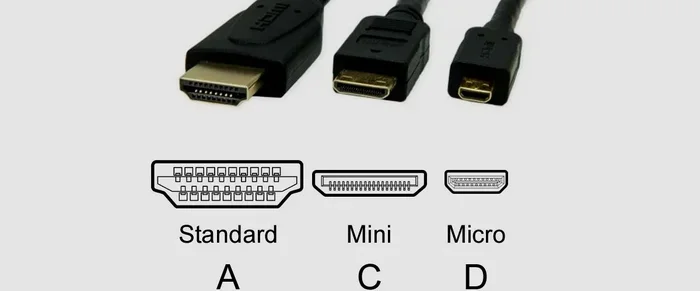
The standard HDMI adapter is the most common type you will find. It connects a full-size HDMI port to another full-size HDMI port or cable. Most TVs, monitors, and gaming consoles use standard HDMI ports. These adapters are straightforward. They carry both video and audio signals through a single cable. You will often see them labeled as Standard HDMI or Type A HDMI. They support resolutions up to 4K and beyond, depending on the HDMI version. If you are connecting a laptop to a TV, this is likely the adapter you need.
Mini HDMI Adapters
Mini HDMI, also known as Type C, is smaller than the standard version. Many older cameras and camcorders use Mini HDMI ports. Some tablets also featured Mini HDMI before manufacturers shifted to USB C. A Mini HDMI adapter converts that smaller port into a full-size HDMI output. These adapters are compact and portable. They work well for travelers who want to display photos or videos on a larger screen. However, they are becoming less common as newer devices adopt USB C.
Micro HDMI Adapters
Micro HDMI, or Type D, is even smaller than Mini HDMI. Some action cameras and older smartphones used Micro HDMI ports. A Micro HDMI adapter lets you connect these devices to a TV or monitor. The adapter itself is tiny, which makes it easy to lose. Always keep yours in a safe place. These adapters carry the same high-definition signal as standard HDMI, just through a much smaller connector. They are perfect for people who film on the go and want to review footage on a big screen.
USB C to HDMI Adapters
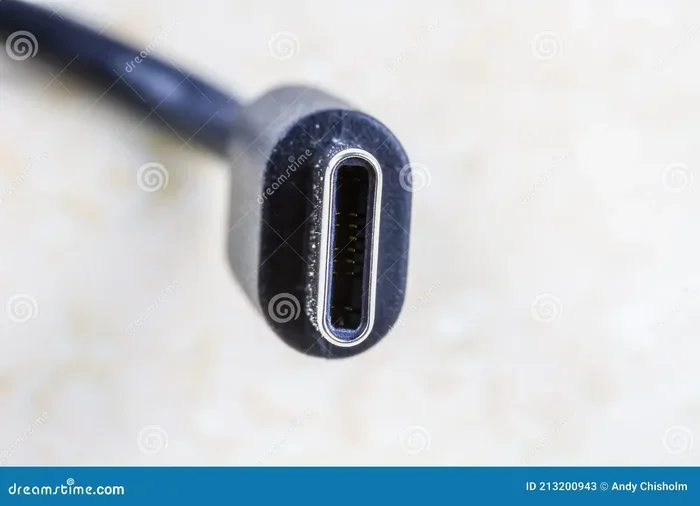
USB C to HDMI adapters are among the most popular types today. Many modern laptops, tablets, and smartphones use USB C ports. A USB C to HDMI adapter converts that USB C signal into an HDMI output. This means you can plug your laptop directly into a TV or projector. These adapters support high resolutions, including 4K and even 8K in some cases. They are essential for professionals who present on large screens or stream content to a monitor. Look for adapters that support DisplayPort Alt Mode for the best performance.
HDMI Splitters and Switches
An HDMI splitter takes one HDMI source and sends the signal to multiple displays. An HDMI switch does the opposite. It lets you connect multiple devices to a single HDMI port. Both are useful in home theater setups and office environments. A splitter is great for displaying the same content on two TVs. A switch helps when your TV has limited ports. These devices are not traditional adapters, but they serve a similar purpose. They expand your connectivity options without buying new cables or devices.
HDMI to VGA Adapters
Some older monitors and projectors use VGA ports instead of HDMI. A HDMI to VGA adapter converts the digital HDMI signal to an analog VGA signal. These adapters are common in classrooms and conference rooms. They let you connect modern laptops to older display equipment. However, VGA does not carry audio. You will need a separate audio cable if your setup requires sound. Also, VGA limits resolution to lower standards. These adapters work well for basic presentations but are not ideal for high-definition content.
HDMI ARC Adapters
HDMI ARC stands for Audio Return Channel. An HDMI ARC adapter sends audio from a TV back to a soundbar or home theater system. This eliminates the need for a separate optical audio cable. Most modern TVs and audio systems support HDMI ARC. It simplifies your setup and reduces cable clutter. If you want a cleaner home entertainment experience, look for an adapter that specifically supports ARC functionality.
How HDMI Adapters Work
Understanding how HDMI adapters work helps you choose the right one. At their core, these adapters transfer digital audio and video signals between devices. The signal travels from the source device through the adapter and into the display. Different adapters handle this process in different ways.
Passive vs Active HDMI Adapters
Passive HDMI adapters simply change the shape of the connector. They do not boost or convert the signal. These adapters work when both the source and display support the same signal type. A standard HDMI to Mini HDMI passive adapter is a good example. It just reshapes the connection without altering the signal.
Active HDMI adapters do more. They convert signals from one format to another. For example, a USB C to HDMI active adapter processes the USB C signal and outputs it as HDMI. Active adapters often need external power. They may include a USB port for charging or power delivery. These adapters are more complex but offer greater flexibility. They also tend to cost more than passive options.
Signal Bandwidth and Resolution
Every HDMI adapter has a maximum bandwidth limit. Bandwidth determines the highest resolution and refresh rate the adapter can support. A basic adapter might handle 1080p at 60Hz. A premium 4K HDMI adapter can handle 3840 x 2160 resolution at higher refresh rates. HDMI 2.1 adapters push even further, supporting 8K and 4K at 120Hz. When shopping, check the adapter’s specs for bandwidth and resolution support. Choosing an adapter with insufficient bandwidth leads to poor image quality or no signal at all.
Audio and Video Signal Transfer
HDMI carries both audio and video through a single cable. Most adapters maintain this capability. However, some adapters, like HDMI to VGA, drop the audio signal entirely. Always check whether your adapter supports audio transfer. If you need sound along with video, choose an adapter that explicitly mentions audio support. This small detail can save you from buying extra cables or accessories.
How to Choose the Right HDMI Adapter
Not all HDMI adapters are the same. Choosing the wrong one leads to compatibility issues and wasted money. Here is how to make the right choice every time.
Check Your Device Ports
Start by identifying the ports on your devices. Look at your laptop, tablet, or phone. What type of video output does it have? Is it a standard HDMI port, USB C, Mini HDMI, or Micro HDMI? Next, check your display. Does the TV or monitor have a standard HDMI input? The adapter you need bridges the gap between these two port types. Write down both port types before shopping. This simple step prevents buying the wrong adapter.
Consider Your Resolution Needs
What resolution do you need? If you only watch standard HD content, a basic adapter works fine. But if you want 4K resolution or higher, you need a more capable adapter. Check the HDMI version the adapter supports. HDMI 2.0 adapters handle 4K at 60Hz. HDMI 2.1 adapters handle 4K at 120Hz and even 8K. Match the adapter to your resolution and refresh rate requirements. Do not overspend on features you will not use, but do not underbuy either.
Think About Cable Length
Cable length matters more than most people realize. A longer HDMI cable can cause signal loss, especially at higher resolutions. If your adapter comes with a cable, check its length. For setups where the display is far from the source device, consider an adapter with a longer cable or buy a high-quality HDMI extension cable. Keep cables as short as possible for the best signal quality. If you must use a long cable, invest in an active signal booster.
Brand Quality and Certification
Not all HDMI adapters are created equal. Cheap, uncertified adapters often fail to deliver promised performance. Look for adapters from reputable brands. Check for HDMI certification logos. Certified adapters meet strict quality and performance standards. They are more likely to support the resolutions and features advertised. Spending a little more on a trusted brand saves you from headaches later. Read customer reviews before making a purchase. Real-world feedback reveals more than product descriptions alone.
Common HDMI Adapter Problems and How to Fix Them
Even the best HDMI adapters can cause issues. Most problems are easy to fix with a few simple steps.
No Signal or Blank Screen
A blank screen is the most common HDMI adapter problem. Start by checking the connections. Make sure the adapter is firmly plugged into both devices. Try unplugging and replugging the adapter. Sometimes a loose connection causes the issue. Next, check your display input source. Make sure the TV or monitor is set to the correct HDMI input. If you are using a splitter or switch, ensure it is powered on. Restarting both the source device and the display often resolves the problem too.
Poor Image Quality
If your image looks blurry or pixelated, the adapter might not support your resolution. Check the adapter specs for maximum resolution support. A low-quality adapter may not handle 4K signals properly. Try lowering the resolution on your source device temporarily. If the image improves, the adapter is the bottleneck. Replace it with a higher-quality option. Also, check your cable. A damaged HDMI cable can degrade image quality just like a bad adapter.
No Audio Through HDMI
Missing audio is another common issue. First, check your device sound settings. Make sure the HDMI output is selected as the audio device. On Windows, right-click the speaker icon and select your HDMI output. On Mac, go to Sound Preferences and choose the HDMI display. If audio still does not work, the adapter may not support audio transfer. This is common with HDMI to VGA adapters. In that case, you will need a separate audio cable or a different adapter.
Adapter Overheating
Some active HDMI adapters generate heat during use. This is normal to a degree. However, excessive heat can cause signal drops or damage the adapter. If your adapter feels very hot, disconnect it and let it cool down. Avoid placing adapters in enclosed spaces with poor airflow. Do not cover the adapter with books or other objects while it is in use. If overheating persists, the adapter may be defective. Replace it with a better-quality model that has proper heat dissipation.
HDMI Adapter Compatibility Guide
Not every HDMI adapter works with every device. Compatibility depends on port types, HDMI versions, and device capabilities. Here is a quick guide to help you navigate compatibility.
Laptop Compatibility
Modern laptops mostly use USB C or standard HDMI ports. Older laptops may have Mini HDMI or even VGA ports. A USB C to HDMI adapter works with most newer laptops. If your laptop has a standard HDMI output, you need a standard HDMI cable or adapter. Always check your laptop’s manual or specs page for the exact port type before buying.
Smartphone and Tablet Compatibility
Most modern smartphones and tablets use USB C. A USB C to HDMI adapter lets you mirror your phone screen to a TV. Some older phones used Micro USB or Micro HDMI. Make sure you buy the correct adapter for your phone model. Not all phones support screen mirroring over USB C. Check if your device supports MHL or DisplayPort Alt Mode for the best results.
Gaming Console Compatibility
Gaming consoles like PlayStation and Xbox use standard HDMI ports. You usually do not need an adapter for these devices. However, if you want to connect a console to a monitor without HDMI input, you need an HDMI to VGA adapter or an HDMI switch. These adapters help you connect consoles to older displays. Always check the adapter’s bandwidth support for gaming. High refresh rates require adapters with higher bandwidth capabilities.
Home Theater and TV Compatibility
For home theater setups, HDMI ARC adapters simplify audio connections. They let your TV send audio to a soundbar or receiver through a single HDMI cable. If you have multiple devices and limited TV ports, an HDMI switch is your best friend. It expands your TV’s port count without buying a new TV. Always confirm your TV supports HDMI ARC before buying an ARC adapter. Not all TVs or soundbars support this feature.
Expert Tips for Getting the Most From Your HDMI Adapter
A few simple tips can help you get the best performance from any HDMI adapter. These tips come from real-world experience and help you avoid common pitfalls.
- Firmware updates matter. Some smart TVs and devices need firmware updates to support new HDMI versions. Keep your devices updated for the best compatibility.
- Buy adapters with built-in cables. These are often better quality than adapters that require separate cables. The integrated cable ensures proper signal transfer.
- Test before committing. If possible, test the adapter with your devices before a long-term purchase. Many electronics stores let you try adapters in-store.
- Keep adapters cool. Place active adapters in well-ventilated areas. Heat is the enemy of electronic components.
- Avoid daisy-chaining adapters. Connecting multiple adapters together can degrade the signal. Use a single adapter whenever possible.
- Check return policies. Buy from retailers with good return policies. This gives you a safety net if the adapter does not work as expected.
Final Thoughts on HDMI Adapters
The world of HDMI adapters is diverse and sometimes confusing. But it does not have to be. Once you understand the different types and what each one does, choosing the right adapter becomes simple. Whether you need a USB C to HDMI adapter for your laptop, a Micro HDMI adapter for your camera, or an HDMI splitter for your home theater, the right adapter exists.
Always check your device ports first. Then match the adapter to your resolution and feature needs. Invest in quality over price. A well-made HDMI adapter lasts for years and delivers reliable performance. Cheap adapters may seem like a bargain, but they often cost more in frustration and replacement.
Take the time to research before you buy. Read reviews, compare specs, and know exactly what your setup requires. With the right HDMI adapter, your devices connect seamlessly. Your screens display crisp, clear images. Your audio sounds rich and full. That is the power of choosing correctly.
Now that you know the ins and outs of HDMI adapters, you are ready to make confident purchasing decisions. Your next setup will be smooth, simple, and hassle-free. Enjoy the seamless connectivity that the right adapter brings to your digital life.
Frequently Asked Questions
What is the difference between HDMI 2.0 and HDMI 2.1 adapters?
HDMI 2.0 adapters support 4K resolution at 60Hz. HDMI 2.1 adapters support 4K at 120Hz and even 8K at 60Hz. HDMI 2.1 also includes features like Variable Refresh Rate and Auto Low Latency Mode. These features are important for gaming and high-performance displays. Check your devices to see which HDMI version they support before buying an adapter.
Can I use an HDMI adapter with a USB C hub?
Yes, many USB C hubs include built-in HDMI adapters. These hubs let you connect multiple devices through a single USB C port. They often support video output, data transfer, and charging simultaneously. Make sure the hub you choose supports the resolution and refresh rate you need. Not all USB C hubs handle 4K signals equally.
Do HDMI adapters reduce quality?
Passive HDMI adapters do not reduce quality. They simply change the connector shape without altering the signal. Active adapters may introduce slight signal processing but should not degrade quality if they are well-made. Cheap or uncertified adapters are more likely to cause quality issues. Always buy from reputable brands for the best results.
Why does my HDMI adapter keep disconnecting?
Loose connections are the most common cause. Make sure the adapter is fully inserted into both ports. Dust or debris in the ports can also cause intermittent disconnections. Try cleaning the ports with compressed air. If the problem persists, the adapter may be defective or incompatible with your device. Try a different adapter to rule out hardware issues.
Are expensive HDMI adapters worth it?
Expensive adapters often offer better build quality, higher bandwidth, and more reliable performance. They are worth it if you need 4K, 8K, or high refresh rate support. For basic 1080p connections, a mid-range adapter usually works fine. The key is matching the adapter’s capabilities to your needs. Do not overspend on features you will not use.
Can I use an HDMI adapter to connect two laptops together?
No, standard HDMI adapters are not designed for device-to-device connections. HDMI is a one-way signal from source to display. If you want to share screens between two laptops, use screen mirroring software or a capture card instead. HDMI adapters work between a source device and a display, not between two source devices.
=== CONCLUSION ===
HDMI adapters are essential tools in today’s connected world. They bridge the gap between different devices, ports, and display technologies. From standard HDMI to USB C, Mini HDMI, Micro HDMI, and everything in between, each adapter type serves a specific purpose. Choosing the right one comes down to knowing your devices, your resolution needs, and your setup requirements.
We have covered the major types of HDMI adapters, how they work, and how to choose the best one. We have explored common problems and their solutions. We have shared expert tips to help you get the most from your adapters. With this knowledge, you are well-equipped to make smart buying decisions.
Remember to check your device ports first. Match the adapter to your resolution and feature needs. Invest in quality from reputable brands. Avoid common mistakes like daisy-chaining adapters or ignoring compatibility requirements. These simple steps save you time, money, and frustration.
The right HDMI adapter transforms your setup. It connects your devices seamlessly. It delivers crisp video and clear audio. It simplifies your life and enhances your entertainment experience. Take what you have learned from this guide and apply it to your next purchase. Your devices will thank you.