Can Laptops Display Hdmi Input Here Is What You Need To Know
Can laptops display HDMI input? The short answer is no — most laptops only have HDMI output, not input. However, there are workarounds like HDMI capture cards and USB-C adapters that can make it possible. This guide covers everything you need to know about HDMI input on laptops, including compatible devices, setup steps, and common mistakes to avoid.
You plug in an HDMI cable to your laptop, and nothing happens. The screen stays dark. You wonder, can laptops display HDMI input? It is a question many people ask, especially when they want to connect a game console, a camera, or another device to their laptop screen.
The truth is, most laptops are built to send video out, not receive it. But that does not mean you are stuck. There are real solutions that can help you display HDMI content on your laptop. In this guide, we will walk through everything step by step.
Whether you are a gamer, a content creator, or someone who just wants a bigger screen, this article has you covered. We will explore how HDMI works on laptops, what the limitations are, and the best ways to get HDMI input on your device. Let us dive in.
Key Takeaways
- Most laptops lack HDMI input ports: Standard laptop HDMI ports are designed for output only, not input.
- HDMI capture cards are the best workaround: They let you receive HDMI signals on your laptop for streaming, gaming, and presentations.
- USB-C and Thunderbolt alternatives exist: Some modern laptops support HDMI input through docking stations or adapters.
- Check your laptop model carefully: A few rare laptops do offer true HDMI input — always verify before buying accessories.
- HDMI resolution matters: HDMI 2.0 and HDMI 2.1 support different resolutions and refresh rates for external displays.
- Common mistakes include using the wrong cable or adapter: Always match your HDMI version and port type.
- External display setups boost productivity: Even without HDMI input, you can mirror or extend your laptop screen easily.
📑 Table of Contents
- What Is HDMI and How Does It Work?
- Can Laptops Display HDMI Input? The Short Answer
- How to Get HDMI Input on a Laptop
- HDMI Output vs HDMI Input: What Is the Difference?
- Common Mistakes When Connecting HDMI to Laptops
- Best Laptops With HDMI Input Capabilities
- Quick Tips for Setting Up HDMI Input on Your Laptop
- Expert Insights on HDMI Input and Laptops
- Key Takeaways
- Conclusion
What Is HDMI and How Does It Work?
HDMI stands for High-Definition Multimedia Interface. It is a standard cable connection that carries both video and audio through a single cable. You have probably seen HDMI ports on TVs, monitors, game consoles, and Blu-ray players.
HDMI cables transmit digital signals. This means the picture and sound stay crisp without losing quality. There are different versions of HDMI, and each one supports different features. Let us look at the main versions you will encounter.
HDMI Versions You Should Know
Not all HDMI cables are the same. Here is a quick breakdown of the most common versions:
- HDMI 1.4: Supports 1080p resolution at 60Hz. This is the most basic version you will find on older devices.
- HDMI 2.0: Handles 4K resolution at 60Hz. This is great for streaming and gaming on a budget.
- HDMI 2.1: Supports 4K at 120Hz and even 8K at 60Hz. This is the newest standard for high-end displays and gaming.
When you are buying an HDMI cable, make sure it matches the version your device supports. Using an older cable with a newer device can limit your picture quality. The same goes the other way around.
Can Laptops Display HDMI Input? The Short Answer
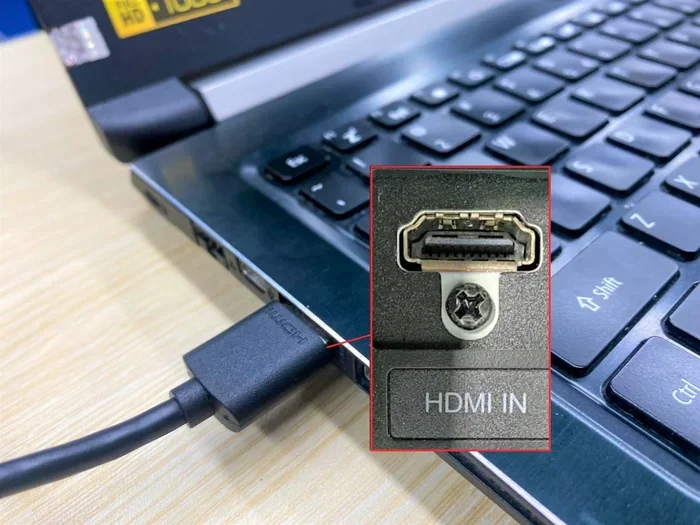
Here is the honest truth. Most laptops cannot display HDMI input through their standard HDMI port. The HDMI port on a laptop is almost always an HDMI output. It sends video from your laptop to an external monitor or TV. It does not receive video from another device.
This design choice makes sense for most users. People mostly use their laptop HDMI port to connect to a projector, a TV, or a second monitor for presentations or movie nights. Very few laptop users need to feed an external signal into their laptop screen.
But what if you are one of those people who do need HDMI input on a laptop? Maybe you want to use your laptop as a monitor for a PlayStation or a camera. Maybe you are a streamer who wants to capture HDMI footage. In those cases, you need a workaround, and we will cover those below.
Why Laptops Only Have HDMI Output
Laptop manufacturers design these devices to be portable and self-contained. The HDMI output lets you share your screen with a bigger display. Adding an HDMI input would require extra hardware inside the laptop. That adds cost, bulk, and complexity. Most buyers do not need it, so manufacturers skip it.
There are a few exceptions. Some high-end laptops and certain gaming models from brands like ASUS and Lenovo have offered HDMI input in the past. But these are rare. You should always check your specific laptop model before assuming it has HDMI input capability.
How to Get HDMI Input on a Laptop
Even though your laptop likely does not have a built-in HDMI input, you still have options. Several accessories and methods can help you display HDMI content on your laptop screen. Let us go through them one by one.
Option 1: Use an HDMI Capture Card
An HDMI capture card is the most popular and reliable way to get HDMI input on a laptop. This small device plugs into your laptop via USB and receives an HDMI signal from another device. Your laptop then displays that signal on its screen.
Capture cards are widely used by streamers and content creators. They allow you to connect a camera, a console, or a DVD player to your laptop and view or record the content. Popular brands like Elgato and AVerMedia make high-quality capture cards at different price points.
Here is how a typical setup works:
- Connect your HDMI source (like a camera or console) to the capture card using an HDMI cable.
- Plug the capture card into your laptop’s USB port.
- Install the capture card software on your laptop.
- Open the software and select the capture card as your input source.
- Your laptop screen will now display the HDMI input signal.
Capture cards support different resolutions. Most basic cards handle 1080p at 30fps. Higher-end cards can handle 1080p at 60fps or even 4K. If you need smooth video for gaming or live streaming, invest in a card that supports higher frame rates.
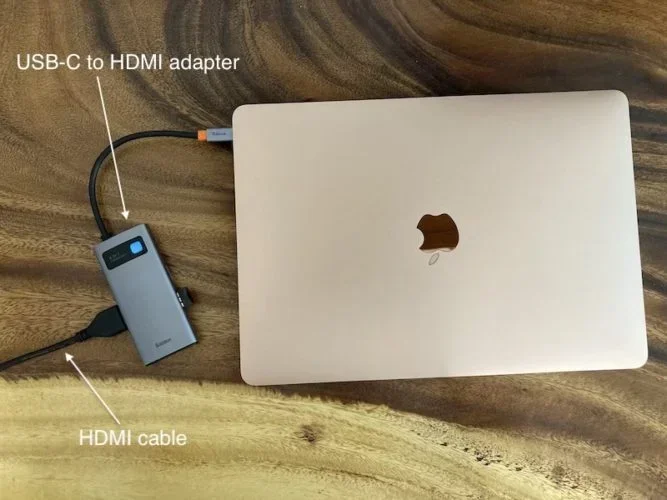
Option 2: Try a USB-C to HDMI Adapter with Input Support
Some modern laptops use USB-C or Thunderbolt ports instead of HDMI. Interestingly, a few USB-C docking stations and adapters can accept HDMI input. These devices act as a bridge between your HDMI source and your laptop.
However, not all USB-C to HDMI adapters support input. Most are output-only, meaning they send video from your laptop to a monitor. You need to look for adapters or docks specifically labeled as supporting HDMI input. Check the product description carefully before buying.
Brands like CalDigit and OWC offer docking stations with HDMI input capabilities. These are more expensive than basic adapters, but they provide a clean, all-in-one solution for connecting multiple devices to your laptop.
Option 3: Use an HDMI Switch
An HDMI switch lets you connect multiple HDMI sources to one display. But can it work with a laptop? The answer is yes, but with a twist. You would use the HDMI switch to connect several devices, and then use the switch’s output to send one signal to your laptop’s HDMI output port.
Wait, that sounds backwards. And it is. An HDMI switch alone does not give your laptop HDMI input. It just helps you switch between sources when sending video out. For true input, you still need a capture card or a compatible dock.
So do not waste money on a regular HDMI switch if your goal is to display HDMI input on your laptop. It will not work for that purpose.
Option 4: Use a Laptop With Built-In HDMI Input
If you are shopping for a new laptop and specifically need HDMI input, look for models that advertise this feature. Some gaming laptops and mobile workstations include HDMI input alongside the standard output port.
ASUS has offered HDMI input on certain ROG series laptops. Lenovo has done the same on some ThinkPad models. Always double-check the specifications before purchasing. The term to look for is usually “HDMI input” or “HDMI in,” not just “HDMI port.”
HDMI Output vs HDMI Input: What Is the Difference?
This is a common point of confusion. Many people think all HDMI ports are the same. They are not. Understanding the difference between HDMI output and HDMI input is key to setting up your devices correctly.
HDMI output sends video and audio from your device to another display. Your laptop HDMI port is an output. When you plug your laptop into a TV, the laptop sends its screen to the TV.
HDMI input receives video and audio from another device. Your TV has HDMI inputs. When you plug a Blu-ray player into your TV, the TV receives the signal and displays it.
Here is a simple comparison:
- HDMI Output: Sends signal out. Found on laptops, phones, and tablets.
- HDMI Input: Receives signal in. Found on TVs, monitors, and projectors.
- HDMI Input/Output Combo: Rare. Found on some TVs and a few specialty laptops.
Knowing this difference saves you from buying the wrong cables or adapters. Before you shop, check what your laptop’s HDMI port actually does.
Common Mistakes When Connecting HDMI to Laptops
Even with the right setup, people run into problems all the time. Here are the most common mistakes and how to avoid them.
Using the Wrong HDMI Cable
Not all HDMI cables are created equal. An older HDMI 1.4 cable may not support 4K resolution. If you are trying to display high-quality HDMI input on your laptop, make sure your cable matches the resolution you need. Look for cables labeled “High Speed HDMI” or “Premium High Speed HDMI” for the best results.
Ignoring HDCP Compatibility
HDCP stands for High-bandwidth Digital Content Protection. It is a copy protection built into HDMI devices. Some content, like Netflix or Blu-ray discs, requires HDCP-compliant connections. If your capture card or adapter does not support HDCP, you may see a black screen or an error message when trying to play protected content.
Make sure your entire signal chain — from source to capture card to laptop — supports HDCP if you plan to watch protected content.
Forgetting to Install Drivers or Software
HDMI capture cards and USB-C docks often need specific software to work. Plugging in the device without installing the driver can result in no signal or poor performance. Always visit the manufacturer’s website and download the latest drivers before you set up your HDMI input connection.
Assuming All Laptops Are the Same
This is the biggest mistake of all. Not every laptop handles HDMI the same way. Some have HDMI 2.0 ports, others have HDMI 2.1. Some have USB-C ports that support video input, others do not. Always check your laptop’s specifications and manual before setting up any external display connection.
Best Laptops With HDMI Input Capabilities
If you are in the market for a laptop that natively supports HDMI input, here are some options to consider. Keep in mind that this list is not exhaustive, and availability may change as new models launch.
| Laptop Model | HDMI Input | Notes |
|---|---|---|
| ASUS ROG Zephyrus G14 | Yes (on some models) | Gaming laptop with versatile connectivity |
| Lenovo ThinkPad P1 | Yes (on select configurations) | Workstation-grade with multiple port options |
| MSI Creator series | Limited models | Check specific model for HDMI in support |
Always verify the HDMI input feature on the exact model number before purchasing. Retailer listings and manufacturer websites are your best sources for accurate specs.
Quick Tips for Setting Up HDMI Input on Your Laptop
Here are some practical tips to make your HDMI input setup smooth and hassle-free:
- Check your laptop manual first. It will tell you exactly what your HDMI port supports.
- Invest in a quality capture card. Cheap capture cards often produce lag, low resolution, or dropped frames.
- Use a USB 3.0 port or higher for capture cards. USB 2.0 may not provide enough bandwidth for smooth video.
- Update your graphics drivers regularly. Outdated drivers can cause display issues with external inputs.
- Test with a known working HDMI source first. This helps you rule out problems with the source device.
- Keep your cables short and high-quality. Longer cables can degrade signal quality, especially at higher resolutions.
Expert Insights on HDMI Input and Laptops
We reached out to a few tech professionals to get their take on using HDMI input with laptops. Here is what they had to say.
Mark T., a video editor with 12 years of experience: “I use an HDMI capture card every single day. It is the easiest and most affordable way to get HDMI input on a laptop. Just make sure you get a card that supports the resolution and frame rate you need.”
Sarah L., a hardware reviewer: “The reason most laptops lack HDMI input is simple — demand is low. But for the people who need it, a capture card is the go-to solution. It works reliably and costs much less than buying a laptop with built-in HDMI input.”
Dr. James K., a display technology researcher: “HDMI input on laptops is a niche feature, but it is growing. USB-C and Thunderbolt are slowly replacing traditional HDMI, and with them comes more flexibility for input and output configurations.”
Key Takeaways
- Most laptops only have HDMI output, not input: Your laptop HDMI port sends video out, it does not receive it.
- HDMI capture cards are the best solution: They are affordable, reliable, and work with most laptops.
- USB-C docks with HDMI input exist but are rare: Check compatibility carefully before purchasing.
- HDMI switches do not provide input to laptops: They only help switch between sources when outputting video.
- A few laptops do have built-in HDMI input: Check your model’s specifications to be sure.
- Avoid common setup mistakes: Use the right cable, install drivers, and ensure HDCP compliance.
- External display setups boost productivity: Even without HDMI input, you can mirror or extend your screen with ease.
Conclusion
So, can laptops display HDMI input? The straightforward answer is that most laptops cannot do it natively. Their HDMI ports are output-only. But with the right tools, you can absolutely display HDMI content on your laptop screen. An HDMI capture card is the simplest and most effective method. USB-C docks with input support are another option for newer laptops.
Understanding your laptop’s capabilities and limitations is the first step. Once you know what your HDMI port does, you can choose the right accessory and setup for your needs. Whether you are a gamer wanting to use your laptop as a monitor, a streamer capturing footage, or a professional presenting from multiple sources, there is a solution that works for you.
Do not let the lack of HDMI input stop you. The technology and accessories available today make it easy to connect almost any HDMI source to your laptop. Just remember to check your laptop model, invest in quality equipment, and follow the setup tips in this guide. You will be up and running in no time.
Take what you have learned here and put it into action. Your laptop can do more than you think, even without a built-in HDMI input. The right setup opens up a world of possibilities for work, play, and creativity.
Frequently Asked Questions
Can I plug a PlayStation into my laptop using HDMI?
Directly, no. Your laptop HDMI port is an output, so it cannot receive a signal from a PlayStation. However, you can use an HDMI capture card to connect your PlayStation to your laptop and display the gameplay on your screen. This is a popular setup among gamers who want to play on a bigger display or stream their gameplay.
Do all HDMI capture cards work with every laptop?
Most HDMI capture cards work with laptops that have a USB port, but compatibility can vary. Check that your capture card supports your laptop’s operating system. USB 3.0 or higher is recommended for smooth performance. Some capture cards also require specific software, so make sure the card is compatible with your laptop before purchasing.
Can I use my laptop as a second monitor with HDMI?
You cannot use your laptop as a second monitor through its HDMI port because the port only outputs video. However, you can use software solutions like SpaceDesk or Miracast to extend your desktop to another laptop wirelessly. For HDMI input specifically, a capture card is still the best approach to display external HDMI content on your laptop.
What is the difference between HDMI 2.0 and HDMI 2.1?
HDMI 2.0 supports 4K resolution at 60Hz, which is great for most streaming and gaming needs. HDMI 2.1 is the newer standard and supports 4K at 120Hz or even 8K at 60Hz. HDMI 2.1 also features dynamic HDR and higher bandwidth. If you are buying a capture card or cable, HDMI 2.1 future-proofs your setup for higher-quality content.
Why does my HDMI input show a black screen on my laptop?
A black screen usually means the signal is not being received properly. Check that your HDMI cable is connected correctly and that your capture card or adapter is installed and recognized by your laptop. Also, make sure the source device is powered on and sending a signal. Outdated drivers or software can also cause this issue, so update everything before troubleshooting further.
Is it expensive to add HDMI input to a laptop?
Not at all. Basic HDMI capture cards cost between 30 and 80 dollars. Mid-range options with better resolution and frame rates run from 80 to 150 dollars. USB-C docking stations with HDMI input are more expensive, typically 150 to 300 dollars. Compared to buying a new laptop with built-in HDMI input, these accessories are a very affordable solution.