Can I Use USB For Headset Everything You Need To Know
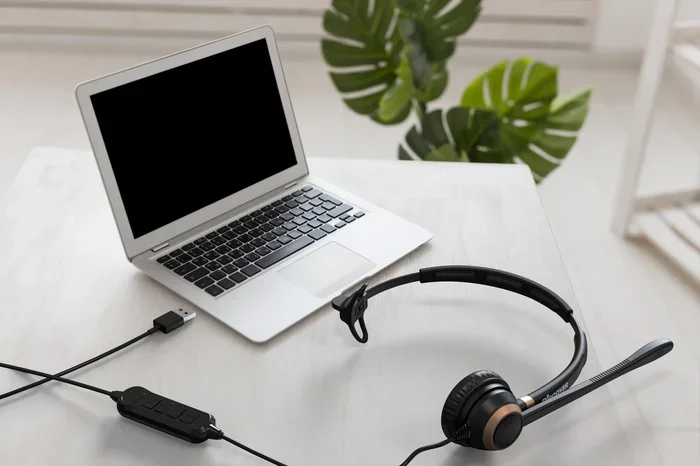
Yes, you can absolutely use USB for headset. A USB headset connects directly to your computer or device and handles audio processing on its own. This means better sound, easier setup, and no need for a separate sound card.
Can I use USB for headset? If you have ever stared at the tiny headphone jack on your computer and wondered if there is an easier way, you are in the right place. The short answer is yes. You can use a USB headset with almost any device that has a USB port. It is simple, convenient, and often delivers better sound than a traditional 3.5mm connection.
USB headsets have become incredibly popular in recent years. Gamers love them for crisp audio and clear voice chat. Remote workers rely on them for smooth video calls. And casual users enjoy the hassle-free setup. Whether you are buying your first USB headset or switching from an analog one, this guide covers everything you need to know. We will walk you through how they work, how to set them up, and how to get the best performance.
Key Takeaways
- Plug and Play Simplicity: Most USB headsets work instantly without extra drivers or software.
- Better Audio Quality: USB headsets process sound digitally, giving you cleaner audio and clearer microphone input.
- Wide Device Compatibility: USB headsets work with PCs, laptops, consoles, and even some smart TVs.
- No External Sound Card Needed: The headset has its own built-in audio processor, saving you money and desk space.
- Gaming and Work Friendly: USB headsets offer low latency and great microphone quality for both gaming and calls.
- Easy Troubleshooting: Most USB headset issues can be fixed with simple steps like re-plugging or updating drivers.
📑 Table of Contents
- What Is a USB Headset and How Does It Work?
- How to Connect a USB Headset to Your Device
- USB Headset vs 3.5mm Headset: Key Differences
- Common USB Headset Problems and How to Fix Them
- Best USB Headsets for Different Uses
- Tips for Getting the Best Audio Quality from Your USB Headset
- Key Takeaways
- Conclusion
What Is a USB Headset and How Does It Work?
A USB headset is a pair of headphones or earbuds with a built-in microphone that connects through a USB cable instead of a 3.5mm audio jack. The key difference lies in how the audio signal is processed. With a traditional headset, your computer’s sound card handles converting digital audio into analog sound. A USB headset skips that step entirely.
Inside a USB headset, there is a small audio controller. This chip converts digital signals from your device directly into audio. It also handles the microphone input. This means the headset does the work, not your computer. The result is often cleaner sound and a more reliable microphone signal.
How USB Audio Processing Works
When you plug in a USB headset, your operating system recognizes it as an audio device. Think of it like plugging in a USB flash drive. The system detects the hardware and loads the necessary audio driver. Most modern operating systems, including Windows, macOS, and Linux, support USB audio devices natively.
The USB headset uses a standard called USB audio class. This is a universal protocol that allows audio devices to communicate with computers. Because of this standard, most USB headsets are plug and play. You do not need to download extra software or install special drivers in most cases.
Built-In Sound Card vs. Computer Sound Card
One of the biggest advantages of a USB headset is that it has its own built-in sound card. Your motherboard’s sound card can be a source of interference. Electrical noise from other components can create a hum or buzz in your audio. A USB headset bypasses this problem entirely.
The audio processing happens inside the headset itself. This is called digital audio processing. The signal stays digital until it reaches the headset’s speakers or microphone. This keeps the audio clean and free from interference. For gamers and music lovers, this difference is very noticeable.
How to Connect a USB Headset to Your Device
Connecting a USB headset is one of the easiest things you will do with any tech gadget. The process is the same whether you are using a desktop PC, a laptop, or a gaming console. Let us walk through it step by step.
Step 1: Plug the USB connector into any available USB port on your device. USB ports come in different shapes. USB-A is the classic rectangular port. USB-C is the smaller, oval-shaped port. USB-B is often found on printers. Most USB headsets use USB-A or USB-C connectors.
Step 2: Wait a few seconds for your device to recognize the headset. You should see a notification on your screen. On Windows, you may hear a sound confirming a new device is connected. On macOS, the system sound settings will update automatically.
Step 3: Set the USB headset as your default audio device. Go to your sound settings and select the headset for both output (speakers) and input (microphone). This ensures all audio plays through the headset and your voice picks up through the mic.
Step 4: Test the audio and microphone. Play a song or video to check the sound. Use a voice recorder or call app to test the microphone. If everything sounds good, you are all set.
USB Headset Setup for Gaming Consoles
Using a USB headset with a console like PlayStation or Xbox is slightly different. Some consoles support USB audio directly. Others may require a specific adapter. Always check your console’s compatibility before buying a USB headset.
For PlayStation 5, many USB headsets work right out of the box. For Xbox, USB audio support is more limited. You may need a controller with a 3.5mm jack or a compatible USB adapter. Always check the headset manufacturer’s compatibility list for your specific console.
Quick Tips for First-Time USB Headset Users
- Always use the USB port directly on your computer. Avoid USB hubs when possible, as they can reduce power and cause connection issues.
- If the headset does not work immediately, try a different USB port. Some ports may not supply enough power.
- Keep your operating system updated. OS updates often include fixes for audio driver issues.
- Do not unplug the headset while audio is playing. This can cause audio glitches or damage the connection.
USB Headset vs 3.5mm Headset: Key Differences
When choosing a headset, you will usually face two options: USB or 3.5mm analog. Both have their strengths. Understanding the differences helps you pick the right one for your needs.
| Feature | USB Headset | 3.5mm Headset |
|---|---|---|
| Connection Type | USB plug-in | Analog audio jack |
| Audio Processing | Built-in digital processing | Relies on device sound card |
| Setup | Plug and play | May need driver or adapter |
| Audio Quality | Consistent and clean | Varies by device sound card |
| Microphone Quality | Built-in digital mic processing | Analog mic signal |
| Compatibility | Most USB-enabled devices | Devices with 3.5mm jack |
| Latency | Very low | Minimal |
| Price Range | Widely available at all price points | Generally cheaper options |
| Portability | Slightly less portable (bulkier USB plug) | More portable (single small jack) |
When to Choose a USB Headset
Choose a USB headset if you want the easiest setup and the most consistent audio quality. USB headsets are ideal for gaming, remote work, and video conferencing. They work great on desktop PCs and laptops. If your device has USB ports, a USB headset is almost always a safe choice.
USB headsets also shine when you need a reliable microphone. The digital microphone processing reduces background noise and makes your voice clearer. This is a big win for call centers, online classes, and team meetings. Many professionals prefer USB headsets for this reason alone.
When to Choose a 3.5mm Headset
Choose a 3.5mm headset if you need maximum portability. These headsets work with smartphones, tablets, and older devices. They are also typically lighter and more compact. If you travel a lot, a 3.5mm headset is often the more convenient option.
3.5mm headsets also tend to be less expensive. If you are on a tight budget and just need basic audio, a 3.5mm headset gets the job done. However, keep in mind that audio quality depends on your device’s sound card. A cheap laptop with a basic sound card may produce lower-quality audio through a 3.5mm connection.
Can I Use an Adapter Instead?
Yes, you can use a USB headset adapter or a 3.5mm to USB converter. These small devices let you connect a USB headset to devices that do not have a standard USB audio input. They are handy for older laptops, smart TVs, and some gaming consoles.
However, adapters can sometimes introduce audio problems. You may experience slight latency or reduced audio quality. If possible, use a native USB connection instead of an adapter. It is the most reliable way to get the best performance from your USB headset.
Common USB Headset Problems and How to Fix Them
USB headsets are generally reliable, but they can sometimes have issues. Most problems are easy to fix with simple troubleshooting steps. Here are the most common issues and their solutions.
No Sound from the USB Headset
If you plug in your USB headset and hear nothing, do not panic. The first thing to check is your sound settings. Make sure the USB headset is set as the default playback device. On Windows, right-click the speaker icon in your taskbar and select the headset from the list of audio devices.
If the headset still does not produce sound, try unplugging it and plugging it into a different USB port. Some USB ports share bandwidth with other devices. This can cause audio dropouts or no sound at all. A USB 3.0 port on the back of your desktop is usually the most reliable option.
Microphone Not Working
A non-working microphone is a common issue with USB headsets. Start by checking your privacy settings. On Windows 10 and 11, go to Settings, then Privacy, then Microphone. Make sure “Allow apps to access your microphone” is turned on.
Next, check the recording device settings. Right-click the speaker icon, select Sounds, and go to the Recording tab. Your USB headset microphone should appear in the list. Right-click it and set it as the default device. If it does not appear, try updating your audio drivers through Device Manager.
Audio Crackling or Static Noise
Static or crackling sounds can be annoying. This issue is often caused by electrical interference or a loose connection. Try these fixes in order:
- Unplug the headset and plug it back in firmly.
- Try a different USB port, preferably one directly on the motherboard.
- Move the headset away from other USB devices and power cables that may cause interference.
- Update your audio drivers through your device manufacturer’s website or Windows Update.
- If the problem persists, check if the headset works on another computer. This helps determine if the issue is with the headset or your device.
USB Headset Not Recognized by the Device
If your device does not recognize the headset at all, the issue could be a driver problem or a hardware conflict. Open Device Manager on Windows and look for any yellow warning icons under the “Sound, video and game controllers” section.
Right-click the headset device and select “Update driver.” If that does not work, try uninstalling the device and then reconnecting the headset. Windows will automatically reinstall the driver. On macOS, you may need to reset the core audio system by restarting the computer.
Expert Insight: When to Replace Your USB Headset
Sometimes troubleshooting is not enough. If your USB headset has physical damage, such as a broken cable or cracked ear cup, no software fix will help. The average lifespan of a quality USB headset is two to three years with regular use. If you notice a decline in audio quality that no settings can fix, it may be time for a replacement.
Best USB Headsets for Different Uses
Not all USB headsets are created equal. Different users have different needs. A gamer wants surround sound and low latency. A remote worker wants a noise-canceling microphone and all-day comfort. A casual listener wants great sound at an affordable price. Here is a breakdown of what to look for based on your use case.
Best USB Headsets for Gaming
Gamers need a headset that delivers immersive sound and clear voice communication. Look for USB headsets with surround sound support and a wide frequency response. A good gaming headset should also have a durable build and a comfortable fit for long sessions.
Popular options in this category include headsets from brands like HyperX, SteelSeries, and Logitech. These brands offer USB gaming headsets with excellent audio quality and reliable microphones. Many also come with software that lets you customize EQ settings and mic monitoring.
Best USB Headsets for Remote Work
For remote work, microphone clarity is the top priority. You want a headset that makes your voice sound professional and reduces background noise. Look for USB headsets with noise-canceling microphones and a boom arm design.
Comfort is also important for long workdays. Choose a headset with padded ear cups and an adjustable headband. Brands like Jabra, Poly, and Microsoft are well-known for producing USB headsets tailored for business and remote work environments.
Best USB Headsets for Casual Listening
If you just want to listen to music or watch videos, you do not need an expensive gaming headset. A simple USB headset with balanced audio and a comfortable fit works perfectly. Look for headsets with good bass response and clear treble.
Budget-friendly USB headsets from brands like Sony, JBL, and Anker offer excellent value. These headsets are lightweight, easy to set up, and deliver surprisingly good audio for the price. They are perfect for students, home users, and anyone who wants a no-fuss audio solution.
Quick Tips for Choosing the Right USB Headset
- Check compatibility: Make sure the headset is compatible with your device and operating system.
- Read reviews: Look for user reviews that mention audio quality, mic performance, and durability.
- Try before you buy: If possible, test the headset in a store to check comfort and fit.
- Consider warranty: A good warranty protects you against defects and early failures.
- Look for detachable cables: Detachable USB cables make replacement easier if the cable gets damaged.
Tips for Getting the Best Audio Quality from Your USB Headset
Once you have your USB headset set up, there are several things you can do to improve audio quality. These tips apply whether you are gaming, working, or just listening to music.
Update Your Audio Drivers Regularly
Even though USB headsets are mostly plug and play, keeping your audio drivers up to date makes a difference. Updated drivers often include performance improvements and bug fixes. Check your device manufacturer’s website or use Windows Update to stay current.
Adjust EQ Settings for Your Preference
Most USB headsets come with companion software that lets you adjust the equalizer. Use this to fine-tune the sound to your liking. If you listen to a lot of bass-heavy music, boost the low frequencies. If you prefer podcasts and voice calls, boost the midrange for clarity.
Position the Microphone Correctly
For the best microphone performance, position the boom mic close to your mouth but not directly in front of it. Angle it slightly toward the corner of your mouth. This reduces plosive sounds like “p” and “b” while keeping your voice clear.
Keep Your USB Cable Away from Power Cables
USB cables can pick up electromagnetic interference from power cables and other electronic devices. Keep your USB headset cable away from power supplies, monitors, and other cables. This simple step can reduce static and improve audio clarity significantly.
Common Mistakes to Avoid with USB Headsets
- Using a USB hub instead of a direct port: USB hubs can reduce power and cause audio dropouts.
- Ignoring driver updates: Outdated drivers can cause compatibility issues and poor performance.
- Bending the USB connector too much: This can damage the internal wiring over time.
- Using the wrong port: Some USB ports on laptops share bandwidth. Plug into the port recommended by the manufacturer.
- Neglecting microphone maintenance: Wipe the mic regularly to remove dust and skin oils that can muffle your voice.
Expert Insight: USB Headset Longevity Tips
Taking care of your USB headset extends its lifespan. Store it in a case or on a stand when not in use. Avoid pulling the cable to disconnect it. Instead, grip the plug and pull gently. Clean the ear pads and microphone regularly with a soft, damp cloth. These small habits keep your headset performing at its best for years.
Key Takeaways
- USB headsets are easy to use: Most are plug and play and work instantly with any device that has a USB port.
- They offer better audio quality: Built-in digital processing keeps sound clean and free from interference.
- USB headsets have their own sound card: This eliminates the need for an external audio device and saves desk space.
- They are compatible with many devices: PCs, laptops, gaming consoles, and even some smart TVs support USB audio.
- Troubleshooting is simple: Most issues can be fixed by checking settings, updating drivers, or trying a different USB port.
- Choose based on your needs: Gaming, work, and casual listening all have great USB headset options at every price point.
- Proper care extends lifespan: Regular maintenance keeps your USB headset performing well for years.
Conclusion
Can I use USB for headset? Absolutely. USB headsets offer a simple, reliable, and high-quality audio solution for almost anyone. Whether you are a gamer, a remote worker, or just someone who enjoys listening to music, a USB headset delivers great performance with minimal setup.
The digital audio processing built into USB headsets gives them a clear advantage over traditional analog connections. You get cleaner sound, a more reliable microphone, and a hassle-free experience. With the right USB headset and a few simple setup tips, you can enjoy excellent audio every day.
Take the time to choose a headset that fits your needs. Consider compatibility, comfort, and audio quality. And remember to take care of your headset so it lasts. With the right USB headset, your audio experience will never be the same.
Frequently Asked Questions
Can I use a USB headset with any computer?
Yes, most USB headsets work with any computer that has a USB port. Windows, macOS, and Linux all support USB audio devices natively. Simply plug in the headset, and your computer should recognize it automatically. If not, you may need to install a driver, but this is rare with modern operating systems.
Do USB headsets need drivers to work?
Most USB headsets are plug and play and do not require drivers. However, some headsets with advanced features like surround sound or custom EQ settings may include companion software. This software enhances the experience but is not required for basic audio and microphone functionality.
Is USB audio better than 3.5mm audio?
USB audio is generally cleaner and more consistent than 3.5mm audio. This is because USB headsets process audio digitally on their own, bypassing your computer’s sound card. The result is less interference and better overall sound quality. However, the difference may not be noticeable for casual listening.
Can I use a USB headset on a gaming console?
It depends on the console. PlayStation consoles generally support USB headsets directly. Xbox consoles have more limited USB audio support and may require a controller with a 3.5mm jack or a compatible adapter. Always check the headset manufacturer’s compatibility list before purchasing.
Why is my USB headset microphone not working?
This is usually caused by incorrect sound settings or privacy permissions. Check that the headset is set as the default recording device in your sound settings. On Windows, also check your microphone privacy settings and make sure access is allowed for your apps. Updating audio drivers can also resolve this issue.
How do I choose the best USB headset for my needs?
Consider what you will use the headset for. Gamers should look for surround sound and low latency. Remote workers should prioritize microphone clarity and comfort. Casual listeners can focus on balanced audio and affordability. Reading user reviews and checking compatibility with your device are also important steps.