Can I Use Thunderbolt Port To Charge Laptop Easily
Yes, you can use a Thunderbolt port to charge your laptop in most cases. Thunderbolt 3 and Thunderbolt 4 ports support USB Power Delivery, which means they can send power to your device. This Thunderbolt charging feature lets you use one cable for data and power. However, not all setups work the same way, and laptop power delivery depends on your charger wattage and port type.
You are sitting at your desk. Your laptop charger is missing. You spot a Thunderbolt port on your laptop or your docking station. A simple question pops into your head: can you use that port to charge your laptop?
The short answer is yes. In most cases, you can use a Thunderbolt port to charge laptop devices. But there are a few things you need to know before you plug in and walk away. This guide covers everything you need to understand about Thunderbolt charging and how it works with your device.
Thunderbolt technology has changed the way we connect laptops to peripherals. With Thunderbolt 3 and Thunderbolt 4, you get blazing fast data transfer, video output, and power delivery all through one cable. This is what people call a single cable solution, and it is a game changer for many users.
In this article, we will walk through how Thunderbolt charging works, which laptops support it, what wattage you need, and common mistakes to avoid. By the end, you will know exactly whether a Thunderbolt port can charge your laptop safely and efficiently.
Key Takeaways
- Thunderbolt ports can charge laptops: Both Thunderbolt 3 and Thunderbolt 4 support USB Power Delivery for charging.
- Wattage matters: Your charger must provide enough watts to charge your laptop while it is in use.
- Not all Thunderbolt cables are equal: The right Thunderbolt cable affects charging speed and data transfer.
- Docking stations work well: A USB-C dock with Thunderbolt support can handle charging and data at the same time.
- Check your laptop compatibility: Some laptops need a specific power adapter, even with a Thunderbolt port.
- Charging speed varies: Thunderbolt charging may be slower or faster depending on your setup.
- Single cable solution is real: Thunderbolt lets you dock, charge, and transfer data with one cable.
📑 Table of Contents
- What Is a Thunderbolt Port and Why Does It Matter?
- Can Every Laptop Charge Through a Thunderbolt Port?
- How Much Power Do You Need for Thunderbolt Charging?
- Using a Thunderbolt Dock for Charging and Connectivity
- Common Mistakes People Make with Thunderbolt Charging
- Expert Tips for the Best Thunderbolt Charging Experience
- The Future of Thunderbolt Charging
- Final Thoughts
What Is a Thunderbolt Port and Why Does It Matter?
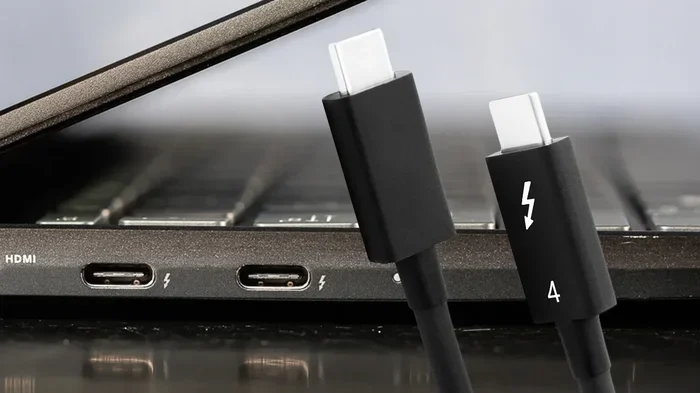
A Thunderbolt port looks like a USB-C port. That is the first thing that confuses many people. Not every USB-C port is a Thunderbolt port, but every Thunderbolt port uses the USB-C shape. This small difference matters a lot when you are talking about laptop power delivery.
Thunderbolt is a technology developed by Intel in partnership with Apple. It combines data transfer, video output, and power delivery into one port. Here is a quick look at the two main versions you will encounter:
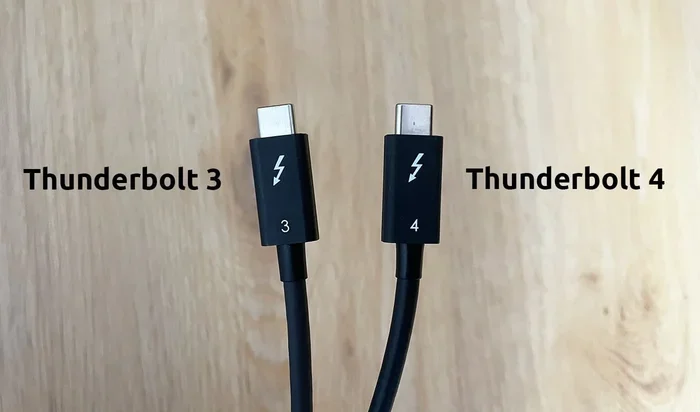
- Thunderbolt 3: Released in 2018. It supports data speeds up to 40 Gbps and delivers up to 100 watts of power through USB Power Delivery.
- Thunderbolt 4: Released in 2020. It also supports 40 Gbps data speeds and 100 watts of power. It adds stricter requirements for video and charging compatibility.
Both versions can handle USB-C charging for laptops. The key difference is in how they handle accessories and compatibility. Thunderbolt 4 has more strict rules, which means fewer surprises when you plug in a USB-C dock or charger.
How Does Thunderbolt Charging Work?
Thunderbolt charging uses a protocol called USB Power Delivery, or PD for short. This protocol lets the port negotiate the right amount of power with your laptop. Your laptop and the power source talk to each other. They agree on a wattage level that is safe for both devices.
For example, if your laptop needs 60 watts to charge, and your Thunderbolt charger can deliver 85 watts, the laptop will only draw what it needs. This smart negotiation is what makes Thunderbolt charging safe and flexible. You do not have to worry about overpowering your device.
The power flows through the same cable that handles data. This is why a Thunderbolt cable is so valuable. You get fast data transfer, video output, and battery charging all from one connection. It is clean, simple, and reduces cable clutter on your desk.
Can Every Laptop Charge Through a Thunderbolt Port?
Here is where things get a little tricky. The short answer is no, not every laptop can charge through a Thunderbolt port. Whether your laptop supports Thunderbolt charging depends on its design and the power requirements it was built for.
Most modern laptops with USB-C or Thunderbolt ports do support USB-C charging. Brands like Apple, Dell, HP, Lenovo, and Microsoft have embraced this standard. Their laptops can charge through a Thunderbolt or USB-C port without any issues.
However, some laptops are different. They may have a Thunderbolt port for data and video only. These laptops need their own dedicated power adapter to charge. This is more common with certain gaming laptops or mobile workstations that need more than 100 watts of power.
How to Check If Your Laptop Supports Thunderbolt Charging
You can check whether your laptop supports charging through a Thunderbolt port in a few easy ways:
- Check the laptop manual: Look for USB Power Delivery support or Thunderbolt charging information.
- Visit the manufacturer website: Search for your laptop model and look at the specifications section.
- Look at the port symbol: A Thunderbolt port has a lightning bolt icon next to it. A USB-C charging port may have a battery icon.
- Try it out: Connect a Thunderbolt charger or dock to the port. If the laptop starts charging, you are good to go.
If your laptop does not charge through the Thunderbolt port, do not worry. You can still use the port for data and video. You just need to keep your regular laptop charger plugged in as well.
How Much Power Do You Need for Thunderbolt Charging?
Not all chargers are created equal. The amount of power, measured in watts, determines how fast your laptop battery charges. When you use a Thunderbolt port for charging, the wattage of the power source matters a lot.
Most everyday laptops need between 45 and 65 watts to charge. These include ultrabooks like the MacBook Air, Dell XPS 13, and Lenovo ThinkPad X1 Carbon. A Thunderbolt charger or dock that delivers 60 to 85 watts will handle these laptops easily.
Power-hungry laptops, like gaming rigs or mobile workstations, may need 100 watts or more. These devices often cannot charge fully through a standard Thunderbolt port alone. You may need a dedicated power adapter that is designed for that specific laptop model.
Thunderbolt Charging Speed Compared to Regular Chargers
Many people wonder whether Thunderbolt charging is as fast as using the original laptop charger. The answer depends on a few factors:
- Charger wattage: A Thunderbolt charger that delivers 85 watts will charge just as fast as a regular 85-watt adapter.
- Laptop power needs: If your laptop draws 100 watts and your Thunderbolt charger only provides 60 watts, the battery may charge slowly or not at all while you work.
- Cable quality: A high-quality Thunderbolt cable supports higher power delivery. A cheap or damaged cable can limit charging speed.
- Docking station quality: Some USB-C docks pass through power better than others. A good dock will charge your laptop at full speed.
In general, if you use the right equipment, Thunderbolt charging speed is on par with using your original charger. The key is matching the wattage and using quality cables and docks.
| Laptop Type | Typical Power Need | Thunderbolt Charging? |
|---|---|---|
| Ultrabook (MacBook Air, Dell XPS 13) | 45-65 watts | Yes, easily |
| Standard Business Laptop | 65-85 watts | Yes, with 85W charger |
| Gaming Laptop | 100-180 watts | Usually no, needs dedicated charger |
| Mobile Workstation | 100-230 watts | Rarely, needs high-wattage adapter |
| Chromebook | 30-45 watts | Yes, most models support it |
Using a Thunderbolt Dock for Charging and Connectivity
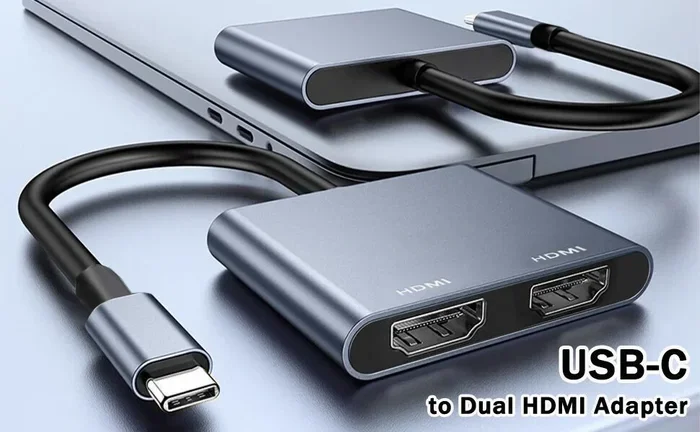
One of the best ways to take advantage of Thunderbolt charging is by using a USB-C dock or docking station. A good dock lets you connect your laptop to monitors, keyboards, mice, and external drives while also charging the battery. This is the true power of the single cable solution.
When you plug one Thunderbolt cable from your laptop to a dock, everything happens at once. You get a video signal to your monitor, data access to your peripherals, and power flowing into your laptop battery. It is clean, organized, and incredibly convenient.
What to Look for in a Thunderbolt Dock
Not all docks are the same. If you want reliable Thunderbolt charging, here are the features to look for:
- Power delivery wattage: Make sure the dock can deliver enough watts for your laptop. Look for 85W or higher for most laptops.
- Thunderbolt 3 or Thunderbolt 4 support: Thunderbolt 4 docks offer better compatibility and performance.
- Multiple ports: Look for docks with USB-A, HDMI, DisplayPort, Ethernet, and SD card slots.
- Brand reputation: Stick with trusted brands like CalDigit, OWC, Anker, or Dell for reliable performance.
- Cable included: Some docks come with a Thunderbolt cable, which saves you from buying one separately.
A quality dock is a great investment if you work at a desk most of the day. It turns your Thunderbolt port into a full workstation hub while keeping your laptop charged and ready to go.
Common Mistakes People Make with Thunderbolt Charging
Even though Thunderbolt charging is straightforward, some common mistakes can cause frustration. Here are the pitfalls to avoid:
Using the Wrong Cable
Not all USB-C cables support Thunderbolt or high-wattage power delivery. A cheap USB-C cable might only handle 10 watts of power. That is enough to charge a phone, but not a laptop. Always use a certified Thunderbolt cable for the best results.
Assuming All USB-C Ports Are Thunderbolt
This is a big one. Many laptops have both USB-C ports and Thunderbolt ports. A regular USB-C port may not support power delivery or data transfer at Thunderbolt speeds. Always check for the lightning bolt icon to confirm it is a true Thunderbolt port.
Ignoring Wattage Requirements
Plugging in a 30-watt charger to a laptop that needs 85 watts will not work well. The laptop may charge very slowly or not at all while you are using it. Always match your charger or dock wattage to your laptop needs.
Using a Non-Compatible Dock
Some USB-C docks only support data and video. They do not pass through power. Before you buy a dock, check the specs to confirm it supports USB Power Delivery and the wattage level you need.
Overlooking Firmware and Driver Updates
Sometimes charging issues come down to outdated firmware. Keep your laptop and dock firmware up to date. Manufacturers often release updates that fix compatibility issues with Thunderbolt charging.
Expert Tips for the Best Thunderbolt Charging Experience
Want to get the most out of your Thunderbolt port for charging? Here are some expert-backed tips that make a real difference:
- Invest in a high-quality Thunderbolt cable. A certified Thunderbolt 3 or Thunderbolt 4 cable ensures full power delivery and data speeds. Cheap cables are the number one cause of slow charging.
- Use a dock with dedicated charging passthrough. Some docks have a special charging port that bypasses data processing. This gives you the fastest possible charging speed.
- Keep your laptop cool while charging. Heavy workloads while charging can slow down the process. Let your laptop breathe, especially during intensive tasks.
- Check your power settings. In Windows or macOS, you can adjust power settings to optimize battery charging. Some laptops have a “smart charging” mode that slows charging to extend battery life.
- Avoid charging through a hub with too many devices. If you are connected to many USB devices through a hub, the power may be split. This can reduce the amount of power reaching your laptop.
The Future of Thunderbolt Charging
The future looks bright for Thunderbolt charging. Thunderbolt 5, expected in the coming years, promises even faster data speeds and higher power delivery. This means laptops will charge faster and support more powerful accessories through a single port.
USB Power Delivery standards continue to evolve as well. Newer versions of the PD protocol support higher wattages and smarter power negotiation. This will make USB-C charging even more versatile and reliable across all devices.
For now, Thunderbolt 3 and Thunderbolt 4 are more than enough for most users. They offer a proven, reliable way to charge your laptop while staying connected to all your peripherals. As the technology matures, the single cable solution will only get better.
Final Thoughts
So, can you use a Thunderbolt port to charge your laptop? The answer is a confident yes for most modern laptops. Thunderbolt charging is real, reliable, and incredibly convenient. Whether you are using a Thunderbolt charger directly or connecting through a USB-C dock, you can power up your laptop while staying connected.
The key is understanding your laptop’s power needs and using the right equipment. Match your wattage, use quality cables, and check compatibility before you buy. Do these things, and you will enjoy the benefits of a clean, cable-free workspace with fast and safe laptop power delivery.
Take a few minutes today to check your setup. Make sure your Thunderbolt port is working for you. A small change can make a big difference in how you work every day.
Frequently Asked Questions
Can I charge my MacBook through a Thunderbolt port?
Yes, all modern MacBooks support charging through a Thunderbolt or USB-C port. Apple designed the MacBook Air and MacBook Pro to charge through these ports using USB Power Delivery. Just use a certified Thunderbolt cable and a charger that matches your laptop’s wattage needs.
Why is my laptop not charging through the Thunderbolt port?
There are a few reasons this can happen. Your laptop may not support charging through that specific port. The cable or charger might not deliver enough wattage. Or the dock you are using might not support power delivery. Check your laptop specs and make sure your equipment matches the power requirements.
Is Thunderbolt charging slower than using the original charger?
Not necessarily. If you use a Thunderbolt charger or dock with the same wattage as your original charger, the charging speed will be the same. The speed depends on the wattage output, not the port type. Using a low-wattage Thunderbolt charger will charge slower, but that is true for any charger.
Can I use any USB-C cable for Thunderbolt charging?
No, not all USB-C cables support Thunderbolt or high-wattage power delivery. You need a certified Thunderbolt cable or a USB-C cable that supports USB Power Delivery at the wattage level you need. Using the wrong cable can result in slow charging or no charging at all.
Do Thunderbolt 4 docks charge laptops faster than Thunderbolt 3 docks?
Both Thunderbolt 3 and Thunderbolt 4 support up to 100 watts of power delivery. The charging speed is the same if the wattage is the same. Thunderbolt 4 docks offer better overall compatibility and stricter certification standards, which means fewer issues with different laptops and accessories.
Can I charge my laptop and transfer data at the same time through a Thunderbolt port?
Yes, absolutely. That is one of the biggest benefits of Thunderbolt technology. A single Thunderbolt cable can charge your laptop and transfer data simultaneously. This is what makes the single cable solution so appealing for desk setups and mobile workstations.
=== CONCLUSION ===
Can I use Thunderbolt port to charge laptop? Yes, you can, and it is one of the most convenient features of modern laptop design. Thunderbolt charging gives you the freedom to power up your device with a single cable while staying connected to all your peripherals. Whether you use a direct Thunderbolt charger or a USB-C dock, the key is to match your wattage, use quality cables, and verify compatibility with your laptop model.
Take the time to understand your setup. Check your laptop specifications. Invest in the right Thunderbolt cable and dock. Once you do, you will wonder how you ever worked without this single cable solution. Start today and enjoy a cleaner, simpler, and more efficient workspace.