Can I Use Hdmi To Displayport For Ps5 And What Happens
Yes, you can use an HDMI to DisplayPort adapter for PS5, but the results depend on the type of adapter you buy. A passive adapter will not work because the PS5 outputs HDMI signals and cannot receive DisplayPort input. You need an active HDMI to DisplayPort adapter to convert the signal properly. Without the right adapter, you may face no signal, low resolution, or missing audio. This guide covers everything you need to know about HDMI to DisplayPort for PS5 setup, compatibility, and performance.
If you own a PS5 and a gaming monitor with a DisplayPort input, you have probably wondered about one thing. Can I just plug in an HDMI to DisplayPort adapter and start gaming? It sounds simple enough, right? But the answer is not as straightforward as you might hope.
The truth is, the PS5 uses HDMI as its native video output. It sends a signal out through its HDMI port. A DisplayPort monitor expects a different kind of signal. So you need a converter to bridge that gap. And not just any converter will do the job.
In this guide, we will walk you through everything you need to know about HDMI to DisplayPort for PS5. We will cover what happens when you try this setup, which adapters work, and how to avoid common mistakes. Whether you are a casual gamer or a competitive player chasing that 120Hz frame rate, this article has you covered.
Let us dive in and make sure you get this right the first time.
Key Takeaways
- You need an active adapter: Passive adapters will not work because the PS5 only outputs HDMI signals.
- 4K at 120Hz is possible: With the right active adapter and a compatible monitor, you can achieve high refresh rates.
- Audio passthrough matters: Some adapters may not carry audio, so check specs before buying.
- Input lag can increase: Cheap adapters may add noticeable lag, hurting your gaming experience.
- HDMI is natively supported: The PS5 uses HDMI as its primary and most reliable video output.
- Check monitor compatibility: Not all DisplayPort monitors accept HDMI input through an adapter.
- Budget and quality go hand in hand: Spending more on a reputable adapter saves you from frustration.
📑 Table of Contents
What Happens When You Use HDMI to DisplayPort for PS5
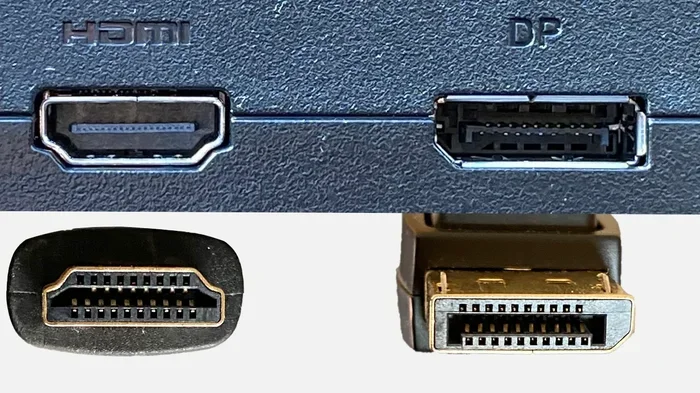
When you connect a PS5 to a DisplayPort monitor using an adapter, the converter must translate the signal. The PS5 sends an HDMI signal, and your monitor reads a DisplayPort signal. The adapter sits in the middle and handles this signal conversion.
If you use the wrong type of adapter, nothing will happen. Your screen will stay black. You might see a “no signal” error. Or the PS5 might not even recognize the monitor at all. This is the most common problem people run into.
With the correct active adapter, things work much better. You can get a clean picture with proper resolution and color. Most users report a smooth gaming experience once they have the right setup in place.
Why a Passive Adapter Will Not Work
Here is something many people do not realize. A passive adapter simply reshapes the physical connector. It does not change the signal. Since HDMI and DisplayPort use completely different signaling methods, a passive adapter cannot convert one to the other.
Think of it like trying to plug a US electrical plug into a European outlet. The shape might look similar, but the electricity flowing through them is different. You need a transformer. That is exactly what an active adapter does for your display cable setup.
So please do not waste money on a cheap passive HDMI to DisplayPort cable or adapter. It will not work with your PS5. Always look for an active converter that explicitly states it supports signal conversion from HDMI input to DisplayPort output.
What You Can Expect with the Right Adapter
When you use a proper active HDMI to DisplayPort adapter, here is what typically happens:
- 4K resolution at 60Hz works reliably on most setups.
- 1080p and 1440p at 120Hz or even 144Hz are achievable.
- HDR support depends on the adapter model and your monitor.
- Audio usually passes through to the monitor or your speakers.
- Color accuracy and visual quality remain strong with quality adapters.
Your PS5 display settings will need to match what your monitor supports. Go to Settings, then Sound and Screen, and adjust the video output resolution and refresh rate accordingly.
Active vs Passive Adapters: What You Need to Know
This is the most important section of the entire guide. Understanding the difference between an active adapter and a passive adapter will save you time, money, and a lot of headache.
| Feature | Active Adapter | Passive Adapter |
|---|---|---|
| Signal Conversion | Converts HDMI to DisplayPort | Does not convert signals |
| Works with PS5? | Yes | No |
| Powered | Requires USB power | No power needed |
| Price Range | $25 to $80 | $5 to $15 |
| Reliability | High with good brands | Useless for this purpose |
| Audio Passthrough | Usually supported | N/A |
| 4K Support | Yes on quality models | N/A |
Always buy an active adapter when connecting your PS5 to a DisplayPort monitor. The small extra cost is well worth it. Look for adapters that mention “active conversion” or “signal conversion” in the product description.
Quick Tips for Choosing the Right Adapter
- Check the direction of conversion. You need HDMI input to DisplayPort output. Some adapters work the other way around and will not work with your PS5.
- Look for 4K and 120Hz support. If you want high refresh rate gaming, make sure the adapter supports it.
- Verify audio passthrough. If you want sound through your monitor, confirm the adapter handles audio.
- Choose a reputable brand. Brands like Cable Matters, UGREEN, and Club3D are trusted in the gaming community.
- Check if it needs external power. Most active adapters require a USB cable for power. Make sure your setup supports this.
Common Mistakes When Buying Adapters
Many people buy the wrong adapter and do not realize it until they set everything up. Here are the most common mistakes:
- Buying a passive adapter. As we discussed, passive adapters do not convert signals. They will not work.
- Ignoring the direction. Some adapters convert DisplayPort to HDMI, not the other way around. Read the label carefully.
- Skipping the power requirement. Some active adapters need a USB power source. Without it, the adapter may not function.
- Choosing based on price alone. The cheapest option is rarely the best for signal conversion quality.
- Not checking monitor compatibility. Some monitors have specific DisplayPort input requirements that not all adapters meet.
Setting Up Your PS5 with a DisplayPort Monitor
Once you have the right active HDMI to DisplayPort adapter, the setup process is fairly simple. Here is a step-by-step walkthrough to help you get everything running smoothly.
Step-by-Step Setup Guide
- Connect the HDMI cable from your PS5 to the HDMI input on the active adapter.
- Plug the USB cable from the adapter into a power source. This powers the signal conversion chip inside the adapter.
- Connect a DisplayPort cable from the adapter output to your gaming monitor.
- Turn on your monitor and select the correct DisplayPort input source.
- Power on your PS5 and wait for the signal to appear on screen.
- Go to PS5 Settings, then Sound and Screen, and adjust the video output resolution and refresh rate to match your monitor’s capabilities.
That is it. Your PS5 should now display on your DisplayPort monitor through the adapter. If you see a picture, you are good to go.
Adjusting PS5 Display Settings
After the initial setup, you should fine-tune your PS5 display settings for the best experience. Here is what to check:
- Resolution: Set it to match your monitor. For most DisplayPort gaming monitors, 2560×1440 or 3840×2160 are the options.
- Refresh Rate: If your monitor supports 120Hz or 144Hz, enable it in the PS5 display settings. This makes fast-paced games feel much smoother.
- HDR: Turn on HDR support if your monitor is HDR-compatible. This improves color depth and contrast in supported games.
- Deep Color: Enable deep color output for richer visual quality.
These settings make a real difference in how your games look and feel. Do not skip this step.
DisplayPort vs HDMI on PS5: Which Is Better?
The PS5 comes with two HDMI ports. It does not have a native DisplayPort output. So the real comparison is between using the native HDMI connection directly versus using an HDMI to DisplayPort adapter to connect to a DisplayPort monitor.
Why HDMI Is the Native Choice
HDMI is the standard connection for the PS5. Sony designed the console around it. When you plug your HDMI cable directly into a compatible TV or monitor, you get the best possible performance without any conversion. There is no signal conversion involved, so there is no risk of quality loss or added input lag.
Direct HDMI connections also tend to offer the most reliable audio passthrough. Your TV or monitor receives both video and audio through a single cable. This is the simplest and most stable setup for most users.
When DisplayPort Through an Adapter Makes Sense
So why would anyone go through the trouble of using an HDMI to DisplayPort adapter? There are a few valid reasons:
- You already own a DisplayPort monitor. If you have a high-quality gaming monitor with only DisplayPort inputs, an adapter lets you use it with your PS5.
- Better refresh rates. Some DisplayPort monitors offer 144Hz or higher at certain resolutions, which may not be available over HDMI on your TV.
- Lower input lag. Gaming monitors often have faster response times than TVs, and DisplayPort connections on monitors can reduce input lag.
- Ultrawide support. Some DisplayPort monitors offer ultrawide resolutions that are harder to find over HDMI.
In these cases, using an active adapter is a smart workaround. You get to enjoy the benefits of a gaming monitor with your PS5.
Performance Comparison
Here is a quick look at how the two setups compare for typical gaming scenarios on the PS5:
| Aspect | Direct HDMI (TV/Monitor) | HDMI to DisplayPort Adapter |
|---|---|---|
| Signal Quality | Native, no conversion | Converted, minor potential loss |
| Max 4K Refresh Rate | 4K at 120Hz (HDMI 2.1) | 4K at 60Hz on most adapters |
| 1440p at 120Hz+ | Depends on TV | Yes, with quality adapter |
| Input Lag | Minimal | Slightly higher on budget adapters |
| HDR Support | Full HDR on HDMI 2.1 | Varies by adapter model |
| Audio Passthrough | Full support | Usually supported |
| Setup Simplicity | Plug and play | Requires adapter and power |
As you can see, direct HDMI is still the better option for pure performance. But the adapter route opens up possibilities, especially if you already have a great DisplayPort monitor.
Common Problems and How to Fix Them
Even with the right active adapter, you might run into some issues. Here are the most common problems and their solutions.
No Signal on the Monitor
If your screen stays black, do not panic. This is the most common issue when setting up HDMI to DisplayPort for PS5. Try these steps:
- Check that the USB power cable is connected to the adapter.
- Make sure the HDMI cable is firmly plugged into both the PS5 and the adapter.
- Verify that the DisplayPort cable is secure at both ends.
- Try a different DisplayPort input on your monitor if it has multiple ports.
- Restart your PS5 with the adapter connected.
In most cases, the issue is a loose connection or a missing power source. The active adapter needs power to do its signal conversion job.
Low Resolution or Flickering Screen
If your picture looks blurry or flickers, the PS5 display settings might not match your monitor’s capabilities. Go to Settings, then Sound and Screen, and manually set the resolution to match your monitor’s native resolution. Also, check that your DisplayPort cable supports the bandwidth needed for your chosen resolution and refresh rate.
No Audio Through the Monitor
Some HDMI to DisplayPort adapters do not carry audio. If you have no sound, check the adapter specifications for audio passthrough support. You can also go to your PS5 settings and set the audio output to HDMI or the adapter, depending on your setup.
Input Lag During Fast-Paced Games
If you notice input lag during competitive games, the adapter might be the culprit. Cheap active adapters can add processing delay. Look for adapters with low latency specifications. Also, make sure your monitor is in Game Mode to minimize its own processing lag.
Expert Tips for the Best Gaming Experience
Want to squeeze every bit of performance out of your PS5 through a DisplayPort monitor? Here are some expert tips from experienced gaming setup enthusiasts.
Use a High-Quality DisplayPort Cable
The adapter is only one part of the chain. Your DisplayPort cable matters too. A cheap or damaged cable can limit your resolution and refresh rate. Invest in a DisplayPort 1.4 or DisplayPort 2.1 cable to ensure you get the full bandwidth your PS5 can deliver.
Enable Game Mode on Your Monitor
Most gaming monitors have a Game Mode setting. This disables unnecessary image processing that can add input lag. Always turn it on when gaming through your HDMI to DisplayPort adapter setup.
Keep Your Adapter Firmware Updated
Some active adapters have updatable firmware. Check the manufacturer’s website for updates. A firmware update can improve compatibility and fix bugs that affect video output quality.
Do Not Daisy-Chain Adapters
Never connect multiple adapters in a chain. For example, do not use an HDMI to DisplayPort adapter and then another converter in between. Each conversion adds potential quality loss and input lag. Keep your setup as simple as possible.
Monitor Your PS5 Temperature
Using an active adapter adds another device to your setup. Some adapters generate heat during extended gaming sessions. Make sure your adapter has proper ventilation. If it feels too hot, give it a break or consider a model with better heat dissipation.
Key Takeaways
- An active HDMI to DisplayPort adapter is essential. Without it, your PS5 will not display on a DisplayPort monitor.
- 4K at 60Hz and 1440p at 120Hz or 144Hz are realistic goals with a quality active adapter.
- Always check the direction of conversion. You need HDMI input to DisplayPort output, not the other way around.
- Audio passthrough depends on the adapter model. Verify this before purchasing.
- Direct HDMI remains the most reliable connection for the PS5. Use an adapter only when necessary.
- Budget adapters may add input lag. Spending a bit more on a reputable brand pays off in performance and stability.
- Proper PS5 display settings are critical for getting the best picture from your DisplayPort monitor.
Conclusion
So, can you use HDMI to DisplayPort for PS5? Yes, absolutely. But you need the right tools and a little knowledge to make it work. The key takeaway is simple: always use an active adapter. A passive adapter will not convert the signal, and you will end up with a black screen and a lot of frustration.
With the right active HDMI to DisplayPort adapter, a quality DisplayPort cable, and properly configured PS5 display settings, you can enjoy excellent visual quality on your gaming monitor. Whether you are playing at 4K resolution or chasing a smooth 120Hz frame rate, this setup can deliver a great gaming experience.
Just remember to check for HDR support, audio passthrough, and input lag before you buy. A little research goes a long way. And if you run into any issues, the troubleshooting steps in this guide should help you get back on track quickly.
Now you have everything you need to set up your PS5 with a DisplayPort monitor confidently. Happy gaming!
Frequently Asked Questions
Can I use a passive HDMI to DisplayPort adapter with PS5?
No, a passive adapter will not work. The PS5 outputs an HDMI signal, and a passive adapter only changes the physical shape of the connector. It does not convert the signal. You must use an active adapter that performs signal conversion from HDMI to DisplayPort.
Will I get 4K at 120Hz with an HDMI to DisplayPort adapter?
Most active adapters limit 4K output to 60Hz. If you want 4K at 120Hz, you are better off connecting your PS5 directly to a compatible HDMI 2.1 TV or monitor. For 1440p at 120Hz or 144Hz, a quality active adapter should work well.
Does the adapter affect audio output?
It depends on the model. Many active adapters support audio passthrough, but some do not. Check the product specifications before buying. If audio is important to you, look for adapters that explicitly list audio support.
Can I use any DisplayPort monitor with my PS5 through an adapter?
Most DisplayPort monitors will work with an active adapter, but compatibility can vary. Some monitors have specific input requirements. Always check that your monitor supports the resolution and refresh rate you want through the adapter setup.
Does using an adapter increase input lag on PS5?
Cheap adapters can add noticeable input lag because of the signal processing involved. Quality adapters from reputable brands minimize this effect. Enabling Game Mode on your monitor also helps reduce overall input lag in your setup.
What is the best way to connect PS5 to a DisplayPort monitor?
The best way is to use a high-quality active HDMI to DisplayPort adapter with USB power, a good DisplayPort cable, and properly configured PS5 display settings. Direct HDMI connection to a compatible display is still the most reliable option, but an active adapter makes the DisplayPort route viable.