Can I Use Dual Monitors With A VGA Splitter Easily
Yes, you can use dual monitors with a VGA splitter, but there are important things to know first. A VGA splitter sends the same signal to two screens, which means it mirrors your display rather than extending it. If you want separate content on each monitor, you will need a different solution like a VGA adapter or a graphics card with multiple outputs.
So you want to connect two monitors to your computer. Maybe you are working from home and need more screen space. Or perhaps you are setting up a presentation station. Either way, the question keeps coming up: can you use dual monitors with a VGA splitter? The short answer is yes, but the full answer is a bit more nuanced. Let us walk through everything you need to know.
A VGA splitter is a simple device. It takes one video signal from your computer and sends it to two monitors at the same time. Sounds great, right? But here is the catch. Most VGA splitters mirror your screen. That means both monitors show the exact same image. If that is what you need, you are good to go. But if you want to extend your desktop and have different content on each screen, a basic VGA splitter will not do the trick.
Key Takeaways
- A VGA splitter mirrors your screen: It shows the same image on both monitors, it does not extend your desktop.
- You need a graphics card with dual outputs if you want to extend your display across two different monitors.
- VGA splitters are affordable and easy to set up, making them great for simple screen sharing needs.
- Resolution and quality may drop when you split a VGA signal between two displays.
- HDMI and DisplayPort adapters offer better alternatives for true dual monitor setups.
- Common mistakes include using cheap cables and expecting extension when you only have mirroring.
- Your laptop or desktop PC must support multiple video outputs for a proper extended display.
📑 Table of Contents
- What Exactly Is a VGA Splitter?
- Can You Really Use Dual Monitors With a VGA Splitter?
- How to Set Up Dual Monitors With a VGA Splitter
- VGA Splitter vs. Other Solutions for Dual Monitors
- Common Problems and How to Fix Them
- Expert Tips for Getting the Best Results
- Is a VGA Splitter Worth It?
- Final Thoughts
What Exactly Is a VGA Splitter?
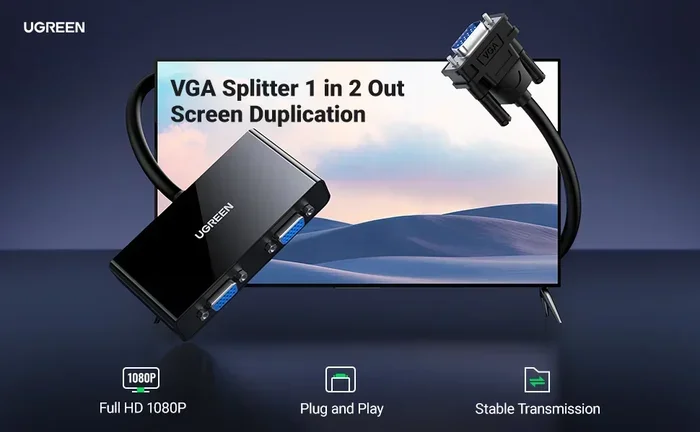
A VGA splitter is a small box or cable adapter that copies a video signal. You plug it into your computer’s VGA port. Then you connect two VGA cables from the splitter to each monitor. The signal gets duplicated. Both screens display the same thing at the same time.
How Does a VGA Splitter Work?
The splitter receives the analog video signal from your computer. It then amplifies that signal and sends it out through two separate ports. Think of it like a garden hose splitter. Water goes in one end and comes out two ways. The VGA splitter does the same thing with your video signal. It is simple, plug-and-play technology that has been around for decades.
Most VGA splitters do not need any software or drivers. You just plug them in and they work. This makes them very popular for people who want a quick and easy setup. They are also inexpensive. You can find a basic VGA splitter for under twenty dollars online or at any electronics store.
What Is VGA Anyway?
VGA stands for Video Graphics Array. It is an analog connection standard that has been used since the late 1980s. The VGA connector is the blue, trapezoid-shaped plug you have probably seen on older computers and projectors. While newer connections like HDMI and DisplayPort have taken over, VGA is still widely used in offices, schools, and homes around the world.
VGA cables carry video signals only. They do not carry audio. So if you are using a VGA splitter, you will need a separate audio connection if your setup requires sound. This is one thing many people forget until they are halfway through a presentation or movie.
Can You Really Use Dual Monitors With a VGA Splitter?
This is the big question, and the answer depends on what you mean by “dual monitors.” If you want both screens to show the same content, then yes, a VGA splitter works perfectly. But if you want to extend your desktop so each monitor shows different windows and applications, a standard VGA splitter will not help you.
Mirroring vs. Extending: What Is the Difference?
Mirroring means both displays show the same image. It is like looking in two mirrors facing each other. Everything you do on one screen appears on the other. This is useful for presentations, digital signage, or sharing your screen with a colleague sitting across the room.
Extending means your desktop spans across both monitors. You can drag windows from one screen to the other. You can have your email open on one monitor and your spreadsheet on the other. This gives you a much larger workspace and is what most people mean when they say they want dual monitors.
A VGA splitter only supports mirroring. It cannot extend your display. If you need extension, you will need a different approach. More on that below.
When Does Mirroring Make Sense?
Mirroring is actually very useful in many situations. Here are some common examples:
- Presentations: You project your screen onto a big display while using your laptop for notes.
- Gaming: You want a friend to see the same game on a second TV or monitor.
- Digital signage: You run the same content on two screens in a store or office lobby.
- Accessibility: Someone with a visual impairment needs a larger or brighter version of the same screen.
In all these cases, a VGA splitter does the job well. It is simple, reliable, and costs very little.
How to Set Up Dual Monitors With a VGA Splitter
If you have decided to go with a VGA splitter for mirroring, the setup is pretty straightforward. Here is a step-by-step guide to get you started.
What You Will Need
- A computer with a VGA output port
- A VGA splitter (male-to-female or female-to-female)
- Two VGA cables
- Two monitors with VGA input ports
- Optional: a VGA-to-HDMI adapter if your monitors do not have VGA inputs
Step-by-Step Setup
- Turn off your computer and both monitors. This prevents any signal conflicts during setup.
- Connect the VGA splitter to your computer. Plug the splitter into your computer’s VGA port. It should fit snugly.
- Connect the first monitor. Plug one VGA cable into the splitter’s first output port and the other end into your first monitor.
- Connect the second monitor. Plug the second VGA cable into the splitter’s second output port and into your second monitor.
- Turn on both monitors first, then your computer. This order helps the computer detect the displays properly.
- Adjust display settings. Right-click on your desktop and select Display Settings. Make sure both monitors are detected and set to mirror mode.
That is it. You should now see the same image on both screens. If one monitor is not showing anything, check your cable connections and make sure both monitors are powered on.
Quick Tips for a Smooth Setup
- Use high-quality VGA cables. Cheap cables can cause signal loss, flickering, or ghosting on your screens.
- Keep cable lengths reasonable. VGA signals degrade over long distances. Try to keep each cable under fifteen feet.
- Adjust the resolution. Go to your display settings and set both monitors to the same resolution for the best results.
- Check your graphics card. Some older graphics cards may not handle two outputs well through a splitter.
VGA Splitter vs. Other Solutions for Dual Monitors
A VGA splitter is not your only option. There are several other ways to connect dual monitors to your PC. Let us compare them so you can choose the best one for your needs.
Comparison Table
| Solution | Extends Display | Mirrors Display | Cost | Ease of Setup |
|---|---|---|---|---|
| VGA Splitter | No | Yes | Low | Very Easy |
| VGA Splitter with Built-in EDID | Sometimes | Yes | Medium | Easy |
| Dual VGA Ports on Graphics Card | Yes | Yes | Free | Easy |
| USB to VGA Adapter | Yes | Yes | Medium | Easy |
| HDMI Splitter | No | Yes | Low | Very Easy |
| DisplayPort Daisy Chain | Yes | Yes | Medium | Moderate |
| HDMI + VGA Adapter Combo | Yes | Yes | Low | Easy |
Why a VGA Splitter Might Not Be Enough
If your goal is to extend your desktop across two screens, a VGA splitter will frustrate you. The splitter duplicates the signal, it does not create a second independent output. Your graphics card sees one display, not two. So even though you have two physical screens, your computer treats them as one large mirrored display.
This is the most common mistake people make. They buy a VGA splitter expecting to extend their workspace, and they end up with two identical screens. If extension is your goal, you need a solution that provides two separate video outputs from your computer.
Better Alternatives for Extending Your Display
Here are some options that actually let you extend your desktop across dual monitors:
- Dual-output graphics card: If your desktop PC has a graphics card with two VGA ports (or one VGA and one HDMI), you can connect two monitors directly and extend your display in Windows or Mac settings.
- USB to VGA adapter: These small devices plug into a USB port and add a second VGA output. They are affordable and work well for most users.
- HDMI splitter with EDID management: Some advanced splitters can handle display extension, though this is less common with VGA technology.
- Docking station: A USB docking station can add multiple video outputs to your laptop, giving you the flexibility to connect dual monitors with ease.
Each of these solutions has its own pros and cons. The best choice depends on your computer, your monitors, and what you want to accomplish.
Common Problems and How to Fix Them
Using a VGA splitter with dual monitors is not always flawless. Here are some common issues you might run into and how to solve them.
Flickering or Dim Screens
This is one of the most common complaints with VGA splitters. The signal weakens when it is split between two displays. If you notice flickering or dim images, try these fixes:
- Use shorter VGA cables to reduce signal loss.
- Replace your VGA cables with higher-quality ones that have better shielding.
- Lower the resolution on both monitors slightly.
- Check that your VGA splitter is powered if it requires external power.
One Monitor Shows No Signal
If one monitor stays black while the other works, the problem is usually a loose cable or a faulty connection. Try reseating both VGA cables. If that does not work, test each cable individually to rule out a bad cable. Sometimes the splitter itself may be defective, especially if you bought a very cheap one.
Ghosting or Blurry Text
VGA is an analog signal, so it is more prone to interference than digital connections like HDMI. Ghosting happens when the signal bleeds slightly, causing a shadow effect behind text and images.
To reduce ghosting:
- Keep VGA cables away from power cords and other sources of interference.
- Use ferrite cores on your cables to filter out electromagnetic noise.
- Adjust the monitor’s sharpness and focus settings.
- Consider upgrading to a digital connection if your hardware supports it.
No Sound Through VGA
Remember, VGA only carries video. If you need audio, you will have to connect speakers or headphones separately. Most modern computers have a 3.5mm headphone jack or Bluetooth audio support. Use those to get sound through your setup.
Expert Tips for Getting the Best Results
Whether you are using a VGA splitter for mirroring or exploring other options for extending your display, these expert tips will help you get the most out of your dual monitor setup.
Check Your Graphics Card Capabilities
Before buying any splitter or adapter, check what your graphics card supports. Most modern graphics cards have at least two video outputs. You might already have the ability to connect two monitors without any extra hardware. Look at the back of your computer or check your graphics card specs online.
Consider Upgrading Your Connection
VGA is an older technology. If your monitors support HDMI or DisplayPort, consider upgrading your cables and adapters. Digital connections offer sharper images, better color accuracy, and higher resolutions. They also carry audio, which eliminates the need for a separate sound connection.
That said, if your computer only has VGA ports, a VGA splitter is still a perfectly valid choice for mirroring your screen. Do not feel like you need to upgrade everything at once.
Use EDID-Enabled Splitters for Better Compatibility
EDID stands for Extended Display Identification Data. It is a protocol that helps your computer communicate with your monitors. A VGA splitter with built-in EDID management can provide better compatibility and more stable performance. These splitters cost a bit more, but they are worth it if you experience display issues.
Keep Your Drivers Updated
Your graphics card drivers play a big role in how your dual monitor setup performs. Make sure you keep them updated through your manufacturer’s website or your computer’s update tool. Updated drivers often fix display bugs and improve compatibility with external monitors and splitters.
Is a VGA Splitter Worth It?
The answer depends entirely on what you need. If you just want to show the same content on two screens, a VGA splitter is a cheap and easy solution. It costs little, sets up in minutes, and requires no technical knowledge.
But if you need true dual monitor functionality with extended desktops, you should look at other options. A dual-output graphics card, a USB to VGA adapter, or a docking station will give you the flexibility and performance you need.
Think about your actual use case before you buy anything. Are you sharing a presentation? A splitter works great. Do you need more workspace for productivity? You need a different solution. Once you know what you want, the right choice becomes much clearer.
Final Thoughts
So, can you use dual monitors with a VGA splitter? The answer is yes, but with an important caveat. A VGA splitter mirrors your display, it does not extend it. For many users, mirroring is exactly what they need. For others, it is just a first step toward finding the right setup.
The world of monitor connections can feel overwhelming, especially with so many cables, adapters, and splitters on the market. But the basics are simple. Understand what you need, choose the right tool, and set it up with care. You will have a smooth dual monitor experience in no time.
Whether you stick with VGA or upgrade to a digital connection, the goal is the same: make your computer work better for you. A second monitor can boost your productivity, improve your workflow, and make your computing experience more enjoyable. So take your time, do your research, and pick the solution that fits your needs best.
You have got this. Setting up dual monitors is easier than most people think, and once you see your desktop spread across two screens, you will wonder how you ever managed with just one.
Frequently Asked Questions
Can a VGA splitter extend my display instead of mirroring it?
No, a standard VGA splitter only mirrors your display. It duplicates the same signal to both monitors. If you want to extend your desktop across two screens, you need a graphics card with dual outputs or a USB to VGA adapter instead.
Will using a VGA splitter reduce my screen quality?
Yes, there can be a slight reduction in quality. When the signal is split between two monitors, it may become dimmer or less sharp. Using high-quality cables and a powered splitter can help minimize these issues.
Can I connect one VGA monitor and one HDMI monitor with a VGA splitter?
Not directly with a standard VGA splitter. Both monitors need to accept the same type of signal. However, you can use a VGA-to-HDMI adapter on one end, but you may lose audio and experience some quality loss in the process.
Do I need any special software to use a VGA splitter?
No, most VGA splitters are plug-and-play. They do not require any software or drivers. Just connect the splitter to your computer, attach two monitors, and turn everything on. Your computer should detect the displays automatically.
What is the difference between a VGA splitter and a VGA switch?
A VGA splitter sends the same signal to multiple monitors at the same time. A VGA switch lets you choose between multiple input sources and send one selected signal to a single monitor. They serve very different purposes, so make sure you buy the right one for your needs.
Can I use a VGA splitter with a laptop?
Yes, most laptops with a VGA output port work perfectly fine with a VGA splitter. Just make sure your laptop supports external display output and that you have the right adapter if your laptop only has HDMI or USB-C ports.
=== CONCLUSION ===
Using dual monitors with a VGA splitter is definitely possible, but understanding how it works makes all the difference. A VGA splitter gives you mirroring, not extension. If that matches your needs, it is a simple and affordable solution. If you need more screen space with different content on each display, you will want to explore alternatives like dual graphics card outputs, USB adapters, or docking stations.
The key is knowing what you want before you buy. Take a moment to think about your setup, your budget, and your goals. With the right approach, you can create a dual monitor workspace that boosts your productivity and makes your computer feel faster and more capable than ever before.