Can I Use Usb C As A Video Input For External Displays
Yes, you can use USB C as a video input for external displays in many cases. Modern USB-C ports support DisplayPort Alt Mode and Thunderbolt protocols, allowing you to connect laptops, tablets, and phones to external monitors with ease. Whether you need a simple cable or a full USB-C dock, this guide covers everything you need to know about USB-C video input setups.
Key Takeaways
- USB-C Can Carry Video: Many USB-C ports support video output and input through DisplayPort Alt Mode and Thunderbolt protocols.
- Check Your Device First: Not all USB-C ports handle video. Always verify your port supports video input before buying adapters.
- Adapters and Hubs Make It Easy: USB-C to HDMI or DisplayPort adapters let you connect almost any external display.
- Thunderbolt Ports Offer the Most Power: Thunderbolt 3 and 4 ports deliver video, data, and power through a single cable.
- Common Issues Are Fixable: Most USB-C video problems stem from cable quality, adapter compatibility, or port limitations.
- Resolution Depends on Your Port: USB-C video input can support up to 4K or even 8K depending on the protocol and hardware.
📑 Table of Contents
- Can You Really Use USB C As A Video Input?
- Understanding USB-C and How It Handles Video
- Which Devices Support USB-C Video Input?
- How to Connect USB-C to External Displays
- USB-C Video Adapters and Hubs Explained
- Common Issues and How to Fix Them
- USB-C vs. Other Video Connections
- Expert Insights on USB-C Video Input
- Key Takeaways
- Conclusion
Can You Really Use USB C As A Video Input?
If you have ever looked at your laptop or tablet and wondered whether you can plug it into a bigger screen using a USB-C cable, you are not alone. The short answer is yes, USB C as a video input works in many situations. But the full answer depends on your device, your cable, and the kind of port you are working with.
USB-C has become the go-to connector for modern laptops, phones, and tablets. It is small, reversible, and incredibly versatile. One cable can handle charging, data transfer, and video all at the same time. This makes it a dream for people who want a clean desk setup with fewer cables cluttering their space.
However, not every USB-C port is created equal. Some ports only handle power and data. Others can carry a video signal too. This is why it matters to understand what your specific port can do before you buy an adapter or cable. USB-C video input is not a universal feature, even though many people assume it is.
In this guide, we will walk through everything you need to know. We will cover which devices support it, how to set it up, what adapters work best, and how to troubleshoot common problems. By the end, you will have a clear picture of whether USB-C can work as a video input for your specific setup.
Understanding USB-C and How It Handles Video
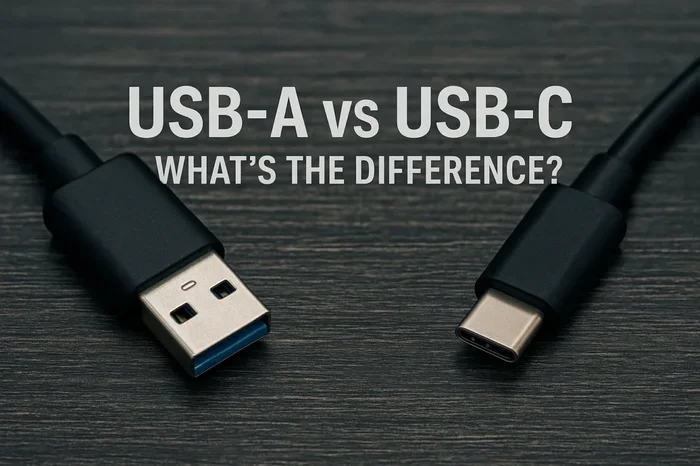
To understand USB-C video input, you need to know a little bit about how the USB-C standard works. USB-C refers to the shape and design of the connector. It does not automatically mean the port can do everything. Think of it like a highway. The road shape is the same, but some highways have more lanes than others.
DisplayPort Alt Mode
Many USB-C ports support something called DisplayPort Alt Mode. This is a protocol that lets the USB-C port carry a video signal. When a port supports this mode, it can send video to an external display without needing extra hardware beyond a simple cable or adapter.
Here is what you should know about DisplayPort Alt Mode:
- It is built into many modern laptops and smartphones.
- It supports resolutions up to 4K and sometimes higher.
- It works with USB-C to HDMI and USB-C to DisplayPort adapters.
- It does not always support video input. Most devices use it for video output only.
This is an important distinction. DisplayPort Alt Mode is mostly designed for video output. That means your laptop sends video to a monitor. Using USB-C as a video input means sending a video signal into your device, which is a different use case and not all devices support it.
Thunderbolt 3 and Thunderbolt 4
Thunderbolt 3 and Thunderbolt 4 are the heavy hitters when it comes to USB-C connectivity. These protocols use the same USB-C connector but offer much more bandwidth and capability.
Thunderbolt ports can do everything regular USB-C ports do, plus more. They support higher resolutions, faster data transfer, and in some cases, video input. If your device has a Thunderbolt port, you have a much better chance of using USB-C as a video input successfully.
Here is a quick comparison:
- USB-C (basic): Supports data, power, and sometimes video output.
- Thunderbolt 3: Supports data at 40Gbps, video output, and some input capabilities.
- Thunderbolt 4: Supports all Thunderbolt 3 features with stricter certification standards.
If you are serious about using USB-C for video, look for a Thunderbolt port on your device. It gives you the most flexibility and the best performance for USB-C video input setups.
Which Devices Support USB-C Video Input?
Not every device with a USB-C port can accept a video signal as input. This is where many people get confused. Let us break down what to look for on different types of devices.
Laptops and Computers
Most modern laptops come with USB-C ports, but only some of them can accept video input. Business laptops and creative workstations are more likely to support this feature. Consumer laptops often use USB-C ports strictly for charging and data.
Before you try to use USB-C as a video input on a laptop, check the manufacturer’s specs. Look for terms like “video input,” “DisplayPort input,” or “Thunderbolt with display input.” If you do not see these terms, the port likely cannot accept a video signal.
Tablets and Smartphones
Some tablets and smartphones with USB-C ports can accept video input, but this is less common. Samsung tablets, Google Pixel devices, and certain iPad models with USB-C can sometimes work as a display when connected to a computer.
However, this usually requires specific software or a compatible USB-C dock. The built-in screen of these devices acts as an external display for another computer or console. It is a handy trick, but it is not supported on every device.
Monitors and Displays
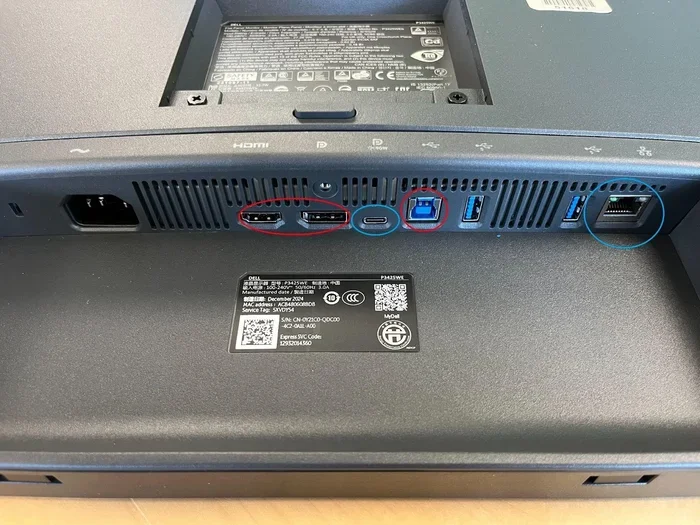
Many modern monitors now come with USB-C ports that can act as a video input. These monitors often include a built-in USB hub and can charge your laptop at the same time. If you are looking for an all-in-one USB-C monitor, you will find plenty of options on the market.
This is one of the easiest ways to use USB-C video input. You simply plug a USB-C cable from your laptop into the monitor, and the monitor displays your screen. No adapters needed.
How to Connect USB-C to External Displays
Setting up USB-C video input is easier than most people think. Once you know what your port supports, the process is straightforward. Let us walk through the steps.
Step 1: Check Your Port Capabilities
Before you buy anything, check whether your device’s USB-C port supports video input. Look at the device manual or search online for your specific model. You can also look at the port itself. A Thunderbolt logo or a DisplayPort logo next to the port is a good sign.
Step 2: Choose the Right Cable or Adapter
Once you know your port supports video, pick the right accessory. Here are the most common options:
- USB-C to HDMI cable: Works with most TVs and monitors that have HDMI inputs.
- USB-C to DisplayPort cable: Ideal for monitors with DisplayPort inputs.
- USB-C to VGA adapter: Older option for legacy projectors and monitors.
- USB-C hub with video output: Lets you connect multiple displays and peripherals at once.
For the best results, use a high-quality cable from a reputable brand. Cheap cables can cause signal drops, low resolution, or no signal at all.
Step 3: Connect and Configure
Plug the cable or adapter into your device and the external display. Your device should recognize the new display automatically. If it does not, check your display settings and look for an option to detect or enable the external screen.
You can usually choose between mirroring your screen or extending it. Mirroring shows the same image on both screens. Extending gives you more workspace across multiple displays.
Quick Tips for a Smooth Setup
- Always use the shortest cable possible for the best signal quality.
- Update your device drivers before troubleshooting display issues.
- Use a USB-C dock if you need multiple connections at once.
- Test with a different cable if the first one does not work.
- Make sure your external display is set to the correct input source.
USB-C Video Adapters and Hubs Explained
The market is full of USB-C adapters and hubs, and they are not all the same. Understanding the differences helps you avoid buying the wrong product.
Passive vs. Active Adapters
Passive adapters are simple and do not need external power. They work well for short distances and lower resolutions. Active adapters have built-in chips that boost the signal. They are better for longer cable runs and higher resolutions like 4K or 8K.
If you are using USB-C as a video input for a 4K monitor, go with an active adapter. It gives you a more reliable connection and better image quality.
Docking Stations
A USB-C docking station is like a Swiss Army knife for your workspace. It adds multiple ports, including video outputs, USB ports, Ethernet, and sometimes even power delivery. These are perfect for people who work from home and need a full desktop setup from a single laptop.
Popular docking station brands include CalDigit, Anker, Belkin, and Kensington. Look for one that explicitly supports video input if that is your goal.
Common Issues and How to Fix Them
Even with the right equipment, you might run into problems when setting up USB-C video input. Here are the most common issues and how to solve them.
No Signal on the External Display
This is the most common problem. It usually happens because the cable or adapter does not support video input. Try a different cable or adapter. Also make sure your display is set to the correct input source.
Low Resolution or Flickering
If your external display shows a blurry or flickering image, the cable might be too long or of poor quality. Use a shorter, higher-quality cable. Also check your display settings to make sure it is set to the native resolution of the monitor.
Device Does Not Recognize the Display
Sometimes your computer does not detect the external screen. Update your graphics drivers and restart your device. You can also try unplugging the cable and plugging it back in. If you are using a hub, connect the display directly to your device to rule out the hub as the problem.
Overheating or Power Issues
Some USB-C hubs draw power from your device. If your device overheats or the hub does not work properly, try using a powered hub or a hub with its own power supply.
USB-C vs. Other Video Connections
How does USB-C video input compare to other connection types? Let us look at the most common alternatives.
| Feature | USB-C | HDMI | DisplayPort | VGA |
|---|---|---|---|---|
| Max Resolution | 4K to 8K | 4K to 8K | 4K to 8K | 1080p |
| Carries Power | Yes | No | No | No |
| Carries Data | Yes | No | No | No |
| Reversible Connector | Yes | No | No | No |
| Common Use | Laptops, phones | TVs, monitors | Monitors | Old projectors |
USB-C stands out because it does so much in one connector. You get video, data, and power through a single cable. This is why it has become so popular in recent years. However, HDMI and DisplayPort still offer strong performance for dedicated video connections.
Expert Insights on USB-C Video Input
Industry experts agree that USB-C is the future of video connectivity. As more devices adopt the USB-C standard, the need for multiple cable types will continue to shrink. Thunderbolt technology is pushing the boundaries even further, with support for multiple 4K displays and ultra-fast data transfer.
If you are building a new workspace or upgrading your setup, investing in USB-C compatible devices is a smart move. Look for monitors, docks, and cables that are Thunderbolt certified for the best experience. And always double-check your device specifications before assuming a USB-C port can handle video input.
Key Takeaways
- USB-C Can Carry Video: Many USB-C ports support video input through DisplayPort Alt Mode and Thunderbolt protocols.
- Check Your Device First: Not all USB-C ports handle video. Always verify your port supports video input before buying adapters.
- Adapters and Hubs Make It Easy: USB-C to HDMI or DisplayPort adapters let you connect almost any external display.
- Thunderbolt Ports Offer the Most Power: Thunderbolt 3 and 4 ports deliver video, data, and power through a single cable.
- Common Issues Are Fixable: Most USB-C video problems stem from cable quality, adapter compatibility, or port limitations.
- Resolution Depends on Your Port: USB-C video input can support up to 4K or even 8K depending on the protocol and hardware.
Conclusion
Using USB C as a video input for external displays is absolutely possible in many cases. Whether you want to connect your laptop to a bigger monitor, use your tablet as a secondary screen, or set up a clean workspace with a single cable, USB-C makes it happen. The key is knowing what your device supports and choosing the right accessories.
Start by checking your port specifications. Look for Thunderbolt or DisplayPort Alt Mode support. Then pick the right cable, adapter, or hub for your needs. With the right setup, you can enjoy a seamless multi-display experience that keeps your desk tidy and your workflow efficient.
USB-C video input is not just a convenience. It is a practical solution for modern computing. As more devices adopt this versatile connector, you will find even more ways to use it in your daily routine. So go ahead, plug in that external display, and enjoy the bigger screen.
Frequently Asked Questions
Can any USB-C port be used as a video input?
No, not every USB-C port supports video input. Some ports only handle power and data. Check your device specifications for terms like DisplayPort Alt Mode or Thunderbolt support to confirm your port can carry a video signal.
What is the difference between USB-C video output and video input?
Video output sends a signal from your device to an external display. Video input sends a signal into your device so it can act as a display. Most USB-C ports are designed for output, and only certain devices support input functionality.
Do I need a special cable to use USB-C as a video input?
Yes, you need a cable or adapter that supports video input. A standard USB-C charging cable will not work. Look for USB-C to HDMI or USB-C to DisplayPort cables that explicitly support video signal transfer.
Can I connect a gaming console to my laptop using USB-C?
In some cases, yes. If your laptop supports USB-C video input and your console outputs video through USB-C, you can connect them. However, most gaming consoles use HDMI or proprietary connectors, so you may need an adapter.
What resolution can USB-C video input support?
USB-C video input can support resolutions up to 4K or even 8K, depending on your port and the protocol used. Thunderbolt 3 and Thunderbolt 4 ports offer the best support for high-resolution video input.
Are USB-C docking stations worth it for video input setups?
Yes, docking stations are very useful for video input setups. They let you connect multiple displays, peripherals, and power sources through a single USB-C connection. Look for docks that explicitly support video input if that is your goal.