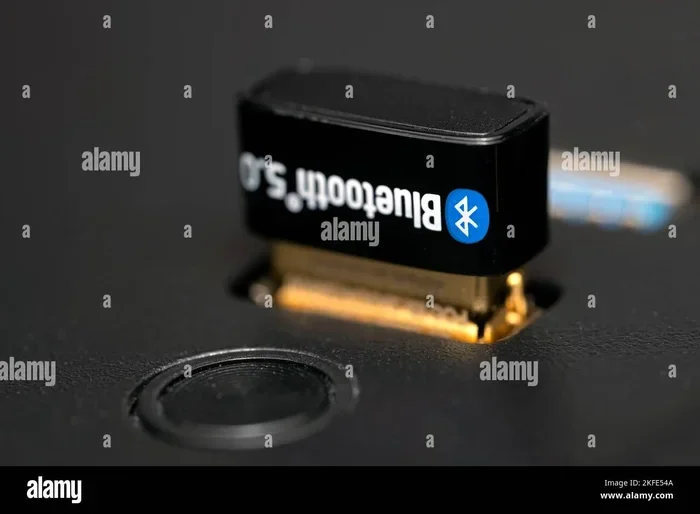
Can I Get Bluetooth With A USB Cable Or USB Adapter
Yes, you can absolutely get Bluetooth with a USB cable or USB adapter. A USB Bluetooth adapter is a simple plug-and-play device that adds wireless capability to any computer, laptop, or desktop that lacks built-in Bluetooth. Whether you want to connect wireless headphones, transfer files, or use a Bluetooth mouse, a USB Bluetooth adapter makes it fast and easy.
Have you ever wanted to go wireless but your computer or laptop does not have built-in Bluetooth? You are not alone. Many desktops and older laptops still ship without this handy feature. The good news is that you do not need to buy a whole new device. You can add Bluetooth to almost any computer using a simple USB connection.
The question “Can I Get Bluetooth With A USB” comes up all the time. And the answer is a clear yes. Whether you need a USB Bluetooth adapter, a Bluetooth USB cable, or a Bluetooth dongle, there is a solution for every budget and every need. Let us walk through everything you need to know.
Adding Bluetooth connectivity to your machine is one of the easiest upgrades you can make. It takes about five minutes. It costs very little. And it opens up a world of wireless possibilities. Let us dive in.
Key Takeaways
- USB Bluetooth adapters are affordable and easy to use: Most cost under $15 and plug directly into any available USB port.
- They work on almost any device: Windows PC, Mac, laptop, or desktop — any device with a USB port can get Bluetooth.
- Bluetooth 5.0 offers the best range and speed: Newer adapters provide longer range and more stable connections.
- No technical skills needed: Most adapters are plug and play and install automatically on modern operating systems.
- USB Bluetooth cables are different from adapters: A cable typically has a transmitter on one end and a receiver on the other for specific devices.
- Check compatibility before buying: Make sure the adapter matches your device’s USB type and operating system.
- Driver updates matter: Keeping your Bluetooth drivers updated ensures the best performance and fewer connection issues.
📑 Table of Contents
What Is a USB Bluetooth Adapter?
A USB Bluetooth adapter is a small device that plugs into a USB port on your computer. It sends and receives Bluetooth signals. This lets your device connect wirelessly to other Bluetooth-enabled gadgets. Think wireless headphones, speakers, keyboards, mice, and even smartphones.
These adapters are also called Bluetooth USB receivers or simply Bluetooth dongles. They come in different shapes and sizes. Some are tiny and barely stick out from the port. Others are slightly larger but offer better performance. The size often depends on the Bluetooth version and the antenna design inside.
How Does a USB Bluetooth Adapter Work?
When you plug a USB Bluetooth adapter into your computer, it acts as a wireless radio. It sends out a Bluetooth signal that other devices can detect. When you pair your wireless headphones or your phone, the adapter handles all the communication. It translates digital data into Bluetooth signals and back again.
The process is called Bluetooth pairing. Your computer and the other device exchange a short code. After that, they remember each other. You do not have to pair them again unless you reset the connection.
Different Bluetooth Versions Explained
Not all Bluetooth adapters are the same. They come in different versions. Each version brings improvements in speed and range. Here is a quick look at what you will find on the market today.
- Bluetooth 4.0: Good basic connectivity. Found in older adapters. Range is about 30 feet.
- Bluetooth 4.2: A step up. Better security and slightly faster data transfer.
- Bluetooth 5.0: The current sweet spot. Double the speed of 4.2. Range up to 800 feet in open space.
- Bluetooth 5.3: The newest standard. Better battery efficiency and more stable connections.
If you are buying a new adapter, go with Bluetooth 5.0 or higher. You will get a much better experience. The price difference is small, and the improvement is huge.
Can I Get Bluetooth With A USB Cable?
People often confuse a USB Bluetooth adapter with a Bluetooth USB cable. They are different things. A USB cable with Bluetooth capability usually has a transmitter on one end and a receiver on the other. These are designed for specific tasks like audio streaming from a non-Bluetooth device to a Bluetooth speaker.
When a Bluetooth USB Cable Makes Sense
A Bluetooth USB cable is useful in certain situations. For example, you have an old stereo system with no Bluetooth. You plug the cable into the stereo’s USB port. The other end has a Bluetooth transmitter. Now your phone can stream music wirelessly to the stereo.
These cables are also great for cars. If your car has a USB port but no Bluetooth, a Bluetooth USB transmitter cable can add wireless audio streaming. You plug it in and your phone connects automatically.
When You Need a USB Bluetooth Adapter Instead
If you want to add full Bluetooth capability to your computer, you need an adapter, not just a cable. An adapter gives your computer the ability to connect to any Bluetooth device. A cable usually only does one job. It connects one source to one receiver.
Here is a quick comparison to help you decide.
| Feature | USB Bluetooth Adapter | Bluetooth USB Cable |
|---|---|---|
| Adds Bluetooth to a computer | Yes | No |
| Wireless audio streaming | Yes | Yes |
| Connects multiple devices | Yes | Usually one at a time |
| Plug and play | Yes | Yes |
| Cost | $8 to $25 | $10 to $30 |
| Works as a permanent addition | Yes | No |
As you can see, a USB Bluetooth adapter is the better choice if you want all-around wireless capability. A cable is a good pick for a single specific task.
How to Set Up a USB Bluetooth Adapter
Setting up a USB Bluetooth adapter is incredibly easy. Most adapters work right out of the box. You do not need any special tools or technical skills. Here is how to do it step by step.
- Plug the adapter into a USB port. Use a USB port on the front or back of your computer. Avoid USB hubs if possible. A direct connection works best.
- Wait for the driver to install. On Windows 10 and 11, drivers install automatically. On Mac, you may need to download a driver from the manufacturer’s website.
- Turn on Bluetooth on your computer. Go to Settings, then Bluetooth, and toggle it on.
- Put your device in pairing mode. This usually means holding down a button on the headphones or speaker until a light flashes.
- Find the device on your computer. Click “Add Bluetooth or other device” and select the device from the list.
- Test the connection. Play some music or try a file transfer. If it works, you are all set.
That is it. Your computer now has Bluetooth connectivity. You can connect wireless headphones, speakers, keyboards, mice, and more.
Quick Tips for a Smooth Setup
- Use a USB 3.0 port if your computer has one. It provides better power and faster data transfer.
- Keep the adapter away from metal objects. Metal can block the Bluetooth signal.
- Restart your computer if the adapter does not show up right away.
- Update your drivers after setup. This ensures the best performance.
Best Uses for a USB Bluetooth Adapter
A USB Bluetooth adapter opens up many possibilities. Here are the most common and useful ways to use one.
Wireless Audio Streaming
This is the number one reason people buy a USB Bluetooth adapter. You can connect wireless headphones to your desktop computer. You can stream music to a Bluetooth speaker in another room. You can even listen to podcasts wirelessly while you work.
If you work from home, this is a game changer. No more tangled wires. No more sitting stuck to your desk. You can move around freely while staying connected.
Wireless File Transfer
You can also use Bluetooth to transfer files between your computer and your phone. Send photos, documents, or videos without a cable. It is not as fast as a USB cable, but it is super convenient for quick transfers.
Wireless Peripherals
Use a Bluetooth mouse, keyboard, or game controller with your computer. A USB Bluetooth adapter makes this possible even on desktops that lack built-in Bluetooth.
Connecting to Smart Home Devices
Some smart home devices use Bluetooth. A USB Bluetooth receiver lets your computer connect to smart speakers, fitness trackers, and other IoT devices. This is great for home automation setups.
Common Mistakes to Avoid
Even though setting up a USB Bluetooth adapter is easy, some common mistakes can cause problems. Here are a few to watch out for.
- Buying the wrong Bluetooth version. An older Bluetooth 4.0 adapter may not give you the speed or range you need. Check the version before you buy.
- Ignoring driver updates. Outdated drivers can cause connection drops. Always keep your drivers current.
- Using a USB hub without enough power. Some Bluetooth adapters need more power than a hub can provide. Plug directly into the computer when possible.
- Placing the adapter in a bad spot. If the adapter is hidden inside your computer case or buried behind a monitor, the signal may be weak. Keep it in the open.
- Not checking compatibility. Make sure the adapter works with your operating system. Most work with Windows and Mac, but always double-check.
Avoiding these simple mistakes will save you a lot of frustration. A little planning goes a long way.
Expert Insights on USB Bluetooth Technology
Bluetooth technology has come a long way. It is no longer just for phone calls and basic audio. Today, Bluetooth 5.0 and 5.3 support high-quality audio streaming, fast file transfers, and even video transmission in some cases.
According to the Bluetooth Special Interest Group, over 4 billion Bluetooth devices ship every year. The technology is everywhere. And adding it to your computer through a USB Bluetooth adapter is one of the smartest upgrades you can make.
Tech experts agree that a Bluetooth USB adapter is one of the most cost-effective peripherals you can buy. For under $20, you get wireless freedom for all your devices. It is a no-brainer for anyone who wants to cut the cord.
If you are still on the fence, think about how much you use wireless devices every day. Wireless headphones. Wireless mouse. Wireless keyboard. A USB Bluetooth adapter ties all of that together seamlessly.
How to Choose the Right USB Bluetooth Adapter
Not all adapters are created equal. Here is what to look for when you shop.
- Bluetooth version: Go with 5.0 or higher for the best performance.
- USB type: Make sure it fits your port. Most computers use standard USB-A. Newer laptops may need a USB-C adapter.
- Range: Look for adapters that advertise at least 30 to 50 feet of range.
- Brand reputation: Stick with well-known brands like TP-Link, ASUS, or Avantree.
- Driver support: Check that the manufacturer provides drivers for your operating system.
A good USB Bluetooth adapter should last you for years. It is a small investment that pays off big time in convenience.
Key Takeaways
- USB Bluetooth adapters are affordable and easy to use: Most cost under $15 and plug directly into any available USB port.
- They work on almost any device: Windows PC, Mac, laptop, or desktop — any device with a USB port can get Bluetooth.
- Bluetooth 5.0 offers the best range and speed: Newer adapters provide longer range and more stable connections.
- No technical skills needed: Most adapters are plug and play and install automatically on modern operating systems.
- USB Bluetooth cables are different from adapters: A cable typically has a transmitter on one end and a receiver on the other for specific devices.
- Check compatibility before buying: Make sure the adapter matches your device’s USB type and operating system.
- Driver updates matter: Keeping your Bluetooth drivers updated ensures the best performance and fewer connection issues.
Conclusion
So, can you get Bluetooth with a USB? Absolutely. A USB Bluetooth adapter is one of the simplest and most affordable ways to add wireless capability to any computer. Whether you have a desktop PC, an older laptop, or a laptop with a broken Bluetooth chip, a Bluetooth USB adapter fixes the problem in minutes.
You do not need to be a tech expert. You do not need expensive equipment. You just need a USB Bluetooth receiver and a free USB port. Plug it in, install the drivers, pair your devices, and you are wireless.
The world of Bluetooth connectivity is waiting for you. Wireless headphones. Wireless speakers. Wireless file transfers. A wireless mouse and keyboard. All of this becomes possible the moment you add a USB Bluetooth adapter to your setup.
Do not let a missing feature hold you back. Grab a Bluetooth USB adapter today and enjoy the freedom of wireless technology. Your computer — and your ears — will thank you.
Can I Get Bluetooth With A USB Cable On A Mac?
Yes, you can. Most USB Bluetooth adapters work on Mac computers. Just make sure the adapter supports macOS and download the latest driver from the manufacturer’s website if needed.
Do I Need to Install Drivers for a USB Bluetooth Adapter?
On Windows 10 and 11, drivers usually install automatically. On older versions of Windows or on Mac, you may need to download drivers manually. Always check the manufacturer’s website for the latest version.
Can I Use a USB Bluetooth Adapter on Multiple Computers?
Yes, you can. A USB Bluetooth adapter is portable. You can unplug it from one computer and plug it into another. Just remember to uninstall the drivers on the old computer first if you run into issues.
Does a USB Bluetooth Adapter Affect Internet Speed?
No, it does not. Bluetooth and Wi-Fi use different frequencies. A USB Bluetooth adapter will not slow down your internet connection. It only handles Bluetooth devices, not your Wi-Fi traffic.
How Far Can a USB Bluetooth Adapter Reach?
Most Bluetooth 5.0 adapters can reach up to 50 feet indoors and up to 800 feet in open space. The range depends on the Bluetooth version and any obstacles between the devices.
Is a USB Bluetooth Adapter Safe to Use?
Yes, it is completely safe. Bluetooth technology uses low-power radio waves that are well within safety standards. Millions of people use Bluetooth adapters every day without any issues.
Frequently Asked Questions
What is Can I Get Bluetooth With A Usb?
Can I Get Bluetooth With A Usb is an important topic with many practical applications.