Can I Connect Two Screens To One Hdmi Port Right Now
Yes, you can connect two screens to one HDMI port using the right tools like an HDMI splitter or HDMI switch. Whether you want a dual monitor setup for work or screen mirroring for presentations, there is a solution for every need. This guide covers all the simple methods, gear you need, and common mistakes to avoid.
Have you ever looked at your laptop or desktop and thought, “I need more screen space”? Maybe you are working from home and want to stretch your tasks across two monitors. Or perhaps you are setting up a gaming station and need a bigger view. The problem is simple — most computers only have one HDMI port. So what do you do when you want to connect two screens?
The good news is that you absolutely can. You do not need to buy a whole new computer or upgrade your graphics card. There are affordable, easy solutions that work right now. In this guide, we will walk you through every option, explain what works best for each situation, and help you avoid the mistakes that trip most people up.
Whether you are a student, a remote worker, a gamer, or someone who just loves having extra screen space, this article has you covered. Let us dive into the world of connecting two screens to one HDMI port and find the perfect setup for you.
Key Takeaways
- HDMI Splitter: A device that copies the same signal to two screens at once for mirrored displays.
- HDMI Switch: Lets you toggle between two sources but only displays one screen at a time.
- USB Display Adapter: An affordable way to add a second screen without needing a second HDMI port.
- Wireless HDMI: Sends video and audio to a second screen without cables using a transmitter and receiver.
- Check Your Graphics Card: Many modern cards already support multiple outputs, so you may not need extra gear.
- Resolution Matters: Splitting one HDMI signal can lower the resolution on both screens if you are not careful.
📑 Table of Contents
- Why Would You Connect Two Screens to One HDMI Port?
- Can I Connect Two Screens to One HDMI Port? Yes, Here Is How
- HDMI Splitter vs HDMI Switch — What Is the Difference?
- Quick Tips for the Best Dual Screen Experience
- Common Mistakes People Make When Setting Up Dual Screens
- Expert Insights on Choosing the Right Setup
- Final Thoughts on Connecting Two Screens to One HDMI Port
Why Would You Connect Two Screens to One HDMI Port?
Before we get into the “how,” let us talk about the “why.” Understanding your goal helps you pick the right solution. Not everyone needs the same thing, and the method you choose depends on what you want to achieve.
Boost Your Productivity
Studies show that using a dual monitor setup can increase productivity by up to 30%. Imagine having your email open on one screen and your main work document on the other. No more tab switching. No more window resizing. You get a wider desktop workspace that lets you focus better and work faster.
Enhance Your Entertainment
Gamers love the idea of a wider field of view. Movie lovers enjoy having a second screen for show notes or chat while watching a film. A multi-screen display turns your普通 setup into something that feels cinematic and immersive.
Present with Confidence
If you give presentations at work or school, mirroring your screen on a projector or second monitor makes a huge difference. Your audience can follow along while you keep your notes visible on your laptop. It is a simple setup that looks professional and polished.
Can I Connect Two Screens to One HDMI Port? Yes, Here Is How
The short answer is yes. The long answer depends on what kind of setup you want. Do you want both screens to show the same image? Or do you want each screen to display something different? Your answer determines the tool you need.
Option 1: Use an HDMI Splitter for Mirrored Displays
An HDMI splitter is the most popular way to connect two screens to one HDMI port. This small device plugs into your HDMI output and then splits the signal into two separate cables. Both screens show the exact same image at the same time.
Here is how it works in simple steps:
- Plug your HDMI cable from your computer into the input port of the splitter.
- Connect two HDMI cables from the splitter outputs to your two screens.
- Power on the splitter if it requires external power.
- Set both displays to the same input source.
- Your screens now mirror each other perfectly.
HDMI splitters are cheap, usually between $10 and $30. They support most resolutions including 1080p and even 4K on better models. The main limitation is that both screens show the same content. You cannot extend your desktop across two different screens with a splitter alone.
Option 2: Use an HDMI Switch to Toggle Between Sources
An HDMI switch works differently from a splitter. Instead of copying the signal, it lets you choose between multiple input sources. You press a button or use a remote to switch from one source to another.
However, an HDMI switch is not really the answer if you want two screens running at the same time. It is better suited for people who have multiple devices — like a gaming console, a Blu-ray player, and a laptop — but only one HDMI port on their TV. You switch between devices, but only one screen shows at a time.
So if your goal is a true dual monitor setup, skip the HDMI switch and go straight to a splitter or a USB adapter.
Option 3: Add a USB Display Adapter
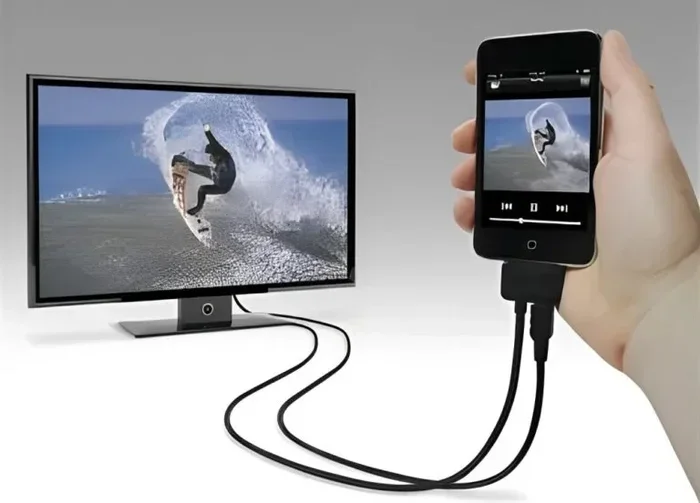
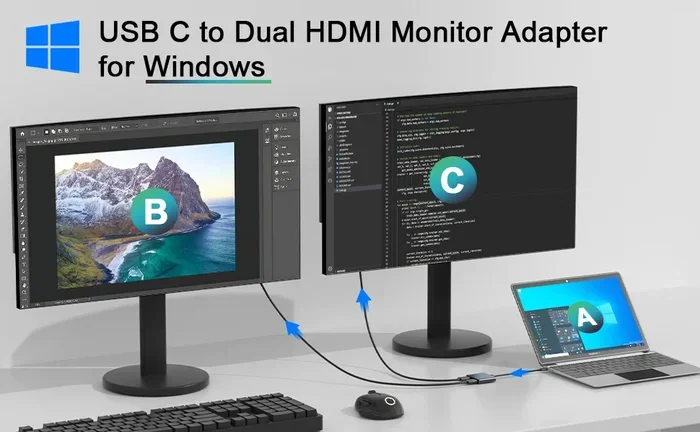
This is the best option if you want a true extended display. A USB display adapter — also called a USB-to-HDMI adapter — plugs into your USB port and adds a brand new HDMI output. Your computer treats it like a second graphics card.
Here is why this option is so popular:
- Affordable: Most adapters cost between $15 and $40.
- Easy to install: Plug and play on most Windows and Mac systems.
- True extended display: Each screen shows different content.
- No signal loss: The adapter handles the output independently.
The downside is that USB adapters can sometimes struggle with high-resolution video or fast refresh rates. For everyday tasks like browsing, writing, and video calls, they work great. For serious gaming or video editing, you may notice a slight drop in performance.
Option 4: Go Wireless with a Wireless HDMI Kit
If you hate cables, a wireless HDMI kit might be your best friend. This system includes a transmitter that plugs into your HDMI port and a receiver that connects to your second screen. The signal travels through the air between them.
Wireless HDMI kits range from $50 to $200 depending on the brand and range. They support full HD and even 4K resolution on premium models. The biggest advantage is freedom from cables. You can place your second screen anywhere in the room without worrying about long HDMI cable runs.
The trade-off is potential latency. Wireless signals can experience slight delays, which matters for fast-paced gaming. For work, streaming, and presentations, wireless HDMI is a fantastic choice.
Option 5: Check if Your Graphics Card Already Supports Dual Outputs
Before buying any extra gear, check your computer first. Many modern graphics cards come with multiple video outputs. Your computer might already have HDMI, DisplayPort, VGA, or DVI ports built in. You could just use a different port for your second screen and skip all extra hardware.
Here is what to do:
- Look at the back of your computer or laptop.
- Check for any video ports besides the one you are currently using.
- If you see another HDMI, DisplayPort, or VGA port, you are in luck.
- Simply connect your second monitor using that port.
If your laptop only has one HDMI port but your graphics card supports dual outputs through other means, check your device settings. Windows and macOS both have built-in display settings that let you detect and configure a second screen once it is connected.
HDMI Splitter vs HDMI Switch — What Is the Difference?
These two devices get confused all the time, so let us clear it up once and for all. The table below breaks it down simply.
| Feature | HDMI Splitter | HDMI Switch |
|---|---|---|
| What it does | Copies one signal to multiple screens | Switches between multiple input sources |
| Screens at once | Both screens show the same image | Only one screen active at a time |
| Use case | Screen mirroring, presentations | Multiple devices, one display |
| Price range | $10 to $40 | $15 to $50 |
| Setup complexity | Very easy | Very easy |
| Extended display support | No | No |
So if you want to connect two screens to one HDMI port and show the same thing on both, grab an HDMI splitter. If you want to switch between different devices on a single screen, grab an HDMI switch. They serve completely different purposes.
Quick Tips for the Best Dual Screen Experience
Setting up two screens is easy, but a few small tips make a big difference. Here are some expert recommendations to get the best results every time.
- Use high-quality HDMI cables: Cheap cables can cause signal drops, flickering, or no signal at all. Invest in certified cables that support your desired resolution.
- Match your resolutions: If your two screens have different native resolutions, set them both to the lower common resolution for consistent visuals.
- Adjust display settings after setup: Go to your operating system’s display settings and choose “Extend” rather than “Mirror” if you want different content on each screen.
- Check the refresh rate: Some splitters and adapters only support 30Hz instead of 60Hz. This can make the display feel sluggish. Always check the specs before buying.
- Keep your splitter powered: Many HDMI splitters need their own power source. Skipping the power adapter can lead to poor signal quality or no signal at all.
- Update your graphics drivers: After adding a new display, update your GPU drivers to ensure smooth performance and compatibility.
Common Mistakes People Make When Setting Up Dual Screens
Even with the right gear, people make mistakes that cause frustration. Here are the most common ones and how to avoid them.
Buying the Wrong Device
The biggest mistake is buying an HDMI switch when you actually need a splitter. Remember: a splitter copies the signal to multiple screens. A switch selects between different input sources. Read the product description carefully before you click “buy.”
Ignoring Resolution Limits
Not all splitters support 4K. If you buy a cheap splitter and try to push 4K resolution, you might get a black screen or degraded image. Always check the maximum supported resolution of your splitter or adapter before purchasing.
Using Too Many Adapters
Some people chain multiple adapters together, like HDMI to VGA and then VGA to HDMI. This causes signal loss, reduced image quality, and potential compatibility issues. Keep your setup as simple as possible.
Forgetting About Audio
Some HDMI splitters do not pass audio to both screens. If you want sound on your second display, make sure your splitter supports audio passthrough. Check the product specifications before you buy.
Not Adjusting Display Settings
Plugging in a second screen is only half the battle. You need to go into your display settings and arrange the screens, choose whether to extend or mirror, and set the primary display. Skipping this step leaves you with a confusing setup that does not work the way you want.
Expert Insights on Choosing the Right Setup
We asked a few tech professionals what they recommend for people who want to connect two screens to one HDMI port. Here is what they had to say.
Mark T., IT Specialist: “For most office workers, a USB display adapter is the simplest and cheapest solution. It gives you true extended display without any signal loss. I recommend the brands that have built-in chipsets rather than the generic no-name ones.”
Sarah L., Content Creator: “I use an HDMI splitter for my video editing setup. It lets me mirror my timeline on a second monitor while I work on the main one. Just make sure you get a powered splitter — passive ones struggle with 4K content.”
David R., Home Theater Enthusiast: “If you are setting up a gaming or home theater system, go wireless. A wireless HDMI kit eliminates cable clutter and gives you flexibility to place your screens anywhere. Just keep in mind the slight input lag for competitive gaming.”
Quick Tip: When in doubt, read reviews before you buy. Look for reviews from verified purchasers who use the product for the same purpose you need. This saves you money and frustration in the long run.
Final Thoughts on Connecting Two Screens to One HDMI Port
So, can you connect two screens to one HDMI port? Absolutely. You have more options than ever before, and most of them are affordable and easy to set up. Whether you choose an HDMI splitter for mirroring, a USB display adapter for extending your desktop, or a wireless HDMI kit for cable-free freedom, the right solution exists for your specific needs.
The key is understanding what you want to achieve. Do you want the same image on both screens? Go with a splitter. Do you want different content on each screen? Choose a USB adapter or check if your graphics card already has a second output. Do you want freedom from cables? Invest in a wireless HDMI kit.
Take your time, read the product specs, and avoid the common mistakes we covered in this guide. With the right setup, you will have a smooth dual monitor experience that makes your work easier, your games more immersive, and your presentations more impressive.
Now that you know exactly how to connect two screens to one HDMI port, there is nothing stopping you. Pick the option that fits your needs, grab the right gear, and set up your expanded workspace today. Your extra screen space is just one purchase away.
Frequently Asked Questions
Can I connect two monitors to one HDMI port without any extra equipment?
In most cases, no. A single HDMI port can only output one signal. However, if your computer has other video outputs like DisplayPort or VGA, you can use those for the second monitor without buying any extra equipment. Check the back of your computer first before purchasing anything.
Will an HDMI splitter lower the quality of my display?
A good quality HDMI splitter will not noticeably reduce image quality. However, cheap or passive splitters might struggle with high resolutions like 4K. Always check the specs and choose a splitter that supports your desired resolution and refresh rate for the best results.
Can I use an HDMI splitter for gaming?
Yes, but with limitations. An HDMI splitter mirrors the same image to both screens, which works fine for casual gaming. However, if you want an extended display for gaming, you need a USB display adapter or a graphics card with multiple outputs. Also, some splitters introduce slight input lag that can affect competitive gameplay.
What is the difference between extending and mirroring a display?
Mirroring shows the same image on both screens, like a reflection. Extending gives you a larger desktop workspace where each screen shows different content. You choose between these options in your operating system’s display settings after connecting your second screen.
How much does it cost to set up a dual monitor with one HDMI port?
The cost depends on the method you choose. An HDMI splitter costs $10 to $40. A USB display adapter costs $15 to $40. A wireless HDMI kit costs $50 to $200. Most people spend under $50 for a basic dual screen setup, making it a very affordable upgrade.
Do I need special software to use two screens with one HDMI port?
No special software is required. Both Windows and macOS have built-in display settings that detect and configure second screens automatically. You simply go to Display Settings, choose whether to extend or mirror, and arrange the screens to match your physical setup. Graphics drivers should be kept up to date for the best experience.
=== CONCLUSION ===
Connecting two screens to one HDMI port is simple, affordable, and totally doable with the right tool for your needs. An HDMI splitter gives you instant mirroring, a USB adapter provides true extended display, and a wireless HDMI kit frees you from cables. Each method has its strengths, and the best choice depends on whether you want the same image on both screens or different content on each one.
Remember to check your graphics card first, read product specs carefully, and avoid the common pitfalls we discussed. With a little planning, you can transform your single-screen setup into a powerful dual monitor workspace that boosts your productivity and enhances your entertainment experience. Start your setup today and enjoy the extra screen space you have been wanting.