Can I Connect My Phone To Tv With Usb To Hdmi Adapter
Yes, you can connect your phone to your TV with a USB to HDMI adapter, but it depends on your phone model, TV input, and adapter type. This guide covers everything you need to know about wired phone-to-TV connections, including compatible devices, setup steps, and troubleshooting tips. Whether you have an Android or iPhone, a USB to HDMI adapter can turn your small screen into a big-screen experience in minutes.
You are sitting on your couch, watching a video on your phone, and thinking, “This would look so much better on my TV.” It is a very common moment. The good news is that you can often make it happen with a simple USB to HDMI adapter. But the question remains: can I connect my phone to TV with USB to HDMI adapter? The short answer is yes, in most cases. But there are a few things you need to know before you buy one and plug it in.
Connecting your phone to your TV through a wired connection is one of the most reliable ways to share your screen. It does not rely on Wi-Fi strength or Bluetooth stability. You get a direct, high-quality video and audio signal from your phone to your TV. This guide will walk you through everything you need to know about using a USB to HDMI adapter for phone-to-TV connections. We will cover compatibility, setup, troubleshooting, and alternatives.
Key Takeaways
- USB to HDMI adapters work with many phones: Most modern Android phones with USB-C ports support wired TV connections through compatible adapters.
- Compatibility is the biggest factor: Not every phone and TV combination will work. Check for MHL support, USB-C Alt Mode, and your TV’s HDMI input before buying.
- Setup is simple and fast: The process typically takes under five minutes once you have the right adapter and cable.
- Wired connections offer reliability: Unlike wireless casting, a USB to HDMI adapter delivers stable video and audio without lag or buffering.
- Common issues are easy to fix: Most problems like no signal, no sound, or flickering can be solved with basic troubleshooting steps.
- Wireless alternatives exist: If your adapter isn’t compatible, options like Chromecast, AirPlay, or Miracast offer wireless phone-to-TV streaming.
📑 Table of Contents
- Can I Connect My Phone To TV With USB To HDMI Adapter?
- How Does a USB to HDMI Adapter Work?
- What to Look for in a USB to HDMI Adapter
- Step-by-Step: Connecting Your Phone to Your TV
- Common Problems and How to Fix Them
- USB to HDMI Adapter vs Wireless Streaming Options
- Expert Tips for Getting the Best Results
- Final Verdict
Can I Connect My Phone To TV With USB To HDMI Adapter?
The answer is yes, but with some important conditions. Your phone needs to support video output through its USB port. Your TV needs to have an available HDMI input. And you need the right type of adapter that matches your phone’s charging port. Let us break this down so it is crystal clear.
Most modern Android phones released in the last five years use USB-C ports. These phones can often output video through a USB-C to HDMI adapter. Older phones with Micro-USB ports may need a different type of adapter or may not support video output at all. iPhones are a different story. Apple does not support MHL or standard USB video output through the Lightning port, so you will need a Lightning to HDMI adapter instead of a standard USB to HDMI adapter.
What Is USB to HDMI Adapter Technology?
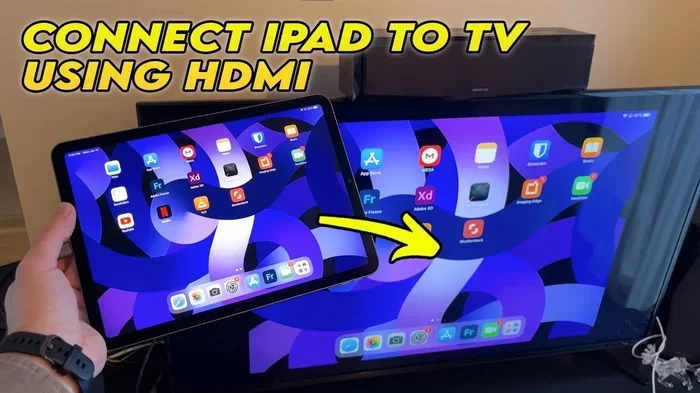
A USB to HDMI adapter is a small device that converts the digital signal from your phone into an HDMI signal your TV can read. Think of it as a translator between your phone and your television. When you plug the adapter into your phone and connect an HDMI cable from the adapter to your TV, your phone’s screen appears on the big display.
There are two main technologies behind this process. The first is MHL, which stands for Mobile High-Definition Link. MHL was a standard that allowed phones to send HD video and audio through their USB ports. The second is USB-C Alt Mode, which is a newer standard built into many modern USB-C phones. Both technologies achieve the same goal: displaying your phone screen on a larger display. However, not all phones support either of these standards, which is why compatibility checking is so important.
How Does a USB to HDMI Adapter Work?
Understanding how a USB to HDMI adapter works helps you troubleshoot problems and choose the right product. The adapter takes the video and audio data from your phone and converts it into a format your TV understands. Here is a simple breakdown of the process.
First, your phone sends a video signal through its USB port. This signal contains both visual and audio data. The adapter processes this signal and converts it into an HDMI-compatible format. Then, through an HDMI cable, the signal travels to your TV. Your TV receives the signal and displays it on the screen, just like it would with a streaming stick or a gaming console.
The Role of USB-C Alt Mode
USB-C Alt Mode is a feature found in many modern smartphones. It allows the USB-C port to carry non-USB data, including video signals. When your phone supports USB-C Alt Mode, it can output video through a compatible adapter. You do not need any special apps or software. Simply plug in the adapter, connect the HDMI cable, and your TV should display your phone screen.
Not all USB-C phones support Alt Mode, though. Some phones only support USB 2.0 data transfer through their USB-C port, which means they cannot carry video signals. Before purchasing an adapter, check your phone’s specifications to confirm it supports video output through USB-C.
MHL Technology Explained
MHL was the original standard for connecting phones to TVs through USB. It was widely used in Android phones from around 2011 to 2018. MHL adapters convert the phone’s USB signal into HDMI output. If you have an older Android phone, there is a good chance it supports MHL.
However, MHL has largely been replaced by USB-C Alt Mode in newer devices. Many modern phones no longer support MHL. If you are trying to connect an older phone, look for an adapter that specifically mentions MHL compatibility. For newer phones, focus on adapters that support USB-C Alt Mode or DisplayPort Alt Mode.
What to Look for in a USB to HDMI Adapter
Not all adapters are created equal. Buying the wrong one can lead to frustration and wasted money. Here are the key factors to consider before making a purchase.
Check Your Phone’s Port Type
The first thing you need to know is what kind of charging port your phone has. Most Android phones made after 2018 use USB-C. Older Android phones may use Micro-USB. iPhones before the iPhone 15 use Lightning. The iPhone 15 and newer models use USB-C. Your adapter must match your phone’s port type.
- USB-C phones: Look for a USB-C to HDMI adapter that supports video output.
- Micro-USB phones: You need a Micro-USB to HDMI adapter with MHL support.
- Lightning iPhones: You need a Lightning to HDMI adapter, not a standard USB to HDMI adapter.
- USB-C iPhones (iPhone 15+): A USB-C to HDMI adapter works just like it does for Android phones.
Check Your TV’s HDMI Inputs
Your TV needs to have at least one available HDMI port. Most modern TVs have three to four HDMI inputs. Check the back or side of your TV for the HDMI ports. If all ports are taken, you may need an HDMI switch or splitter to free up a port.
Look for Adapter Compatibility
Not every adapter works with every phone. Some adapters are designed specifically for Samsung phones, while others work with a wider range of devices. Look for adapters that explicitly list your phone model as compatible. Reading reviews from other users with the same phone model can save you a lot of headaches.
Consider Adapter Quality and Brand
Cheap adapters from unknown brands often cause problems. They may overheat, produce poor video quality, or stop working after a few uses. Stick with reputable brands like Samsung, Belkin, Amazon Basics, or Cable Matters. A quality adapter might cost a bit more, but it will save you from the frustration of a faulty connection.
Step-by-Step: Connecting Your Phone to Your TV
Once you have the right adapter, the setup process is straightforward. Here is a step-by-step guide to get your phone screen on your TV.
Step 1: Gather Your Equipment
You will need three things: your phone, a USB to HDMI adapter, and an HDMI cable. Make sure your adapter matches your phone’s port type. Have your HDMI cable ready, and make sure it is long enough to reach from your phone to your TV.
Step 2: Plug the Adapter into Your Phone
Connect the USB end of the adapter to your phone’s charging port. You should feel it click into place. Some adapters have a built-in HDMI cable, while others require you to connect one separately.
Step 3: Connect the HDMI Cable to Your TV
Plug one end of the HDMI cable into the adapter. Then plug the other end into an available HDMI port on your TV. Use the same HDMI port each time so you do not have to keep changing inputs.
Step 4: Switch Your TV to the Correct Input
Using your TV remote, switch the input source to the HDMI port you just used. Most TVs have an “Input” or “Source” button on the remote. Select the HDMI port that matches where you plugged in the cable. Your phone screen should now appear on the TV.
Step 5: Adjust Display Settings on Your Phone
If the screen does not appear right away, try adjusting your phone’s display settings. On Android phones, go to Settings, then Display, then look for an option like “Cast to TV” or “HDMI output.” On iPhones, go to Settings, then Display & Brightness, and check for screen mirroring options.
Quick Tips for a Smooth Setup
- Make sure your phone is fully charged or plugged into power during use. Video output drains battery quickly.
- Use a high-quality HDMI cable for the best picture quality.
- If the screen is black, try unplugging and replugging the adapter.
- Some phones require you to enable “USB debugging” in Developer Options for video output to work.
Common Problems and How to Fix Them
Even with the right adapter, you might run into issues. Here are the most common problems and their solutions.
No Signal on the TV
If your TV shows “No Signal,” the first thing to check is the HDMI connection. Make sure the cable is firmly plugged into both the adapter and the TV. Try a different HDMI port on your TV. If that does not work, try a different HDMI cable. Sometimes the cable itself is the problem.
Another common cause is that your phone does not support video output through its USB port. Check your phone’s specifications to confirm it supports MHL or USB-C Alt Mode. If it does not, a USB to HDMI adapter will not work with your device.
No Sound
If you get a picture but no sound, check your TV’s audio settings. Make sure the TV is not muted and the volume is turned up. On some phones, you need to go to Settings, then Sound, and select the HDMI output as the audio device. On Android phones, you can also try pulling down the notification shade and selecting the HDMI audio output.
Flickering or Distorted Video
Flickering video is often caused by a loose connection or a low-quality adapter. Make sure all cables are securely plugged in. Try a different adapter if the problem persists. Overheating can also cause flickering, so make sure your phone is not too hot during use.
Phone Does Not Recognize the Adapter
Some phones need a moment to recognize the adapter. Wait 30 seconds after plugging it in. If your phone still does not recognize it, try cleaning the USB port on your phone. Dust and lint can build up in the port and prevent a proper connection. A soft brush or compressed air can help clear it out.
USB to HDMI Adapter vs Wireless Streaming Options
A wired USB to HDMI adapter is not your only option for getting phone content on your TV. Wireless methods like Chromecast, AirPlay, and Miracast are popular alternatives. But how do they compare?
Wired Connection: USB to HDMI Adapter
A wired connection offers the most reliable and stable screen mirroring. There is no lag, no buffering, and no dependence on Wi-Fi quality. The video and audio are transmitted in real time with minimal delay. This makes wired connections ideal for gaming, presentations, and watching fast-moving content.
The downside is that you are tethered to your TV. You cannot walk away from the TV while using a wired connection. The adapter also takes up your phone’s charging port, which means you cannot charge your phone while streaming unless you use a separate charger.
Wireless Connection: Chromecast, AirPlay, Miracast
Wireless streaming offers freedom and convenience. You can control your TV from across the room. You can browse, answer messages, and move around without being tied to a cable. Chromecast works with most Android phones and Google Chrome browsers. AirPlay works seamlessly with iPhones and iPads. Miracast is a universal standard supported by many smart TVs and Android devices.
However, wireless streaming depends heavily on your Wi-Fi network. A weak or crowded network can cause lag, stuttering, and poor video quality. There is also a slight delay between your phone’s actions and what appears on the TV, which can be noticeable during gaming or video calls.
Which Option Is Right for You?
If you want the best picture quality and zero lag, a USB to HDMI adapter is the way to go. If you value convenience and freedom, wireless streaming is a great choice. Many people use both methods depending on the situation. For movie nights, a wired connection provides the best experience. For casual browsing and quick shares, wireless streaming is more practical.
Expert Tips for Getting the Best Results
Getting the most out of your USB to HDMI adapter comes down to a few simple best practices. Here are some expert tips that make a real difference.
Use a Powered Adapter for Long Sessions
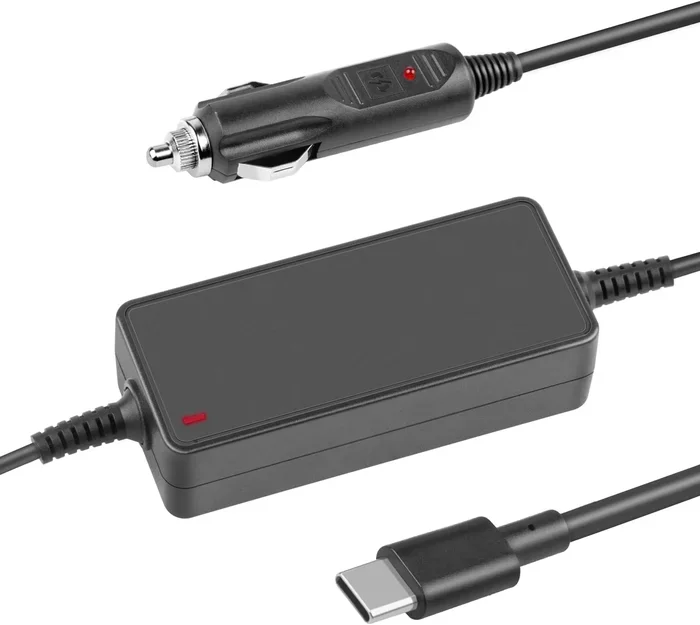
Some USB to HDMI adapters draw power from your phone, which can drain your battery quickly. If you plan to watch a long movie or give a presentation, consider using a powered adapter that has its own power source. These adapters plug into a wall outlet and do not drain your phone’s battery during use.
Keep Your Phone Cool
Video output generates heat. If your phone gets too hot, it may throttle performance or stop the video output entirely. Keep your phone in a cool, well-ventilated area during use. Avoid placing it under a pillow or in a thick case that traps heat.
Update Your Phone’s Software
Software updates often include fixes for connectivity issues. Before setting up your adapter, make sure your phone is running the latest version of its operating system. This simple step can resolve many compatibility problems.
Test with Different HDMI Cables
If you are experiencing issues, the problem might be the HDMI cable, not the adapter. Try different HDMI cables to rule out a faulty cable as the cause. High-speed HDMI cables rated for 4K or higher tend to provide the most reliable connection.
Check for Phone-Specific Settings
Some phones have hidden settings that affect video output. On Samsung phones, for example, you may need to enable “HDMI output” in the Developer Options menu. On other phones, you might need to turn off battery saver mode before the adapter works properly. Explore your phone’s settings to find any relevant options.
Final Verdict
So, can I connect my phone to TV with USB to HDMI adapter? Absolutely yes, in most cases. A USB to HDMI adapter is a simple, reliable, and affordable way to bring your phone’s content to a bigger screen. Whether you want to watch movies, share photos, play games, or give a presentation, a wired connection delivers excellent quality without the hassle of Wi-Fi issues.
The key to success is choosing the right adapter for your phone model, confirming compatibility before you buy, and following the setup steps carefully. If you run into problems, the troubleshooting tips in this guide should help you resolve them quickly. For those who prefer a wireless option, alternatives like Chromecast and AirPlay are worth considering too.
Take a few minutes to check your phone’s specifications, pick up a quality adapter, and enjoy your favorite content on the big screen. A phone-to-TV connection through a USB to HDMI adapter is one of the easiest and most satisfying upgrades you can make to your home entertainment setup. Try it once, and you will wonder how you ever lived without it.
Frequently Asked Questions
Do all phones support USB to HDMI adapters?
No, not all phones support video output through USB. Most modern Android phones with USB-C ports do support it through USB-C Alt Mode or MHL. However, some budget phones and older models may not have this capability. iPhones before the iPhone 15 do not support standard USB to HDMI adapters and require a Lightning to HDMI adapter instead.
Can I use a USB to HDMI adapter with a smart TV?
Yes, you can use a USB to HDMI adapter with any TV that has an HDMI input. Smart TVs, non-smart TVs, monitors, and projectors all work with USB to HDMI adapters. The adapter does not need to be “smart” itself because it simply converts the signal from your phone to HDMI format that any HDMI display can read.
Why is my phone not showing on the TV after connecting the adapter?
This is usually caused by one of a few common issues. First, make sure your TV is set to the correct HDMI input. Second, try unplugging and replugging the adapter. Third, check that your phone supports video output through its USB port. Fourth, try a different HDMI cable or a different HDMI port on your TV. If none of these work, the adapter may not be compatible with your phone model.
Does a USB to HDMI adapter work for gaming on the big screen?
Yes, a USB to HDMI adapter can work for gaming, but there are some limitations. The wired connection provides low latency, which is great for gaming. However, some games may not display properly on a TV screen if they are not designed for larger displays. Also, touch controls on your phone can be awkward for gaming, so consider using a Bluetooth controller for a better experience.
Can I charge my phone while using a USB to HDMI adapter?
It depends on the adapter you use. Most standard USB to HDMI adapters take up your phone’s USB-C port, which means you cannot charge your phone at the same time. However, some adapters come with a pass-through charging port that lets you plug in a charger while the adapter is connected. Look for adapters that specifically mention pass-through charging if this is important to you.
What is the difference between a USB to HDMI adapter and a USB-C to HDMI cable?
A USB to HDMI adapter is a separate device that connects to your phone on one end and has an HDMI port on the other. You still need to plug in an HDMI cable. A USB-C to HDMI cable is an all-in-one cable that has a USB-C connector on one end and an HDMI connector on the other. Cables are more convenient and compact, while adapters tend to be more versatile and compatible with a wider range of devices.