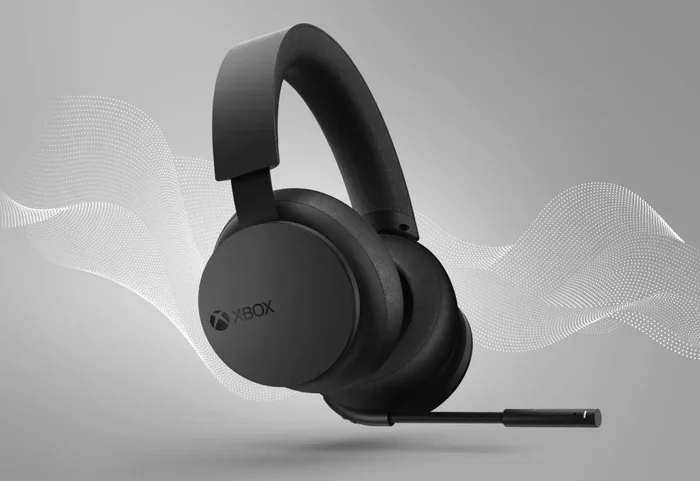
Can I Use A Wireless Headset With Xbox One Console
Yes, you can absolutely use a wireless headset with Xbox One. Whether you prefer a dedicated Xbox wireless headset or a Bluetooth option with an adapter, there are multiple ways to go wireless and enjoy immersive gaming audio on your Xbox One. This guide walks you through every method, compatibility check, setup step, and common troubleshooting tip so you can get back to your game without delay.
So you just picked up a shiny new wireless headset and you want to use it with your Xbox One. Maybe you are tired of tangled cords on your controller. Maybe you want to move freely around the room during intense gaming sessions. Or maybe someone told you it just would not work. Whatever the reason, you are here, and that is great.
The short answer is yes. You can use a wireless headset with Xbox One. But the full answer has some important details you need to know before you buy or pair anything. Xbox One does not support standard Bluetooth audio the way your phone does. This is something many people do not realize until they try to connect their favorite Bluetooth headphones and get nothing but frustration.
In this article, we will walk you through every method to connect a wireless headset to Xbox One. We will cover native Xbox wireless headsets, Bluetooth adapters, USB dongles, and everything in between. You will learn about compatibility, setup steps, top headset recommendations, and how to fix common problems. By the end, you will have everything you need to enjoy wireless gaming audio on your Xbox One without any guesswork.
Let us get right into it. No fluff, no filler, just practical advice you can use today.
Key Takeaways
- Multiple wireless options exist: You can use Xbox-native wireless headsets, Bluetooth with an adapter, or USB wireless dongles to connect a wireless headset to Xbox One.
- Not all headsets work directly via Bluetooth: Xbox One does not support standard Bluetooth audio, so you need a specific adapter or a compatible Xbox wireless headset.
- Setup is straightforward: Once you know the right method, pairing a wireless headset Xbox One takes just a few minutes.
- Top brands offer great compatibility: Brands like Turtle Beach, SteelSeries, and HyperX make headsets that work seamlessly with Xbox One.
- Troubleshooting is simple: Most connectivity issues can be fixed with a quick reset, firmware update, or adapter replacement.
📑 Table of Contents
- Why Xbox One Does Not Support Standard Bluetooth Audio
- Methods to Connect a Wireless Headset to Xbox One
- Compatibility: Which Wireless Headsets Work with Xbox One
- How to Set Up a Wireless Headset with Xbox One
- Troubleshooting Common Wireless Headset Issues on Xbox One
- Quick Tips for the Best Wireless Gaming Experience
- Expert Insights: What Gamers Should Know Before Buying
- Key Takeaways
- Conclusion
Why Xbox One Does Not Support Standard Bluetooth Audio
This is the question that starts many people on a confusing path. You have a Bluetooth headset. You have an Xbox One. You press the Bluetooth pairing button and nothing happens. Why? The answer comes down to how Microsoft designed the console.
Xbox One uses a proprietary wireless protocol for audio. This means it does not use the same Bluetooth standard your phone, laptop, or smart TV uses. The reason is simple: Microsoft wants to prioritize low latency and stable audio for gaming. Bluetooth audio can introduce delays and dropouts that are frustrating during fast-paced games. So instead, they built their own wireless system that works directly with compatible headsets.
That said, there are workarounds. You are not completely stuck if your headset only supports Bluetooth. You just need the right adapter or a headset that uses the Xbox wireless protocol. Let us look at every option available.
Proprietary Xbox Wireless Protocol Explained
The Xbox wireless protocol is a custom radio frequency system built into Xbox consoles and licensed headsets. It operates on a dedicated band that avoids interference from Wi-Fi and other Bluetooth devices. This gives you a cleaner, more reliable audio signal. When you use a headset that supports this protocol, you get near-instant audio with no noticeable lag.
Headsets that use this protocol connect directly to the Xbox One console or to the Xbox Wireless Controller using a built-in wireless module. You do not need any extra cables or adapters. This is the most seamless way to enjoy a wireless headset with Xbox One.
Methods to Connect a Wireless Headset to Xbox One
There are three main ways to connect a wireless headset Xbox One. Each method has its own advantages and limitations. Let us break them down so you can choose the best one for your setup.
Method 1: Native Xbox Wireless Headsets
This is the easiest and most reliable method. Headsets designed specifically for Xbox come with built-in Xbox wireless technology. You simply put the headset in pairing mode and connect it to your console or controller.
These headsets offer several benefits:
- Plug-and-play simplicity: No adapters or extra cables needed.
- Low latency audio: Perfect for competitive gaming where timing matters.
- Built-in chat mix controls: Adjust game audio and voice chat independently.
- Firmware updates through Xbox: Keeps your headset running with the latest features.
Popular options in this category include the Xbox Wireless Headset by Microsoft, Turtle Beach Stealth 700 Gen 2, and SteelSeries Arctis Nova 7X. Each of these headsets delivers excellent sound quality and long battery life.
Method 2: Bluetooth with an Xbox-Compatible Adapter
If you already own a Bluetooth headset and do not want to buy a new one, this method is for you. You use a Bluetooth adapter that plugs into the Xbox One controller or console to bridge the connection.
Here is how it works:
- Plug the Bluetooth adapter into the Xbox One controller or use a USB port on the console.
- Put your Bluetooth headset into pairing mode.
- Pair the headset with the adapter through the Xbox settings menu.
The most popular adapter for this purpose is the Xbox One Stereo Headset Adapter or the Creative Sound Blaster X3. Some adapters also support Dolby Atmos, which adds a huge boost to your spatial audio experience. Keep in mind that not all Bluetooth adapters work perfectly with Xbox One, so always check compatibility before buying.
Method 3: USB Wireless Dongles
Some gaming headsets come with their own USB wireless dongle. You plug the dongle into the Xbox One console, and the headset connects automatically. This is similar to the native Xbox wireless method but uses the headset manufacturer’s own wireless technology instead of Xbox’s proprietary protocol.
Brands like HyperX, Razer, and Logitech use this approach with their premium headsets. The advantage is that you get brand-specific features like custom EQ settings and dedicated software. The downside is that you need to keep the dongle plugged in at all times.
Compatibility: Which Wireless Headsets Work with Xbox One
Not every wireless headset on the market works with Xbox One. This is an important fact that many shoppers overlook. Before you spend your money, make sure the headset you choose is compatible.
Here are the key compatibility factors to consider:
- Xbox Wireless support: The headset must explicitly state it works with Xbox One or Xbox Series X|S.
- 3.5mm jack compatibility: If the headset uses a wired connection, it needs to work with the Xbox One controller’s 3.5mm headset jack.
- Adapter support: For Bluetooth headsets, you need an adapter that Xbox One recognizes.
- Firmware requirements: Some headsets need updated firmware to work with Xbox One. Always check the manufacturer’s website before purchasing.
Top Wireless Headsets for Xbox One
If you are shopping for a new wireless headset Xbox One setup, here are some of the best options available right now:
- Xbox Wireless Headset (Microsoft): The official Xbox headset. It supports Xbox Wireless and Bluetooth. Great sound, comfortable fit, and seamless integration with Xbox features.
- Turtle Beach Stealth 700 Gen 2: Premium wireless headset with ProSpecs glasses-friendly design, flip-to-mute mic, and immersive surround sound.
- SteelSeries Arctis Nova 7X: Versatile headset with dual wireless connectivity, excellent battery life, and clear voice chat.
- HyperX Cloud III Wireless: Memory foam ear cushions, long-lasting battery, and rich audio profile for immersive gaming.
- Razer BlackShark V2 Pro: Lightweight design, THX spatial audio, and ultra-low latency wireless for competitive players.
| Headset | Connection Type | Battery Life | Xbox Wireless | Price Range |
|---|---|---|---|---|
| Xbox Wireless Headset | Xbox Wireless + Bluetooth | 15 hours | Yes | $$ |
| Turtle Beach Stealth 700 Gen 2 | Xbox Wireless | 24 hours | Yes | $$$ |
| SteelSeries Arctis Nova 7X | Dual Wireless | 38 hours | Yes | $$$ |
| HyperX Cloud III Wireless | USB Wireless | 30 hours | Yes | $$ |
| Razer BlackShark V2 Pro | USB Wireless | 24 hours | Yes | $$$ |
How to Set Up a Wireless Headset with Xbox One
Setting up your wireless headset Xbox One is easier than most people think. The exact steps depend on which connection method you are using. Here is a step-by-step guide for each method.
Setting Up a Native Xbox Wireless Headset
Follow these steps to pair an Xbox Wireless Headset with your console:
- Turn on your Xbox One console.
- Press the Xbox button on your controller to open the guide.
- Navigate to Profile & System and select Settings.
- Go to General and then select Volume & Audio Output.
- Under Headset Audio, choose the wireless headset as your audio output.
- Put your headset in pairing mode by holding the pairing button.
- Select the headset from the list of available devices on your Xbox.
That is it. Your headset should now be connected and ready to use. You can adjust volume and chat mix using the controls on the headset itself.
Setting Up a Bluetooth Headset with an Adapter
If you are using a Bluetooth headset with an adapter, the process is slightly different:
- Plug the Bluetooth adapter into the Xbox One controller’s 3.5mm jack or a USB port on the console.
- Go to Settings on your Xbox One.
- Navigate to Volume & Audio Output.
- Select the adapter as your audio output device.
- Put your Bluetooth headset into pairing mode.
- Pair the headset with the adapter following the adapter’s instructions.
Once paired, you should hear game audio through your headset. If you also want to use the headset mic for chat, make sure the adapter supports microphone input.
Setting Up a USB Wireless Dongle Headset
Headsets with USB wireless dongles are the simplest to set up:
- Plug the USB dongle into an available USB port on your Xbox One.
- Turn on your headset and put it in pairing mode.
- The headset and dongle should connect automatically.
- Go to Settings and select the headset as your audio output.
Some headsets may require you to install the manufacturer’s firmware update tool on a PC first. Always check the instruction manual for your specific model.
Troubleshooting Common Wireless Headset Issues on Xbox One
Even with the best setup, you might run into problems from time to time. Wireless audio on Xbox One can sometimes be finicky. Here are the most common issues and how to fix them.
Headset Not Showing Up in Xbox Settings
If your headset does not appear in the audio device list, try these steps:
- Make sure the headset is fully charged or has fresh batteries.
- Turn the headset off and back on.
- Hold the pairing button for at least five seconds.
- Restart your Xbox One console.
- Move the headset closer to the console or controller.
Sometimes interference from other wireless devices can cause connection issues. Try moving your router or other Bluetooth devices away from your setup.
Audio Cutting Out or Lagging
Intermittent audio is frustrating during gameplay. This problem usually stems from one of these causes:
- Distance: Stay within 30 feet of your console or controller for the best signal.
- Interference: Wi-Fi routers, microwaves, and other wireless devices can disrupt the signal.
- Low battery: A low battery can cause audio dropouts. Charge your headset fully before a gaming session.
- Outdated firmware: Check the manufacturer’s website for firmware updates that fix connectivity bugs.
No Microphone Audio
If you can hear game audio but your friends cannot hear you, try this:
- Check that your headset mic is not muted.
- Go to Settings and make sure the mic is set as the default input device.
- Test the mic on another device to rule out a hardware issue.
- Make sure the mic boom is positioned close to your mouth.
Quick Tips for the Best Wireless Gaming Experience
Want to get the most out of your wireless headset Xbox One setup? Here are some quick tips that make a real difference:
- Keep firmware updated: Manufacturers regularly release updates that improve sound quality and fix bugs.
- Use a dedicated USB port: Avoid USB hubs. Plug wireless dongles directly into the console for a stronger signal.
- Enable Dolby Atmos: If your headset supports it, Dolby Atmos adds incredible depth to your audio. You can enable it in Xbox settings.
- Charge during breaks: Get in the habit of charging your headset during loading screens or between matches.
- Store the headset properly: Use the included charging case or hang the headset on a stand to avoid damaging the ear cushions.
- Test chat mix regularly: Adjust the balance between game audio and voice chat to match your preference. Most headsets have a physical dial for this.
Expert Insights: What Gamers Should Know Before Buying
Before you spend money on a wireless headset for Xbox One, there are a few things that experienced gamers wish they had known. These insights can save you time, money, and frustration.
First, always check if the headset supports Xbox Wireless natively. Headsets that rely solely on Bluetooth will not work directly with Xbox One without an adapter. This is the single most important compatibility factor. Do not assume that just because a headset is wireless it will work with your console.
Second, consider your gaming environment. If you share a living space with family or roommates, a headset with good noise isolation and a retractable or flip-to-mute mic is essential. You do not want your teammates hearing background noise or your family hearing your game audio at full volume.
Third, battery life matters more than you think. A headset that dies after four hours of gameplay is not practical for long gaming sessions. Look for headsets that offer at least 15 hours of battery life, and ideally more. Some models like the SteelSeries Arctis Nova 7X offer up to 38 hours on a single charge.
Finally, think about future-proofing. If you plan to upgrade to Xbox Series X|S in the future, make sure your headset is compatible with the newer console as well. Most modern wireless headsets that work with Xbox One also work with Xbox Series X|S, but it is always worth double-checking.
Key Takeaways
- Multiple connection methods exist: You can connect a wireless headset to Xbox One using native Xbox Wireless, a Bluetooth adapter, or a USB wireless dongle.
- Xbox One does not support standard Bluetooth: You need a compatible adapter or a headset with Xbox Wireless support for a direct connection.
- Setup is quick and simple: Most headsets pair with Xbox One in under five minutes following straightforward steps.
- Top brands offer excellent options: Microsoft, Turtle Beach, SteelSeries, HyperX, and Razer all make headsets that work great with Xbox One.
- Troubleshooting is manageable: Most wireless audio issues can be resolved with basic steps like restarting the console, checking battery levels, or updating firmware.
- Consider your needs carefully: Battery life, comfort, sound quality, and mic performance should all factor into your buying decision.
- Future-proof your purchase: Choose headsets that work with both Xbox One and Xbox Series X|S for long-term value.
Conclusion
Using a wireless headset with Xbox One is not only possible, it is straightforward once you know the right method. Whether you choose a native Xbox Wireless headset, a Bluetooth setup with an adapter, or a USB wireless dongle solution, you have options that fit every budget and preference.
The key is understanding that Xbox One does not use standard Bluetooth audio. This is the one fact that trips up most people. Once you know this, the rest falls into place. You can pick the right headset, set it up in minutes, and enjoy immersive, lag-free audio during every gaming session.
Take the time to choose a headset that fits your needs. Consider sound quality, comfort, battery life, and microphone performance. Check compatibility before you buy. And keep your firmware updated to get the best experience over time.
Now that you have all the information you need, there is nothing stopping you from going wireless with your Xbox One setup. Pick a headset, follow the setup steps, and get ready to hear your games like never before. Happy gaming.
Frequently Asked Questions
Can I use any Bluetooth headset with Xbox One without an adapter?
No, Xbox One does not support standard Bluetooth audio connections. You need a Bluetooth adapter or a headset that uses Xbox Wireless technology to connect wirelessly. Without an adapter, a standard Bluetooth headset will not pair with the console.
What is the best wireless headset for Xbox One?
The Xbox Wireless Headset by Microsoft is the best all-around choice for most players. It offers excellent sound, comfortable design, and seamless integration with Xbox features. For budget-friendly options, the HyperX Cloud III Wireless and Turtle Beach Stealth 700 Gen 2 are also top picks.
How do I know if a headset is compatible with Xbox One?
Check the product listing for “Xbox Wireless” or “works with Xbox One” compatibility. You can also look for the Xbox Wireless logo on the packaging. If the headset only lists Bluetooth and does not mention Xbox compatibility, you will need an adapter.
Can I use a wireless headset with Xbox One for both game audio and chat?
Yes, most wireless headsets designed for Xbox One support both game audio and voice chat simultaneously. You can adjust the balance between game sound and chat audio using the headset controls or through the Xbox settings menu.
Why does my wireless headset keep disconnecting from Xbox One?
Disconnections are usually caused by low battery, interference from other wireless devices, or outdated firmware. Try charging the headset fully, moving it closer to the console, and checking for firmware updates from the manufacturer to resolve the issue.
Do I need to buy a special adapter to use a wireless headset with Xbox One?
It depends on the headset. Native Xbox Wireless headsets do not need any adapter. Bluetooth headsets require an Xbox-compatible adapter. USB wireless headsets come with their own dongle that plugs directly into the console. Always check the headset’s specifications before purchasing.