Can I Connect A Usb To An Ipad And What You Need To Know
Yes, you can connect a USB to an iPad using the right adapter or cable. Whether you own an older Lightning model or a newer USB-C iPad, there is a simple way to plug in external drives, charge your device, and transfer files. This guide covers everything you need to know about connecting USB devices to your iPad without any hassle.
Have you ever sat down with your iPad and a USB flash drive full of photos, wondering if you could just plug them together? You are not alone. Many iPad users want to connect a USB device to their tablet for charging, file transfers, or using accessories like keyboards and external drives. The good news is that it is absolutely possible, and the process is simpler than you might think.
In this guide, we will walk you through everything you need to know about connecting USB to your iPad. From the right adapters to file management tips, you will find clear, practical advice you can use right away. Let us dive in and make your iPad work the way you want it to.
Key Takeaways
- USB Connection Is Possible: You can connect a USB to an iPad using Apple adapters, USB hubs, or direct USB-C cables depending on your model.
- Adapter Choice Matters: Lightning to USB adapters and USB-C to USB adapters serve different iPad models and use cases.
- File Transfer Works Smoothly: With the right setup, you can move photos, documents, and media between a USB drive and your iPad.
- Charging While Connected: Many USB connections allow you to charge your iPad and use the peripheral at the same time.
- Not All USB Devices Work: Some external hard drives need their own power source, and older accessories may not be compatible.
- iPadOS Makes It Easy: The Files app gives you a simple way to manage USB-connected content on your tablet.
- Buy Quality Accessories: Stick with Apple-certified adapters and reputable brands to avoid connection issues and damage.
📑 Table of Contents
- Can I Connect A USB To An iPad? Yes, Here Is How
- What Adapters and Cables Do You Need
- How to Transfer Files Using a USB Connection
- Common Issues and How to Fix Them
- Best Practices for Using USB with Your iPad
- Expert Insights: Maximizing Your iPad’s USB Capabilities
- Key Takeaways
- Frequently Asked Questions
- Conclusion
Can I Connect A USB To An iPad? Yes, Here Is How
The short answer is yes. You can connect a USB to an iPad, but the method depends on which iPad model you own. Older iPads with a Lightning port need a special adapter, while newer models with USB-C can often connect directly. Apple has made it easy to expand your tablet’s capabilities with the right accessories.
Understanding your iPad model is the first step. Check the charging port on the bottom of your device. If it is a small rectangular port, you have a Lightning model. If it is a square-shaped port, you have USB-C. Once you know this, choosing the right connection method becomes a breeze.
Lightning to USB Connection
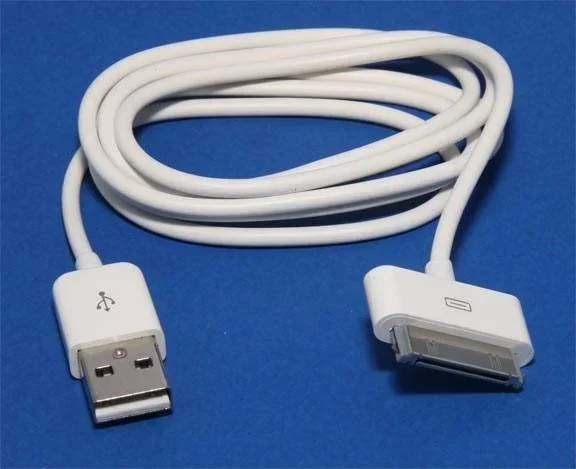
If your iPad uses a Lightning connector, you will need a Lightning to USB adapter. Apple sells its own version, and there are many third-party options available. This small adapter plugs into your iPad’s charging port and gives you a standard USB-A port to connect flash drives, cameras, and other USB devices.
For best results, use the Apple Lightning to USB Camera Reader. It is a reliable, affordable adapter that handles most basic USB connections. You can find it at any Apple Store or online retailer. Just plug it in, connect your USB device, and your iPad will recognize it almost instantly.
USB-C Direct Connection
Newer iPads like the iPad Pro and iPad Air models feature a USB-C port. This means you can plug a USB cable directly into your tablet without any adapter in most cases. USB-C offers faster data transfer speeds and more power delivery than Lightning, making it a much more versatile option.
With a USB-C iPad, you can connect a wide range of devices. External hard drives, keyboards, cameras, and even gaming controllers work right out of the box. The USB-C connection turns your iPad into a powerful, multi-purpose device that can handle tasks previously reserved for laptops.
What Adapters and Cables Do You Need
Choosing the right adapter is essential for a smooth USB connection. Not all cables and adapters are created equal, and using the wrong one can lead to frustration. Let us break down the options so you can pick the perfect setup for your needs.
Apple Certified Adapters
Apple offers several official adapters designed specifically for iPad use. The Lightning to USB Camera Reader is the go-to choice for older iPads. It supports USB 2.0 speeds and works reliably with most flash drives and cameras. For USB-C iPads, Apple sells a USB-C to USB adapter that provides a standard USB-A port for connecting legacy USB devices.
Apple also offers the Lightning to USB 3 Camera Adapter, which supports faster data transfer and can power connected devices simultaneously. This adapter is ideal if you regularly transfer large photo or video files from a camera to your iPad.
Third-Party USB Hubs and Adapters
If you need more ports than a single adapter provides, a USB hub for iPad is a great solution. USB hubs let you connect multiple devices at once, such as a flash drive, a keyboard, and a charging cable. Look for hubs that are specifically designed for iPad use and support USB-C or Lightning input depending on your model.
Popular brands like Anker, Satechi, and Hyper make excellent USB hubs that work seamlessly with iPads. Always check for USB-IF certification or Apple MFi certification to ensure compatibility and safety. A quality hub can transform your iPad into a workstation-ready device.
USB-C Docking Stations
For power users, a USB-C docking station takes connectivity to the next level. These stations offer multiple ports including HDMI, USB-A, SD card slots, and Ethernet. You can connect your iPad to an external monitor, transfer files from a USB drive, and charge your device all at the same time using a single cable.
Docking stations are especially useful for iPad Pro users who want a desktop-like experience. They are a bit pricier than simple adapters but offer tremendous value if you use your iPad for work or creative projects on a regular basis.
How to Transfer Files Using a USB Connection
Once you have the right adapter or cable, transferring files between your iPad and a USB device is straightforward. The Files app on iPadOS makes the entire process simple and intuitive, even for those who are not tech-savvy.
Using the Files App
When you connect a USB drive to your iPad, the Files app automatically detects it. Open the Files app and look for your USB device under the “Locations” section on the left side of the screen. From there, you can browse, copy, move, and delete files just like you would with files stored on your iPad.
This method works with USB flash drives, external hard drives, and even SD cards when using the right reader. You can transfer photos, videos, documents, and music with ease. The Files app supports most common file formats, making it a powerful tool for managing your content on the go.
Transferring Photos and Videos
Photographers and videographers will appreciate how easy it is to move media files using a USB connection. Plug your camera or memory card reader into your iPad, and the Photos app will prompt you to import your content. You can preview, select, and import photos and videos directly to your iPad’s storage.
For even faster transfers, use a USB 3 compatible adapter with a USB-C iPad. USB 3 speeds are significantly faster than USB 2, which means large video files transfer in seconds rather than minutes. This is a game-changer for professionals who need to review and edit footage on their iPad in the field.
Charging Your iPad While Using USB
One of the great benefits of connecting a USB device to your iPad is the ability to charge and use peripherals at the same time. Many adapters and hubs support USB power delivery, which means you can plug in a power source while also using your USB drive or keyboard.
The Lightning to USB 3 Camera Adapter includes a dedicated charging port so you can plug in a power adapter while using a USB device. USB-C iPads benefit from USB-C Power Delivery, which can deliver up to 100 watts of power. This means you can fast charge your iPad while staying connected to all your accessories.
Common Issues and How to Fix Them
While connecting a USB device to an iPad is generally simple, you may run into occasional hiccups. Most issues are easy to resolve with a few basic troubleshooting steps. Let us look at the most common problems and their solutions.
iPad Does Not Recognize the USB Device
If your iPad does not detect a connected USB device, start by checking the adapter and cable. A loose connection or a faulty cable is often the culprit. Try unplugging everything and reconnecting firmly. Also, make sure your adapter is clean and free of dust or debris, as even a small particle can interfere with the connection.
Another common cause is that the USB device requires more power than your iPad can provide. External hard drives that do not have their own power source may not work when connected directly to an iPad. In this case, use a powered USB hub that connects to an external power supply.
Slow Transfer Speeds
If file transfers are slower than expected, check whether your adapter supports USB 3.0 or USB 2.0 speeds. Older adapters and cables are limited to USB 2.0, which has much slower data transfer rates. Upgrading to a USB 3 compatible adapter can dramatically improve transfer speeds, especially for large files.
Also, the format of your USB drive matters. iPadOS supports FAT32, exFAT, and APFS file systems. If your drive is formatted in NTFS (common on Windows), your iPad will not be able to write to it. You may need to reformat the drive or use a third-party app to handle NTFS volumes.
Accessories Not Working Properly
Not every USB accessory works with an iPad. Some devices require more power or specific drivers that iPadOS does not support. Keyboards and mice generally work great, but more complex peripherals like printers or scanners may need additional apps or may not be compatible at all.
Before purchasing any USB accessory for your iPad, check the manufacturer’s compatibility list. Look for MFi certification (Made for iPhone/iPad) to ensure the accessory has been tested and approved for Apple devices. This small step can save you from buying something that simply will not work.
Best Practices for Using USB with Your iPad
To get the most out of your USB connections, follow these practical tips. They will help you avoid common pitfalls and keep your setup running smoothly.
- Invest in quality adapters: Cheap, uncertified adapters can cause connection drops, slow speeds, or even damage your iPad. Stick with Apple or reputable brands.
- Keep your iPadOS updated: Apple regularly improves USB compatibility and file management features in iPadOS updates. Keeping your software current ensures the best experience.
- Use a powered USB hub for demanding devices: External hard drives and other power-hungry peripherals work better when they have their own power source through a powered hub.
- Format USB drives in exFAT: This file system works with both iPad and Windows, giving you maximum flexibility for file sharing between devices.
- Eject USB devices properly: Always remove USB devices through the Files app before unplugging them. This prevents data corruption and keeps your files safe.
- Carry a compact adapter: A small Lightning to USB or USB-C adapter in your bag ensures you are always ready to connect a USB device wherever you go.
Expert Insights: Maximizing Your iPad’s USB Capabilities
According to technology experts, the USB connection on modern iPads has opened up a world of possibilities. What was once a limitation of tablet devices is now a genuine strength. With a USB-C iPad, you can turn your tablet into a laptop replacement for many everyday tasks.
Professional photographers use USB connections to offload memory cards directly to their iPad for quick editing in apps like Lightroom. Business users connect keyboards, mice, and USB hubs to create a productive workspace. Even casual users benefit from being able to plug in a flash drive to share files with friends or back up important documents.
The key is to match your accessories to your specific needs. A simple Lightning to USB adapter costs very little and handles most basic tasks. If you need more power and versatility, a USB-C docking station is worth the investment. Whatever your use case, there is a solution that fits your budget and your workflow.
Key Takeaways
- You Can Connect USB to Any iPad: Whether you have a Lightning or USB-C model, there is an adapter or direct connection method that works for you.
- Apple Adapters Are Reliable: The Lightning to USB Camera Reader and USB-C to USB adapter are trusted, affordable, and widely available.
- The Files App Makes Management Easy: Browse, copy, and move files between your iPad and USB devices using the built-in Files app.
- USB-C Offers More Versatility: Newer iPad models with USB-C support faster transfers, more power, and a wider range of accessories.
- Troubleshooting Is Simple: Most connection issues can be resolved by checking cables, updating software, or using a powered hub.
- Quality Accessories Matter: Investing in certified adapters and hubs protects your iPad and ensures a reliable experience.
Frequently Asked Questions
Can I Connect A USB Flash Drive Directly To My iPad?
Yes, you can connect a USB flash drive to your iPad if you have the right adapter. For Lightning iPads, use a Lightning to USB Camera Reader. For USB-C iPads, you can plug the flash drive directly into the port. Your iPad will recognize the drive, and you can manage files through the Files app.
Do I Need an Apple Adapter, or Can I Use Any USB Adapter?
You do not have to use an Apple adapter, but it is recommended. Apple adapters are tested for compatibility and safety with iPadOS. Third-party adapters can work well too, but look for MFi-certified options to ensure they meet Apple’s quality standards. Cheap uncertified adapters may cause connection problems or damage your device.
Can I Use an External Hard Drive With My iPad?
Yes, you can use an external hard drive with your iPad through a USB connection. However, the drive may need its own power source if it is a larger desktop model. Powered USB hubs work well for this purpose. Also, make sure the drive is formatted in a compatible file system like exFAT or FAT32 for the best results.
Can I Charge My iPad While a USB Device Is Connected?
In most cases, yes. The Lightning to USB 3 Camera Adapter includes a separate charging port so you can power your iPad while using a USB peripheral. USB-C iPads support USB Power Delivery, which can charge your device and power connected accessories simultaneously. Just make sure your power source provides enough wattage to handle both tasks.
What File Formats Does iPadOS Support on USB Drives?
iPadOS supports FAT32, exFAT, and APFS file systems on USB drives. It can read NTFS drives but cannot write to them without a third-party app. For maximum compatibility between iPad and Windows computers, format your USB drive in exFAT before using it with your iPad.
Is It Possible to Connect a USB Printer to an iPad?
Some USB printers work with an iPad through a compatible adapter or hub, but compatibility varies. Many modern printers support AirPrint, which lets you print wirelessly without any USB connection at all. If you need a wired connection, check the printer manufacturer’s website for iPad compatibility information before purchasing an adapter.
Conclusion
So, can I connect a USB to an iPad? Absolutely. With the right adapter, cable, or direct USB-C connection, you can expand your iPad’s functionality in powerful ways. Whether you want to transfer files, charge your device, or connect accessories like keyboards and external drives, the options are clear and accessible.
The process is simpler than most people expect. A quality adapter, a compatible USB device, and the built-in Files app are all you need to get started. By following the tips and best practices in this guide, you can avoid common pitfalls and enjoy a seamless USB experience on your iPad every single time.
Now that you know how to connect USB devices to your iPad, it is time to put that knowledge to work. Grab the right adapter, plug in your favorite USB device, and explore all the ways your iPad can work harder for you. The possibilities are genuinely exciting, and the setup takes just minutes.