Can I Connect 2 Tvs With Hdmi And Use Them Together
Yes, you can connect 2 TVs with HDMI and use them together. Whether you want to mirror your screen or extend your display, the right HDMI tools make it simple. An HDMI splitter sends the same signal to both TVs, while an HDMI switch lets you toggle between sources. This guide covers every method, from basic setups to advanced dual-screen configurations, so you can enjoy multi-screen viewing at home.
Have you ever wanted to watch different content on two TVs at the same time? Or maybe you need a bigger screen for movie night with friends. Whatever your reason, connecting 2 TVs with HDMI is easier than most people think.
The good news is that you have several options. You can mirror the same picture on both screens. You can extend your desktop across two displays. Or you can switch between different devices using an HDMI switch. Each method has its own benefits, and this guide will walk you through all of them.
Let us dive into everything you need to know about setting up a dual screen setup using HDMI cables and a few simple accessories.
Key Takeaways
- HDMI splitters duplicate your signal: They send the same video and audio to both TVs simultaneously.
- HDMI switches let you toggle sources: Great when you have one TV but multiple devices to connect.
- Extended display mode boosts productivity: Use two TVs as separate screens for work or gaming.
- Cable quality matters: High-speed HDMI cables prevent signal loss and support 4K resolution.
- Common mistakes cause signal issues: Avoid cheap adapters, long cable runs, and mismatched HDMI versions.
- Most modern devices support dual TV output: Laptops, PCs, streaming boxes, and game consoles all work with the right setup.
📑 Table of Contents
- Understanding How HDMI Works Between Two TVs
- How to Connect 2 TVs With HDMI Using a Splitter
- Using an HDMI Switch to Toggle Between Devices
- Setting Up a Dual Screen Display for Extended Viewing
- Troubleshooting Common HDMI Connection Issues
- Expert Tips for the Best Dual TV HDMI Setup
- How to Choose the Right HDMI Accessories for Your Setup
- Real-World Uses for a Dual TV HDMI Setup
- Final Thoughts on Connecting 2 TVs With HDMI
Understanding How HDMI Works Between Two TVs
Before you grab any cables or gadgets, it helps to understand the basics. HDMI stands for High-Definition Multimedia Interface. It carries both video and audio through a single cable. That is why it has become the standard for home entertainment setups.
Every modern TV comes with at least two or three HDMI ports. These ports accept a digital signal from devices like laptops, streaming boxes, gaming consoles, and Blu-ray players. When you plug a device into a TV, the video signal travels from the source to the display instantly.
But here is the challenge. Most TVs only have one output per port. So if you want to send the same signal to two TVs, you need a helper device. That is where HDMI splitters and HDMI switches come in.
What Is an HDMI Splitter?
An HDMI splitter takes one input and copies it to multiple outputs. Think of it like a water pipe that splits into two streams. The signal goes out equally to both TVs.
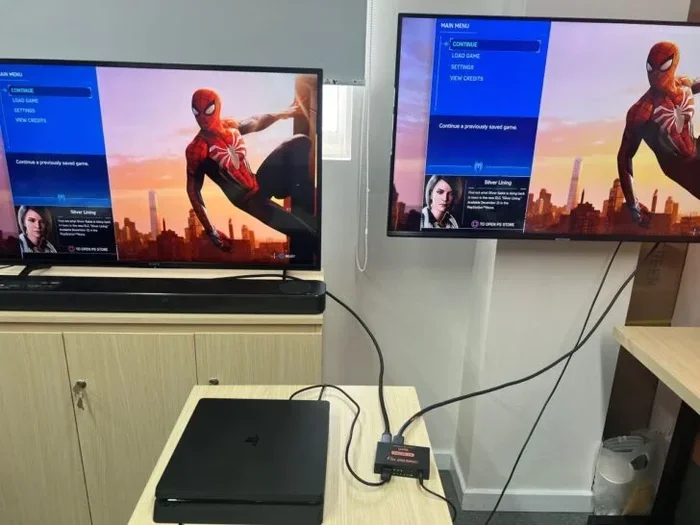
Most basic splitters have one input and two outputs. You plug your device into the splitter, and then run two cables to your TVs. Both screens show the exact same content at the same time. This is called mirroring or screen duplication.
Some splitters also include an audio output jack. This lets you connect external speakers if your TVs do not have built-in audio you want to use.
What Is an HDMI Switch?
An HDMI switch does the opposite of a splitter. It lets you connect multiple devices to one TV. You press a button or use a remote to choose which device appears on screen.
Switches are perfect when you run out of ports on your TV. For example, if your TV has two HDMI ports but you own a cable box, a gaming console, and a streaming stick, a switch solves the problem.
However, an HDMI switch does not help you connect two TVs to one device. For that, you need a splitter.
How to Connect 2 TVs With HDMI Using a Splitter
This is the most common method people use when they want to connect 2 TVs with HDMI. Here is how it works step by step.
What You Will Need
- An HDMI splitter (1 input, 2 outputs)
- Two HDMI cables (length depends on your setup)
- The source device (laptop, PC, streaming box, etc.)
- Two TVs with available HDMI ports
Step-by-Step Setup Guide
- Plug the splitter into your source device. Use one HDMI cable to connect the output of your laptop, PC, or streaming box to the input of the splitter.
- Run two HDMI cables from the splitter to each TV. Connect one cable to the first output on the splitter and the other to the second output.
- Turn on both TVs and select the correct HDMI input. Use your TV remote to switch to the right port.
- Check the display settings on your source device. On most computers, you can go to Display Settings and choose “Duplicate” or “Mirror” to show the same image on both screens.
- Adjust resolution if needed. If one TV looks blurry, try lowering the output resolution to match both displays.
That is it. Both TVs now show the same content. You can watch a movie, play a game, or share photos with everyone in the room.
Quick Tips for Splitter Setups
- Always use high-speed HDMI cables rated for 4K if your TVs support it.
- Keep cable lengths under 15 feet for the best signal quality.
- If you get no signal on one TV, try unplugging and replugging the cable.
- Some splitters need external power. Check the specs before you buy.
Using an HDMI Switch to Toggle Between Devices
An HDMI switch serves a different purpose than a splitter. It is best when you have one TV but many devices. But some people also use switches in creative ways to manage multiple TVs.
HDMI Switch vs HDMI Splitter: What Is the Difference?
| Feature | HDMI Splitter | HDMI Switch |
|---|---|---|
| Direction of Signal | One device to many TVs | Many devices to one TV |
| Number of Inputs | One | Two or more |
| Number of Outputs | Two or more | One |
| Best For | Mirroring content | Switching between sources |
| Price Range | $10 – $50 | $15 – $60 |
As you can see, splitters and switches do opposite things. Make sure you buy the right one for your needs.
When to Choose a Switch Over a Splitter
- You have one TV but three or four devices.
- You want to switch between a gaming console and a streaming box without unplugging cables.
- Your TV has limited HDMI ports and you need more.
When to Choose a Splitter Over a Switch
- You want the same image on two or more TVs.
- You are hosting a party or watching group events.
- You need a simple signal distribution setup for a home or office.
Setting Up a Dual Screen Display for Extended Viewing
Mirroring is great for sharing content. But what if you want to use two TVs as separate screens? This is called extended display mode, and it works well for productivity, gaming, or multitasking.
Extended Display vs Mirrored Screen
Mirrored screen shows the same image on both TVs. If you move your mouse to the right on your laptop, it stays in the center of both screens. This is perfect for presentations or movie nights.
Extended display treats each TV as a separate screen. Your laptop screen becomes the left monitor, and the second TV becomes the right monitor. You can drag windows, apps, and games across both screens. This is ideal for work setups and advanced users.
How to Set Up Extended Display
- Connect both TVs to your source device. Use an HDMI splitter or connect each TV directly if your device has multiple outputs.
- Go to Display Settings on your computer. On Windows, right-click the desktop and select Display Settings. On Mac, go to System Settings and click Displays.
- Choose “Extend These Displays.” This tells your computer to treat each screen separately.
- Arrange the displays. Drag the screen icons to match the physical layout of your TVs. If the second TV is to the right, move its icon to the right.
- Set the primary display. Choose which TV shows your main taskbar and desktop.
Devices That Support Dual TV Output
Most modern devices can output to two TVs. Here are some common ones:
- Laptops and desktop PCs with dedicated or integrated graphics
- Streaming devices like Roku, Apple TV, and Chromecast (with some limitations)
- Gaming consoles such as PlayStation and Xbox
- Media players like the Amazon Fire TV Stick
Keep in mind that not all devices support extended display. Some only allow mirroring. Always check the device specifications before buying a splitter or switch.
Troubleshooting Common HDMI Connection Issues
Even with the right equipment, things can go wrong. Here are the most common problems people face when connecting two TVs with HDMI and how to fix them.
Why Do I Get No Signal on One TV?
This is the number one issue. Usually, it comes down to one of three things:
- Loose cable connection. Unplug and replug the HDMI cable on both ends. Make sure it clicks into place.
- Wrong input selected. Use your TV remote to switch to the correct HDMI port.
- Splitter needs power. Some splitters require a USB cable connected to a power source. Check the manual.
Why Is the Picture Low Quality or Flickering?
Signal degradation often causes this problem. Long HDMI cables, cheap cables, or signal boosters that are missing can all lead to a poor picture.
Try these fixes:
- Replace long cables with shorter, high-quality ones.
- Use an HDMI repeater or signal booster for runs longer than 15 feet.
- Make sure both TVs support the same resolution as your source device.
- Avoid splitting signals more than two ways without a powered splitter.
Why Is There No Audio on One TV?
Sometimes the video works but the sound does not. This usually happens when one TV is set to the wrong audio output. Go to your source device audio settings and make sure it outputs through HDMI. You can also check each TV’s audio settings to ensure the HDMI input is set to receive audio.
Common Mistakes to Avoid
- Using a splitter that does not support your TV’s resolution (e.g., 4K or 1080p).
- Buying a switch instead of a splitter when you need to duplicate the signal.
- Using very long cables without a signal booster.
- Ignoring firmware updates on your source device or TVs.
Expert Tips for the Best Dual TV HDMI Setup
Now that you know the basics, here are some expert-level tips to get the best results from your dual screen setup.
Cable Quality Matters More Than You Think
Not all HDMI cables are created equal. A cheap, uncertified cable might work for standard definition but will struggle with 4K or HDR content. Look for cables that are Premium High Speed HDMI certified. These support bandwidth up to 18 Gbps and handle 4K at 60Hz without issues.
Keep Your Setup Clean and Organized
Two TVs means more cables, more power cords, and more potential clutter. Use cable management clips, sleeves, or a small cable box to keep everything tidy. A clean setup also helps with airflow and prevents accidental disconnections.
Consider an HDMI Matrix Switcher for Advanced Setups
If you want full control over multiple TVs and multiple devices, an HDMI matrix switcher is the ultimate solution. It lets you route any input to any output. For example, you can send your cable box to TV 1 and your gaming console to TV 2. Or you can send the same input to both TVs. These devices cost more but offer unmatched flexibility.
Use HDMI ARC for Audio Sharing
If you are using a soundbar or home theater system, look for HDMI ARC (Audio Return Channel) on your splitter or switch. This feature sends audio back to your sound system through the HDMI cable, so you do not need separate audio cables.
Test Before You Mount
Always test your setup before mounting a TV on the wall or running cables through walls. Set everything up on a table first. Make sure both TVs display correctly, audio works, and the splitter or switch functions as expected. This saves you from costly rework later.
How to Choose the Right HDMI Accessories for Your Setup
Shopping for HDMI accessories can be confusing. There are so many options, and the marketing jargon does not help. Here is a simple guide to choosing the right products.
Look for These Features in a Splitter
- 4K support at 30Hz or 60Hz
- HDCP 2.2 compliance for protected content like Netflix and Blu-ray
- Built-in signal amplifier for long cable runs
- Power adapter included or USB-powered
- Audio extraction if you want to connect external speakers
Look for These Features in a Switch
- Remote control included for easy switching
- 4K and HDR support
- At least three inputs to accommodate multiple devices
- Compact design for easy placement behind your TV
Brands like Ugreen, Cable Matters, and Kinivo make reliable HDMI adapters and accessories at reasonable prices. Read user reviews before you buy, and always check return policies in case the product does not meet your needs.
Real-World Uses for a Dual TV HDMI Setup
You might be wondering, who actually needs two TVs connected via HDMI? Here are some real-world scenarios where this setup shines.
1. Game nights with friends. Connect your console to two TVs so everyone can see the action clearly from different parts of the room.
2. Kitchen and living room streaming. Stream a cooking show in the kitchen while your family watches something else in the living room. Use a splitter to show the same content, or use separate devices for different content.
3. Home office dual monitors. Use two TVs as extended displays for your work computer. This gives you more screen space for spreadsheets, emails, and video calls.
4. Classroom or conference room presentations. Mirror your laptop screen to two TVs so everyone in the room can see your slides clearly.
5. Hotel or rental property entertainment. Landlords and property managers can set up a simple dual TV system for guests using a single streaming device and a splitter.
Final Thoughts on Connecting 2 TVs With HDMI
Can I connect 2 TVs with HDMI and use them together? Absolutely yes. Whether you want to mirror content, extend your display, or share your screen with a group, the right HDMI setup makes it possible. An HDMI splitter is your best friend for duplicating the signal, while an HDMI switch helps you manage multiple devices on one screen.
The key is to understand your needs before you buy any equipment. Know whether you want mirroring or extended display. Choose cables and accessories that match your TVs resolution capabilities. And always test your setup before making it permanent.
With the tips and methods in this guide, you are ready to create a seamless multi-screen viewing experience. Enjoy your favorite shows, games, and movies on two screens, and make the most of your home entertainment setup.
Frequently Asked Questions
Can I connect 2 TVs with HDMI without a splitter?
Only if your source device has multiple HDMI outputs. Most laptops, PCs, and streaming boxes have just one output. You will need an HDMI splitter to send the same signal to two TVs. Some advanced devices like certain PCs with dual GPU outputs can connect directly to two TVs without a splitter.
Will an HDMI splitter reduce the quality of the picture?
A good quality HDMI splitter should not reduce picture quality. However, cheap or unpowered splitters may cause signal loss, especially over long cable runs. Always buy a splitter that supports your TVs resolution and look for ones with built-in signal amplification for the best results.
Can I use different size TVs with an HDMI splitter?
Yes, you can connect TVs of different sizes and resolutions to an HDMI splitter. The splitter sends the same signal to both screens. However, each TV will display the content at its own native resolution. You may need to adjust the output settings on your source device for the best viewing experience on each screen.
How far can HDMI cables run when connecting 2 TVs?
A standard HDMI cable works well up to about 15 feet. Beyond that, the signal can weaken. For longer runs, use high-quality cables with built-in signal boosters, or add an HDMI repeater between the splitter and the TV. Fiber optic HDMI cables can carry signals up to 100 feet or more without quality loss.
Do I need a special splitter for 4K content?
Yes, you need a splitter that supports 4K resolution and HDCP 2.2. Standard 1080p splitters will not pass 4K signals correctly. Check the product specifications carefully before purchasing. Look for splitters labeled “4K HDMI splitter” to ensure compatibility with Ultra HD content.
Can I connect more than 2 TVs with one HDMI splitter?
Yes, you can find HDMI splitters with 4, 8, or even 16 outputs. However, splitting the signal to more TVs reduces the strength of the signal to each display. For setups with more than two TVs, consider a powered splitter with an external power adapter, or use an HDMI distribution amplifier to maintain signal quality across all screens.
=== CONCLUSION ===
Connecting 2 TVs with HDMI and using them together opens up a world of possibilities for your home entertainment and productivity. Whether you choose a simple HDMI splitter for mirroring or an HDMI switch for managing multiple devices, the process is straightforward and affordable. The key is to match your accessories to your specific needs, use quality cables, and follow the setup steps outlined in this guide.
You now have everything you need to create a dual screen setup that works beautifully. Start with a splitter or switch, test your configuration, and enjoy the flexibility of two synchronized TVs in your home. With the right approach, your entertainment setup will never feel limited again.