Can Ethernet Be Connected Via Usb For Faster Networking
Yes, you can connect Ethernet via USB using a USB Ethernet adapter, and it can significantly boost your network speed and wired connectivity. This guide covers everything from USB-C to Ethernet setups to choosing the right adapter for faster networking. Whether you have a laptop without an Ethernet port or want a more stable connection, this article has you covered.
Can Ethernet be connected via USB for faster networking? The short answer is yes. And if you have ever struggled with slow Wi-Fi, dropped signals, or lag during online gaming, you already know why this matters.
A USB Ethernet adapter turns any device with a USB port into a wired Internet machine. You get a stable wired Internet connection that outperforms most wireless setups. Whether you are working from home, streaming movies, or gaming online, a USB network adapter can change your experience completely.
In this guide, we will walk through everything you need to know. We will cover how these adapters work, which ones to buy, and how to set them up. By the end, you will have a clear picture of whether connecting Ethernet via USB is the right move for you.
Key Takeaways
- USB Ethernet adapters work: You can easily add wired Internet access to any device with a USB port.
- Faster networking is possible: A USB Ethernet adapter can deliver Gigabit speeds when paired with the right hardware.
- USB-C to Ethernet is the modern standard: Newer laptops and tablets benefit from USB-C adapters for reliable LAN connections.
- Choosing the right adapter matters: Not all adapters are equal — chipsets and USB versions affect broadband speed.
- Setup is simple: Plug-and-play USB network adapters require minimal effort to get running.
- Wired connectivity beats Wi-Fi: Ethernet over USB offers lower latency and more stable performance for streaming and gaming.
- Common mistakes can slow you down: Using the wrong adapter or cable limits your network adapter potential.
📑 Table of Contents
- What Is a USB Ethernet Adapter?
- Why Connect Ethernet via USB?
- Can USB Ethernet Match Gigabit Speeds?
- How to Choose the Right USB Ethernet Adapter
- Setting Up Your USB Ethernet Adapter
- Common Mistakes to Avoid
- Expert Insights on USB Ethernet for Faster Networking
- Quick Tips for Best Performance
- Conclusion
What Is a USB Ethernet Adapter?
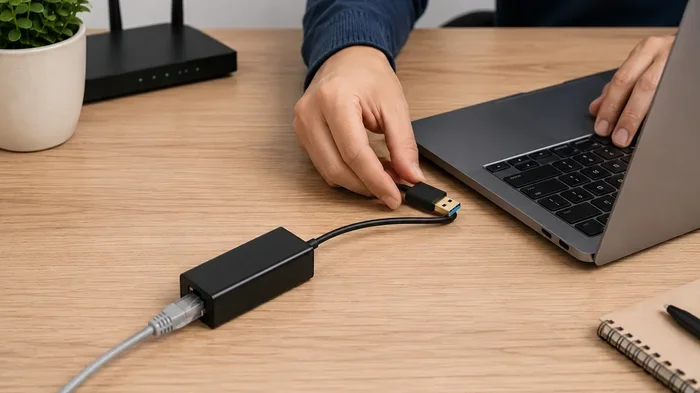
A USB Ethernet adapter is a small device that plugs into a USB port and gives your computer access to a wired LAN connection. Think of it as a bridge between your device and your router. Instead of relying on Wi-Fi, you use an Ethernet cable to connect directly to your network.
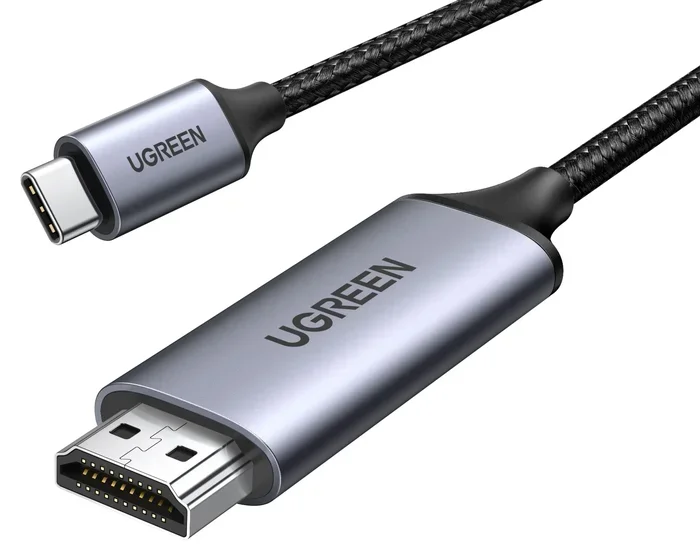
These adapters come in different shapes. The most common types are USB-A adapters and USB-C adapters. A USB-A adapter fits into the classic rectangular port found on older computers. A USB-C adapter works with newer laptops, tablets, and smartphones that use the smaller oval-shaped port.
How Does It Work?
When you plug in a USB adapter, your computer recognizes it as a network adapter. The adapter takes the data from your USB port and converts it into a signal that travels through the Ethernet cable. Your router receives this signal and connects you to the Internet.
The process is almost instant. Most modern adapters are plug-and-play, which means you do not need to install extra software. Your operating system handles the setup automatically. This makes the whole process quick and painless.
USB-A vs USB-C Adapters
Choosing between USB-A and USB-C depends on your device. Here is a simple comparison:
- USB-A adapters: Best for desktop computers and older laptops. They are widely compatible and affordable.
- USB-C adapters: Ideal for modern laptops, MacBooks, and tablets. They support faster data transfer and often deliver better network speed.
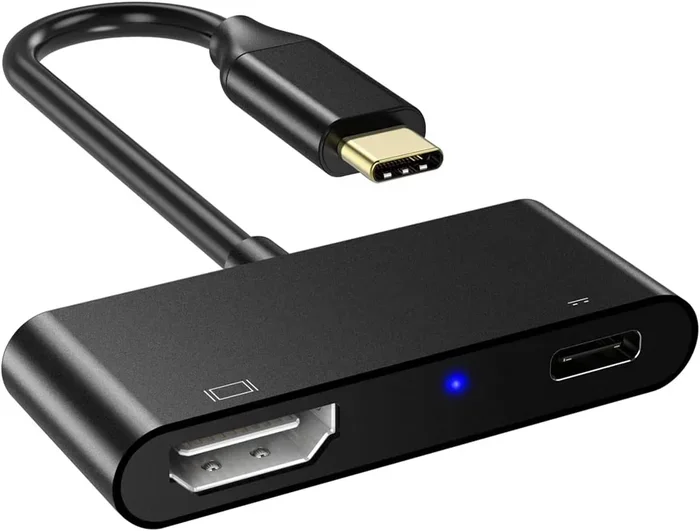
- USB-C to Ethernet adapters with Power Delivery: These let you charge your laptop while staying connected to the wired network. A great two-in-one solution.
Why Connect Ethernet via USB?
You might wonder why bother with a USB Ethernet adapter when Wi-Fi is everywhere. The answer comes down to performance and reliability. A wired connectivity setup offers clear advantages that many people overlook.
Faster and More Stable Speeds
Wi-Fi speeds can fluctuate based on distance, walls, and interference from other devices. A USB Ethernet adapter gives you a direct, dedicated connection to your router. This means more consistent broadband speed and fewer interruptions.
If you have ever tried to download a large file over Wi-Fi and watched the speed jump around, you know the frustration. With a wired LAN connection, your download speed stays steady and predictable.
Lower Latency for Gaming and Video Calls
Latency is the delay between sending a request and getting a response. Wi-Fi adds extra latency compared to a wired connection. For online gaming or video conferencing, lower latency means smoother performance.
A USB-C to Ethernet adapter can reduce your ping significantly. This makes a real difference in fast-paced games and crystal-clear video calls.
Better Security
Wired connections are harder to intercept than wireless ones. If you handle sensitive data or work in a shared space, a wired Internet connection adds an extra layer of security. You do not have to worry about someone piggybacking on your Wi-Fi.
Can USB Ethernet Match Gigabit Speeds?
This is one of the most common questions people ask. The answer depends on three things: your adapter, your USB port, and your Internet plan.
Understanding Gigabit Ethernet over USB
A Gigabit Ethernet adapter can deliver speeds up to 1,000 Mbps. But to reach those speeds, you need a USB 3.0 or USB 3.1 port. USB 2.0 ports cap out around 480 Mbps, which limits your network speed.
Here is what you need to know:
- USB 2.0 adapters: Max out around 100 Mbps in practice. Fine for basic browsing but not ideal for heavy use.
- USB 3.0 adapters: Can handle Gigabit Ethernet speeds easily. Great for streaming, gaming, and large downloads.
- USB 3.1 and USB 3.2 adapters: Even faster and future-proof. These are the best choice if your device supports them.
What Your Internet Plan Matters Too
Even the best USB network adapter cannot give you speeds faster than your Internet plan allows. If you have a 100 Mbps plan, a Gigabit adapter will not magically give you 1,000 Mbps. Match your adapter to your plan for the best results.
How to Choose the Right USB Ethernet Adapter
Not all adapters are created equal. Picking the wrong one can leave you with disappointing network performance. Here is what to look for.
Check Your USB Port Type
Before buying anything, check what USB ports your device has. If you only have USB-A ports, buy a USB-A adapter. If your laptop has USB-C, go for a USB-C to Ethernet adapter. Using the wrong type means you will need an extra adapter, which adds clutter and potential failure points.
Look for Quality Chipsets
The chipset inside the adapter determines its performance and compatibility. Popular chipsets include Realtek and ASIX. Realtek chipsets are common and work well with most operating systems. ASIX chipsets are known for stability and low power consumption.
When shopping for a USB Ethernet adapter, check the product description for the chipset name. This small detail can make a big difference in reliability.
Consider Build Quality and Portability
If you travel often, a compact USB dongle style adapter is a great choice. These small devices plug directly into your laptop without adding bulk. For home use, a larger adapter with a better heatsink can handle longer sessions without overheating.
Does the Adapter Support Pass-Through Charging?
If you use a USB-C adapter on a laptop, look for one that supports Power Delivery pass-through. This lets you connect your charger and Ethernet adapter to the same port using a splitter or a dual-purpose hub. It saves you from swapping cables constantly.
Setting Up Your USB Ethernet Adapter
Setting up a USB network adapter is straightforward. Follow these steps and you will be online in minutes.
Step-by-Step Setup Guide
- Plug the adapter into your USB port. Wait a few seconds for your computer to recognize it.
- Connect an Ethernet cable from the adapter to your router or modem.
- Check your network settings. On most computers, the wired connection activates automatically. You should see a new network icon in your taskbar or menu bar.
- Test your connection. Open a browser and visit a website. Run a speed test at speedtest.net to check your network speed.
- Update drivers if needed. Most adapters work without extra drivers, but checking the manufacturer website for updates can improve performance.
Troubleshooting Common Issues
Sometimes things do not work perfectly the first time. Here are quick fixes for common problems:
- No connection detected: Try a different USB port. USB hubs can sometimes cause issues, so plug directly into your computer.
- Slow speeds: Make sure you are using a USB 3.0 port and a Cat5e or Cat6 Ethernet cable.
- Driver errors: Visit the adapter manufacturer’s website and download the latest driver for your operating system.
- Intermittent disconnects: This could be a faulty cable or an overheating adapter. Try a different cable or give the adapter better ventilation.
Common Mistakes to Avoid
Even with the right adapter, simple mistakes can hold back your wired connectivity. Watch out for these pitfalls.
- Using a USB 2.0 adapter for Gigabit speeds: This bottleneck will limit your network adapter performance no matter how good the adapter is.
- Ignoring cable quality: A cheap or damaged Ethernet cable can cut your broadband speed in half. Always use a Cat5e or higher cable.
- Plugging into a cheap USB hub: Hubs can introduce power and data issues. Plug your adapter directly into your computer for best results.
- Skipping driver updates: Updated drivers often include performance improvements and bug fixes. Check for updates regularly.
- Assuming all adapters are the same: Different brands use different chipsets and build quality. Read reviews before you buy.
Expert Insights on USB Ethernet for Faster Networking
We asked network professionals what they think about using USB Ethernet adapters for everyday use. Here is what they had to say.
“A USB Ethernet adapter is one of the easiest upgrades you can make,” says a network technician with over ten years of experience. “For people who work from home, it instantly improves their connection stability and speed. It costs less than most people think.”
Another expert adds, “The USB-C to Ethernet adapters have come a long way. They now support Gigabit speeds and even Power Delivery. For laptop users, they are a must-have accessory.”
The consensus is clear: if you care about network performance, a wired connection through a USB adapter is a smart investment. It is simple, affordable, and effective.
Quick Tips for Best Performance
- Always use a USB 3.0 or newer port for full-speed performance.
- Keep your Ethernet cable short and away from power cords to reduce interference.
- Restart your router and adapter if you notice speed drops.
- Use a USB-C to Ethernet adapter with a built-in Gigabit controller for the fastest results.
- Update your network drivers monthly to stay optimized.
- For streaming 4K content or online gaming, always choose a wired connection over Wi-Fi.
Conclusion
Can Ethernet be connected via USB for faster networking? Absolutely. A USB Ethernet adapter gives you a reliable, fast, and secure wired connection that beats Wi-Fi in most situations. Whether you choose a simple USB-A adapter or a modern USB-C to Ethernet dongle, the benefits are clear.
You get better network speed, lower latency, and a more stable Internet connection. The setup takes minutes, and the cost is minimal compared to the performance boost you receive.
If you have been struggling with slow or unreliable Wi-Fi, it is time to try a USB Ethernet adapter. Your streaming, gaming, and work-from-home experience will thank you. Make the switch to wired connectivity today and feel the difference.
Frequently Asked Questions
Can I use any USB Ethernet adapter for faster networking?
Not all adapters are the same. To get the best results, choose an adapter that matches your USB port type and supports Gigabit speeds if your Internet plan allows it. Look for adapters with quality chipsets like Realtek or ASIX for reliable performance.
Does a USB Ethernet adapter slow down my laptop battery?
USB adapters use a small amount of power, but modern adapters are very efficient. A USB-C adapter with Power Delivery can even charge your laptop while connected. Overall, the battery impact is minimal and worth the better connection quality.
Can I plug a USB Ethernet adapter into a USB hub?
You can, but it is not recommended. USB hubs can sometimes cause connection issues or reduce speeds. For the best network performance, plug the adapter directly into your computer’s USB port.
What is the difference between USB-A and USB-C Ethernet adapters?
A USB-A adapter has the classic rectangular plug and works with older computers. A USB-C adapter uses the smaller oval-shaped port found on newer laptops and tablets. USB-C adapters generally support faster data transfer and often include Power Delivery features.
Do I need to install drivers for a USB Ethernet adapter?
Most modern adapters are plug-and-play and do not need extra drivers. However, checking the manufacturer’s website for the latest drivers can improve compatibility and performance. This is especially true for older operating systems.
Will a USB Ethernet adapter improve my Wi-Fi if I keep using wireless?
No. A USB Ethernet adapter creates a wired connection, not a better Wi-Fi signal. To improve your wireless experience, consider a Wi-Fi range extender or a mesh network system. But for raw speed and stability, nothing beats a wired LAN connection.