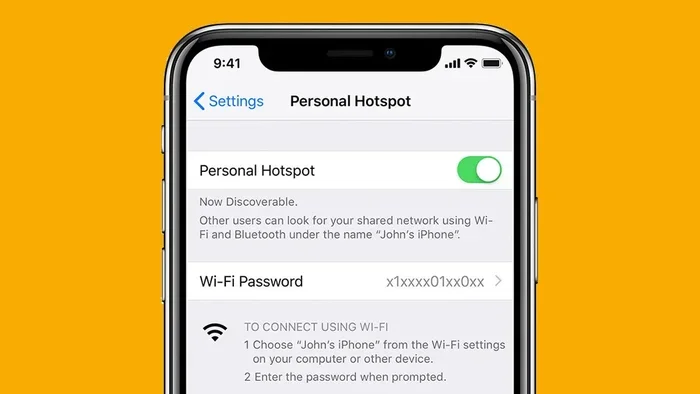
Can Iphone Be Used As A Router For Wi Fi Right Now
Yes, you can use your iPhone as a router for Wi-Fi right now. Apple’s built-in personal hotspot feature lets you share your cellular data with other devices instantly. This guide walks you through setup, tips, and fixes so you can turn your iPhone into a portable Wi-Fi router whenever you need it.
Have you ever been in a situation where you needed Wi-Fi but had no router nearby? Maybe you are at a coffee shop, in a hotel room, or visiting a friend who does not have a strong signal. In moments like these, a simple question pops up: can iPhone be used as a router for Wi-Fi? The short answer is yes. Your iPhone has a built-in feature that turns it into a mobile hotspot in seconds. You can share your cellular data connection with laptops, tablets, and other phones. This makes your phone a powerful portable Wi-Fi device wherever you go.
Using your iPhone for internet sharing is not new. Apple has offered this feature for years. But many people still do not know how it works or how to get the best results. In this article, we will walk you through everything you need to know. From setup to speed tips to common problems, you will find it all here. Whether you are traveling, working remotely, or just need a backup connection, this guide will help you use your iPhone as a router the right way.
Key Takeaways
- iPhone as a router is possible: You can share your cellular data connection with laptops, tablets, and other phones using the personal hotspot feature.
- Setup takes less than a minute: Enabling the hotspot requires just a few taps in your iPhone settings.
- Performance depends on your data plan: Your mobile data speed and carrier plan directly affect how well your iPhone works as a portable hotspot.
- Security matters: Always set a strong hotspot password to protect your network sharing from unauthorized users.
- Battery drain is real: Using your phone as a router alternative consumes power quickly, so keep your charger handy.
- Not a permanent replacement: While great for travel and emergencies, an iPhone hotspot cannot fully replace a home broadband router for heavy usage.
📑 Table of Contents
- What Does It Mean to Use iPhone as a Router?
- How to Set Up Your iPhone as a Wi-Fi Router
- Pros and Cons of Using iPhone as a Router
- Tips to Get the Best Performance from iPhone Hotspot
- Common Problems When Using iPhone as a Router (and How to Fix Them)
- Can iPhone Replace a Real Router Long-Term?
- Final Thoughts
What Does It Mean to Use iPhone as a Router?
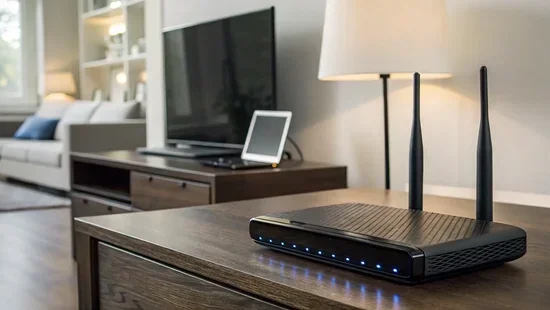
A router is a device that shares an internet connection with other devices over Wi-Fi. When you use your iPhone as a router, you are doing the same thing. Your phone takes the cellular data signal it receives from your carrier and broadcasts it as a Wi-Fi network. Other devices can then connect to that network and access the internet.
This process is also called tethering or Wi-Fi tethering. Apple calls it Personal Hotspot on iPhones. It works on almost every iPhone model released in the last decade. All you need is a cellular data plan that supports mobile data sharing. Most modern plans do, but it is always smart to check with your carrier first.
How Does iPhone Hotspot Work?
When you enable Personal Hotspot on your iPhone, it creates a private Wi-Fi network. Your phone acts as the center of that network. Other devices connect to it just like they would connect to a home router. The internet connection flows from the cellular network into your iPhone and then out to the connected devices through Wi-Fi, Bluetooth, or USB cable.
The speed you get depends on several factors. Your cellular signal strength matters a lot. So does your carrier’s network coverage in your area. The number of devices connected also affects performance. If you understand these factors, you can get the most out of your iPhone router setup.
How to Set Up Your iPhone as a Wi-Fi Router
Setting up your iPhone as a portable hotspot is simple. You do not need any extra apps or equipment. Apple built this feature right into iOS. Here is exactly how to do it step by step.
Step-by-Step Setup Guide
- Open Settings on your iPhone.
- Tap Personal Hotspot. You may need to tap Cellular first, then look for Personal Hotspot.
- Toggle Allow Others to Join to turn it on.
- Set your Wi-Fi password. Make it strong but something you can remember.
- Connect your other devices by finding your iPhone’s hotspot name in their Wi-Fi settings.
That is it. Your iPhone hotspot is now live. Other devices can search for your network name and enter the password to get online. The whole process takes less than a minute once you have done it a couple of times.
Alternative Connection Methods
Wi-Fi is not the only way to share your iPhone’s internet. You also have two other options:
- Bluetooth tethering: This uses less power than Wi-Fi but is slower. It works well for basic tasks like checking email.
- USB tethering: Connect your iPhone to a laptop with a cable. This gives the most stable connection and can even charge your phone at the same time.
For most people, Wi-Fi tethering is the best choice. It is fast, wireless, and lets multiple devices connect at once. But if you are in a pinch, Bluetooth or USB can save the day.
Pros and Cons of Using iPhone as a Router
Like anything, using your iPhone as a router alternative has good sides and not-so-good sides. Let us break them down so you can decide if it works for you.
The Advantages
- Portability: You carry your router everywhere. No extra gear needed.
- Quick setup: You can be online in under a minute.
- No extra cost: You already pay for your cellular data plan.
- Multiple devices: You can connect up to five or more devices at once, depending on your iPhone model.
- Built-in security: Apple includes WPA2 encryption for your hotspot password protection.
The Disadvantages
- Battery drain: Running a hotspot uses a lot of power. Your phone battery will drop fast.
- Data limits: Sharing your mobile data eats through your plan quickly, especially with video streaming.
- Speed limits: Your hotspot speed depends on your cellular signal. It will not match a fiber home connection.
- Heat issues: Your phone may get warm or hot when running a hotspot for a long time.
- Carrier restrictions: Some plans block or limit hotspot usage. Always check your plan details.
Tips to Get the Best Performance from iPhone Hotspot
Want your iPhone router to work as fast and smooth as possible? A few simple tips can make a big difference. These are things most people overlook, but they matter a lot.
Keep Your iPhone Plugged In
Running a portable hotspot drains your battery fast. Plug your iPhone into a power source while sharing your connection. This keeps your phone running strong and prevents it from shutting down the hotspot to save power.
Stay Close to Your Connected Devices
The closer your other devices are to your iPhone, the stronger the signal. If you are in a large room, place your iPhone in the center. Walls and furniture can weaken the Wi-Fi signal. A clear line of sight helps a lot with network sharing speed.
Limit the Number of Connected Devices
It can be tempting to let everyone connect. But the more devices you share with, the slower the bandwidth usage gets for each one. For the best experience, limit connections to two or three devices at a time.
Use a 5GHz Band If Available
Some iPhones support both 2.4GHz and 5GHz Wi-Fi bands for hotspot. The 5GHz band is faster but has a shorter range. If your devices are close, switch to 5GHz for better speeds. You can find this option in your iPhone hotspot settings.
Turn Off Background Apps on Connected Devices
Apps running in the background on your laptop or tablet eat up data without you knowing. Close apps you are not using. This reduces data consumption and keeps your connection snappy for the things that matter.
Common Problems When Using iPhone as a Router (and How to Fix Them)
Using your iPhone as a Wi-Fi router is not always perfect. Sometimes things go wrong. Here are the most common issues and how to solve them quickly.
Hotspot Won’t Turn On
If you cannot find the Personal Hotspot option, try this: go to Settings, then Cellular, then Personal Hotspot. If it still does not show up, restart your iPhone. In rare cases, you may need to contact your carrier to enable hotspot on your plan.
Other Devices Cannot Find the Hotspot
Make sure your hotspot is turned on and your Wi-Fi password is correct. Also check that your iPhone is not in Low Power Mode, as this can disable hotspot. Restarting both your iPhone and the connecting device often fixes this problem.
Slow Speeds
Slow speeds are the most common complaint. Your cellular data speed depends on your signal strength and carrier coverage. Move to a location with better reception if possible. Also, fewer connected devices means faster speeds for everyone.
iPhone Gets Too Hot
Running a hotspot makes your phone work hard. If it gets too hot, take a break. Let your phone cool down for a few minutes. Using a case that traps heat can make this worse, so consider removing it during long hotspot sessions.
Data Running Out Too Fast
Data consumption adds up quickly when sharing your connection. Video calls, streaming, and downloads use the most data. Keep an eye on your usage in Settings, then Cellular. If you are close to your data limit, reduce heavy activities on connected devices.
Can iPhone Replace a Real Router Long-Term?
This is a great question, and the honest answer is: probably not for everyday home use. An iPhone hotspot works wonderfully for travel, emergencies, and temporary situations. But for daily home internet, a dedicated router is still better in almost every way.
A home router offers faster speeds, better range, and does not drain your phone battery. It also does not count against your mobile data plan the same way. If you live in an area with reliable broadband, stick with a proper router for your home network.
However, there are situations where an iPhone makes a great router alternative. Think about road trips, camping trips, or visiting places without Wi-Fi. In those cases, your phone is the best tool for the job. It gives you internet on the go without carrying extra equipment.
The key is knowing when to use each option. For quick, temporary needs, your iPhone is perfect. For long-term, heavy-duty internet, a real router wins. Many people actually use both together. They rely on their home router for daily use and their iPhone as a backup when the main connection goes down.
Final Thoughts
Can iPhone be used as a router for Wi-Fi? Absolutely yes. Apple makes it easy to turn your phone into a personal hotspot with just a few taps. Whether you need internet sharing for your laptop at a café, a backup connection while traveling, or a quick solution during an outage, your iPhone has you covered.
The setup is simple, the feature is built right into iOS, and it works with almost every carrier. Just remember to watch your data consumption, keep your phone charged, and use a strong hotspot password for security. With these basics in place, you can confidently use your iPhone as a router anytime you need it.
So the next time someone asks you if an iPhone can work as a Wi-Fi router, you will know the answer. And better yet, you will know exactly how to do it. Give it a try and see how easy mobile hotspot sharing really is.
Frequently Asked Questions
Can any iPhone model be used as a Wi-Fi router?
Most iPhone models from the iPhone 3GS onward support personal hotspot. However, newer models like the iPhone 12 and later offer better speeds and more stable connections. Check your iPhone settings for the Personal Hotspot option to confirm your model supports it.
Does using iPhone as a router cost extra money?
It depends on your carrier and plan. Some plans include mobile data sharing at no extra charge. Others may require a separate hotspot add-on or charge for tethering. Contact your carrier to confirm what your plan includes before you rely on your iPhone as a router alternative.
How many devices can connect to an iPhone hotspot?
Most iPhones can support up to five devices connected at the same time via Wi-Fi tethering. The exact number may vary by model and iOS version. Keep in mind that connecting fewer devices gives you better speed and performance for each one.
Is it safe to use iPhone hotspot in public places?
Yes, as long as you set a strong hotspot password. Apple uses WPA2 encryption by default, which keeps your network sharing secure. Avoid using public hotspots without a password, and never share your password with strangers to protect your data consumption and privacy.
Why does my iPhone get hot when used as a router?
Running a mobile hotspot requires your phone to work hard. It processes data, manages connections, and broadcasts a Wi-Fi signal all at once. This generates heat, especially during long sessions. Plugging your iPhone into power and removing thick cases can help keep temperatures down.
Can I use my iPhone hotspot while on a phone call?
Yes, on most carriers and iPhone models, you can use internet sharing while making or receiving a call. However, call quality and hotspot speed may be affected depending on your network and signal strength. If you notice issues, try moving to a location with better coverage.