How Do I Mirror My Iphone To Roku Quickly And Easily
Mirroring your iPhone to Roku is simple and fast when you know the right steps. You can use AirPlay for wireless streaming or explore alternative methods if your setup differs. This guide covers everything from setup to troubleshooting so you can cast your iPhone screen to Roku in minutes.
Have you ever wanted to show photos, videos, or apps from your iPhone on a bigger screen? Maybe you are planning a movie night or sharing vacation pictures with family. Whatever the reason, how do I mirror my iPhone to Roku is one of the most common questions people ask. The good news is that it is easier than you think.
This guide walks you through every method step by step. You will learn about AirPlay, third-party tools, and how to fix common problems. By the end, you will be casting your iPhone screen to Roku like a pro. Let us get started.
Key Takeaways
- AirPlay is the easiest way to mirror your iPhone to Roku without cables or extra apps.
- Both devices must be on the same Wi-Fi network for smooth screen mirroring.
- Third-party apps work as alternatives if AirPlay is not available on your Roku model.
- Common issues like lag or black screens can usually be fixed with simple steps.
- Screen mirroring differs from casting through built-in Roku channels and apps.
- Keeping software updated on both devices helps prevent most mirroring problems.
📑 Table of Contents
- What Is iPhone Screen Mirroring to Roku?
- How to Mirror iPhone to Roku Using AirPlay
- How to Mirror iPhone to Roku Without AirPlay
- Troubleshooting Common Mirroring Issues
- Tips for the Best Mirroring Experience
- Screen Mirroring vs. Casting: What Is the Difference?
- How to Update Your Roku for Better Compatibility
- Can You Mirror Multiple Devices to Roku at Once?
- Is Screen Mirroring Safe and Private?
- Conclusion
What Is iPhone Screen Mirroring to Roku?
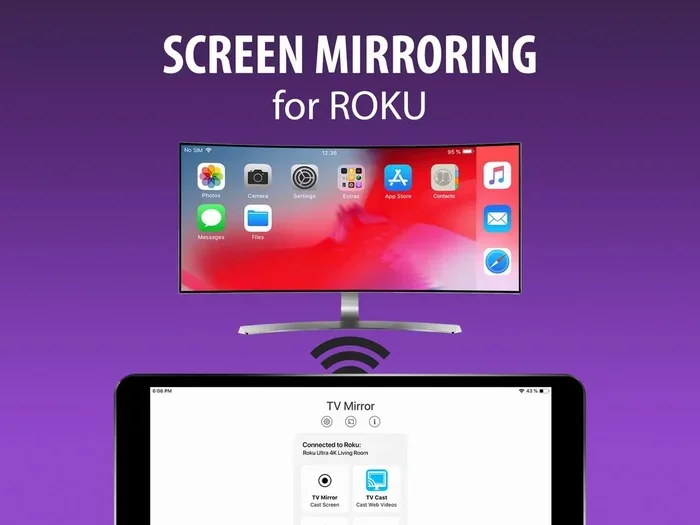
Screen mirroring means displaying everything on your iPhone screen onto your TV through a Roku device. Whatever you tap, swipe, or open on your phone appears on the big screen in real time. It is like looking at a reflection of your phone on your television.
Roku supports AirPlay mirroring for many of its models. This wireless technology lets iPhone and Roku communicate directly over your home Wi-Fi. You do not need cables, adapters, or complicated setups. Just a few taps and your screen is on the TV.
However, not all Roku models support AirPlay. Older models may need a different approach. We will cover both scenarios in this guide. Whether you have the latest Roku or an older version, there is a solution for you.
How to Mirror iPhone to Roku Using AirPlay
AirPlay is Apple’s built-in wireless streaming feature. It works seamlessly with supported Roku devices. This is the fastest and most reliable way to mirror your iPhone screen.
Step 1: Connect Both Devices to the Same Wi-Fi
First, make sure your iPhone and Roku are on the same Wi-Fi network. Open the Settings app on your iPhone and tap Wi-Fi. Check the network name. Then go to your Roku and confirm it is connected to the same network. This is the most important step. If the devices are on different networks, mirroring will not work.
Step 2: Open the Control Center on Your iPhone
Swipe down from the top-right corner of your iPhone screen. On older models with a Home button, swipe up from the bottom. This opens the Control Center. You will see a row of icons for different settings and features.
Step 3: Tap the Screen Mirroring Icon
Look for the Screen Mirroring icon. It looks like two overlapping rectangles. Tap it, and a list of available devices will appear. Your Roku should show up in that list. Tap on your Roku device name to connect.
Step 4: Enter the Code if Prompted
Sometimes, Roku will display a four-digit code on your TV screen. Type that code on your iPhone when prompted. This step ensures that only your device can mirror to your Roku. Once you enter the code, your iPhone screen will appear on the TV.
Step 5: Start Sharing Your Screen
That is it. Your iPhone is now mirroring to your Roku. Open any app, photo, or video, and it will display on your TV. To stop mirroring, go back to the Control Center and tap Stop Mirroring. Or you can open the Screen Mirroring icon again and choose your iPhone as the output.
Quick Tip: If your Roku does not appear in the list, restart both devices. Turn off Wi-Fi on your iPhone and turn it back on. Then try again. This simple fix resolves most connection issues.
How to Mirror iPhone to Roku Without AirPlay
Not all Roku models support AirPlay. Older Roku devices, especially those released before 2018, may not have this feature. But do not worry. You still have options to mirror your iPhone screen to your TV.
Method 1: Use a Third-Party Mirroring App
Several apps on the App Store let you cast your iPhone screen to Roku without AirPlay. Apps like Replica, Screen Mirroring, and Let’s View work well for this purpose. Here is how to use them.
- Download a screen mirroring app from the App Store.
- Install the app and open it on your iPhone.
- Make sure both your iPhone and Roku are on the same Wi-Fi network.
- Select your Roku device from the app’s device list.
- Start mirroring and enjoy your content on the big screen.
Keep in mind that third-party apps may have limitations. Some require a paid subscription for full features. Others may add a watermark to your mirrored screen. Always read reviews before downloading.
Method 2: Use an HDMI Adapter
If you want a wired connection, an HDMI adapter is a great option. Apple makes a Lightning to HDMI adapter that works with most iPhones. Here is what you need to do.
- Get a compatible Lightning to HDMI adapter.
- Plug the adapter into your iPhone’s charging port.
- Connect an HDMI cable from the adapter to your TV.
- Switch your TV input to the HDMI port you used.
- Your iPhone screen will now display on your TV.
This method works with any TV, not just Roku. However, it uses a cable, so you lose the convenience of wireless mirroring. It is still useful when Wi-Fi connections are unstable or when you need a reliable connection.
Method 3: Use Roku’s Built-In Screen Mirroring Feature
Some Roku devices have a built-in screen mirroring feature that does not rely on AirPlay. To use this, follow these steps.
- On your Roku remote, press the Home button.
- Navigate to Settings and select System.
- Choose Screen Mirroring and set it to Prompt or Auto Detect.
- On your iPhone, open the Control Center and tap Screen Mirroring.
- Select your Roku device from the list.
This method works on Roku models that support screen mirroring but not AirPlay. Check your Roku model’s specifications to confirm compatibility.
Troubleshooting Common Mirroring Issues
Even when you follow all the steps correctly, problems can happen. Here are the most common issues and how to fix them.
iPhone Does Not Find Roku Device
This is the most common problem. Usually, it happens because the devices are on different networks. Double-check that both your iPhone and Roku are connected to the same Wi-Fi. If they are, try restarting your router. Unplug it for 30 seconds and plug it back in.
Another reason could be that your Roku model does not support AirPlay. Check your Roku model online or go to Settings > System > About on your Roku to find the model number.
Mirroring Is Lagging or Delayed
Screen mirroring needs a strong and stable Wi-Fi connection. If your network is slow, the mirror will lag. Try moving closer to your router. Or reduce the number of devices using your network at the same time.
You can also lower the screen resolution on your iPhone to reduce the data load. Go to Settings > Display & Brightness and adjust accordingly. A faster internet speed makes a big difference in mirroring quality.
Audio Is Not Syncing with Video
Sometimes the audio and video get out of sync during mirroring. This can be annoying, especially when watching videos. Try restarting both your iPhone and Roku. Also, make sure your Wi-Fi signal is strong in the room where your Roku is located.
If the problem persists, try using a wired HDMI connection instead. Wired connections provide better audio and video sync than wireless methods.
Screen Mirroring Stops Unexpectedly
Mirroring can stop if your iPhone goes to sleep or locks. To prevent this, go to Settings > Display & Brightness and increase the Auto-Lock time. Set it to 5 minutes or Never while mirroring.
Also, make sure no other device is trying to connect to your Roku during the mirroring session. Only one device should mirror at a time for the best experience.
Tips for the Best Mirroring Experience
Want your screen mirroring to look and feel great? Follow these simple tips to get the best results every time.
- Use a 5 GHz Wi-Fi network if available. It offers faster speeds and less interference than a 2.4 GHz network.
- Keep your devices close to the router for a stronger signal.
- Close background apps on your iPhone before mirroring. This frees up memory and processing power.
- Update your software regularly. Keep both your iPhone and Roku firmware up to date for the best compatibility.
- Avoid mirroring during peak hours if your internet plan has limited bandwidth. Heavy usage by other household members can slow things down.
- Use landscape mode on your iPhone for a better viewing experience on your TV. Rotate your phone sideways before starting the mirror.
Best Apps for Screen Mirroring to Roku
If AirPlay is not an option, certain apps make the process smooth. Here are some reliable choices.
| App Name | Platform | Price | Best For |
|---|---|---|---|
| Replica Screen Mirroring | iOS | Free with in-app purchases | Easy setup and reliable connection |
| LetsView | iOS | Free | Cross-platform mirroring |
| AirScreen | Roku | Free trial | Adding AirPlay support to older Roku models |
| Reflector | iOS | Paid | Professional and high-quality mirroring |
Each app has its strengths. Replica is great for beginners because it is simple to use. LetsView works well if you need to mirror from multiple devices. AirScreen adds AirPlay support to Roku models that do not have it built in. Reflector is ideal if you need premium features and stable performance.
Screen Mirroring vs. Casting: What Is the Difference?
Many people use screen mirroring and casting interchangeably, but they are different. Understanding the difference helps you choose the right method for your needs.
Screen mirroring shows everything on your iPhone screen on your TV. It is a live reflection. Every notification, swipe, and tap appears on the TV. This is great for sharing photos, presenting slides, or showing apps that do not have a Roku channel.
Casting, on the other hand, sends content from an app directly to your Roku. For example, when you tap the Cast icon in Netflix on your iPhone, the video streams from Netflix’s servers to your Roku. Your iPhone becomes a remote control. You can even leave the Netflix app on your phone and the video will keep playing on your TV.
For the best experience, use casting when possible. It uses less bandwidth and provides better quality. Reserve screen mirroring for content that does not have a dedicated Roku app or when you need to show your entire screen.
How to Update Your Roku for Better Compatibility
Keeping your Roku updated ensures the best mirroring experience. Roku updates often include bug fixes and new feature support, including AirPlay improvements.
- Press the Home button on your Roku remote.
- Go to Settings and select System.
- Choose System Update and then check Now.
- If an update is available, your Roku will download and install it.
- Restart your Roku after the update is complete.
You can also enable automatic updates. Go to Settings > System > System Update and toggle on Automatic Download. This way, your Roku always stays current without any effort from you.
Similarly, keep your iPhone updated. Go to Settings > General > Software Update and install any available updates. Updated software ensures the best compatibility between your iPhone and Roku.
Can You Mirror Multiple Devices to Roku at Once?
In most cases, only one device can mirror to Roku at a time. If another device starts mirroring, it will replace the current screen on your TV. However, some Roku models with multiple HDMI inputs allow different sources to display on different screens.
For most households, one device mirroring at a time is perfectly fine. If you need to switch between devices, simply stop mirroring on one and start on the other. The process takes only a few seconds.
Is Screen Mirroring Safe and Private?
Screen mirroring shows everything on your iPhone screen. This means notifications, messages, and personal apps become visible on your TV. Before you start mirroring, consider opening the Notification Center and clearing sensitive alerts.
You can also use Focus Mode or Do Not Disturb to silence notifications during your mirroring session. This keeps your private content private while you share your screen with others.
Conclusion
Learning how to mirror your iPhone to Roku opens up a world of possibilities. You can share photos with family, watch mobile games on a big screen, or present slideshows at work. The process is simple, fast, and does not require expensive equipment.
AirPlay makes wireless mirroring easy for supported Roku models. Third-party apps and HDMI adapters provide alternatives for older or incompatible devices. With the troubleshooting tips in this guide, you can handle any issue that comes up.
Now that you have all the information you need, try mirroring your iPhone to Roku today. Pick your preferred method, follow the steps, and enjoy your content on the big screen. Once you start mirroring, you will wonder how you ever lived without it.
Frequently Asked Questions
Can I mirror my iPhone to any Roku model?
Most Roku models released after 2018 support AirPlay mirroring. Older models may not have this feature built in. You can check your specific Roku model on the Roku website or in the Settings menu under System > About.
Do I need Wi-Fi to mirror my iPhone to Roku?
Yes, both your iPhone and Roku must be connected to the same Wi-Fi network for wireless mirroring to work. If you do not have Wi-Fi, you can use a wired HDMI adapter as an alternative connection method.
Why is my mirrored screen blurry on Roku?
A blurry mirrored screen is usually caused by a weak Wi-Fi signal or network congestion. Try moving closer to your router, reducing the number of connected devices, or switching to a 5 GHz network for a clearer and sharper picture.
Can I mirror my iPhone to Roku without downloading any apps?
Yes, if your Roku supports AirPlay, you can mirror your iPhone screen without any extra apps. Simply use the built-in Screen Mirroring feature in your iPhone Control Center. No downloads are required.
Does screen mirroring drain my iPhone battery quickly?
Screen mirroring uses more battery than normal iPhone use because it continuously sends your screen output to the Roku. To preserve battery, keep your iPhone plugged in during long mirroring sessions or reduce your screen brightness.
Can I use screen mirroring for gaming on my iPhone?
You can mirror games from your iPhone to Roku, but there may be a slight input delay. This delay makes fast-paced games less responsive. For the best gaming experience, use games that support native Roku apps or use a controller connected to your iPhone.