How Do I Get Wi Fi Qr On My Iphone With These Tips
Getting a WiFi QR code on your iPhone is simpler than most people think. You can create, scan, and share WiFi QR codes using built-in iPhone features and free apps. This guide walks you through every method so you can connect to WiFi networks without typing passwords ever again.
Have you ever been at a friend’s house or a café and needed the WiFi password? You know the drill — someone whispers a long string of letters and numbers, and you spend five minutes typing it wrong. It happens all the time. But there is a much better way. WiFi QR codes solve this problem completely. You just scan a code, and your iPhone connects to the network automatically.
In this article, we will show you exactly how to get WiFi QR on your iPhone. Whether you want to create a QR code for your own network, scan one someone else made, or share WiFi with guests, we have you covered. The methods are simple, free, and work on every iPhone model. Let us dive in.
Key Takeaways
- WiFi QR codes let you share and connect to networks instantly without typing long passwords manually.
- You can create WiFi QR codes using free apps or built-in iPhone features like the Shortcuts app.
- Scanning a WiFi QR code is easy — just use your iPhone camera or a QR reader app.
- Common issues like connection failures have simple fixes that anyone can do in minutes.
- Using WiFi QR codes saves time for hosts, businesses, and everyday users sharing networks.
- Customizing your WiFi QR code adds a personal or brand touch for professional or home use.
📑 Table of Contents
- What Is a WiFi QR Code and Why It Matters
- How to Create a WiFi QR Code on Your iPhone
- How to Scan a WiFi QR Code on Your iPhone
- Best Apps for WiFi QR Codes on iPhone
- Common Problems When Using WiFi QR Codes on iPhone
- Tips and Tricks for Using WiFi QR Codes on iPhone
- Expert Insights on WiFi QR Codes and iPhone Connectivity
- Key Takeaways
- Frequently Asked Questions
- Conclusion
What Is a WiFi QR Code and Why It Matters
A WiFi QR code is a special type of barcode that holds your network name and password. When someone scans it with their phone, the device reads the information and offers to connect to the WiFi network. No typing required. No errors. No frustration.
These codes have become really popular in homes, offices, cafes, and hotels. Imagine hosting a dinner party and not having to tell five different people your WiFi password. You just print a small QR code and put it on the kitchen counter. Done.
How WiFi QR Codes Work
Behind the scenes, a WiFi QR code contains encrypted data. This data includes your network name (also called the SSID), the security type (like WPA or WEP), and the password. When a phone scans the code, it reads all of this information at once and sets up the connection automatically.
The format looks something like this behind the scenes:
- Network Name (SSID): The name of your WiFi network
- Security Type: WPA, WPA2, or WEP encryption
- Password: Your actual WiFi password
Your iPhone handles all of this in the background. You just tap “Join” and you are online. It is one of the most convenient iPhone features for everyday use.
How to Create a WiFi QR Code on Your iPhone
Creating a WiFi QR code on your iPhone is straightforward. You do not need any special equipment or technical skills. There are a few different methods you can use, and we will walk through each one.
Method 1: Use a Free WiFi QR Code Generator App
The easiest way to create a WiFi QR code is by using a free app from the App Store. Here is how to do it:
- Open the App Store on your iPhone
- Search for “WiFi QR code generator”
- Download a highly rated app like “WiFi QR Code” or “QR Code Generator”
- Open the app and enter your WiFi network name and password
- Select your security type (WPA2 is most common)
- Tap “Generate” and your QR code appears on screen
- Save the image or share it directly
Most of these apps are completely free. Some offer paid upgrades for extra features like custom designs or logos, but the free version works perfectly for most people.
Method 2: Use the iPhone Shortcuts App
If you prefer not to download extra apps, you can use the Shortcuts app that comes built into your iPhone. This method is great because it keeps everything on your device.
Here is a quick way to set it up:
- Open the Shortcuts app
- Create a new shortcut
- Add a “URL” action with your WiFi network details
- Use a QR code generation action within the shortcut
- Save and run the shortcut whenever you need a new code
This method takes a little more setup, but once it is configured, it works fast. It is a great option if you like keeping your phone clean of extra apps.
Method 3: Use an Online QR Code Website
You can also create WiFi QR codes using websites on your iPhone browser. Sites like QRCode Monkey or GoQR.me let you generate codes right in Safari. Just visit the site, fill in your WiFi details, and download the image. This works well if you only need a code once in a while.
How to Scan a WiFi QR Code on Your iPhone
Scanning a WiFi QR code on your iPhone is incredibly easy. Apple built this feature right into the operating system. You do not even need a special app in most cases.
Using the iPhone Camera
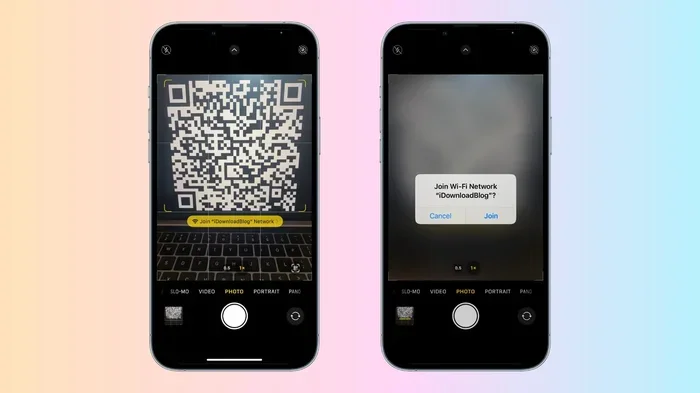
Your iPhone camera can scan QR codes natively. Here is what to do:
- Open the Camera app on your iPhone
- Point the camera at the WiFi QR code
- Wait for the notification banner to appear at the top
- Tap the notification to connect to the network
That is it. Your iPhone reads the code and prompts you to join the WiFi network. You just confirm, and you are connected. This works on iPhone 11 and all newer models, and also on many older devices running recent iOS versions.
Using the Control Center
Another quick way to connect is through Control Center. If you scan a WiFi QR code and the notification appears, you can also swipe down from the top right corner of your screen and tap the WiFi icon to manage the connection directly.
Using a Third-Party QR Scanner App
If your camera does not recognize the QR code for any reason, you can download a QR scanner app from the App Store. Apps like “QR & Barcode Scanner” work well and are free. Just open the app, point it at the code, and it will read the WiFi details for you.
Best Apps for WiFi QR Codes on iPhone
Not all QR code apps are created equal. Some are bloated with ads, and others do not handle WiFi codes properly. Here are some of the best options for creating and scanning WiFi QR codes on iPhone.
Top Free Apps to Try
- QR Code Generator by Scan: Simple, clean, and ad-free. Great for creating WiFi codes quickly.
- WiFi Key Share: Specializes in sharing WiFi networks securely through QR codes.
- QR Code Reader by Kaspersky: Excellent for scanning codes with strong security features.
- Visual Codes: Allows customization of your QR code with colors and logos.
- Qrafter: A reliable all-in-one QR scanner and generator that handles WiFi codes well.
When choosing an app, look for ones with good reviews and no unnecessary permissions. Your WiFi password is sensitive data, so only use trusted apps from reputable developers.
Common Problems When Using WiFi QR Codes on iPhone
While WiFi QR codes are generally very reliable, you might run into a few hiccups. Here are the most common issues and how to fix them.
QR Code Does Not Scan
If your camera does not recognize the code, try these fixes:
- Clean the camera lens on your iPhone
- Make sure the QR code is well-lit
- Hold your phone steady and at the right distance
- Check that QR scanning is enabled in your camera settings
To check camera settings, go to Settings > Camera > Scan QR Codes and make sure the toggle is turned on.
Connection Fails After Scanning
Sometimes your iPhone scans the code but fails to connect. This usually happens because:
- The password in the QR code is incorrect
- The security type does not match your network
- Your iPhone is too far from the router
Double-check the details in the QR code and make sure your network is working normally. You can test by connecting manually with the password first.
QR Code Shows But Does Not Offer to Connect
If the code scans but your phone does not prompt you to connect, try opening the notification manually. Swipe down from the top of your screen and look for a WiFi-related notification. Tap it to proceed with the connection.
Tips and Tricks for Using WiFi QR Codes on iPhone
Once you start using WiFi QR codes, you will wonder how you ever lived without them. Here are some tips to get the most out of this handy feature.
Print Your QR Codes for Easy Access
Print your WiFi QR code and place it near your router or at your front door. Guests can scan it themselves without asking for the password. This is especially useful if you rent out a room on Airbnb or host events regularly.
Use Different Codes for Different Networks
If you have both a 2.4GHz and 5GHz WiFi network, create separate QR codes for each. Label them clearly so guests know which one to use. The 2.4GHz band has better range, while 5GHz offers faster speeds.
Update Your QR Code When You Change Passwords
Whenever you change your WiFi password, regenerate your QR code. An old code with an outdated password will cause connection problems. It takes just a minute to create a new one.
Share WiFi QR Codes Digitally
You do not always need a printed code. You can share the QR code image through Messages, AirDrop, email, or any messaging app. This is perfect for sharing WiFi with friends who are visiting or coworkers in a meeting room.
Protect Your Privacy
Be careful about where you display your WiFi QR code publicly. Anyone who scans it gets your network password. Keep public codes on your guest network rather than your main network. This adds a layer of network security to your home setup.
Expert Insights on WiFi QR Codes and iPhone Connectivity
Tech experts agree that WiFi QR codes are one of the most underused features on smartphones. According to Apple support documentation, the iPhone camera has supported QR code scanning since iOS 11, making it a native feature for nearly a decade.
Network specialists also recommend using WPA3 security whenever possible, even when sharing through QR codes. WPA3 provides stronger encryption and better protection against brute-force attacks. If your router supports it, enable WPA3 in your router settings.
Another expert tip is to use a guest network for visitors. Most modern routers allow you to set up a separate guest network with its own password. Create a QR code for the guest network and keep your main network private. This is a smart way to share WiFi without compromising your security.
Key Takeaways
- WiFi QR codes make sharing and connecting to networks effortless without typing passwords manually.
- You can create WiFi QR codes using free apps, the Shortcuts app, or online websites — no special tools needed.
- Scanning a WiFi QR code on iPhone is built into the Camera app — just point and tap the notification.
- Common scanning issues are easy to fix by checking camera settings, lighting, and network details.
- Use trusted QR code apps from the App Store to protect your WiFi password and network data.
- Print or share your QR codes digitally for convenient guest access at home or work.
- Always use a guest network for public QR codes to keep your main network secure.
Frequently Asked Questions
Can I create a WiFi QR code on iPhone without downloading any app?
Yes, you can use the Shortcuts app that comes pre-installed on your iPhone. You can also use Safari to visit online QR code generators like QRCode Monkey. Both methods work without downloading anything extra from the App Store.
Is it safe to share my WiFi QR code with guests?
It is generally safe as long as you share the code for your guest network rather than your main network. Guest networks isolate visitors from your personal devices and files. You can also change your WiFi password periodically and regenerate the QR code to stay secure.
Why does my iPhone not scan WiFi QR codes?
This usually happens when QR code scanning is disabled in your camera settings. Go to Settings, tap Camera, and make sure “Scan QR Codes” is turned on. If the problem continues, try restarting your iPhone or updating to the latest iOS version.
Can I use a WiFi QR code on an Android phone too?
Absolutely. WiFi QR codes work on both iPhone and Android devices. When someone scans the code on an Android phone, it reads the network details and offers to connect just like on iPhone. The format is universal across all platforms.
How do I add a logo or design to my WiFi QR code?
Apps like Visual Codes and QR Code Generator by Scan allow you to customize your QR code with logos, colors, and frames. Just upload your image or choose a style within the app before saving or sharing the final code.
What format does a WiFi QR code use?
A WiFi QR code uses the standard WiFi configuration format that includes the network name (SSID), security type (like WPA2), and password. This standardized format ensures compatibility with all QR code scanners and smartphones, including iPhones and Android devices.
Conclusion
Getting WiFi QR on your iPhone opens up a world of convenience. No more fumbling with long passwords or asking guests to repeat the network name. Whether you create a code for your home, office, or business, the process is quick and free.
You now know how to create WiFi QR codes using apps, the Shortcuts app, and online tools. You also know how to scan them instantly with your iPhone camera. The tips and troubleshooting advice in this guide will help you handle any issues that come up along the way.
Start using WiFi QR codes today and experience how simple wireless sharing can be. Print a code for your front door, share one with a friend, or use it at your next gathering. Once you make the switch, you will never go back to typing passwords again.