How Do I Get Free Hotspot On My Iphone Quickly And Easily
Getting a free hotspot on your iPhone is simpler than most people think. You can share your cellular data with other devices using built-in iPhone settings, carrier workarounds, and smart configuration tips. This guide walks you through every method step by step so you can connect laptops, tablets, and other phones without paying extra fees. Whether you are at home, traveling, or need emergency internet access, these techniques help you set up iPhone hotspot without spending a dime.
Ever found yourself in a situation where your laptop needs internet but there is no Wi-Fi in sight. Maybe you are at a coffee shop, sitting in a park, or stuck in a hotel room with terrible reception. The frustration is real. But here is the good news. Your iPhone can become a portable hotspot and share its cellular data with almost any device around you. And the best part? You can do it without paying a single extra dollar in most cases.
In this guide, we will walk you through every possible way to get free hotspot on your iPhone quickly and easily. We will cover built-in settings, carrier tricks, configuration tips, and common mistakes to avoid. By the time you finish reading, you will know exactly how to turn your iPhone into a reliable Wi-Fi hotspot whenever you need it. Let us dive right in.
Key Takeaways
- Built-in Personal Hotspot: Your iPhone already has a free hotspot feature built right into the settings.
- Carrier Workarounds Exist: Some carriers offer free hotspot data or let you enable it through simple adjustments.
- No-Jailbreak Methods: You do not need to jailbreak your iPhone to get a working hotspot.
- Configuration Tweaks: Small changes to network settings can unlock or improve your hotspot experience.
- Third-Party Apps: Certain apps can help manage and optimize your iPhone hotspot connection.
- Security Matters: Always set a strong hotspot password to protect your data and connection.
- Data Awareness: Even though the hotspot is free, keep an eye on your cellular data usage.
📑 Table of Contents
- Understanding iPhone Hotspot And How It Works
- How To Enable Free Hotspot On Your iPhone (Step By Step)
- Carrier Workarounds To Get Free Hotspot Data
- Comparison: Free Hotspot Methods For iPhone
- Quick Tips To Improve Your iPhone Hotspot Performance
- Common Mistakes That Prevent Free Hotspot From Working
- Expert Insights On Safe And Legal Hotspot Use
- Key Takeaways
- Frequently Asked Questions
- Conclusion
Understanding iPhone Hotspot And How It Works
Before we get into the how-to, let us quickly understand what a personal hotspot actually does. When you enable hotspot on your iPhone, it shares your cellular data connection with other devices. Those devices connect to your iPhone through Wi-Fi, Bluetooth, or a USB cable. Think of your iPhone as a mini router that broadcasts its own Wi-Fi network.
The technology behind this is called tethering. Tethering simply means using your phone’s data connection to provide internet access to another device. Apple has made this process very user-friendly over the years. You do not need any special technical skills to set it up. However, not all data plans include hotspot usage by default, which is where some of the tricks in this guide come in handy.
How Personal Hotspot Differs From Regular Wi-Fi
Your regular Wi-Fi connects to a router or a public network. iPhone hotspot creates its own network using your cellular data plan. This means you are not dependent on any external Wi-Fi source. You carry your own internet connection wherever you go. It is incredibly convenient for travel, remote work, or emergencies.
Here are the key differences between regular Wi-Fi and mobile hotspot on iPhone:
- Regular Wi-Fi: Connects to an existing network like your home router or a coffee shop network.
- Personal Hotspot: Creates a new network using your iPhone’s cellular data.
- Regular Wi-Fi: Requires a separate internet subscription or public access.
- Personal Hotspot: Uses the data already included in your cellular plan.
- Regular Wi-Fi: Limited to one location.
- Personal Hotspot: Portable and works anywhere with cellular coverage.
How To Enable Free Hotspot On Your iPhone (Step By Step)
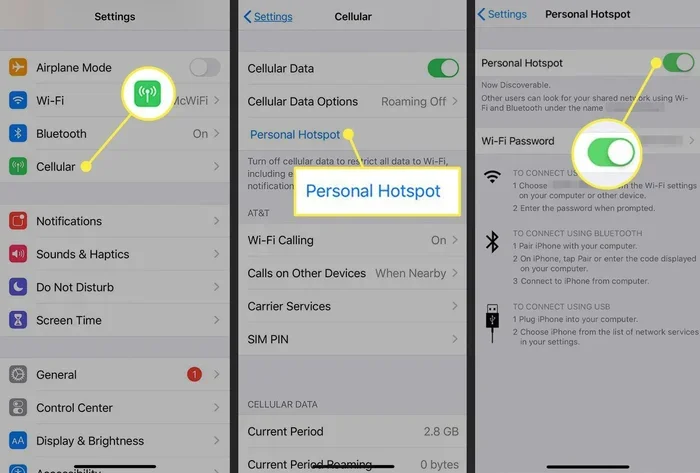
The most straightforward way to get free hotspot on iPhone is through the built-in Personal Hotspot feature. This method works on every iPhone running iOS 13 or later. You do not need to download anything or make any purchases. It is already on your device waiting to be activated.
Step 1: Check Your Cellular Data Connection
First, make sure your iPhone has an active cellular data connection. Open the Settings app and tap on Cellular or Mobile Data. If the toggle is turned on, you are good to go. If not, flip it on and wait a few seconds for your phone to connect to your carrier’s network.
Quick Tip: If you are in an area with weak signal, move near a window or step outside. A stronger signal means a more stable hotspot connection.
Step 2: Turn On Personal Hotspot
Now follow these simple steps to activate your hotspot:
- Open the Settings app on your iPhone.
- Tap on Personal Hotspot. You may need to scroll down to find it.
- Toggle Allow Others to Join to the ON position.
- Your iPhone will now broadcast a Wi-Fi network with a default password.
That is it. Your free hotspot is now live. Other devices can find your iPhone’s network in their Wi-Fi settings and connect using the password shown on your screen.
Step 3: Connect Other Devices
On the device you want to connect, go to Wi-Fi settings. Look for your iPhone’s name in the list of available networks. Tap on it and enter the password displayed on your iPhone. Within seconds, the device will be connected to your iPhone hotspot and you will have internet access.
Carrier Workarounds To Get Free Hotspot Data
Here is where things get interesting. Many cellular carriers lock the hotspot feature behind paid add-ons or higher-tier plans. But there are several workarounds that can help you enable free hotspot without upgrading your plan. Let us explore the most effective methods.
Method 1: Check If Your Plan Already Includes Hotspot
Many modern data plans actually include hotspot data by default. You just might not know it. Call your carrier or log into your account online and check the details of your plan. Look for terms like data sharing, tethering, or personal hotspot. If your plan includes it, you simply need to toggle the hotspot on and you are set.
Method 2: Use APN Settings To Unlock Hotspot
APN stands for Access Point Name. These are the settings your phone uses to connect to your carrier’s data network. Sometimes, carriers restrict hotspot access through APN configurations. By adjusting these settings, you can often unlock free hotspot tethering.
Here is how to check and modify APN settings:
- Go to Settings > Cellular > Cellular Data Options.
- Tap on Cellular Data Network.
- Look for the Personal Hotspot section.
- Fill in the APN fields if they are empty or incorrect.
Expert Insight: The exact APN values vary by carrier. A quick search online for your carrier name plus “APN settings” will give you the correct values to enter. This is one of the most reliable ways to unlock hotspot without paying extra.
Method 3: Request Hotspot Access From Your Carrier
Sometimes the simplest solution works. Call your carrier’s customer service and ask them to enable hotspot on your line. Many carriers will do this for free, especially if you have been a loyal customer. Be polite and persistent. If the first representative says no, ask to speak with a supervisor or try again on a different day.
Comparison: Free Hotspot Methods For iPhone
Not all methods are created equal. Some are easier than others, and some work better depending on your situation. Here is a quick comparison of the most popular ways to get free hotspot on iPhone.
| Method | Difficulty | Cost | Reliability | Works Without Carrier Approval |
|---|---|---|---|---|
| Built-in Personal Hotspot | Very Easy | Free | High | Yes (if plan allows) |
| APN Settings Adjustment | Medium | Free | Medium | Yes |
| Carrier Request | Easy | Free | High | No |
| Configuration Profile | Medium | Free | Medium | Yes |
| Third-Party Apps | Easy | Free | Low to Medium | Yes |
As you can see, the built-in method is the easiest and most reliable. However, APN adjustments and carrier requests give you more options if the basic method does not work for your situation.
Quick Tips To Improve Your iPhone Hotspot Performance
Once you have your free hotspot running, you want it to be fast and stable. Here are some proven tips to boost your iPhone hotspot speed and reliability.
- Keep Your iPhone Charged: Hotspot uses a lot of battery. Plug your phone into a charger while using it as a hotspot.
- Stay Close: The closer your other devices are to your iPhone, the stronger the signal and faster the speeds.
- Use 5GHz Wi-Fi: If available, connect to the 5GHz band on your iPhone hotspot for faster speeds. Go to Settings and enable this option.
- Limit Connected Devices: The more devices connected, the slower the connection. Only connect the devices you actually need.
- Restart Your iPhone: A simple restart can fix many connection issues and refresh your network settings.
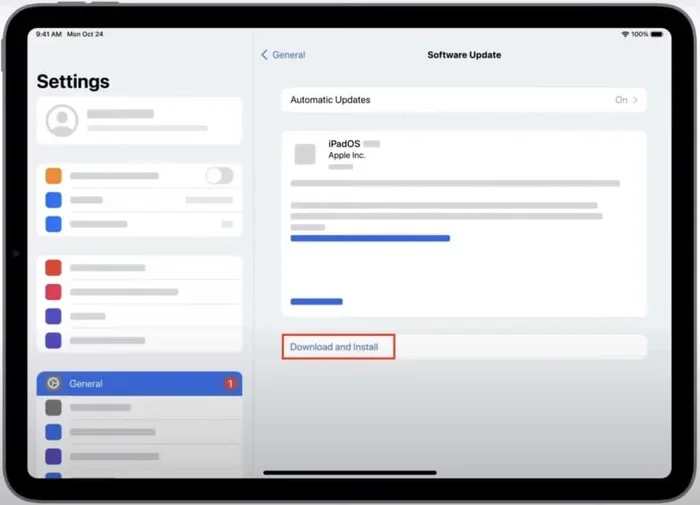
- Update iOS: Always keep your iPhone updated to the latest iOS version for the best hotspot performance.
Common Mistakes That Prevent Free Hotspot From Working
Many people struggle with hotspot because of simple avoidable mistakes. Here are the most common ones and how to fix them.
Mistake 1: Not Checking Data Usage
Even though the hotspot itself is free, it still uses your cellular data. If you have a limited data plan, heavy hotspot usage can eat through your allowance quickly. Always monitor your data usage in Settings > Cellular to avoid unexpected overage charges.
Mistake 2: Forgetting To Change The Default Password
The default hotspot password that Apple assigns is often weak or hard to remember. More importantly, leaving it unchanged can be a security risk. Go to Settings > Personal Hotspot > Wi-Fi Password and set a strong, unique password. Use a mix of letters, numbers, and symbols for the best protection.
Mistake 3: Ignoring Carrier Restrictions
Some carriers actively block hotspot usage on certain plans. If none of the methods above work, this could be the reason. In such cases, your best options are to request carrier support or explore prepaid plans that include hotspot data.
Mistake 4: Using Outdated iOS
Older versions of iOS may have bugs or missing features that affect hotspot performance. Always update to the latest iOS version before troubleshooting hotspot issues.
Expert Insights On Safe And Legal Hotspot Use
Using your own iPhone as a hotspot is completely legal and safe. However, there are a few things to keep in mind to protect yourself and your data.
Always use a strong password. An open or weak hotspot password means anyone nearby can connect to your network and potentially access your data. Set a password that is at least 12 characters long with a mix of uppercase letters, lowercase letters, numbers, and symbols.
Monitor connected devices regularly. Go to Settings > Personal Hotspot and check the list of connected devices. If you see a device you do not recognize, change your password immediately.
Be mindful of your data limits. Even though you are not paying extra for hotspot, your carrier still tracks your data usage. Exceeding your limit could result in throttled speeds or additional charges depending on your plan.
Avoid using hotspot in public places without caution. While your iPhone hotspot is encrypted with a password, always be aware of your surroundings when sharing your connection in public areas.
Key Takeaways
- Built-in Hotspot Feature: Every iPhone has a free personal hotspot built into the settings. Just toggle it on and connect your devices.
- Carrier Workarounds Work: APN settings adjustments and carrier requests can unlock hotspot even on restricted plans.
- No Jailbreak Needed: You do not need to jailbreak your iPhone. All the methods in this guide work on stock iOS.
- Optimize For Best Performance: Keep your iPhone charged, stay close to connected devices, and use the 5GHz band for faster speeds.
- Security Is Essential: Always set a strong password and monitor connected devices to keep your hotspot safe.
- Watch Your Data Usage: Free does not mean unlimited. Keep track of how much data your hotspot consumes.
Frequently Asked Questions
Can I get free hotspot on any iPhone model?
Yes, virtually all iPhone models from the iPhone 4s onward support personal hotspot. The feature is built into iOS and does not require any special hardware. Just make sure your iPhone is updated to the latest compatible iOS version for the best experience.
Will using hotspot drain my iPhone battery quickly?
Hotspot does use more battery than normal usage because your iPhone is constantly broadcasting a Wi-Fi signal and processing data for connected devices. To minimize battery drain, keep your iPhone plugged into a charger while using hotspot, reduce the number of connected devices, and lower the screen brightness.
Is it legal to use these hotspot workarounds?
Yes, using your own iPhone’s built-in hotspot feature is completely legal. Adjusting your own APN settings or requesting carrier support are also perfectly legal. Just make sure you are not violating any terms of service that could result in account suspension. When in doubt, contact your carrier directly.
Can I connect more than one device to my iPhone hotspot?
Yes, your iPhone hotspot can support up to five connected devices at the same time. However, connecting more devices will slow down the internet speed for each device. For the best performance, connect only the devices you need at that moment.
What should I do if my hotspot keeps disconnecting?
Hotspot disconnections are usually caused by weak cellular signal or temporary network issues. Try moving to an area with better coverage, restarting your iPhone, or toggling the hotspot off and back on. Updating your iOS to the latest version can also fix many connection stability issues.
Do I need a special data plan to use iPhone hotspot?
Not necessarily. Many standard data plans include some hotspot allowance. If your plan does not, you can try the APN settings method or contact your carrier to request hotspot access. Some prepaid and budget plans also include free hotspot data, so it is worth checking your options.
Conclusion
Getting a free hotspot on your iPhone is entirely doable with the right approach and a little patience. Whether you use the built-in Personal Hotspot feature, tweak your APN settings, or reach out to your carrier, you have multiple paths to sharing your internet connection without spending extra money.
Remember to always secure your hotspot with a strong password, monitor your data usage, and keep your iPhone updated. These small habits make a big difference in both performance and safety. Now that you know how to get free hotspot on your iPhone quickly and easily, you can stay connected wherever life takes you. Try these methods today and enjoy the freedom of portable internet whenever you need it most.