Use Your Ipad As a Ps5 Monitor With These Simple Tips
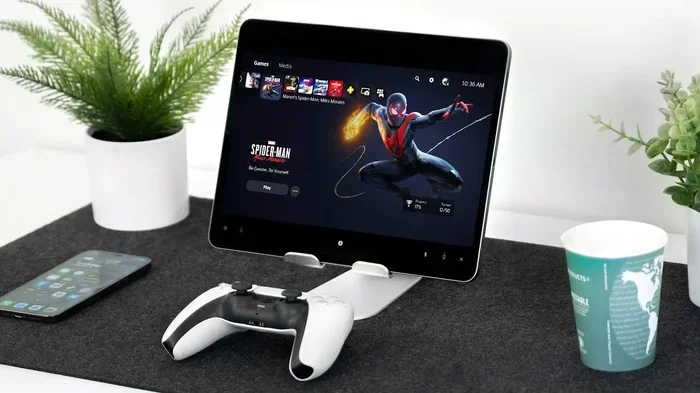
Using your iPad as a PS5 monitor is easier than you think. You can stream your PS5 games wirelessly through Remote Play or connect them with an HDMI capture card for a wired setup. This guide walks you through every step so you can play your PS5 on an iPad without headaches, lag, or confusion.
Key Takeaways
- Two Easy Methods: You can use PS5 Remote Play for a wireless setup or an HDMI capture card for a wired connection.
- Low Cost Option: Remote Play is free and only needs a solid Wi-Fi connection.
- Better Quality with HDMI: A capture card gives you lower latency and sharper image quality.
- Controller Matters: You will need a DualShock or DualSense controller paired properly for the best experience.
- Wi-Fi Speed Is Key: A fast and stable connection makes all the difference in reducing lag.
- Avoid Common Mistakes: Skipping firmware updates and using slow Wi-Fi are the top errors people make.
📑 Table of Contents
Can You Really Use an iPad as a PS5 Monitor?
Yes, you absolutely can. Using your ipad as ps5 monitor is a real and practical option. Whether you are traveling, sharing a TV, or just want a second screen, this setup works surprisingly well. The two main ways to do this are through PS5 Remote Play or an HDMI capture card. Both methods have their strengths, and I will walk you through each one in detail.
The idea of playing PS5 games on an iPad might sound like a gimmick at first. But trust me, it is a legit way to game. Sony built Remote Play specifically for this purpose. And with a capture card, you can get even better results. Let me show you how to make it happen.
How Remote Play Works
PS5 Remote Play lets you stream your console’s display to another device. Think of it like watching a video, but you control it in real time. The PS5 does the heavy lifting, and your iPad just receives the video feed. You send button presses back to the console over your network. It is a clever system that has improved a lot over the years.
When an HDMI Method Makes Sense
Sometimes streaming just is not enough. Maybe you need the lowest possible latency. Or perhaps your Wi-Fi is not strong enough for smooth gameplay. That is where an HDMI capture card comes in. It pulls a direct video feed from your PS5 and sends it to your iPad. The picture quality is often better, and the delay is much smaller. This method costs a little more, but it is worth it for serious gamers.
What You Need to Get Started
Before you dive in, let me cover what you will need. The requirements depend on which method you pick. But there are a few things both approaches share.
The Essential Gear
Here is a simple list of what you need for the ipad as ps5 monitor setup:
- A PlayStation 5 console – obviously, you need the source.
- An iPad – any model that supports Remote Play will work. Newer iPads with better screens give you a nicer experience.
- A DualShock or DualSense controller – this is how you will play your games.
- A stable Wi-Fi network – for Remote Play, this is non-negotiable.
- An HDMI capture card (for the wired method) – this is the bridge between your PS5 and iPad.
- A USB-C to HDMI adapter – needed if your capture card requires it.
Software You Will Need
For Remote Play, you just need the PS Remote Play app. It is free and available in the App Store. Make sure your PS5 is updated to the latest firmware as well. For the capture card method, you may need a companion app depending on the brand you buy. Most capture cards come with their own software that is easy to install.
Method 1: Using PS5 Remote Play on Your iPad
This is the most popular way to use your ipad as ps5 monitor. It is free, wireless, and surprisingly effective. Let me walk you through the full setup process.
Setting Up Remote Play
First, make sure your PS5 and iPad are on the same Wi-Fi network. This is the single most important step. Open the App Store on your iPad and search for “PS Remote Play.” Download the app and open it. Your PS5 should appear on the screen if it is online and in rest mode or powered on.
Tap on your PS5 to start the connection. You may need to enter your PSN login details. Once connected, you will see your PS5 home screen right on your iPad. From there, you can launch any game just like you would on a TV.
Quick Tips for Remote Play:
- Use a 5 GHz Wi-Fi band for the best speeds.
- Keep your iPad close to the router for a stronger signal.
- Turn off other devices that are using heavy bandwidth.
- Lower the streaming resolution in the app settings if you experience lag.
Connecting Your Controller
You cannot use touch controls for PS5 games. You need a physical controller. The easiest way is to pair your DualShock or DualSense controller via Bluetooth. Put your controller in pairing mode by holding the PlayStation button and the Create button at the same time. Then go to your iPad Bluetooth settings and select the controller.
Once paired, your controller will work seamlessly with Remote Play. You can also connect a USB cable if you prefer a wired connection. This reduces any input delay from wireless pairing.
Quick Tips for Remote Play
Here are a few extra tips that make a big difference when you are streaming PS5 to iPad:
- Enable Rest Mode on your PS5. This lets the console stay connected and ready to stream without running games in the background.
- Use a controller with a charging cable. Long gaming sessions drain battery fast on wireless controllers.
- Adjust the video quality setting. Lowering it slightly can massively improve smoothness on weaker Wi-Fi networks.
- Use a Bluetooth headset. This keeps your audio private and frees up your iPad speakers if needed.
Common Mistakes to Avoid with Remote Play
Here are mistakes that trip up a lot of people trying to use their ipad as ps5 monitor through Remote Play:
- Using a 2.4 GHz Wi-Fi band. It is too slow for smooth streaming. Always switch to 5 GHz.
- Ignoring firmware updates. Both your PS5 and iPad need to be up to date for the best compatibility.
- Playing too far from the router. Distance kills signal strength and increases latency.
- Not closing background apps on the iPad. This steals resources and can cause stuttering.
Method 2: Using an HDMI Capture Card
The second way to set up your ipad as ps5 monitor is with an HDMI capture card. This method uses a physical cable connection instead of streaming over Wi-Fi. It is the go-to choice for gamers who want the best picture quality and the lowest lag.
What Is an HDMI Capture Card?
A capture card is a small device that takes a video signal from one source and sends it to another. In this case, it takes the HDMI output from your PS5 and sends it to your iPad. You will need an iPad with a USB-C port and a capture card that supports video input. Popular options include the Elgato Cam Link and generic USB HDMI capture adapters.
Setting Up the Capture Card Method
Here is how to set this up step by step:
- Connect an HDMI cable from your PS5 to the capture card. Plug one end into the PS5 HDMI output and the other into the capture card input.
- Connect the capture card to your iPad. Use a USB-C cable or a USB-C adapter if needed.
- Open a video app on your iPad. Most iPads will recognize the capture card as a camera source. Open the Camera app or a third-party app like EpocCam.
- Select the capture card as the video source. You should see your PS5 home screen on your iPad.
- Connect your controller. Pair your DualShock or DualSense via Bluetooth or USB.
That is it. You are now using your iPad as a PS5 monitor through a direct cable connection.
When This Method Works Best
The capture card method shines in certain situations. If you have a slow or unreliable Wi-Fi connection, this is the way to go. It is also ideal for competitive games where every millisecond of input lag matters. You will get a sharper image and smoother gameplay compared to Remote Play in most cases.
Expert Insight: According to hardware reviewers, USB 3.0 capture cards deliver the best results for console gaming on the go. They handle higher resolutions and frame rates without dropping frames. If you plan to use this setup often, investing in a quality capture card pays off fast.
Comparing Both Methods Side by Side
Not sure which method is right for you? Let me break it down in a simple comparison.
| Feature | PS5 Remote Play | HDMI Capture Card |
|---|---|---|
| Cost | Free | Varies (usually $20-$100+) |
| Connection Type | Wireless (Wi-Fi) | Wired (USB-C/HDMI) |
| Setup Difficulty | Easy | Moderate |
| Input Lag | Higher (depends on Wi-Fi) | Very Low |
| Image Quality | Good (compressed stream) | Excellent (uncompressed) |
| Portability | Very Portable | Less Portable |
| Best For | Casual gaming, travel | Competitive gaming, home use |
Both methods let you enjoy PS5 games on your iPad without a TV. Your choice depends on what matters most to you. If you want free and easy, go with Remote Play. If you want the best quality and lowest lag, go with a capture card.
Tips for the Best Gaming Experience
No matter which method you choose, there are a few things you can do to make your ipad as ps5 monitor experience even better. Let me share some practical advice.
Reducing Input Lag
Input lag is the delay between pressing a button and seeing the action on screen. It is the enemy of smooth gaming. Here is how to minimize it:
- Use a wired connection whenever possible. USB-C cables are faster and more stable than Wi-Fi.
- Close all other apps on your iPad. Background apps eat up processing power and can cause stutter.
- Lower the streaming resolution in Remote Play settings. A lower resolution means less data to process, which reduces delay.
- Keep your iPad plugged in while gaming. Power-saving modes can throttle performance and add lag.
Optimizing Your Wi-Fi for Remote Play
If you are using Remote Play, your Wi-Fi connection is everything. Here are some ways to get the best performance:
- Use a dedicated router band. The 5 GHz band is faster and less congested than 2.4 GHz.
- Position your router close to your gaming area. Walls and obstacles weaken the signal.
- Avoid streaming other content while gaming. Netflix or YouTube on another device will eat your bandwidth.
- Consider a mesh Wi-Fi system. It provides stronger and more consistent coverage throughout your home.
Common Mistakes to Avoid
Here are the most common errors people make when trying to use their ipad as ps5 monitor:
- Skipping the PS5 firmware update. Sony regularly improves Remote Play performance. Keep your console updated.
- Using a low-quality HDMI cable. A cheap cable can cause signal drops and poor image quality.
- Not restarting your router. A simple reboot can fix slow speeds and connection drops.
- Ignoring iPad storage space. Streaming games uses temporary storage. Free up space if you notice stuttering.
- Forgetting to charge the controller. A dead controller kills the fun fast. Keep it charged between sessions.
Expert Insights
Tech reviewers and console gamers alike agree that the ipad as ps5 monitor setup is a game-changer for certain situations. Travel gamers love Remote Play because it lets them keep gaming on the road without carrying a TV. Home gamers prefer the capture card method for competitive titles where every frame counts. The flexibility of using your iPad as a second screen for PS5 opens up new possibilities that many people overlook.
Quick Tip: If you are using your iPad in bright environments, turn up the brightness to maximum. Outdoor or well-lit rooms can wash out the screen and make it hard to see game details.
Is Using an iPad as a PS5 Monitor Worth It?
The short answer is yes. Whether you pick Remote Play or an HDMI capture card, you get a functional and enjoyable way to play your PS5 library on a portable screen. It is not a replacement for a big TV or monitor, but it is a fantastic backup and supplement. Imagine being in a hotel room, a dorm, or a friend’s house with no TV. Your iPad becomes your gaming display instantly.
The ipad as ps5 monitor setup also opens the door to creative uses. You can use it as a second display for multitasking. You can stream your gameplay to an audience. You can even use it as a dedicated map or inventory screen while playing on your main TV. The possibilities are limited only by your imagination.
One thing to keep in mind is that the iPad screen is smaller than a typical gaming monitor. At 10 or 11 inches, you will notice pixels up close. If you have an iPad Pro with a Liquid Retina XDR display, the experience is significantly sharper. But even standard iPad models deliver a satisfying picture for casual and competitive gaming alike.
Key Takeaway: Using your iPad as a PS5 monitor is practical, affordable, and surprisingly effective. Pick the method that fits your needs, follow the setup steps above, and you will be gaming in minutes.
Frequently Asked Questions
Can I use any iPad model to connect to a PS5?
Most iPad models support PS5 Remote Play, but newer models deliver a better experience. You need at least an iPad Air 2 or later for smooth performance. The iPad Pro models offer the best display quality for gaming.
Does using an iPad as a PS5 monitor cause input lag?
Remote Play can introduce some input lag because it streams over Wi-Fi. Using a wired HDMI capture card method significantly reduces lag. For competitive games, the capture card approach is the better choice.
Do I need Wi-Fi to use my iPad as a PS5 monitor?
Yes, if you are using Remote Play. A stable 5 GHz Wi-Fi connection is essential for smooth streaming. If you use an HDMI capture card, you do not need Wi-Fi at all since the connection is wired.
Can I use the iPad touchscreen to control PS5 games?
No, PS5 games require a DualShock or DualSense controller. You can connect the controller to your iPad via Bluetooth or USB. Touch controls are not supported for PS5 titles.
Is it better to use Remote Play or an HDMI capture card?
It depends on your needs. Remote Play is free and portable, making it great for casual use and travel. An HDMI capture card offers better image quality and lower latency, making it ideal for competitive gaming and home setups.
Will using my iPad as a PS5 monitor drain the battery fast?
Yes, streaming or receiving a video signal uses a lot of power. Keep your iPad plugged in during long gaming sessions. You can also lower the screen brightness to conserve battery when needed.
=== CONCLUSION ===
Using your ipad as ps5 monitor is a smart and practical move for any PS5 owner. Whether you choose the free and wireless Remote Play method or invest in an HDMI capture card for the best quality, both options work great. The key is to set things up correctly, optimize your connection, and avoid the common mistakes that cause lag and frustration.
Start with Remote Play if you want a quick and easy setup. Try the capture card route if you need the lowest lag and sharpest picture. Either way, you will unlock a new level of flexibility for your PlayStation 5. So grab your iPad, pair up your controller, and start gaming today. You will wonder why you did not try this sooner.