Can You See Wi Fi Password On Windows 11 Here Is How
Yes, you can see Wi-Fi password on Windows 11 using built-in tools like Settings, Control Panel, or Command Prompt. This guide walks you through every method to view saved Wi-Fi passwords quickly and safely. Whether you forgot a password or need to share it, we have you covered.
Key Takeaways
- Multiple Methods: You can view Wi-Fi passwords through Windows 11 Settings, Control Panel, or Command Prompt.
- No Extra Software Needed: Built-in Windows tools let you see saved Wi-Fi credentials for free.
- Command Prompt Is Powerful: The netsh command lets you view passwords for all saved networks in seconds.
- Third-Party Tools Exist: Programs like WirelessKeyView offer a faster way to manage all your Wi-Fi passwords at once.
- Security Matters: Always protect your Wi-Fi passwords and only share them with trusted people.
- Troubleshooting Tips: Some methods may not work if your network uses specific security types or if you lack admin rights.
📑 Table of Contents
- Can You See Wi-Fi Password on Windows 11? Here Is How
- Why You Might Need to View Your Wi-Fi Password on Windows 11
- How to See Wi-Fi Password on Windows 11 Using Settings
- How to View Wi-Fi Password Using Command Prompt
- How to See Wi-Fi Password Through Control Panel
- Using Third-Party Tools to Find Wi-Fi Passwords
- Troubleshooting Common Issues When Viewing Wi-Fi Passwords
- Keeping Your Wi-Fi Passwords Safe and Secure
- Final Thoughts and Summary
Can You See Wi-Fi Password on Windows 11? Here Is How
Ever connected your Windows 11 PC to a Wi-Fi network and then forgot the password? Maybe you want to share it with a friend or just need to check what it is. The good news is that you can see Wi-Fi password on Windows 11 without installing any extra software. Windows 11 has several built-in tools that let you view saved Wi-Fi passwords in just a few clicks.
In this guide, we will walk you through every method step by step. Whether you are a beginner or a power user, you will find a method that works for you. We will cover the Settings app, Control Panel, Command Prompt, and even some handy third-party tools. By the end, you will know exactly how to find your Wi-Fi network credentials anytime you need them.
Let us dive in and get those passwords uncovered.
Why You Might Need to View Your Wi-Fi Password on Windows 11
There are plenty of reasons why you might need to show Wi-Fi password on your Windows 11 device. It happens to all of us. Here are some of the most common situations:
- You forgot the password. You connected to a network long ago and now need the password again.
- You got a new device. You want to connect your phone or tablet and need to share the password.
- You are troubleshooting. Your Wi-Fi connection keeps dropping and you want to check your Wi-Fi connection settings.
- You changed your router. A new admin set a different password and you need to update your saved networks.
- Security check. You want to make sure your wireless network security is strong enough.
Whatever the reason, knowing how to access your Wi-Fi network credentials is a useful skill. It saves time and keeps you connected. Now let us look at how to actually do it.
How to See Wi-Fi Password on Windows 11 Using Settings
The easiest and most common way to view Wi-Fi password Windows 11 is through the Settings app. This method works well for most users and does not require any technical knowledge. Here is how to do it.
Step-by-Step Guide Through Settings
Follow these simple steps to find your saved Wi-Fi password:
- Open the Settings app by pressing Windows + I.
- Click on Network & Internet in the left sidebar.
- Click on Wi-Fi if you are currently connected, or click on Known networks to see all saved networks.
- Find the network whose password you want to see and click on it.
- Click the Properties button.
- Scroll down until you see the Network security key field.
- Check the small eye icon (or checkbox) next to the password field to show the Wi-Fi password.
That is it. You should now see the password in plain text. This method works great for the network you are currently connected to or for networks you have connected to in the past. However, sometimes the Network security key checkbox may be grayed out. If that happens, do not worry. We have another method for you.
Quick Tip: Known Networks Not Showing
If you do not see your network under Known networks, try clicking the Manage known networks option. Sometimes Windows hides networks that have not been used recently. You can also try clicking on “Change Wi-Fi settings” and then “Manage known networks” for a full list.
How to View Wi-Fi Password Using Command Prompt
If the Settings method does not work, or if you want to see passwords for all your saved networks at once, the Command Prompt is your best friend. This method is especially helpful when you need Wi-Fi password recovery for multiple networks. It is fast, free, and very reliable.
Using netsh to Show Wi-Fi Passwords
The netsh command is a powerful built-in tool in Windows. It lets you manage network settings from the command line. Here is how to use it to view saved Wi-Fi passwords:
- Right-click the Start button and select Terminal or Command Prompt (Admin).
- Type the following command and press Enter: netsh wlan show profiles
- You will see a list of all saved Wi-Fi networks on your PC.
- Now type this command, replacing “NetworkName” with the actual network name: netsh wlan show profile name=”NetworkName” key=clear
- Look for the section called Security settings.
- Find the line that says Key Content. The text next to it is your Wi-Fi password.
This method works for almost every network. The key=clear part is important. Without it, Windows will not display the password in plain text. You can repeat this for any number of networks. It is one of the most effective ways to show Wi-Fi password on Windows 11.
Quick Tips for Command Prompt Success
- Always run Command Prompt as Administrator. Otherwise, you might not see the password.
- If the network name has spaces, make sure to put it inside quotation marks.
- Copy the command text directly to avoid typos.
- If you see “Key Content” but it is blank, the network might use a security type that does not store the key locally.
How to See Wi-Fi Password Through Control Panel
The Control Panel method is a bit old-school but it still works perfectly on Windows 11. This is another built-in way to view Wi-Fi password without needing third-party software. Here is how it goes.
Step-by-Step Control Panel Method
Follow these steps carefully:
- Open the Control Panel. You can search for it in the Start menu.
- Click on Network and Sharing Center.
- Find your active Wi-Fi connection and click on its name (it will be a blue link).
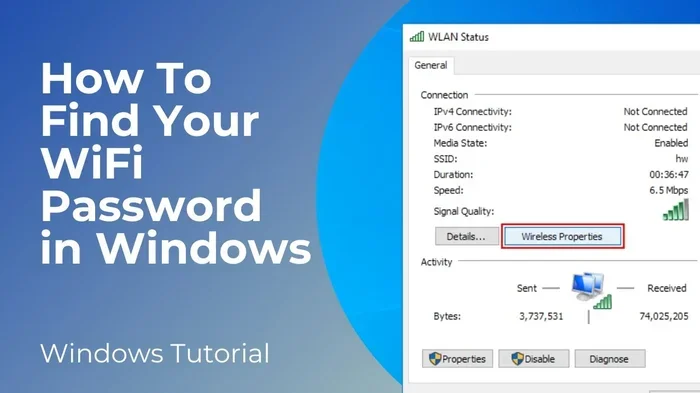
- A new window will pop up. Click on Wireless Properties.
- Go to the Security tab.
- Check the box that says Show characters.
- Your Wi-Fi password will now appear in the Network security key field.
That is all there is to it. This method is very straightforward and works for the network you are currently connected to. However, like the Settings method, it may not work for all saved networks. Some networks, especially those with enterprise-level Wi-Fi authentication, may not display the key this way.
When This Method Might Not Work
Sometimes the Show characters checkbox is unavailable or grayed out. This usually happens when:
- You do not have administrator rights on the PC.
- The network uses WPA-Enterprise security, which stores credentials differently.
- Your Windows 11 version has a bug or limitation with certain network profiles.
In these cases, move on to the Command Prompt method or try a third-party tool.
Using Third-Party Tools to Find Wi-Fi Passwords
If you want a faster way to see all your saved Wi-Fi passwords at once, third-party tools can help. These programs scan your Windows system and display every saved network credential in a clean list. They are especially useful if you manage many networks.
Popular Wi-Fi Password Viewers
Here are a few well-known tools:
- WirelessKeyView: A free, lightweight tool from NirSoft. It shows all saved Wi-Fi passwords in one window. It is simple and works great for password recovery.
- WiFi Password Decryptor: Another free tool that decrypts and displays saved Wi-Fi keys. It has a user-friendly interface.
- CredHawk: A more advanced tool that can recover credentials from Windows credential manager and browser storage.
Always download these tools from their official websites. Avoid sketchy download sites that bundle unwanted software. While these tools are safe and effective, use them responsibly. They should only be used on networks you own or have permission to access.
Expert Insight: Are Third-Party Tools Safe?
Most reputable tools are safe. However, always scan downloaded files with your antivirus before running them. Look for tools that are well-reviewed and have been around for a while. WirelessKeyView, for example, has been a trusted tool for years. It does not install anything and runs as a standalone executable. Just remember that these tools bypass some of Windows built-in security, so handle the passwords with care.
Troubleshooting Common Issues When Viewing Wi-Fi Passwords
Sometimes things do not go as smoothly as expected. Here are some common problems and how to fix them when you try to view Wi-Fi password Windows 11.
Password Field Is Grayed Out
If the password field is grayed out or the show checkbox is unavailable, it usually means you lack admin rights. Try running the app as Administrator. If you are on a work or school PC, you may need to contact your IT department.
Key Content Shows as Blank
This can happen with certain network security types. Try the Command Prompt method with key=clear. If that still shows nothing, the network might use a temporary or dynamic key that Windows does not store.
Command Prompt Returns an Error
Make sure you are running it as Administrator. Double-check the network name spelling and ensure it is inside quotation marks. Also make sure the network profile exists on your system. You can verify by running netsh wlan show profiles first.
Your Network Is Not Listed
If your network does not appear in saved profiles, it means Windows has forgotten it. You will need to reconnect to it and save it again. Go to Settings, click Wi-Fi, find your network, and reconnect. Make sure the “Connect automatically” option is checked for future convenience.
Keeping Your Wi-Fi Passwords Safe and Secure
Now that you know how to show Wi-Fi password on Windows 11, it is important to think about security. Your Wi-Fi password protects your entire home network. Here are some tips to keep it safe:
- Use a strong password. Mix uppercase, lowercase, numbers, and symbols. Avoid simple words or dates.
- Do not share it widely. Only share your Wi-Fi network credentials with people you trust.
- Change it regularly. Updating your password every few months improves wireless network security.
- Use WPA3 security. If your router supports it, upgrade from WPA2 to WPA3 for better protection.
- Store passwords safely. Use a trusted password manager instead of writing them on sticky notes.
- Check for unknown devices. Log into your router and see which devices are connected. Remove anything suspicious.
Taking these steps ensures that knowing how to view saved Wi-Fi passwords is a benefit, not a risk. You stay in control of who accesses your network.
Final Thoughts and Summary
So, can you see Wi-Fi password on Windows 11? Absolutely. You have several reliable methods at your fingertips. Whether you use the Settings app, Control Panel, or Command Prompt, you can find your Wi-Fi password quickly and for free. Third-party tools offer even more flexibility if you need to manage multiple network credentials at once.
Remember to always use these methods responsibly. Your Wi-Fi network credentials are part of your digital security. Keep them safe, update them regularly, and only share them with trusted individuals. With the knowledge from this guide, you will never be locked out of your own network again.
Now go ahead and check those saved passwords. You might be surprised at what Windows has been storing all along. Stay connected and stay secure.
Frequently Asked Questions
Can I see Wi-Fi password on Windows 11 without admin rights?
It depends on the method. The Settings and Control Panel methods may require administrator privileges. However, if you are on a shared PC, you can sometimes view passwords for networks you personally connected to. For full access, you usually need admin rights.
Why is my Wi-Fi password not showing in Windows 11 Settings?
This often happens when the “Show characters” checkbox is grayed out. It usually means you lack admin permissions or the network uses enterprise security. Try the Command Prompt method with key=clear as an alternative.
Can I see Wi-Fi passwords for all saved networks at once?
Yes, the Command Prompt method lets you list all saved networks using netsh wlan show profiles. Then you can check each one individually. Third-party tools like WirelessKeyView display all passwords in a single list for even faster access.
Is it safe to use third-party tools to view Wi-Fi passwords?
Reputable tools like WirelessKeyView and WiFi Password Decryptor are generally safe. Always download from official sources, scan files with antivirus software first, and use them only on networks you own or have permission to access.
Can I see Wi-Fi password on Windows 11 if I am not currently connected?
Yes, as long as the network is saved on your PC. All three methods (Settings, Control Panel, and Command Prompt) can retrieve passwords for saved networks even if you are not actively connected to them.
What if the Command Prompt shows blank for Key Content?
This can occur with certain security types like WPA-Enterprise or networks using dynamic keys. Try updating your network adapter drivers, running Command Prompt as Administrator, or using a third-party password recovery tool for better results.
Conclusion
Learning how to see Wi-Fi password on Windows 11 is a simple but powerful skill. You now know multiple methods to view saved Wi-Fi passwords, from the beginner-friendly Settings app to the powerful Command Prompt. Each method has its strengths, and now you can pick the one that works best for your situation.
Keep your Wi-Fi network credentials secure, update your passwords regularly, and always use these techniques responsibly. Stay connected, stay informed, and never let a forgotten password slow you down again.