Can You Connect An Internal Hard Drive Via USB Cable
Yes, you can connect an internal hard drive via USB cable using an enclosure, adapter, or docking station. This simple process lets you turn any old internal drive into an external storage device. You can access your files, back up data, or even recover lost information without opening your computer case.
Key Takeaways
- USB Connection Works: You can connect any internal hard drive to your computer using a USB cable with the right adapter or enclosure.
- Two Main Methods: Use a hard drive enclosure or a SATA-to-USB adapter for the simplest setup.
- Speed Matters: USB 3.0 and USB 3.1 offer much faster data transfer than older USB 2.0 ports.
- Size Compatibility: Both 2.5-inch and 3.5-inch drives work, but 3.5-inch drives need extra power.
- Plug and Play: Most modern operating systems recognize connected drives instantly without extra software.
- Watch for Mistakes: Avoid using damaged cables, skipping safe ejection, and ignoring power needs.
📑 Table of Contents
- Can You Connect An Internal Hard Drive Via USB Cable?
- Why Would You Connect an Internal Hard Drive via USB?
- How to Connect an Internal Hard Drive via USB
- What You Need to Know About USB Speeds
- Which Internal Hard Drives Work with USB?
- Common Mistakes to Avoid
- Expert Tips for the Best Experience
- Frequently Asked Questions
- Conclusion
Can You Connect An Internal Hard Drive Via USB Cable?
The short answer is yes. You can connect an internal hard drive via USB cable and use it just like any external storage device. Whether you have an old drive sitting in a drawer or you want to pull data from a broken computer, this method works great.
People do this for many reasons. Maybe you need to recover important files from a dead PC. Perhaps you want extra backup storage without buying a new external drive. Or you might be testing a second hard drive before installing it inside your computer.
Whatever your reason, the process is simple and affordable. You do not need to be a tech expert. With the right tool, you can connect any internal hard drive to your computer through a USB port in minutes. Let us walk through everything you need to know.
Why Would You Connect an Internal Hard Drive via USB?
There are many good reasons to use a USB cable to connect an internal hard drive. Some people do it for convenience. Others do it to save money. Here are the most common reasons:
Data Recovery
If your computer stopped working, your hard drive might still be fine. By connecting it externally through USB, you can recover your files without replacing the whole system. This saves you time and money.
Extra Storage Space
Running low on disk space? An old internal drive connected via USB gives you instant extra storage. You can store photos, videos, documents, and backups on it. It works just like a store-bought external hard drive.
Testing a New Drive
Before you install a new hard drive inside your computer, you can test it first. Connecting it via USB lets you check if the drive works properly. You can format it, run speed tests, and make sure there are no errors.
Cloning and Backing Up
Many people use external connections to clone their main drive. This means making a perfect copy of everything on your computer. It is a smart way to create a full system backup without buying extra software.
Sharing Files Between Computers
Need to move a large folder from one computer to another? A USB-connected internal drive makes this easy. You plug it into one computer, copy the files, then plug it into the other. No cloud upload needed.
How to Connect an Internal Hard Drive via USB
Now let us get into the practical steps. There are three main ways to connect an internal hard drive via USB. Each method has its own benefits. Let us look at them one by one.
Method 1: Use a Hard Drive Enclosure
A hard drive enclosure is a protective case that wraps around your internal drive. It has a USB cable built in. You place your drive inside the enclosure, close it up, and plug it into your computer.
Here is how to do it step by step:
- Buy an enclosure that matches your drive size. Most use 2.5-inch or 3.5-inch drives.
- Open the enclosure and place your internal hard drive inside.
- Secure the drive with the screws provided.
- Close the enclosure and connect the USB cable.
- Plug the other end into your computer.
- Wait for your operating system to recognize the drive.
Enclosures are the most popular choice because they are simple and portable. You can buy one for under $15. They also protect your drive from dust and damage. Look for enclosures that support USB 3.0 or USB 3.1 for the best data transfer speed.
Method 2: Use a SATA-to-USB Adapter
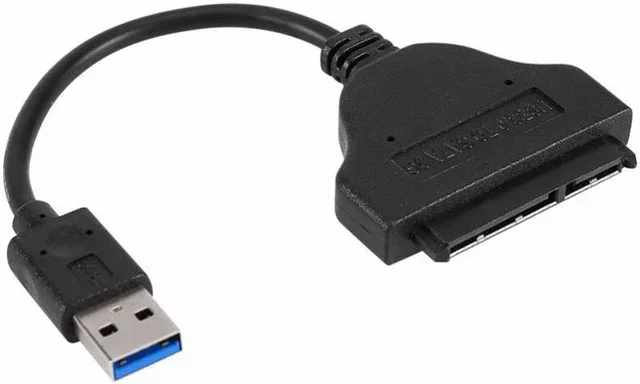
A SATA-to-USB adapter is a small cable that plugs directly into your hard drive. One end connects to the drive’s SATA port. The other end plugs into a USB port on your computer.
This method is great because:
- It is very affordable, usually under $10.
- It is compact and easy to carry around.
- It works with both 2.5-inch and 3.5-inch drives.
- Setup takes less than one minute.
The downside is that 3.5-inch drives need external power. The adapter alone may not provide enough electricity. You will need to plug the drive into a wall outlet using a power adapter.
Method 3: Use a Hard Drive Docking Station
A docking station is a base unit that holds your hard drive upright. You simply place the drive on the dock and it connects through USB. Some docks hold multiple drives at once.
Docking stations are ideal if you work with many drives regularly. They are faster than most adapters and often include cooling fans. This keeps your drive from overheating during long data transfer sessions.
Here is a quick comparison of the three methods:
| Feature | Enclosure | SATA-to-USB Adapter | Docking Station |
|---|---|---|---|
| Price Range | $10 – $30 | $5 – $15 | $15 – $50 |
| Ease of Use | Very Easy | Very Easy | Easy |
| Portability | Good | Excellent | Fair |
| Drive Protection | High | Low | Medium |
| Speed | USB 3.0/3.1 | USB 3.0 | USB 3.0/3.1 |
| Best For | Long-term use | Quick one-time tasks | Frequent drive swapping |
What You Need to Know About USB Speeds
Not all USB connections are the same. The speed of your USB cable affects how fast you can move files to and from your internal hard drive. Here is what you need to know.
USB 2.0
USB 2.0 is the oldest common standard. It has a maximum speed of about 480 Mbps. This means transferring a 1GB file takes around 20 seconds. It works but is slow by today’s standards.
USB 3.0
USB 3.0 is much faster. It supports speeds up to 5 Gbps. A 1GB file transfers in about 2 seconds. Most modern enclosures and adapters support USB 3.0. Look for the blue color inside the USB port to confirm.
USB 3.1 and USB 3.2
These are even faster standards. USB 3.1 reaches 10 Gbps. USB 3.2 can go up to 20 Gbps. If you have a fast SSD, these ports let you see the full speed benefits.
USB-C
USB-C is a connector type, not a speed standard. It can support USB 3.1 or USB 3.2 speeds. Many new laptops and computers use USB-C ports. Make sure your adapter or enclosure has a USB-C connector if your computer only has USB-C ports.
Quick Tip: Always check what USB version your computer supports. Using a USB 3.0 enclosure on a USB 2.0 port will limit your speed. The connection will only be as fast as the slowest part.
Which Internal Hard Drives Work with USB?
Most internal hard drives can connect via USB. But there are a few things to keep in mind. Let us break down the types of drives you might encounter.
2.5-Inch SATA Drives
These are the most common laptop hard drives. They are small and do not need much power. A simple SATA-to-USB adapter works perfectly with these drives. You do not need an external power source.
3.5-Inch SATA Drives
These are the larger desktop hard drives. They need more power than a USB port can provide. You will need either a powered enclosure or a docking station with its own power supply. Without extra power, the drive will not spin up properly.
IDE/PATA Drives
Older computers sometimes use IDE drives. These have a wide ribbon cable connector. You can still connect them via USB, but you need a special IDE-to-USB adapter. These adapters are less common today but still available online.
NVMe and M.2 SSDs
Newer computers use NVMe or M.2 SSDs. These are small circuit boards, not traditional drives. You need a special M.2 enclosure or adapter to connect them via USB. Make sure you buy the right type for your specific drive format.
Common Mistakes to Avoid
Connecting an internal hard drive via USB is straightforward, but people make mistakes. Here are the most common ones and how to avoid them.
Using the Wrong Enclosure or Adapter
Not all enclosures fit all drives. Make sure you buy the correct size for your drive. A 2.5-inch enclosure will not fit a 3.5-inch drive. Check the drive specs before you purchase anything.
Ignoring Power Requirements
3.5-inch drives need more power. If your adapter does not provide enough power, the drive will not work. Always check if your setup includes a power supply for larger drives.
Forgetting to Safely Eject the Drive
Always use the “Safely Remove Hardware” option before unplugging your drive. Pulling the cable out without ejecting can corrupt your files. This is one of the most common and avoidable mistakes.
Using a Damaged Cable
A frayed or broken USB cable causes connection issues. It can also damage your drive over time. Replace any cable that looks worn or damaged. A good cable costs just a few dollars.
Skipping Formatting
If your drive does not show up in File Explorer, it might need formatting. Right-click the drive in Disk Management and choose Format. Be careful here, as formatting erases all existing data on the drive.
Not Updating Drivers
Most operating systems recognize USB drives automatically. But sometimes you need to update your USB drivers. Go to your device manager and check for driver updates if your drive is not showing up.
Expert Tips for the Best Experience
Want to get the most out of your USB-connected internal hard drive? Follow these expert tips.
- Buy USB 3.0 or higher. The small extra cost is worth the speed boost. You will notice the difference with large files.
- Use a docking station for frequent access. It is faster and more convenient than swapping enclosures.
- Keep your drive cool. Hard drives generate heat. Use a dock with a fan or give your enclosure space to breathe.
- Label your cables. If you have multiple drives, label the cables so you know which one goes where.
- Back up your data. A USB-connected drive is great for backup, but the drive itself can fail. Keep important files in two places.
- Check for viruses. If you are connecting a drive from an old or unknown computer, scan it for malware first.
Frequently Asked Questions
Can I connect any internal hard drive to USB?
Yes, most internal hard drives can connect via USB. You just need the right adapter, enclosure, or docking station. Make sure the adapter matches your drive type, whether it is SATA, IDE, or M.2.
Do I need special software to use a USB-connected drive?
No. Modern operating systems like Windows 10, Windows 11, and macOS recognize USB drives automatically. You do not need to install any special software. Your drive should appear in File Explorer or Finder right away.
Will connecting my drive via USB slow it down?
It depends on the USB version. USB 3.0 and newer are fast enough for most drives. If you have a very fast NVMe SSD, a USB 2.0 connection will limit its speed. Always use USB 3.0 or higher for the best performance.
Can I use a 3.5-inch hard drive with just a USB cable?
Not always. 3.5-inch drives need more power than a standard USB port provides. You will need a powered enclosure, a docking station with its own power supply, or a SATA-to-USB adapter that comes with a power adapter.
Is it safe to leave a USB-connected hard drive plugged in all the time?
It is generally safe for short periods. But for long-term storage, it is better to safely eject the drive and store it properly. Continuous use can lead to wear and overheating. Give your drive regular breaks.
What is the difference between a hard drive enclosure and a docking station?
An enclosure is a case that permanently holds your drive. You connect it and carry it around. A docking station is a base where you place the drive temporarily. Docks are faster and better for frequent use, while enclosures are more portable.
Conclusion
Connecting an internal hard drive via USB cable is simple, affordable, and incredibly useful. Whether you need to recover old files, add extra storage, or test a new drive, this method gets the job done. You have three great options: enclosures, adapters, and docking stations. Each one works well depending on your needs.
Remember to match your drive size with the right adapter. Always use USB 3.0 or faster for the best speed. And never skip the safe ejection step. These small habits keep your data safe and your drive healthy.
With the right tools and a little patience, you can turn any internal hard drive into a handy external storage device. Start with a SATA-to-USB adapter if you want the simplest solution. Or invest in a quality enclosure for long-term use. Either way, you will wonder why you did not do this sooner.