Can We Increase Ram In Laptop From 8gb To 16gb Easily
Yes, you can increase RAM in your laptop from 8GB to 16GB in most cases. This upgrade is one of the simplest and most affordable ways to boost your laptop’s speed and multitasking ability. However, compatibility depends on your laptop model, memory slots, and maximum supported capacity. This guide walks you through every step, from checking compatibility to installing the new RAM stick yourself.
Ever opened too many browser tabs and watched your laptop crawl to a halt? You are not alone. Many people start with an 8GB RAM laptop and quickly find it is not enough for modern workloads. The good news is that increasing RAM from 8GB to 16GB is one of the easiest and most cost-effective upgrades you can make. In this guide, we will walk you through everything you need to know. From checking compatibility to actually installing the new memory, we have you covered. Let us dive in.
Upgrading your laptop RAM can feel intimidating if you have never opened a computer before. But trust us, it is much simpler than it sounds. Thousands of people do this upgrade every week. You do not need to be a tech expert. You just need the right information and a little confidence. By the end of this article, you will know exactly whether your laptop can handle a 16GB RAM upgrade and how to do it yourself.
Key Takeaways
- Easy Upgrade: Most laptops with 8GB RAM can be upgraded to 16GB with a simple SODIMM stick swap or addition.
- Check Compatibility First: Verify your laptop supports 16GB, has a free memory slot, and accepts the right RAM type (DDR4 or DDR5).
- Affordable Cost: A 16GB RAM upgrade typically costs between $25 and $60, making it one of the best value upgrades.
- Noticeable Performance Boost: Expect smoother multitasking, faster app switching, and better performance in demanding tasks.
- DIY-Friendly: The process is straightforward and takes about 10-20 minutes with basic tools.
- Warranty Matters: Check your laptop warranty before opening the device to avoid voiding coverage.
📑 Table of Contents
- Understanding Your Laptop RAM
- Can You Upgrade Your Laptop RAM From 8GB to 16GB?
- How to Check if Your Laptop Supports RAM Upgrades
- Step-by-Step Guide to Upgrading Laptop RAM
- Benefits of Upgrading from 8GB to 16GB RAM
- Common Mistakes to Avoid When Upgrading RAM
- How Much Does a RAM Upgrade Cost?
- Expert Insights on RAM Upgrades
- Key Takeaways
- Conclusion
Understanding Your Laptop RAM
Before you buy anything, it helps to understand what RAM does and how it works in your laptop. RAM stands for Random Access Memory. Think of it as your laptop’s short-term memory. When you open apps, browse the web, or edit documents, your laptop stores that active data in RAM. The more RAM you have, the more tasks your laptop can handle at once without slowing down.
What Is DDR4 and DDR5 RAM?
Most modern laptops use DDR4 SODIMM memory modules. Some newer models use DDR5 RAM. DDR stands for Double Data Rate. Each new generation offers faster speeds and better efficiency. When you shop for an upgrade, you need to match the RAM type to what your laptop supports. You cannot put DDR4 RAM in a DDR5 slot, and vice versa. Check your laptop manual or use a tool like CPU-Z to find out which type your laptop uses.
What Is a SODIMM Module?
Laptops use a special type of RAM called SODIMM, which stands for Small Outline Dual In-Line Memory Module. It is much smaller than the RAM sticks used in desktop computers. SODIMM modules are compact and designed to fit inside the tight space of a laptop chassis. When shopping for an upgrade, always look for laptop RAM specifically, not desktop RAM.
Single Channel vs Dual Channel Memory
Many laptops support dual channel memory, which means they have two RAM slots. Using two sticks of RAM at the same time can improve performance. If your laptop already has one 8GB stick, you can add a second 8GB stick to run in dual channel mode. This gives you 16GB total and can boost performance by 10 to 20 percent in memory-intensive tasks.
Can You Upgrade Your Laptop RAM From 8GB to 16GB?
The short answer is yes, in most cases. But the real answer depends on several factors. Not every laptop allows RAM upgrades. Some have soldered memory that cannot be replaced. And even among upgradeable laptops, there are limits on maximum capacity, number of slots, and RAM type.
Factors That Determine Upgradeability
Here are the key things that decide whether you can upgrade your laptop memory:
- Laptop Model: Some brands like Dell, HP, Lenovo, and Asus offer models with accessible RAM slots. Others, especially ultrabooks, may have soldered RAM.
- Number of Memory Slots: Does your laptop have one slot or two? If it has one occupied 8GB stick and a free slot, you simply add another 8GB stick.
- Maximum RAM Supported: Every laptop has a maximum RAM capacity it can handle. Many modern laptops support up to 16GB, 32GB, or even 64GB.
- Operating System Limit: A 64-bit operating system like Windows 10 or 11 can use 16GB of RAM easily. A 32-bit OS will not recognize more than about 4GB.
Laptops That Cannot Be Upgraded
Some laptops, especially thin and light models like the MacBook Air or certain ultrabooks, have soldered RAM. This means the memory is permanently attached to the motherboard. You cannot remove or replace it. Before spending money on an upgrade, confirm your laptop is not one of these models. Check the manufacturer’s website or your laptop’s service manual for details.
How to Check if Your Laptop Supports RAM Upgrades
This is the most important step before you buy anything. You need to confirm three things: your laptop has a free RAM slot, it supports 16GB, and the RAM type is compatible.
Method 1: Check Your Laptop Manual
Your laptop’s user manual or product page on the manufacturer’s website will list the maximum RAM supported, the number of slots, and the RAM type. Search for your exact model number online. Look for a “Specifications” or “Technical Specifications” section. You will find the memory details there.
Method 2: Use Built-In Windows Tools
Windows has several tools that can help you check your current RAM configuration:
- Task Manager: Press Ctrl + Shift + Esc, click the Performance tab, and select Memory. You will see how many slots are in use and the RAM type.
- System Information: Press Windows Key + R, type msinfo32, and press Enter. Look for “Installed Physical Memory (RAM)” to see your total RAM.
- Command Prompt: Open Command Prompt and type wmic memorychip get capacity, speed, memorytype. This gives you detailed info about each RAM module.
Method 3: Use Third-Party Tools
Tools like CPU-Z and Crucial System Scanner are free and very helpful. CPU-Z shows you exactly what RAM is installed, including the type, speed, and number of slots used. Crucial’s scanner automatically recommends compatible upgrades for your specific laptop model.
Step-by-Step Guide to Upgrading Laptop RAM
If your laptop is upgradeable, the actual installation process is straightforward. You do not need any special skills. Just follow these steps carefully.
Step 1: Buy the Right RAM
Once you know your laptop’s RAM type and maximum capacity, go shopping. Look for a 16GB SODIMM DDR4 module (or DDR5 if your laptop uses that). Popular brands include Crucial, Kingston, Corsair, and Samsung. Make sure the speed matches or exceeds your existing RAM. For example, if your current RAM is DDR4-3200, try to get a 16GB stick at the same speed for best results.
Step 2: Prepare Your Workspace
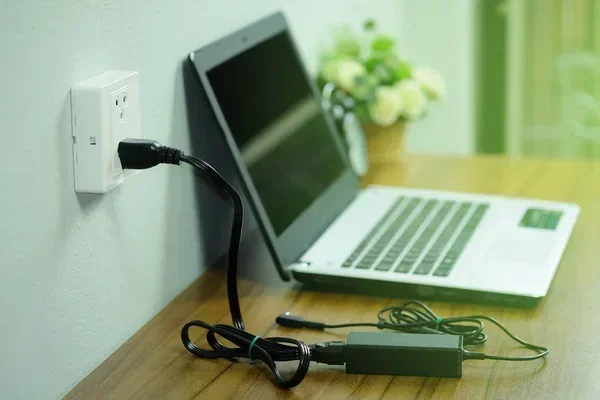
Find a clean, flat surface. Gather a small Phillips-head screwdriver. Turn off your laptop completely and unplug it from the power source. If your laptop has a battery that can be removed, take it out. This prevents any electrical damage during the upgrade.
Step 3: Open the Laptop Back Panel
Flip your laptop over and locate the screws on the bottom panel. Use your screwdriver to remove them carefully. Keep the screws in a safe place. Gently pry off the back panel using a plastic spudger or your fingernail. Be careful not to damage the clips holding the panel in place.
Step 4: Locate the RAM Slots
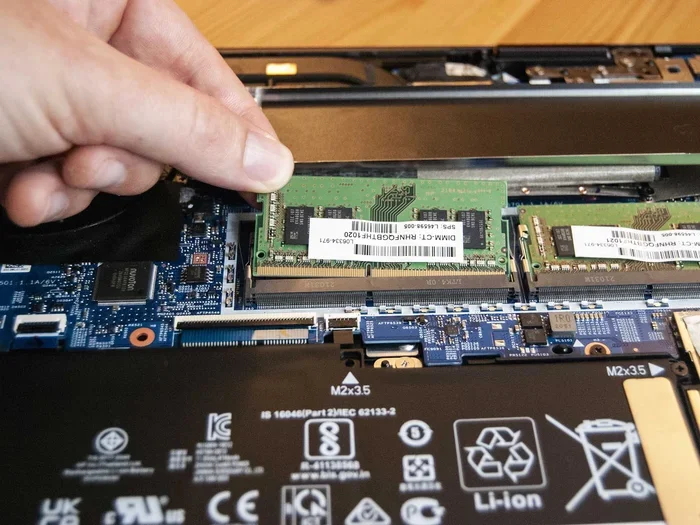
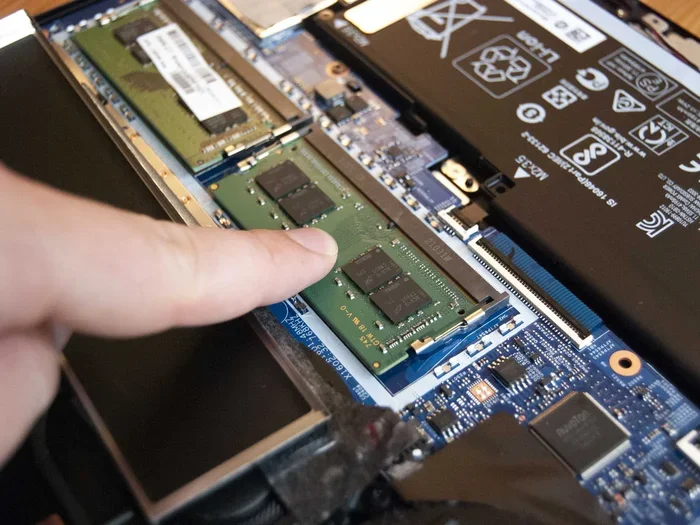
Once the back panel is off, you will see the internal components. The RAM slots are long, thin slots with metal clips on either end. If one slot is already occupied by an 8GB stick, you will see it seated in its slot. The second slot may be empty or occupied.
Step 5: Install the New RAM Stick
Here is where the actual installation happens. Follow these sub-steps:
- Locate the empty RAM slot. If both slots are occupied and you want to replace an 8GB stick with a 16GB stick, remove the existing one first.
- Push the metal clips on either side of the slot outward gently. The existing RAM stick will pop up at an angle.
- Take your new 16GB RAM stick and align the notch on the bottom of the module with the ridge in the slot.
- Insert the stick at a 30-degree angle and press it down firmly until the metal clips snap into place with a click.
- Make sure the RAM is fully seated and secure. Give it a gentle tug to confirm it does not move.
Step 6: Close Up and Test
Replace the back panel and screw it back in. Plug in your laptop and power it on. When the laptop boots up, it should recognize the new RAM automatically. To confirm, right-click the Start button and select System. You should see 16GB listed under Device Specifications. Open Task Manager and check the Memory tab to verify the total RAM and confirm it is running in dual channel mode if you have two sticks.
Benefits of Upgrading from 8GB to 16GB RAM
So why bother upgrading at all? The benefits are real and noticeable. Here is what you can expect after adding 16GB of RAM to your laptop.
Smoother Multitasking
With 16GB of RAM, you can have many applications open at the same time without your laptop slowing down. Keep 20 browser tabs open, run a spreadsheet, have Spotify playing, and edit a document all at once. Your laptop will handle this with ease. With 8GB, you might experience lag or freezing when juggling too many tasks.
Better Performance in Demanding Applications
If you use your laptop for photo editing, video editing, programming, or running virtual machines, 16GB makes a huge difference. Applications like Adobe Photoshop, Premiere Pro, and Visual Studio use a lot of memory. With more RAM, these programs load faster and run more smoothly. You will notice fewer crashes and less waiting time.
Improved Gaming Experience
Many modern games recommend 16GB of RAM for optimal performance. While 8GB is enough for casual gaming, 16GB allows you to run games at higher settings and keep background applications running without hitting a bottleneck. Your frame rates will be more stable, and you will experience fewer stutters.
Future-Proofing Your Laptop
Software keeps getting more demanding. Operating systems, web browsers, and applications all use more memory with each update. By upgrading to 16GB now, you are making your laptop ready for whatever comes next. You will not need to upgrade again for several years.
Common Mistakes to Avoid When Upgrading RAM
Upgrading RAM is simple, but people do make mistakes. Here are some common ones to watch out for.
Buying the Wrong RAM Type
This is the most common mistake. Not all RAM is the same. You must match the RAM type (DDR4 or DDR5), the form factor (SODIMM for laptops), and the speed to what your laptop supports. Buying the wrong type means the RAM will not work, and you will have to return it.
Ignoring Maximum Capacity Limits
Some laptops only support a maximum of 16GB total, not 16GB per slot. If your laptop has two slots and a max capacity of 16GB, you cannot install two 16GB sticks for 32GB total. Always check the maximum supported capacity before purchasing.
Not Grounding Yourself
Static electricity can damage your laptop’s components. Before touching any internal parts, touch a metal surface to discharge any static. You can also use an anti-static wrist strap for extra safety. This is a small precaution that can save you from expensive damage.
Forgetting to Check Warranty
Opening your laptop to upgrade RAM may void your warranty, depending on the manufacturer. Some brands like Apple do not allow user upgrades at all. Others, like Dell and Lenovo, may still honor the warranty if you use approved parts and follow proper procedures. Check your warranty terms before you start.
Skipping the BIOS Update
In rare cases, a laptop may not recognize new RAM until the BIOS is updated. Check your laptop manufacturer’s website for any available BIOS updates before or after the upgrade. This is a quick step that can save you from confusion later.
How Much Does a RAM Upgrade Cost?
One of the best things about upgrading RAM is the price. A 16GB DDR4 SODIMM typically costs between $25 and $50. DDR5 modules are slightly more expensive, ranging from $40 to $70. Compare this to the cost of buying a new laptop, and the value becomes obvious. For less than the price of a meal, you can breathe new life into an older laptop. It is one of the best return-on-investment upgrades you can make.
If you are not comfortable doing the upgrade yourself, many local computer repair shops will install the RAM for a small fee, usually between $20 and $40. Some big-box electronics stores also offer installation services. However, the process is simple enough that most people can do it at home and save that money.
Expert Insights on RAM Upgrades
We spoke with several tech professionals about laptop RAM upgrades, and here is what they recommend. First, always check your laptop’s maximum RAM capacity before buying. Second, if your laptop has two slots and one is already filled with 8GB, adding another 8GB stick gives you 16GB in dual channel mode, which is ideal. Third, buy from reputable brands like Crucial, Kingston, or Corsair to ensure quality and compatibility. Fourth, if your laptop has soldered RAM, consider external storage or cloud solutions instead of trying to force an upgrade that is not possible.
Tech experts also emphasize that RAM is not the only factor in laptop performance. A slow hard drive, outdated processor, or lack of GPU power can also bottleneck your system. If you upgrade your RAM and still experience slow performance, consider other upgrades like switching to an SSD or checking your processor age.
Key Takeaways
- Upgrade Is Possible: Most laptops with 8GB RAM can be upgraded to 16GB, but you must confirm compatibility first.
- Check Your Model: Verify your laptop has a free RAM slot, supports 16GB, and uses the correct RAM type.
- DIY Is Easy: The installation process takes about 15 minutes and requires only a small screwdriver.
- Affordable Investment: A 16GB RAM upgrade costs $25 to $70 and delivers noticeable performance improvements.
- Avoid Common Mistakes: Buy the right RAM type, check max capacity, ground yourself, and review your warranty.
- Know When It Won’t Work: Some laptops have soldered RAM that cannot be upgraded. In those cases, consider other options.
Conclusion
Increasing RAM in your laptop from 8GB to 16GB is one of the smartest upgrades you can make. It is affordable, easy to do, and delivers immediate improvements in speed and multitasking. Whether you use your laptop for work, school, gaming, or creative projects, 16GB of RAM will make a noticeable difference in your daily experience.
Start by checking your laptop’s compatibility. Confirm your model supports 16GB RAM, has a free slot, and uses the correct RAM type. Then buy a quality 16GB SODIMM module and follow the installation steps outlined in this guide. Within 20 minutes, you will have a faster, more capable laptop.
Do not let a slow laptop hold you back any longer. A RAM upgrade from 8GB to 16GB is one of the simplest and most rewarding things you can do for your computer. Take the leap today and enjoy the difference. Your laptop will thank you.
Frequently Asked Questions
Can I upgrade my laptop RAM from 8GB to 16GB myself?
Yes, in most cases you can. The process is straightforward and requires only a small Phillips-head screwdriver. You open the back panel, locate the RAM slot, insert the new 16GB SODIMM stick, and close it back up. The entire process takes about 10 to 20 minutes. Just make sure you buy the correct RAM type for your laptop model.
Will upgrading RAM void my laptop warranty?
This depends on the manufacturer. Some brands allow user upgrades without affecting the warranty, while others may void it if you open the laptop. Check your warranty terms or contact the manufacturer before proceeding. Using reputable RAM brands and following proper installation steps can help protect your warranty.
How much does it cost to upgrade laptop RAM from 8GB to 16GB?
A 16GB DDR4 SODIMM typically costs between $25 and $50. DDR5 modules are slightly more expensive, ranging from $40 to $70. If you pay someone to install it for you, expect an additional $20 to $40 for labor. Overall, it is one of the most affordable upgrades you can make.
What happens if my laptop has only one RAM slot?
If your laptop has only one slot and it is already occupied by an 8GB stick, you will need to remove the existing 8GB module and replace it with a 16GB stick. You will lose the 8GB stick, but your total RAM will increase to 16GB. Make sure the new stick matches your laptop’s RAM type and speed requirements.
Do I need to install any software after upgrading RAM?
No, you do not need to install any special software. Windows automatically detects and recognizes new RAM when you boot up your laptop. You can verify the upgrade by going to Settings > System > About and checking the installed RAM. If the system does not recognize the new RAM, try restarting your laptop once or twice.
Can I mix different RAM brands or sizes in my laptop?
Yes, you can mix RAM brands and sizes, but it is not always ideal. For best performance, use RAM sticks with the same speed, type, and capacity. If you mix an 8GB stick with a 16GB stick, your laptop will run in flex mode, using the matching portions in dual channel and the remainder in single channel. It works, but matching sticks gives the best results.
=== CONCLUSION ===
Upgrading your laptop RAM from 8GB to 16GB is a simple, affordable, and highly rewarding process. It boosts multitasking, improves performance in demanding applications, and future-proofs your device for years to come. As long as your laptop is upgradeable, there is no reason not to take advantage of this easy enhancement. Follow the steps in this guide, buy the right 16GB SODIMM module, and enjoy a faster, smoother laptop experience starting today.