How Do I Fix My Network Problem On My iPhone Easily
Dealing with a network problem on your iPhone can be frustrating, but the good news is most issues are easy to fix at home. This guide walks you through simple, proven methods to restore your cellular connection and Wi-Fi troubleshooting results quickly. You will learn how to reset network settings, update carrier settings, and avoid common mistakes that cause connection drops. Whether your phone shows no signal, Wi-Fi won’t connect, or mobile data keeps failing, these fixes cover it all.
Your iPhone suddenly shows “No Service.” Or maybe your Wi-Fi network just won’t connect no matter what you try. A network problem on iPhone can hit at the worst possible moment. You might be trying to send an important message, join a video call, or look something up online. The frustration is real.
Here is the good news. Most network issues on an iPhone are easy to fix. You do not need to be a tech expert. You do not even need to visit an Apple Store. With a few simple steps, you can get your cellular connection back up and running. This guide covers every practical fix you need. We will walk through each solution step by step. By the end, you will know exactly what to do when your phone drops signal or refuses to connect to Wi-Fi.
Key Takeaways
- Toggle Airplane Mode and Cellular Data: The simplest fixes often solve minor network glitches on your iPhone.
- Reset Network Settings: This clears saved Wi-Fi passwords, VPN configs, and APN settings to fix stubborn connection problems.
- Update iOS and Carrier Settings: Outdated software is a leading cause of network errors and signal drops.
- Check Your SIM Card: A loose or dirty SIM card can cause “No Service” messages and weak signal strength.
- Disable VPN and DNS Issues: VPN connections and incorrect DNS settings can block your network connectivity.
- Contact Your Network Provider: If all else fails, the issue may be on the carrier side, not your phone.
📑 Table of Contents
- Why Does My iPhone Have Network Problems?
- Quick Fixes to Try First
- How to Reset Network Settings on iPhone
- Update iOS and Carrier Settings
- Check Your SIM Card and Signal Strength
- Advanced Fixes for Stubborn Network Issues
- When to Contact Your Network Provider or Apple Support
- How to Prevent Future Network Problems
- Comparison Table: Common Network Issues and Their Best Fixes
- Key Takeaways
- Conclusion
Why Does My iPhone Have Network Problems?
Before jumping into fixes, it helps to understand what causes network issues. iPhones rely on both cellular data and Wi-Fi to stay connected. When either one fails, you lose access to the internet. Several factors can trigger this.
Software glitches happen after an iOS update or a background app conflict. Sometimes a simple network error stems from a temporary bug in your phone’s system. Hardware issues like a loose SIM card or a damaged antenna can also play a role. Environmental factors matter too. Being in a basement, a rural area, or a crowded stadium can weaken your signal strength. Even your carrier’s tower maintenance can cause temporary outages.
Understanding the root cause helps you pick the right fix. Let us explore the most common reasons below.
Software Glitches and Bugs
Apple releases iOS updates regularly. These updates bring new features but sometimes introduce bugs. A software glitch can interfere with how your phone communicates with cell towers. You might notice your network connectivity drops right after an update. This is more common than you think.
Incorrect Network Settings
Your iPhone stores a lot of network configuration data. This includes saved Wi-Fi passwords, VPN settings, and APN configurations. Over time, this data can become corrupted. When it does, your phone struggles to connect. Resetting network settings wipes this stored data clean. It gives your phone a fresh start.
Carrier and Provider Issues
Sometimes the problem is not your phone at all. Your network provider might be experiencing tower outages. They could be performing maintenance in your area. Or your account might have a billing issue that limits your service. Checking with your carrier is always a smart move.
Hardware Problems
Physical damage can affect your iPhone’s antenna and SIM card slot. If you dropped your phone or exposed it to moisture, the cellular connection hardware might be compromised. These issues need professional repair.
Quick Fixes to Try First
Start with these simple solutions. They take less than a minute each and solve the majority of network troubleshooting cases.
Toggle Airplane Mode On and Off
This is the oldest trick in the book, and it works. Airplane mode resets your iPhone’s wireless connections. It forces your phone to reconnect to the nearest cell tower and Wi-Fi network.
- Swipe down from the top-right corner of your screen.
- Tap the airplane icon to turn Airplane Mode on.
- Wait about 30 seconds.
- Tap the airplane icon again to turn it off.
- Check if your signal bars return.
This simple step refreshes your internet connection and clears minor glitches. Give it a try before moving to more complex fixes.
Turn Cellular Data Off and On
Sometimes your mobile data just gets stuck. Toggling it off and on can kickstart it again.
- Open the Settings app.
- Tap “Cellular” or “Mobile Data.”
- Toggle the switch off.
- Wait 10 seconds.
- Toggle the switch back on.
This works wonders for situations where your signal bars look fine but you cannot load web pages. Your cellular data toggle refreshes the data connection without losing your settings.
Restart Your iPhone
A classic restart clears temporary files and resets background processes. It is like giving your phone a fresh start. Hold down the side button and either volume button. Slide to power off. Wait 30 seconds. Turn it back on. Check your network connection after it boots up.
How to Reset Network Settings on iPhone
If the quick fixes did not work, resetting your network settings is the next best step. This is one of the most effective solutions for persistent network problems on iPhone. It clears all saved Wi-Fi networks, Bluetooth pairings, VPN configurations, and APN settings.
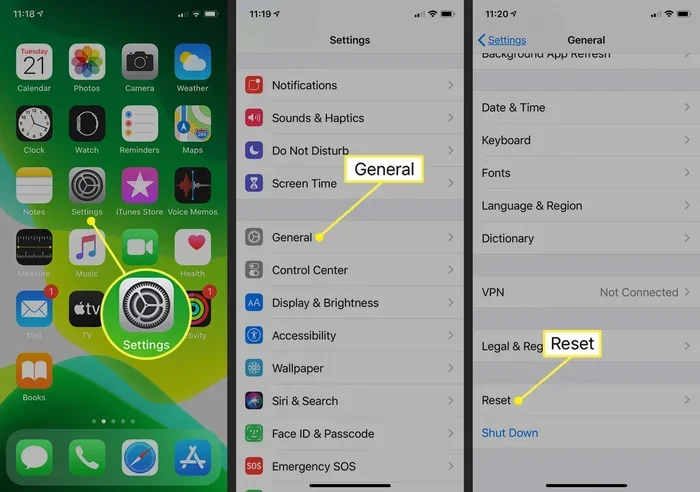
Step-by-Step Guide to Reset Network Settings
- Open the Settings app on your iPhone.
- Tap “General.”
- Scroll down and tap “Transfer or Reset iPhone.”
- Tap “Reset.”
- Select “Reset Network Settings.”
- Enter your passcode if prompted.
- Confirm by tapping “Reset Network Settings” again.
Your phone will restart automatically. After it boots back up, you will need to rejoin your Wi-Fi network and re-enter your password. Your Wi-Fi troubleshooting issues should be resolved. If you still see problems, move on to the next section.
Quick Tip: Before resetting, write down your Wi-Fi passwords. You will need them to reconnect. A password manager app makes this much easier.
What Gets Wiped When You Reset Network Settings
It is important to know what this reset does and does not affect. Your personal data stays safe. Your photos, apps, and messages are not deleted. However, the following gets cleared:
- Saved Wi-Fi network names and passwords
- VPN configurations
- Bluetooth pairings
- Cellular APN settings
- Preferred network types
This is why it is a powerful fix. It removes any corrupted data that might be causing your network error messages.
Update iOS and Carrier Settings
Outdated software is a hidden cause of many network connectivity issues. Apple regularly releases patches that fix bugs related to cellular and Wi-Fi performance. Keeping your iPhone updated is one of the best preventive steps you can take.
How to Update iOS
- Open the Settings app.
- Tap “General.”
- Tap “Software Update.”
- If an update is available, tap “Download and Install.”
- Wait for the update to complete.
- Your phone will restart if needed.
Make sure you are connected to Wi-Fi and have at least 50% battery before updating. If you cannot connect to Wi-Fi because of the network problem, plug your phone into a charger and try again.
How to Update Carrier Settings
Carrier settings updates are smaller but very important. They fix issues specific to your network provider and improve cellular connection stability.
- Connect your iPhone to Wi-Fi or cellular data.
- Open the Settings app.
- Tap “General.”
- Tap “About.”
- If a carrier update is available, you will see a prompt.
- Tap “Update” to install it.
If you do not see a prompt, your carrier settings are already up to date. This is a good sign. The issue likely lies elsewhere.
Check Your SIM Card and Signal Strength
A SIM card is the small chip that connects your phone to your carrier’s network. If it is loose, dirty, or damaged, your phone might show “No Service” or weak signal strength. This is an often-overlooked cause of network problems.
How to Check and Clean Your SIM Card
- Turn off your iPhone.
- Locate the SIM tray on the side of your phone.
- Insert the SIM ejector tool (or a paperclip) into the small hole.
- Gently push until the tray pops out.
- Remove the SIM card carefully.
- Check it for dust, dirt, or damage.
- Use a soft, dry cloth to gently wipe the gold contacts.
- Reinsert the SIM card firmly into the tray.
- Push the tray back into the phone.
- Turn your iPhone back on.
After reinserting the SIM card, check if your signal bars return. If your phone still shows no service, the SIM card might be faulty. Contact your carrier to request a replacement.
When to Suspect a Hardware Issue
If you have tried every software fix and your network connection is still broken, a hardware problem might be the culprit. Signs of hardware issues include:
- Your phone shows “No Service” in multiple locations
- Signal bars drop to zero even in strong coverage areas
- Other iPhones on the same network work fine
- Your phone was recently dropped or exposed to water
In these cases, contact Apple Support or visit an authorized service provider. Do not try to open your phone yourself. This can void your warranty.
Advanced Fixes for Stubborn Network Issues
If the basic and intermediate fixes did not resolve your network problem on iPhone, try these advanced solutions. They address deeper configuration issues that can silently break your connection.
Disable VPN Connections
A VPN can sometimes interfere with your network connectivity. If you recently installed a VPN app or changed its settings, it might be blocking your data connection.
- Open the Settings app.
- Tap “General.”
- Tap “VPN & Device Management.”
- Tap on the active VPN configuration.
- Toggle it off or tap “Disconnect.”
- Check if your network connection improves.
If disabling the VPN fixes the issue, try switching to a different VPN server or reinstalling the VPN app. Some VPN servers are blocked by certain networks.
Change DNS Settings
Your DNS settings control how your phone looks up website addresses. Incorrect DNS settings can make it seem like you have no internet connection even though your signal bars are full.
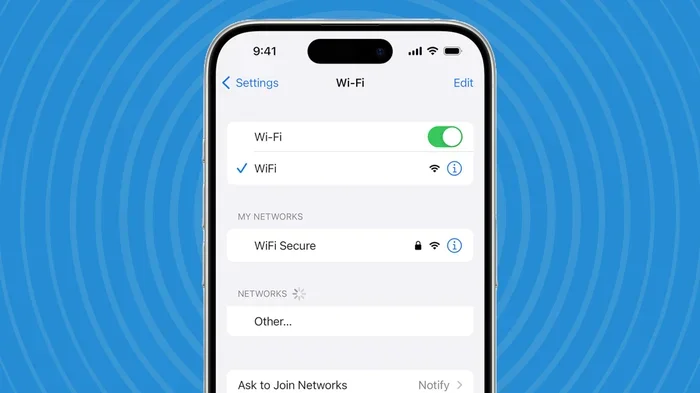
- Open the Settings app.
- Tap “Wi-Fi.”
- Tap the “i” icon next to your connected network.
- Scroll down and tap “Configure DNS.”
- Select “Manual.”
- Add a public DNS server like 8.8.8.8 (Google) or 1.1.1.1 (Cloudflare).
- Tap “Save.”
This is a powerful fix for situations where your phone connects to Wi-Fi but cannot load websites. It bypasses your carrier’s default DNS servers, which sometimes slow down or block connections.
Forget and Rejoin Your Wi-Fi Network
Sometimes your iPhone saves a corrupted Wi-Fi profile. Forgetting the network and reconnecting from scratch can fix this.
- Open the Settings app.
- Tap “Wi-Fi.”
- Find your network in the list.
- Tap the “i” icon next to it.
- Tap “Forget This Network.”
- Confirm by tapping “Forget.”
- Reconnect by selecting the network and entering your password.
This clears the old configuration and forces your phone to establish a fresh connection. It is one of the most effective Wi-Fi troubleshooting methods.
Check for Date and Time Settings
Incorrect date and time settings can cause SSL certificate errors that block network connections. Make sure your iPhone is set to automatically update its time.
- Open the Settings app.
- Tap “General.”
- Tap “Date & Time.”
- Toggle “Set Automatically” on.
This ensures your phone’s certificates remain valid. It is a quick check that many people overlook when dealing with network connectivity problems.
When to Contact Your Network Provider or Apple Support
If you have tried every fix in this guide and your cellular connection is still not working, it is time to seek professional help. Not all network problems originate from your phone. Some issues are on the carrier side.
Contacting Your Carrier
Call your network provider and ask if there are any outages in your area. They can also check your account status. Sometimes a suspended line or a billing issue will block your service without any warning. They can also push a remote refresh to your SIM card, which often resolves connection issues instantly.
Contacting Apple Support
If the carrier confirms everything is fine on their end, the problem is likely with your iPhone. Apple Support can run remote diagnostics. They can also help you schedule a repair if a hardware issue is detected. You can reach them through the Apple Support app, their website, or by visiting an Apple Store.
Quick Tip: Before contacting support, write down the exact error messages you see. Note when the problem started and what you have already tried. This saves time and helps the support team diagnose the issue faster.
How to Prevent Future Network Problems
Prevention is always better than cure. Here are simple habits that keep your network connection stable and strong.
- Keep iOS Updated: Install updates as soon as they become available. They contain fixes for known network bugs.
- Restart Your iPhone Weekly: A weekly restart clears temporary files and refreshes network connections.
- Avoid Overheating: Excessive heat can weaken your antenna performance. Keep your phone in a cool, ventilated place.
- Use a Reliable VPN: If you use a VPN, choose a reputable provider. Free VPNs can cause connection instability.
- Monitor Signal Strength: If you notice weak signal in a specific location, move to a different spot or check for tower outages.
- Remove Case During Troubleshooting: Some thick phone cases can interfere with antenna performance. Remove the case when trying to fix connection issues.
These small habits go a long way. They reduce the chances of facing a network error in the future. Your phone stays connected, and you stay productive.
Comparison Table: Common Network Issues and Their Best Fixes
| Network Issue | Most Likely Cause | Best Fix |
|---|---|---|
| “No Service” message | Loose SIM card or software glitch | Reset network settings or reinsert SIM |
| Wi-Fi won’t connect | Corrupted Wi-Fi profile | Forget network and reconnect |
| Mobile data not working | Cellular data disabled or APN issue | Toggle cellular data or reset network settings |
| Slow internet speeds | VPN interference or DNS issues | Disable VPN or change DNS settings |
| Signal drops frequently | Hardware damage or carrier outage | Contact carrier or Apple Support |
| “Searching” for network | Airplane mode stuck or SIM issue | Toggle airplane mode and check SIM card |
This table gives you a quick reference whenever a network problem on iPhone strikes. Match your symptom to the issue and apply the recommended fix. It saves you from guessing and trying random solutions.
Key Takeaways
- Start Simple: Always try toggling Airplane Mode, Cellular Data, and restarting your iPhone first. These solve most minor issues.
- Reset Network Settings for Stubborn Problems: This clears corrupted configurations and gives your phone a clean slate for network connectivity.
- Keep Software Updated: iOS and carrier updates contain critical patches that prevent network errors and improve signal strength.
- Check Your SIM Card: A clean, properly inserted SIM card is essential for maintaining a strong cellular connection.
- Try Advanced Fixes When Needed: Changing DNS settings, forgetting Wi-Fi networks, and disabling VPN can resolve deeper configuration problems.
- Know When to Seek Help: If all else fails, your carrier or Apple Support can diagnose issues you cannot fix on your own.
Conclusion
Fixing a network problem on iPhone does not have to be complicated. Most issues respond to simple fixes like toggling Airplane Mode, resetting network settings, or updating your software. You now have a complete toolkit of solutions to try. Start with the quick fixes and work your way up to the advanced solutions if needed.
Remember that prevention plays a big role too. Keep your iPhone updated, restart it regularly, and pay attention to your signal strength in different locations. These habits reduce the frequency of network problems significantly.
If you have tried everything in this guide and your phone still will not connect, reach out to your carrier or Apple Support. They have tools and resources to diagnose issues that go beyond what you can fix at home. You should not have to live with a broken connection. Your iPhone is built to stay connected. With the right approach, it will again.
Take action today. Pick the fix that matches your situation and try it. You will likely be back online within minutes. Do not let a network error slow you down any longer.
Frequently Asked Questions
Why does my iPhone keep saying “No Service”?
“No Service” usually means your iPhone cannot connect to your carrier’s network. This can happen due to a loose SIM card, a software glitch, or a carrier outage. Try toggling Airplane Mode, resetting network settings, or reinserting your SIM card. If the problem persists, contact your carrier to check for outages in your area.
Will resetting network settings delete my photos and apps?
No. Resetting network settings only clears Wi-Fi passwords, VPN configurations, Bluetooth pairings, and cellular APN settings. Your photos, apps, messages, and all other personal data remain completely safe. You will just need to rejoin your Wi-Fi networks after the reset.
How do I know if my network problem is caused by my carrier?
Check with neighbors or friends who use the same carrier. If they are also experiencing issues, the problem is likely on the carrier side. You can also visit your carrier’s website or call their support line to check for known outages in your area.
Can a VPN cause network problems on my iPhone?
Yes. A VPN can sometimes interfere with your cellular data or Wi-Fi connection. It may block certain websites or slow down your speeds significantly. If you notice connection issues after installing or switching VPNs, try disabling the VPN temporarily to see if it resolves the problem.
How often should I update my iPhone’s software?
You should check for updates at least once a week. Apple releases iOS updates frequently, and many of them include fixes for network bugs and connectivity issues. Keeping your phone updated is one of the simplest ways to prevent network problems.
What should I do if my Wi-Fi connects but I cannot access the internet?
This usually points to a DNS issue or a problem with your router. Try forgetting the Wi-Fi network and reconnecting. You can also change your DNS settings to use Google’s 8.8.8.8 or Cloudflare’s 1.1.1.1. If the issue persists, restart your router and try again.