Do I Need A Wi Fi Card If My Motherboard Has Wi Fi Already
If your motherboard has built-in Wi Fi, you often do not need a separate Wi Fi card. However, upgrading to a dedicated card can boost your internet speed and signal strength. A wireless adapter helps desktop users get better wireless connectivity without messy cables.
When you buy a new computer, one of the first things you check is the internet connection. You want to browse the web, stream movies, and play games without any lag. Many modern computers come with a motherboard that has Wi Fi already built in. This feature is incredibly convenient. It means you do not have to plug in an ethernet cable to get online. But does having this built-in feature mean you are all set? The answer is not always a simple yes. Sometimes, you still need a separate Wi Fi card to get the best performance. This guide will help you understand exactly when you need an upgrade and when the wifi on your motherboard is enough.
The world of wireless networking can be confusing. You hear terms like PCIe, M 2, and wireless adapter everywhere. It is easy to feel overwhelmed. But making the right choice for your desktop computer or laptop does not have to be hard. You just need to know what your current setup can do and what you want it to do. If you are happy with slow speeds and weak signals, you can stick with what you have. But if you want faster internet speed and better wireless connectivity, a dedicated network card might be exactly what you need. Let us break down everything you need to know about Wi Fi cards and built-in wireless.
Key Takeaways
- Built-in Wi Fi is enough for basic tasks: If you just browse the web, the Wi Fi on your motherboard works fine.
- Upgrading improves speed and range: A dedicated network adapter gives you faster wireless performance and better signal strength.
- Check your wireless standard: Older motherboards might only have Wi Fi 5, while new cards offer Wi Fi 6 or 6E.
- Installation is simple for desktops: Adding a PCIe or M 2 wifi card is easy if you have a free slot.
- USB wifi dongles are an alternative: They are easy to plug in but usually slower than internal cards.
- Bluetooth matters too: Many wireless adapters also handle bluetooth connections for your peripherals.
📑 Table of Contents
- What Does It Mean When Your Motherboard Has Wi Fi?
- When Do You Actually Need A Wi Fi Card?
- Types Of Wireless Adapters You Can Buy
- Built-In Wi Fi vs Dedicated Network Adapter
- Do Laptops Need A Wi Fi Card?
- How To Install A New Wi Fi Card
- Common Mistakes To Avoid
- Final Thoughts On Your Network Setup
- Conclusion
What Does It Mean When Your Motherboard Has Wi Fi?
When people buy a new desktop computer or laptop, they often look at the specs list carefully. One spec that catches the eye is when a motherboard has Wi Fi built right into the board. This means the manufacturer added the wireless antenna and the wireless adapter directly onto the circuit board. You do not need to plug anything extra into the back of your PC to get online. It is like having a built-in wifi radio already inside your machine, ready to connect to your wireless router at any time.
Older computers usually relied heavily on an ethernet connection. You had to run a thick cable from the wall to your desk. This kept you tethered to one spot and made moving around a pain. But modern tech changed this completely. Today, most mid-range and high-end boards come with wireless connectivity right out of the box. This saves you from buying a separate network card. It also keeps your desk looking clean without extra cables hanging around your workspace. You just sit down, open your browser, and you are online.
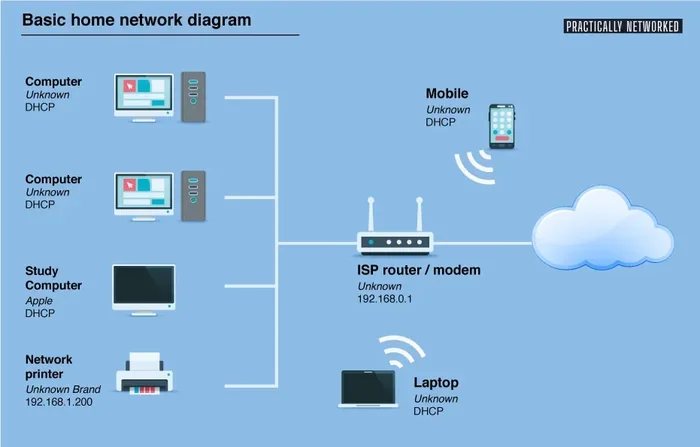
The way this works is actually quite simple. The wireless adapter on the motherboard connects to small antenna rods or flat patches on the back of your PC case. When your computer searches for a signal, it talks to your router. The router sends the internet signal back to the adapter. This whole process happens without you touching a single cable. However, just because your board has this feature does not mean it is the best option available to you today. The wireless standard on the board might be outdated, or the antenna might be too small to reach your router effectively.
How Built-In Wireless Works
The wireless adapter on the motherboard connects to the antenna. These antennas are usually small rods or flat patches on the back of your PC case. When your computer searches for a signal, it talks to your wireless router. The router sends the internet signal back to the adapter. This whole process happens without you touching a single cable.
However, just because your board has this feature does not mean it is the best option. The wireless standard matters a lot. An older board might only support Wi Fi 5 or 802.11ac. Newer boards support Wi Fi 6 or even Wi Fi 6E. If you have a slow router, the built-in adapter might hold you back. This is where a separate Wi Fi card comes into play. You might think you are getting the fastest speeds, but the old adapter could be the bottleneck slowing everything down.
When Do You Actually Need A Wi Fi Card?
You might be wondering if you should buy a Wi Fi card when your board already connects to the web. The answer depends entirely on what you do online. For basic browsing, checking emails, and watching YouTube, the wifi on your motherboard is usually enough. But if you are a gamer, a streamer, or someone who works from home, you need better wireless performance. A standard built-in wifi chip simply cannot handle heavy data loads as well as a dedicated unit. If you are constantly experiencing lag or slow downloads, it might be time to consider an upgrade.
Think about your daily routine. Do you video call your family for hours? Do you download huge game files every week? Maybe you stream movies in 4K resolution while someone else is browsing the web. All of these activities need a strong, stable connection. The wifi on your motherboard might struggle during peak hours when everyone in your house is online. A dedicated Wi Fi card ensures your connection stays fast and reliable no matter what you are doing. It handles multiple devices and heavy traffic much better than a basic integrated chip.
You Want Faster Internet Speeds
Do you ever notice how long it takes to download a big game? Or maybe your video calls freeze up sometimes? This could be a speed issue. A dedicated network adapter can give you much faster speeds than a built-in wifi chip. Newer cards support faster wireless standards like Wi Fi 6E or Wi Fi 7. They can handle more data at once. This is called MU-MIMO, which stands for multi-user, multiple-input, multiple-output. It allows your desktop computer to talk to the router without slowing down other devices on the network.
Think of it like a highway. The built-in adapter is a small country road. A new wireless adapter is a big, multi-lane highway. If you have gigabit internet, you need that big highway to keep up. Without it, your speeds will bottleneck at the old motherboard chip. Upgrading to a Wi Fi card removes that bottleneck completely. You will see a massive improvement in your internet speed right away. Downloads that took ten minutes might only take two minutes with the right card.
You Need Better Signal Strength
Signal strength is another big reason to add a Wi Fi card. If your desk is far from the wireless router, the signal gets weak. Walls and furniture block the radio waves. A basic network card on the motherboard has small, internal antennas. It might lose connection if you walk to the kitchen to grab a snack. A separate wifi card often comes with better, larger antennas. You can even place those antennas outside the PC case. This improves your signal strength dramatically. You will get fewer dropped connections. Your online gaming will feel smoother too. The wireless connectivity becomes much more stable when you upgrade the antenna setup. You will never have to sit right next to the router again.
Types Of Wireless Adapters You Can Buy
If you decide to upgrade, you have a few choices. Not all wireless adapters are the same. You need to pick the right one for your setup. Let us look at the three main types of wifi cards you can buy today. Each type has its own pros and cons, so choose carefully based on your needs and budget.
PCIe Wireless Cards
The most common type is the PCIe wireless card. You slide this network card into an open slot on your motherboard. It gives you a strong, direct connection. These cards usually come with a short USB cable for the antenna. You place the antenna outside the case for the best signal strength. PCIe cards are great for desktop computers. They offer excellent wireless performance. They also often include a bluetooth chip. This means you can connect your wireless mouse and keyboard without a separate dongle. Just plug one USB cable into the back of your PC, and you are set. Brands like Intel and Killer make popular Wi Fi cards in this style. They are reliable and easy to find in most electronics stores.
M 2 Wifi Cards
Some modern PCs use M 2 wifi cards. These tiny cards plug directly into an M 2 slot on the motherboard. They do not need a PCIe slot. This is perfect for small desktop cases or laptops that need to save space. An M 2 wifi card is very compact but still powerful. These cards also handle bluetooth connections. They support the latest wireless standards like Wi Fi 6. Because they are so small, they do not take up much room. However, you still need to route a tiny antenna cable to the outside of the case. If you have a small form factor build, this is the best choice. They are clean, efficient, and highly effective for modern builds.
USB Wifi Dongles
If you do not want to open your computer, a USB wifi dongle is an option. This is a small plug-and-play device. You just stick it into a USB port. It acts as an external network adapter. It is very easy to set up. However, USB dongles usually have slower speeds. They also have weaker antennas. Your wireless connectivity might not be as good as with an internal card. They are fine for travel or basic web browsing. But for heavy gaming or streaming, a proper PCIe card is better. Think of a dongle as a temporary fix, not a permanent upgrade for your desktop computer. They are convenient, but they lack the power of an internal solution.
Built-In Wi Fi vs Dedicated Network Adapter
Deciding between built-in wifi and a separate network adapter can be tricky. You want to make the right choice for your budget and needs. Let us compare them so you can decide easily. Many people assume that if something is built-in, it must be the best. This is not always true when it comes to wireless performance. Sometimes, the integrated solution is just a cost-saving measure by the manufacturer.
Comparing Wireless Standards
When you look at wifi on your motherboard, check the wireless standard it uses. If it says Wi Fi 5 or 802.11ac, it is a few years old. A new dedicated Wi Fi card with Wi Fi 6 or 802.11ax will be much faster. Wi Fi 6 handles crowded networks better, like in apartments or office buildings. It also uses less power, which can save your laptop battery significantly. Upgrading to a newer standard makes a huge difference in how fast your internet speed actually is. You will be able to take full advantage of your high-speed internet plan.
Here is a quick look at the differences between the generations:
- Built-in Wi Fi (Wi Fi 5): Good for basic use. Speeds up to 866 Mbps. Adequate for light browsing and email.
- Dedicated Wi Fi 6 Card: Great for gaming and streaming. Speeds up to 2400 Mbps. Better for busy networks with many devices.
- Dedicated Wi Fi 6E Card: The newest mainstream standard. Uses a 6GHz band. Ultra-fast and much less interference.
As you can see, upgrading your wireless adapter makes a huge difference. You get to enjoy the latest wireless standards even if your old motherboard does not support them natively. It is a fantastic way to breathe new life into an older desktop case.
Cost vs Performance
Motherboards with built-in wifi cost a bit more than those without. But you save money on not buying a separate card. A basic network card costs around thirty to fifty dollars. A high-end Wi Fi 6E card can cost over one hundred dollars. Is it worth it? If you work from home or play online games, yes. A Wi Fi card reduces lag and improves your internet speed. For casual users, the wifi on your motherboard is perfectly fine. You do not need to spend extra money unless you have a specific problem with your connection. Always weigh the cost against the benefits you will actually receive.
Do Laptops Need A Wi Fi Card?
Many people wonder about laptop wifi upgrades. Laptops are different from desktop computers. You usually cannot swap out the internal wifi card easily. Most laptops have a dedicated slot for a M 2 wifi card or a mini PCIe card. If your laptop is slow online, you might be able to replace the old card inside. Check your laptop manual to see if it has an upgradeable slot. Some models are soldered and cannot be changed, but many business and gaming laptops allow for upgrades.
Some ultra-thin laptops have the wireless adapter soldered directly to the board. In these cases, you cannot upgrade the network card. You must rely on the built-in wifi or use a USB wifi dongle. A dongle is a great workaround for laptops. It gives you better signal strength without opening the case. Just plug it into a USB port and enjoy faster wireless connectivity. This is perfect for students or travelers who need reliable laptop wifi on the go. It is a simple way to boost your performance without any technical hassle.
How To Install A New Wi Fi Card
Installing a Wi Fi card is easier than you think. You do not need to be a computer expert. Just follow these simple steps to upgrade your network adapter. Before you start, make sure you have your new card and the included screws ready. Having everything prepared will make the process smooth and stress-free.
Step One: Check Your Slots
First, turn off your computer and unplug it from the wall. Open the side panel of your case. Look at your motherboard. Do you have a free PCIe slot? Most modern boards have at least one open slot. If you have an M 2 slot, you can use that instead. Before you buy a card, make sure it fits your board. Check if your motherboard has M 2 slots or PCIe x1 slots. This ensures your wireless adapter will work with your system perfectly. Taking five minutes to check this saves you from buying the wrong part.
Step Two: Remove The Old Adapter
If you are replacing an old card, gently remove it from the slot. If your motherboard has Wi Fi built-in, you do not need to remove anything. You will just use the slot for the new card. Make sure you disconnect any old antenna cables carefully. You do not want to break the connectors inside your case. Take a picture before you disconnect anything so you remember where everything goes.
Step Three: Install The New Card
Take your new Wi Fi card out of the box. Align it with the PCIe slot. Press it down firmly until it clicks into place. Secure it with a small screw if needed. Next, connect the antenna cables to the card. These cables are usually thin and have tiny push-on connectors. Route the cables out of the case. You can use cable ties to keep them neat. Once the card is seated and the antennas are connected, close the case. Plug your computer back in and turn it on.
Step Four: Install The Drivers
Your computer might not recognize the new network card right away. You need to install the drivers. You can usually find these on a CD in the box or on the manufacturer’s website. Download the latest drivers for your wireless adapter. Install them and restart your PC. Now you should see the new wireless connectivity options in your taskbar. Your internet speed should be noticeably faster now. Always download drivers from the official site to avoid malware or outdated software.
Common Mistakes To Avoid
When upgrading your wireless performance, people often make simple mistakes. Avoiding these errors saves you time and money. Do not rush the process or you might end up with a card that does not work correctly. Learning from other people’s mistakes is the fastest way to succeed.
- Buying the wrong card: Make sure your card matches your motherboard slots. A PCIe card will not work in an M 2 slot. Check the specifications before you buy to avoid frustration.
- Forgetting the drivers: A new network adapter will not work without the right software. Always install drivers first before you test your connection. Windows might install a generic driver, but it will not give you the full speed.
- Hiding antennas inside the case: Your antenna needs to be outside the metal case. Metal blocks the radio signal completely. Keep them out in the open for the best signal strength. This is the most common mistake people make.
- Ignoring Bluetooth: Some Wi Fi cards do not have Bluetooth. If you use wireless headphones or a mouse, make sure your card supports both features. Check the box to confirm.
- Not checking the PCIe lanes: Some cards need more power than others. Make sure your motherboard can support the card you choose. Overloading a slot can cause stability issues.
Final Thoughts On Your Network Setup
So, do you need a Wi Fi card if your board already connects to the web? The answer is maybe. If you are happy with your current internet speed and never drop connections, stick with the wifi on your motherboard. It works perfectly fine for everyday tasks like checking social media or sending emails. You do not need to fix something that is not broken.
But if you want the best wireless performance, a dedicated network adapter is a smart move. It gives you faster speeds, better range, and the latest wireless standards. Whether you choose a PCIe card or an M 2 wifi card, you will notice the difference. Your wireless connectivity will be stronger and more reliable than ever before. You will wonder why you did not upgrade sooner.
Take a look at your current setup today. Are you tired of slow downloads? Do you get bad signal in your office room? If so, grab a new Wi Fi card and upgrade your desktop computer or laptop. A small change like this can make a big difference in how you use the internet every single day. Enjoy your faster, more reliable connection and stop waiting for pages to load.
Conclusion
Deciding whether to add a Wi Fi card when your motherboard has Wi Fi comes down to your personal needs. For basic users, the built-in connection is perfectly fine. However, for anyone who values speed, reliability, and range, a dedicated card is a worthwhile investment. It is a simple upgrade that can transform your online experience. Take control of your network setup today and enjoy the web the way it was meant to be.
Frequently Asked Questions
Can I use a Wi Fi card if my motherboard already has Wi Fi?
Yes, you can. You can disable the built-in adapter in your BIOS or device manager and use the new card instead. This is useful if the onboard Wi Fi is old or slow. It allows you to upgrade your wireless performance without replacing the whole motherboard.
Is a Wi Fi card better than built-in Wi Fi?
Generally, yes. A dedicated Wi Fi card usually offers faster speeds and better range. It often supports the latest wireless standards like Wi Fi 6 or 6E. Built-in adapters are fine for basic tasks, but a separate card is better for gaming and streaming.
Do I need a Wi Fi card for a desktop computer?
You do not need one if your motherboard has Wi Fi and it meets your speed needs. However, if you want faster internet speed or better signal strength, a Wi Fi card is a great addition. It is especially helpful if you live far from your wireless router.
What is the difference between a Wi Fi card and a network adapter?
A Wi Fi card is a type of network adapter specifically for wireless connections. A network adapter can also refer to a wired ethernet card. Both help your computer connect to a network, but a wireless adapter uses radio waves instead of cables.
Can I add Wi Fi to a laptop with a USB dongle?
Yes, a USB dongle works as an external network adapter. It is a simple way to add or upgrade wireless connectivity on a laptop. Just plug it into a USB port, install the drivers, and you are connected.
Will a new Wi Fi card improve my internet speed?
Yes, if your current card is old or slow. A new Wi Fi card supports faster wireless standards and better wireless performance. It will not speed up your internet plan from your ISP, but it will allow your computer to reach those speeds without bottlenecks.