Did Samsung Remove Wi Fi Sharing On New Galaxy Phones
Did Samsung remove Wi-Fi sharing on new Galaxy phones? The answer is more nuanced than a simple yes or no. Samsung has shifted how Wi-Fi sharing works across its latest devices, but the feature hasn’t disappeared entirely. Users upgrading to Galaxy S24 and newer models may notice changes in how Wi-Fi Direct and file transfer behave. This guide breaks down everything you need to know about Samsung Wi-Fi sharing on modern Galaxy phones.
Did Samsung remove Wi-Fi sharing on new Galaxy phones? If you recently upgraded to a Galaxy S24 or S25, you might have noticed something missing. The old Wi-Fi sharing menu that used to sit right in your settings seems gone. This question has been popping up everywhere in Samsung forums and tech communities. People are confused, frustrated, and looking for answers.
The truth is, Samsung hasn’t completely killed Wi-Fi sharing. But they have definitely changed how it works. The feature still exists on Galaxy phones, but finding it and using it requires a different approach now. Let’s break down exactly what happened, why it matters, and how you can still share files and connect devices wirelessly.
Key Takeaways
- Wi-Fi sharing isn’t fully removed: Samsung still supports Wi-Fi Direct and file transfer features, but the interface has changed.
- One UI updates shifted the menu: New Galaxy phones hide the Wi-Fi sharing toggle in different settings locations compared to older models.
- Quick Share replaced some Wi-Fi sharing functions: Samsung’s Quick Share now handles many tasks that used to rely on Wi-Fi Direct.
- Smart Switch still uses Wi-Fi for transfers: You can still move data wirelessly between Samsung devices using Smart Switch.
- Third-party apps fill the gap: Apps like SHAREit and Xender offer Wi-Fi sharing alternatives if Samsung’s built-in tools fall short.
- Settings paths changed: Finding Wi-Fi sharing on new Galaxy phones requires navigating different menus than older models.
- Cross-platform sharing improved: Samsung now focuses on Nearby Share and Quick Share for broader device compatibility.
📑 Table of Contents
- What Is Wi-Fi Sharing on Samsung Phones?
- Did Samsung Remove Wi-Fi Sharing? The Truth Behind the Rumors
- How Wi-Fi Sharing Works on Galaxy Devices
- What Changed in New Galaxy Phones
- Alternatives to Wi-Fi Sharing on Samsung
- Tips to Keep Wi-Fi Sharing Working on New Galaxy Phones
- Common Mistakes People Make With Wi-Fi Sharing
- Expert Insights on Samsung’s Wi-Fi Sharing Shift
- Key Takeaways
- Conclusion
What Is Wi-Fi Sharing on Samsung Phones?
Wi-Fi sharing on Samsung phones refers to the ability to share your internet connection or transfer files between devices using Wi-Fi Direct technology. This is different from your regular Wi-Fi hotspot. When you use Wi-Fi Direct, two devices connect directly to each other without needing a router. Think of it as a private, fast wireless bridge between your phone and another device.
On older Galaxy phones, you could find Wi-Fi sharing tucked inside the Wi-Fi settings menu. A simple toggle turned it on. You could then connect printers, smart TVs, and other phones without fuss. The feature was built into One UI and worked seamlessly for most Samsung Galaxy users. It was one of those things you didn’t think about until you needed it.
Samsung used Wi-Fi Direct for several core functions:
- File transfer between Galaxy phones
- Connecting to Wi-Fi Direct printers
- Sharing internet with other devices
- Mirroring screens to compatible TVs
- Transferring data during Smart Switch setups
These capabilities made Wi-Fi sharing a staple of the Samsung experience. So when users started noticing changes, alarms bells went off. Let’s look at what actually changed.
Did Samsung Remove Wi-Fi Sharing? The Truth Behind the Rumors
So, did Samsung remove Wi-Fi sharing? Not exactly. What Samsung did was restructure and relocate the feature. The company has been gradually shifting its focus toward Quick Share and Nearby Share as the primary file transfer methods on Galaxy phones. This shift started with One UI 5 and became more pronounced in One UI 6 and beyond.
The old Wi-Fi sharing toggle that lived in the main Wi-Fi settings menu is no longer as visible. On Galaxy S23 and earlier models, you could tap the Wi-Fi icon in settings and see a dedicated Wi-Fi sharing option. On Galaxy S24 and S25 phones, that toggle moved or was replaced by Quick Share prompts.
Here is what actually happened with Samsung Wi-Fi sharing on newer devices:
The Menu Restructure
Samsung merged several Wi-Fi Direct functions into the Quick Share panel. This means the standalone Wi-Fi sharing option got buried or replaced. The company wants users to adopt Quick Share because it works across Android and Windows devices. Quick Share uses a combination of Wi-Fi Direct, Bluetooth, and WebRTC to transfer files. So the underlying Wi-Fi sharing technology is still there, just packaged differently.
The Toggle Relocation
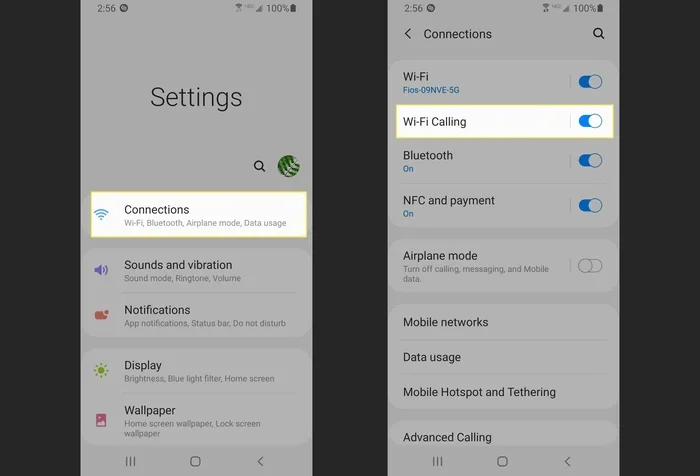
On newer Galaxy phones, the Wi-Fi sharing toggle now lives deeper in the settings. To find it, go to Settings > Connections > Wi-Fi > Wi-Fi Direct. The path is longer than it used to be. Some users miss it because they are used to the old location. Samsung’s design choice prioritized cleaner menus over easy access to legacy features.
What About Wi-Fi Hotspot Sharing?
It is important to distinguish between Wi-Fi sharing for file transfers and mobile hotspot sharing. Samsung did not remove the mobile hotspot feature. You can still share your cellular data connection with laptops, tablets, and other phones. The hotspot function remains fully intact on all recent Galaxy S series and Galaxy A series phones. If your mobile hotspot stopped working, it is likely a software bug, not a deliberate removal.
How Wi-Fi Sharing Works on Galaxy Devices
Understanding how Wi-Fi sharing works on Samsung Galaxy phones helps you appreciate the changes. Wi-Fi Direct creates a peer-to-peer connection between two devices. One device acts as a group owner (like a mini router), and the other connects to it. This happens entirely over Wi-Fi without needing an internet connection or a home router.
The speed of Wi-Fi Direct transfers can be impressive. You can move files at rates up to 200 Mbps or higher, depending on the devices. This is much faster than Bluetooth. For large files like videos or photo albums, Wi-Fi Direct is the go-to method on Samsung phones.
Here is how Wi-Fi sharing typically worked on older Galaxy phones:
- Turn on Wi-Fi (it does not need to connect to a network)
- Go to Wi-Fi settings and tap Wi-Fi Direct
- Search for nearby devices
- Select the device you want to connect to
- Accept the connection request on the other device
- Start transferring files or sharing your connection
On newer phones, steps 2 through 4 now happen through Quick Share instead. The Wi-Fi Direct connection still happens in the background, but the user interface changed. Samsung wants to simplify the experience, even if it means hiding some legacy options.
What Changed in New Galaxy Phones
The transition from older Galaxy phones to Galaxy S24 and S25 models brought several changes to Wi-Fi sharing. These changes affect how you find the feature and use it day to day.
One UI Changes
One UI 6 and the newer One UI 7 redesigned the connectivity settings. Samsung moved Wi-Fi Direct and Wi-Fi sharing functions into the Quick Share ecosystem. The standalone Wi-Fi sharing toggle is harder to find now. Some users report that their Galaxy S24 does not show the old Wi-Fi sharing menu at all.
Quick Share as the Default
Quick Share is now Samsung’s flagship sharing tool. It replaced the old Wi-Fi Direct file transfer workflow for most users. Quick Share works by creating a temporary Wi-Fi Direct connection between devices, but it handles the setup automatically. You do not need to manually search for devices or navigate through multiple menus.
The benefits of Quick Share include:
- Faster setup time
- Cross-platform support with Windows and other Android phones
- Built-in preview of shared files
- Integration with the Samsung ecosystem
Samsung Members App and Smart Switch
Samsung also shifted some Wi-Fi sharing functions to dedicated apps. The Smart Switch app now handles device-to-device data transfers during phone setups. It uses Wi-Fi Direct in the background but presents a simplified interface. The Samsung Members app also provides access to some Wi-Fi sharing tools for support and troubleshooting purposes.
Settings Path Changes
Finding Wi-Fi sharing on new Galaxy phones requires knowing the updated settings path. Here is where to look:
- Settings > Connections > Wi-Fi > Wi-Fi Direct (for device discovery)
- Settings > Connections > Mobile Hotspot and Tethering (for internet sharing)
- Quick Settings panel (tap the Quick Share tile for fast transfers)
The old single-tap Wi-Fi sharing option in the main Wi-Fi menu is gone on most recent firmware versions. Samsung consolidated these features into fewer, more streamlined menus.
Alternatives to Wi-Fi Sharing on Samsung
If you miss the old Wi-Fi sharing experience, do not worry. Several alternatives exist for file transfer and connection sharing on Galaxy phones. These options give you flexibility and keep your workflow smooth.
Quick Share
Quick Share is the official replacement for Wi-Fi Direct file transfers on Samsung. It uses Wi-Fi Direct, Bluetooth, and WebRTC behind the scenes. To use it, simply tap the share button on any file and select Quick Share. The receiving device needs to have Quick Share enabled. It works between Galaxy phones, other Android devices, and even Windows PCs.
Nearby Share / Google Fast Pair
Google’s Nearby Share works on Samsung Galaxy phones running Android 13 or later. This feature lets you share files, links, and contacts with any Android device nearby. It uses a combination of Bluetooth and Wi-Fi to establish connections. While it is not as tightly integrated as Quick Share on Samsung devices, it is a solid cross-platform option.
Smart Switch
When switching to a new Samsung phone, Smart Switch handles all your data transfer needs. It uses Wi-Fi Direct to move contacts, photos, messages, and apps wirelessly. You do not need cables unless you prefer them. Smart Switch is available as a free download from the Galaxy Store and Google Play Store.
Third-Party Apps
Several third-party apps replicate the old Wi-Fi sharing experience. Popular options include:
- SHAREit – Fast cross-platform file transfer
- Xender – Works without internet connection
- Send Anywhere – Supports large files and links
- Feem – Local Wi-Fi sharing without uploads
These apps create local Wi-Fi Direct connections for fast transfers. They work well when Samsung’s built-in tools do not meet your needs.
Bluetooth and Cloud Alternatives
For smaller files, Bluetooth remains a reliable option. It is slower than Wi-Fi Direct but universally supported. Cloud services like Samsung Cloud, Google Drive, and Dropbox also work for sharing files between devices. These are not Wi-Fi sharing in the traditional sense, but they solve the same problem of moving data between devices.
Tips to Keep Wi-Fi Sharing Working on New Galaxy Phones
Even though Samsung changed how Wi-Fi sharing works, you can still get great results with a few simple tips. These steps help you troubleshoot issues and make the most of Wi-Fi Direct on newer Galaxy devices.
Keep Your Software Updated
Samsung regularly patches Wi-Fi Direct functionality through firmware updates. Always install the latest One UI updates. These updates often fix bugs that affect file transfer and device discovery. Check for updates by going to Settings > Software update > Download and install.
Enable All Required Settings
For Wi-Fi sharing to work properly, make sure these settings are enabled:
- Wi-Fi must be turned on
- Bluetooth should be enabled (needed for device discovery)
- Location services must be active (required for scanning nearby devices)
- Quick Share should be set to visible in settings
Restart Your Device
A simple restart fixes most Wi-Fi Direct issues on Galaxy phones. Power off your device completely, wait 30 seconds, and turn it back on. This clears the Wi-Fi cache and refreshes network connections.
Check for Interference
Wi-Fi Direct uses the 5 GHz band on most modern devices. Other Wi-Fi networks, microwaves, and Bluetooth devices can cause interference. Move to a quieter area if your file transfer keeps failing or slowing down.
Use Quick Share for Best Results
Since Samsung pushed Quick Share as the primary sharing tool, use it whenever possible. It is more reliable on new Galaxy phones than the legacy Wi-Fi sharing menu. The experience is faster and more intuitive on Galaxy S24 and newer models.
Common Mistakes People Make With Wi-Fi Sharing
Many users run into problems with Wi-Fi sharing on new Galaxy phones because of simple mistakes. Avoiding these pitfalls saves time and frustration.
Not enabling location services. Android requires location access for Wi-Fi Direct device scanning. If location is off, your phone cannot find nearby devices. This trips up many users who assume Wi-Fi alone is enough.
Confusing Quick Share with Wi-Fi sharing. These are related but not identical. Quick Share uses Wi-Fi Direct under the hood but adds a layer of automation. If you cannot find the old Wi-Fi sharing menu, try Quick Share instead.
Ignoring firmware updates. Outdated software causes Wi-Fi Direct failures. Samsung patches these issues regularly, so keeping your phone updated is essential.
Expecting the same interface as older phones. Samsung redesigned the settings layout. The Wi-Fi sharing toggle is not where it used to be. Accepting this change helps you adapt faster.
Overlooking third-party solutions. Sometimes the built-in tools are not enough. Apps like SHAREit fill the gap when Samsung’s Wi-Fi sharing does not work as expected.
Expert Insights on Samsung’s Wi-Fi Sharing Shift
Samsung’s decision to move away from the standalone Wi-Fi sharing menu is part of a broader industry trend. Phone makers are consolidating sharing features into unified platforms. Google did the same with Nearby Share, and Apple uses AirDrop for a similar purpose. The goal is to reduce clutter and create a smoother user experience.
From an SEO and user experience perspective, this shift makes sense. Most people only share files occasionally. Having one reliable tool like Quick Share is better than a maze of settings menus. However, power users who rely on Wi-Fi Direct for specific tasks like printer connections or smart TV mirroring may find the change inconvenient.
Industry analysts believe Samsung will continue refining Quick Share and Nearby Share rather than bringing back the old Wi-Fi sharing interface. The Wi-Fi Direct technology itself is not going anywhere. It simply operates behind the scenes now, powering features like Quick Share and Smart Switch.
Key Takeaways
- Samsung did not fully remove Wi-Fi sharing: The Wi-Fi Direct technology and file transfer capabilities still exist on new Galaxy phones.
- The standalone toggle was replaced by Quick Share: Samsung now uses Quick Share as the primary method for Wi-Fi Direct transfers.
- The settings path changed: Finding Wi-Fi sharing now requires navigating to Settings > Connections > Wi-Fi > Wi-Fi Direct.
- Mobile hotspot sharing is unaffected: Samsung did not remove the mobile hotspot feature on any recent Galaxy phone.
- Third-party apps still work: Apps like SHAREit and Xender provide Wi-Fi sharing alternatives when Samsung’s built-in tools fall short.
- Smart Switch uses Wi-Fi Direct: Device-to-device transfers during phone setup still rely on Wi-Fi sharing technology.
- One UI updates keep evolving: Future Samsung software updates may further refine how Wi-Fi sharing is accessed and used.
Conclusion
So, did Samsung remove Wi-Fi sharing? The short answer is no, but the long answer is more interesting. Samsung restructured Wi-Fi sharing on new Galaxy phones, replacing the old standalone toggle with Quick Share and streamlined menus. The Wi-Fi Direct technology still powers file transfers, printer connections, and device pairing behind the scenes. You just need to know where to look now.
If you are using a Galaxy S24, Galaxy S25, or any recent Samsung Galaxy phone, embrace Quick Share as your go-to tool for wireless file transfer. It is faster, more intuitive, and works across platforms. For printer connections and other Wi-Fi Direct tasks, head to Settings > Connections > Wi-Fi > Wi-Fi Direct.
The shift might feel frustrating at first, especially if you are used to the old Wi-Fi sharing menu. But Samsung’s new approach is cleaner and more focused. Give Quick Share a few tries, and you will likely find it works just as well as the old system. The Wi-Fi sharing feature is still there, just wearing a new outfit.
Stay curious, keep your phone updated, and remember that technology evolves. Samsung’s changes to Wi-Fi sharing reflect the broader trend toward simplicity and integration. Once you find your new workflow, sharing files and connecting devices on your Galaxy phone will feel just as easy as it always did.
Frequently Asked Questions
Did Samsung completely remove Wi-Fi sharing from Galaxy phones?
No, Samsung did not completely remove Wi-Fi sharing. The company restructured it and replaced the old standalone toggle with Quick Share. The underlying Wi-Fi Direct technology still works on new Galaxy phones, just with a different interface.
Where can I find Wi-Fi sharing on Samsung Galaxy S24 and S25?
On newer Galaxy phones, go to Settings > Connections > Wi-Fi > Wi-Fi Direct. You can also use Quick Share for file transfers, which uses Wi-Fi Direct in the background. The old Wi-Fi sharing toggle in the main Wi-Fi menu is no longer visible.
Can I still use Wi-Fi Direct to share files between Galaxy phones?
Yes, you can still use Wi-Fi Direct for file transfers. Quick Share now handles this automatically using Wi-Fi Direct technology. Simply tap the share button on any file and select Quick Share to send it to a nearby device.
Why did Samsung change the Wi-Fi sharing menu on new phones?
Samsung simplified its settings to create a cleaner user experience. The company merged several Wi-Fi Direct functions into Quick Share, which works across Android and Windows devices. This consolidation reduces clutter and makes sharing faster for most users.
Does Samsung still support Wi-Fi hotspot sharing on new Galaxy phones?
Yes, Samsung still fully supports mobile hotspot sharing on all recent Galaxy phones. You can share your cellular data connection with laptops, tablets, and other devices. The mobile hotspot feature is separate from the Wi-Fi Direct file sharing feature.
What is the best alternative to Samsung’s Wi-Fi sharing for file transfers?
Quick Share is the best built-in alternative on Samsung phones. For cross-platform needs, Google Nearby Share works well on Android devices. Third-party apps like SHAREit and Xender also provide fast Wi-Fi Direct file transfers when Samsung’s built-in tools do not meet your needs.