Customize Channels on Your LG TV for the Best Experience
Customizing channels on your LG TV is easier than you think. This guide walks you through every step to organize, sort, favorite, and remove channels on your LG TV. You will learn how to take full control of your channel lineup and enjoy a cleaner, faster viewing experience on LG webOS.
Have you ever turned on your LG TV and felt lost in a long list of channels you never watch? You are not alone. Many people deal with cluttered channel lineups that make finding something good to watch a real hassle. The good news is that you can customize channels on your LG TV and take back control of your viewing experience.
Whether you use an antenna, cable box, or streaming service, your LG TV channel list can be organized to fit your needs. This guide shows you exactly how to do it. You will learn simple steps to add channels, remove the ones you do not want, set up favorite channels on LG TV, and much more. By the end, you will have a clean, easy-to-use channel guide that works for you.
Customizing channels LG TV is not just about removing junk. It is about building a setup that matches how you actually watch TV. With a few smart moves, you can skip the scrolling and get straight to the content you love. Let us dive in and make your LG TV channel management simple and effective.
Key Takeaways
- Easy Access: The LG TV channel editor lets you manage channels quickly from your home screen.
- Full Control: You can add, remove, sort, and favorite channels with just a few button presses.
- Better Viewing: Organizing your channel list saves time and makes finding shows effortless.
- Smart Features: LG webOS offers built-in tools for channel management and parental controls.
- Quick Tips: Small tweaks like renaming channels and setting defaults make a big difference.
- Common Mistakes: Avoid skipping channel scans and forgetting to update your channel list regularly.
📑 Table of Contents
- Why Customizing Your LG TV Channels Matters
- How to Access the Channel Editor on LG TV
- Organizing and Sorting Your Channel List
- Adding and Removing Channels on LG TV
- Setting Up Favorite Channels for Quick Access
- Advanced Channel Customization Tips
- Common Mistakes to Avoid When Customizing Channels
- Conclusion
Why Customizing Your LG TV Channels Matters
A messy channel list slows you down. When you open the LG TV channel guide and see hundreds of channels, it is hard to find anything fast. Customizing your list fixes this problem right away. You keep only what you watch, and everything becomes easier to reach.
Here is why customizing channels on LG TV makes a real difference:
- Faster navigation: A shorter list means less scrolling and quicker access.
- Better organization: You can group channels by type, such as news, sports, or movies.
- Less clutter: Removing unwanted channels frees up mental space and remote buttons.
- Personalized experience: Your TV starts to feel like it was made just for you.
- Kids-friendly setup: You can limit channels with parental controls on LG TV for a safer viewing environment.
When you take a few minutes to set things up, you save hours over time. Think of it like organizing a closet. Once it is clean, everything is easier to find. The same idea applies to your TV channel organization on LG webOS.
How Cluttered Channels Affect Your Viewing
Too many channels create decision fatigue. You open the guide, see 200 options, and end up turning the TV off. This is a common problem. Studies show that people spend an average of 15 minutes just browsing before picking something to watch. A clean LG TV channel list cuts that time down dramatically.
Also, a cluttered list increases the chance of accidentally landing on a channel you do not want. When your favorites are easy to reach, you skip the frustration. Customizing channels LG TV is one of the simplest ways to improve your daily TV routine.
How to Access the Channel Editor on LG TV
Before you can make changes, you need to know where to find the tools. The LG TV channel editor is built right into webOS. You do not need any extra apps or devices. Just follow these steps to get started.
- Press the Home button on your LG remote.
- Navigate to Settings in the bottom left corner.
- Select All Settings or the gear icon.
- Go to Channel or Broadcasting, depending on your model.
- Choose Channel List Editor or Manage Channels.
Once you are in the editor, you will see your full LG TV channel list. From here, you can move, rename, hide, or delete channels. The exact menu names may vary slightly based on your TV model and software version. But the general process is the same across most LG webOS devices.
Quick Tip: Make sure your TV is connected to the internet before you start. Some features, like downloading updated channel lists, work best with a stable connection. If you use an antenna, run a channel scan on LG TV first to make sure all available channels are detected.
Using the LG Remote for Channel Management
Your LG remote has a few shortcuts that make channel editing faster. The OK button lets you select a channel and open its options. The info button shows details about the current channel. And the guide button brings up the full channel list.
You can also use the arrow keys to move through channels quickly. Holding down the arrow keys scrolls through the list faster. These small tricks add up and make the whole process smoother.
Organizing and Sorting Your Channel List
Now that you are in the editor, it is time to organize. A well-sorted LG TV channel list is the foundation of a great viewing experience. You can sort channels by number, name, or type. Let us look at your options.
Sorting Channels by Number
The most common way to sort is by channel number. This matches the way most people are used to browsing. If you get your channels from a cable provider or antenna, they already have assigned numbers. Keeping them in numerical order makes the LG TV remote channel guide feel familiar.
To sort by number:
- Open the Channel List Editor.
- Look for the Sort option.
- Choose By Channel Number.
- Confirm your choice.
Sorting Channels by Name
Sorting alphabetically is helpful when you have many channels and do not remember their numbers. This works great for people who search by show name or network. It is also handy if you mix broadcast channels with streaming apps.
Just pick Sort by Name in the same menu. Your list will rearrange itself in A-to-Z order. This is a great option if you like to browse by network, such as finding all the ABC or NBC channels together.
Grouping Channels by Category
LG webOS lets you group channels into categories. This is a powerful feature that many people overlook. You can create groups like News Channels, Sports Channels, Kids Channels, and Movie Channels.
To group channels:
- Go to the Channel List Editor.
- Select Manage Categories or Channel Groups.
- Create a new group and give it a name.
- Drag and drop channels into the right group.
This method turns a long, flat list into a structured menu. When you press the guide button, you can jump straight to the category you want. It is one of the best ways to organize TV channels on LG TV.
Quick Tips for Sorting
- Keep your most-watched channels near the top of the list.
- Use numbers that match your provider’s lineup for easy reference.
- Review your sorting every few months as your viewing habits change.
- Share your setup with family members so everyone knows how to navigate.
Adding and Removing Channels on LG TV
One of the biggest benefits of customizing channels on LG TV is the ability to add and remove channels freely. You are not stuck with a fixed lineup. You decide what stays and what goes.
How to Remove Unwanted Channels
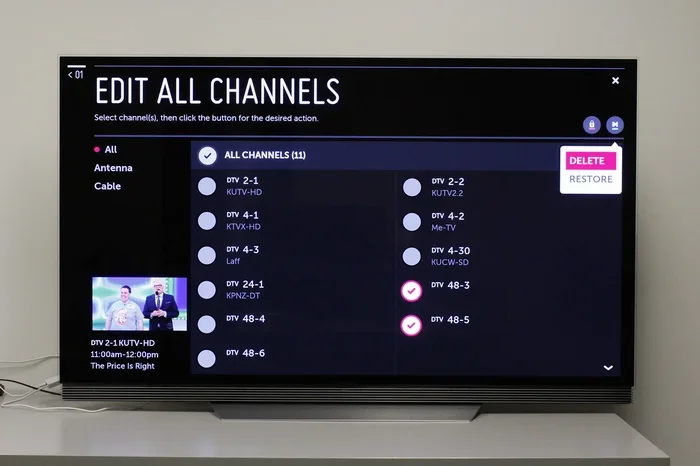
Removing channels is simple and frees up space in your guide. Here is how to do it:
- Open the Channel List Editor from Settings.
- Find the channel you want to remove.
- Select it and choose Delete or Remove.
- Confirm the action.
Do not worry. Removing a channel does not cancel any services. It simply hides the channel from your list. You can always add it back later if you change your mind. This is a safe and reversible process.
Common Mistake: Many people remove channels without checking if they are part of a package they pay for. Hiding a channel is fine, but make sure you are not accidentally dropping paid channels from your view. If you need them back, a quick scan will bring them to the list again.
How to Add New Channels
Adding channels works in a few different ways depending on your source:
- Antenna channels: Run a new channel scan on LG TV to pick up local broadcast channels.
- Cable or satellite: Your provider sends the channel list automatically. Just refresh the list in the editor.
- Streaming apps: Download apps like Netflix, Hulu, or YouTube from the LG Content Store.
- IPTV or OTT services: Add your service through the Live TV Plus or TV Plus app on webOS.
If you use an antenna, placing it near a window or outside can improve signal strength and help you pick up more channels. A digital TV channels antenna is a cheap way to get local networks like ABC, CBS, NBC, and PBS without a cable subscription.
Renaming Channels for Clarity
Some channel names are long or confusing. You can rename them to make the guide clearer. For example, you might rename a channel from “WKYC 3” to “Cleveland News” for quick recognition. This small trick makes a big difference when you are scrolling fast.
To rename a channel:
- Select the channel in the editor.
- Choose Edit or Rename.
- Type in your preferred name.
- Save the change.
Setting Up Favorite Channels for Quick Access
This is one of the best features of customizing channels LG TV. You can mark your most-watched channels as favorites. This creates a short list that you can access with a single button press on your remote.
How to Add Channels to Favorites
Setting up LG TV channel favorites takes just a few steps:
- Open the Channel List Editor.
- Find the channel you want to mark.
- Select it and choose Add to Favorites.
- Repeat for all your preferred channels.
Once done, you can access your favorites by pressing the Favorites button on your remote. This button is often the red or colored button near the arrow keys. It takes you straight to your shortlist, skipping the full guide entirely.
Building the Perfect Favorites List
Think about your daily routine. What channels do you watch most? Start with those. Here are some ideas to build a strong favorites list:
- Your local news channel.
- Your favorite sports network.
- A kids channel if you have young children.
- Your go-to streaming app shortcut.
- A music or entertainment channel for downtime.
You can always add or remove favorites as your habits change. The key is to keep the list short and focused. A favorites list with 10 to 20 channels is usually the sweet spot.
Expert Insight: Many people set their favorites list at the start of each month. This small habit keeps your list fresh and relevant. It also helps you notice channels you have not watched in a while, so you can decide if they still belong.
Advanced Channel Customization Tips
Once you have the basics down, you can level up your LG TV channel management with a few advanced tricks. These steps take a little more time but pay off with a much smoother experience.
Setting Default Channels
You can set your TV to always open on a specific channel. This is great if you have a favorite morning show or news program. To set a default channel:
- Go to Settings in the LG TV channel editor.
- Look for Startup Channel or Default Channel.
- Choose your preferred channel.
- Save and exit.
Now every time you turn on the TV, it goes right to that channel. No more scrolling. No more searching. Just instant access to what you want.
Using Parental Controls for Channel Blocking
If you have kids at home, channel blocking on LG TV is a must-have feature. You can restrict access to certain channels based on content ratings. This works hand in hand with parental controls on LG TV to create a safe viewing environment.
To block channels:
- Open Settings and go to Security or Parental Controls.
- Set a PIN code that only adults know.
- Select the channels or content ratings you want to block.
- Save your settings.
Now, when a child tries to access a blocked channel, they will need the PIN. This keeps your TV channel organization both smart and safe.
Updating Your Channel List Regularly
Channels change. Providers add new ones, remove old ones, or shift numbers. To keep your LG TV channel list accurate, run a channel scan every few weeks. You can set a reminder on your phone to make this a habit.
A quick scan takes only a few minutes and ensures your list is always up to date. This is especially important after storms or if you move your antenna. Signal changes can affect which channels you receive.
Using the LG Channel Plus App
LG Channel Plus is a built-in app on many webOS models that gives you access to live TV and on-demand content. It works well with your customized channel list and adds extra streaming options. You can browse live channels, set recordings, and even access free content without a cable subscription.
To use Channel Plus:
- Open the LG Content Store from the Home screen.
- Search for Channel Plus.
- Download and install the app.
- Open it and sign in or create a free account.
This app is a great companion to your customized channel setup. It adds flexibility and gives you more ways to watch live TV on your LG TV.
Common Mistakes to Avoid When Customizing Channels
Even with the best intentions, people make mistakes when setting up their LG TV channel list. Here are the most common ones and how to avoid them.
Skipping the Initial Channel Scan
One of the biggest mistakes is not running a full channel scan before you start editing. If your list is incomplete, you will remove or hide channels you actually want. Always scan first, then customize.
Removing Channels Without Testing Them
You might think you do not watch a certain channel. But give it a week or two. You may be surprised. Try hiding a channel instead of deleting it. This way, you can always bring it back without rescanning.
Ignoring Software Updates
LG releases software updates for webOS that improve channel management features. Skipping updates means you miss out on new tools and fixes. Keep your TV updated for the best LG TV smart features experience.
Overcomplicating the Setup
You do not need 10 groups and 50 favorites to have a great setup. Start simple. A basic sort and a short favorites list can make a huge difference. You can always refine later as you get more comfortable.
Forgetting to Check Antenna Placement
If you use an antenna, its placement matters a lot. A poorly placed antenna leads to weak signals and missing channels. Try moving it near a window or outside. Even small adjustments can bring in new digital TV channels that you did not know were available.
Expert Insights: Pro Tips for Power Users
- Use the remote’s mute button as a quick test: Mute a channel you are unsure about. If you do not notice, it is probably not worth keeping.
- Create a “weekend” favorites list: Include channels you only watch on weekends, like movie channels or sports packages.
- Label your inputs: Rename HDMI inputs in the LG settings so you always know which device is on which port.
- Explore the LG ThinQ app: This mobile app lets you control your LG TV from your phone, including channel changes.
- Reset as a last resort: If your channel list gets messy, a factory reset of the channel settings can start you fresh.
Conclusion
Customizing channels on your LG TV is one of the simplest and most rewarding things you can do. It takes just a little time, and the payoff is huge. You get a cleaner guide, faster navigation, and a viewing experience that fits your life.
From removing unwanted channels to setting up favorite channels on LG TV, every step makes your TV feel more personal. Use the sorting tools, create groups, and take advantage of parental controls to build a setup that works for everyone in your home.
Remember to update your LG TV channel list regularly and keep your antenna or cable connection strong. Small maintenance habits go a long way. With the tips in this guide, you are now ready to make the most of your LG TV and enjoy every channel on your terms.
Start today. Open your channel editor, make a few changes, and feel the difference. A well-organized TV setup is a small upgrade that improves your daily routine in a big way. Happy watching!
Frequently Asked Questions
How do I customize channels on my LG TV?
Go to Settings, then All Settings, and select Channel or Broadcasting. From there, open the Channel List Editor. You can add, remove, sort, rename, and favorite channels from this menu. The process is the same for most LG webOS models.
Can I hide channels on my LG TV without deleting them?
Yes, you can hide channels instead of deleting them. In the Channel List Editor, select the channel and choose the hide or lock option. This removes it from your main list but keeps it available if you ever want to bring it back.
Why are some channels missing from my LG TV channel list?
Missing channels are usually caused by a weak signal or an incomplete channel scan. Try moving your antenna closer to a window or outside. Then run a new channel scan on your LG TV to pick up any missing channels.
How do I set up favorite channels on my LG TV?
Open the Channel List Editor, find the channel you want, and select Add to Favorites. You can then access your favorites by pressing the Favorites button on your LG remote. This gives you quick access to your most-watched channels.
Can I block certain channels on my LG TV for kids?
Yes, you can use the Parental Controls feature in Settings. Set a PIN code, then choose which channels or content ratings to block. This keeps your kids from accessing channels you do not want them to watch.
How often should I update my LG TV channel list?
It is a good idea to run a channel scan every few weeks. Channels can change numbers or become unavailable over time. If you use an antenna, weather changes or antenna movement can also affect your channel lineup. A quick scan keeps your list accurate.