Can You Use A Wifi Adapter On A Pc Without A Wifi Card
Can You Use A Wifi Adapter On A Pc Without A Wifi Card? Yes, absolutely. A wifi adapter can give your desktop computer wireless access even when there is no built-in wifi card installed. Whether you choose a USB wifi adapter or an external wifi adapter, you can enjoy a strong internet connection in minutes. This guide covers everything from setup to troubleshooting so you can get wireless connectivity working on any PC.
Have you ever sat down at your desktop computer and realized you have no way to connect to the internet wirelessly? Maybe your PC was built before wifi became standard, or perhaps the wifi card in your machine just stopped working. Whatever the reason, the question on your mind is probably simple: can you use a wifi adapter on a PC without a wifi card?
The short answer is yes. You can absolutely add wireless internet access to any desktop computer by using an external wifi adapter. These small devices are affordable, easy to install, and they work with almost any PC. Whether you want to browse the web, stream movies, or join a wireless network at home or the office, a wifi adapter can get the job done.
In this article, we will explain exactly how this works. We will cover the different types of adapters available, how to set them up, what to watch out for, and how to get the best wifi speed from your new setup. By the end, you will know everything you need to get your PC online without a wifi card.
Key Takeaways
- Yes, you can use a wifi adapter without a wifi card: An external or USB wifi adapter provides wireless access to any PC that lacks a built-in wifi card.
- USB wifi adapters are the easiest option: They plug into any USB port and require minimal setup, making them perfect for beginners.
- Driver software is essential: Without the right driver, your network adapter will not work properly with your operating system.
- Dual band adapters offer better performance: They support both 2.4 GHz and 5 GHz wifi frequency bands for faster speeds and less interference.
- Common problems have simple fixes: Most issues like slow speeds or connection drops can be resolved with driver updates or repositioning your wifi antenna.
- Cost savings are significant: Using an adapter is far cheaper than buying a new motherboard or paying for professional installation.
- Wireless standards matter for speed: Look for adapters that support the latest wireless standards like wifi 6 for the best performance.
📑 Table of Contents
- What Is A Wifi Adapter And Why Do You Need One?
- Can You Use A Wifi Adapter On A Pc Without A Wifi Card?
- Types Of Wifi Adapters You Can Use
- How To Set Up A Wifi Adapter Without A Built-in Wifi Card
- Benefits Of Using A Wifi Adapter On Your PC
- Common Problems And How To Fix Them
- Expert Insights On Wifi Adapters And PC Connectivity
- Key Takeaways
What Is A Wifi Adapter And Why Do You Need One?
A wifi adapter is a small hardware device that allows your computer to connect to a wireless network. Think of it as a bridge between your PC and your router. Without one, your computer has no way to send or receive wireless signals. It is like having a telephone with no phone line.
How A Wifi Adapter Works
A wifi adapter sends and receives radio signals on specific wifi frequency bands. Most modern adapters use two bands: 2.4 GHz and 5 GHz. The 2.4 GHz band has a longer wifi range but slower speeds. The 5 GHz band offers faster wifi speed but covers a shorter distance. Your adapter switches between these bands depending on what your router supports and what gives you the best performance.
The adapter talks to your computer through a USB port or a PCIe slot. It then communicates with your wireless network using specific wireless standards like 802.11ac or 802.11ax (also known as wifi 5 and wifi 6). The better the standard your adapter supports, the faster and more reliable your internet connection will be.
Wifi Adapter Vs Wifi Card
People often confuse a wifi adapter with a wifi card. A wifi card is usually an internal component that you install inside your computer. It plugs into the motherboard through a PCIe slot. A wifi card typically includes both the antenna and the wireless chip built into one unit.
A wifi adapter, on the other hand, is usually external. The most common type is a USB wifi dongle or a small USB stick. You plug it into an available USB port, and it works right away. Some adapters are internal too, but they are designed to fit into Mini PCIe slots and are different from traditional wifi cards.
The key difference is that a wifi adapter does not require your PC to have a pre-installed wifi card. It adds wireless capability to any computer that has a USB port or a compatible slot. This makes adapters the go-to solution for older desktops or PCs that were never built with built-in wifi.
Can You Use A Wifi Adapter On A Pc Without A Wifi Card?
The answer to this question is a clear and definite yes. A wifi adapter works independently of any wifi card that may or may not be inside your PC. When you plug in a USB wifi adapter, your computer recognizes it as a network adapter. The operating system then uses this device to connect to your wireless network.
The Short Answer
You do not need a wifi card to use a wifi adapter. The adapter itself contains all the hardware needed to connect to a wireless network. It has its own wifi antenna, its own wireless chip, and its own ability to communicate with routers and access points. Your PC simply treats the adapter as a new piece of hardware that opens up wireless connectivity.
This works the same way whether you are using Windows 10, Windows 11, or even Linux. As long as you install the correct driver software, the network adapter will function perfectly without any wifi card present in the system.
How It Works Technically
When you plug in a USB wifi adapter, the computer detects a new USB device. The operating system loads the appropriate driver, which tells the PC how to communicate with the adapter. The driver acts as a translator. It converts data from your computer into wireless signals and vice versa.
The adapter then uses its built-in wifi antenna to send and receive these signals. It scans for available wireless networks, connects to your chosen network using the correct password, and establishes a data connection. All of this happens without any involvement from a wifi card. The adapter is a self-contained unit that handles everything on its own.
Some people wonder if the PC needs any special hardware slot for this to work. The answer is no. A standard USB 2.0 or USB 3.0 port is all you need. Even older computers with only USB 2.0 ports can use a wifi adapter successfully, though you may get slightly slower speeds compared to USB 3.0.
Types Of Wifi Adapters You Can Use
Not all wifi adapters are the same. There are several types available, and each has its own strengths. Choosing the right one depends on what you need from your internet connection.
USB Wifi Adapters
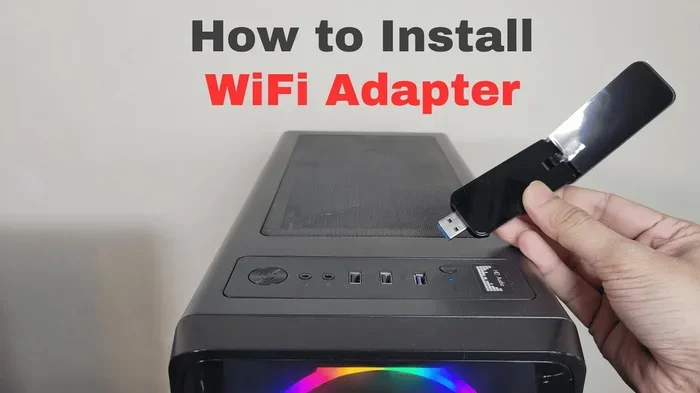
A USB wifi adapter is the most popular choice for most users. It is a small device that plugs directly into a USB port on your computer. There is no installation required beyond plugging it in and installing the driver. Most USB adapters come with a short cable and a small wifi antenna built in.
Some USB adapters are very compact and look like a simple flash drive. These are great for portability. You can carry them in your laptop bag and use them on any computer. Other USB adapters are larger and have external antennas that provide a stronger wireless signal and better wifi range.
USB adapters are the best choice if you want a plug-and-play experience. They work on desktops and laptops alike. If your PC does not have a wifi card, a USB adapter is the simplest and fastest way to add wireless access.
PCIe Wifi Adapters
A PCIe wifi adapter is an internal device that plugs directly into a PCIe slot on your motherboard. These adapters offer better performance than USB options because they connect directly to the motherboard. They also tend to have stronger wifi antennas and more stable wireless connectivity.
However, PCIe adapters require an available slot inside your computer case. They also require you to open up your PC and install them physically. This makes them less convenient than USB options, but they are excellent for users who want the best possible wifi speed and reliability.
Internal Mini PCIe Adapters
Some desktop PCs have a Mini PCIe slot available. You can install a small network adapter that fits into this slot. These adapters are similar to PCIe cards but are smaller and designed for compact setups. They work well in mini PCs or small form factor desktops where space is limited.
These adapters usually come with a wifi antenna that you mount inside or outside the case. They offer solid performance and a clean look since nothing sticks out of the outside of your computer.
How To Set Up A Wifi Adapter Without A Built-in Wifi Card
Setting up a wifi adapter on a PC without a wifi card is a straightforward process. You do not need to be a tech expert to get it working. Follow these steps and you will be online in no time.
Step-by-step Setup Process
- Choose your adapter: Pick a USB wifi adapter that matches your needs. Consider the wifi standards it supports and whether you need dual band capability.
- Plug it in: Insert the adapter into an available USB port on your PC. If you are using a USB extension cable, place the adapter somewhere with a clear view of your router for the best wireless signal.
- Install the driver: Windows may automatically install a basic driver. If it does not, use the CD that came with the adapter or download the latest driver software from the manufacturer’s website.
- Connect to your network: Click on the network icon in your taskbar. Select your wireless network from the list and enter the password.
- Test your connection: Open a web browser and visit a website. Check your wifi speed using an online speed test to make sure everything is working properly.
That is it. Five simple steps and your PC has wireless connectivity without ever needing a wifi card. The entire process usually takes less than ten minutes.
Driver Installation Tips
The driver software is the most important part of the setup. A driver is a small program that tells your operating system how to communicate with the network adapter. Without the right driver, the adapter will not work at all.
Always download drivers directly from the manufacturer’s website. Avoid using third-party driver update tools, as they can sometimes install outdated or incorrect files. If you are using Windows 10 or 11, the operating system often has the correct driver built in. Simply plug in the adapter and wait a few moments for Windows to find and install the driver automatically.
If you run into issues, try uninstalling the driver and reinstalling it from scratch. Sometimes a clean installation fixes connection problems. You can also check the Device Manager to see if your wifi adapter is recognized by the system.
Quick Tips For Best Performance
- Place your adapter near a window for the strongest wireless signal from your router.
- Use a USB 3.0 port when possible for faster data transfer speeds.
- Avoid plugging the adapter into a USB hub, as this can weaken the signal.
- Update your adapter’s driver software regularly to get the latest performance improvements.
- If your adapter has an external wifi antenna, position it vertically for the best coverage.
Benefits Of Using A Wifi Adapter On Your PC
Using a wifi adapter on a PC without a wifi card offers several real advantages. These benefits make adapters a smart choice for many users.
Portability And Convenience
A USB wifi adapter is small and portable. You can carry it from one computer to another. This is especially useful if you work on multiple desktops or need internet access at different locations. Simply plug it in, install the driver, and you are connected.
Unlike a wifi card that is permanently installed inside your PC, an adapter can be removed when you are not using it. This also means you can switch between a wired ethernet port connection and a wireless broadband connection whenever you want.
Cost Savings
Buying a new motherboard with built-in wifi can be expensive. A wifi adapter costs a fraction of that price. You can get a high-quality dual band USB adapter for under $30 in most cases. This makes it the most affordable way to add wireless connectivity to any PC.
There is also the cost of not needing professional installation. You do not have to open your computer case or pay a technician to install a wifi card. The adapter does the job quickly and easily on your own.
Flexibility And Future Upgrades
A wifi adapter gives you the flexibility to upgrade your wireless technology whenever you want. If a new wireless standard comes out, you can simply buy a new adapter and swap it in. You do not need to replace your entire motherboard or PC.
This flexibility also applies to wifi speed. If your current adapter is slow, you can upgrade to a faster model without any major changes to your computer. This makes adapters a future-proof solution for internet access.
Common Problems And How To Fix Them
While using a wifi adapter is generally easy, you may run into some issues from time to time. Here are the most common problems and how to solve them.
Slow Wifi Speeds
If your wifi speed is slower than expected, there are a few things to check. First, make sure your adapter supports the wireless standard of your router. If your router uses wifi 6 but your adapter only supports wifi 5, you will be limited to the slower speed.
Second, check your wifi frequency band. If you are using the 2.4 GHz band and experiencing interference from other devices, try switching to the 5 GHz band. Third, make sure your adapter’s driver software is up to date. Outdated drivers can significantly reduce performance.
Finally, check the distance between your adapter and your router. The further apart they are, the weaker the wireless signal will be. Moving the adapter closer to the router or using a USB extension cable to position it better can help a lot.
Connection Drops
If your internet connection keeps dropping, the problem could be with your wifi adapter. Start by checking if the adapter is properly seated in the USB port. A loose connection can cause frequent drops.
Next, check for interference. Other electronic devices like microwaves, baby monitors, and cordless phones can interfere with your wireless network. Moving your adapter away from these devices can fix the problem.
If the issue persists, try updating the driver software or reinstalling it completely. You can also try changing the wifi channel on your router. Sometimes a crowded channel causes your adapter to lose connection frequently.
Adapter Not Recognized By PC
If your PC does not recognize the network adapter, first try a different USB port. Some USB ports may not provide enough power or may have compatibility issues. If that does not work, check Device Manager to see if the adapter appears under “Other Devices.”
You may need to manually install the driver. Visit the manufacturer’s website, download the latest driver for your specific adapter model, and install it. Restart your PC after installation and check if the adapter is now recognized.
Expert Insights On Wifi Adapters And PC Connectivity
Networking experts agree that a USB wifi adapter is one of the best ways to add wireless capability to a PC without a wifi card. According to tech professionals, the key factors to consider are the wireless standards supported, the build quality of the adapter, and the strength of the included wifi antenna.
Experts also recommend choosing adapters that support the latest wireless standards like wifi 6 or wifi 6E. These adapters offer significantly better performance, lower latency, and improved handling of multiple connected devices. If you plan to stream video, play online games, or work from home, investing in a quality adapter is well worth it.
Another expert tip is to always keep your driver software updated. Manufacturers regularly release driver updates that improve compatibility, fix bugs, and boost performance. Checking for updates every few months can keep your wireless connectivity running smoothly.
One final insight from professionals is to avoid cheap, no-name adapters. While they may seem like a bargain, they often have weak wifi antennas and outdated wireless standards. A reputable brand may cost a little more, but it will deliver better wifi range, faster speeds, and more reliable internet access over time.
Key Takeaways
- Can You Use A Wifi Adapter On A Pc Without A Wifi Card: Yes, a wifi adapter works independently and adds wireless connectivity to any PC without needing a pre-installed wifi card.
- USB Adapters Are The Easiest Option: They plug into any USB port, require minimal setup, and work on both desktops and laptops.
- Driver Software Is Critical: Always install the correct driver from the manufacturer’s website for the best performance and stability.
- Dual Band Adapters Offer Better Results: Look for adapters that support both 2.4 GHz and 5 GHz wifi frequency bands for flexibility and speed.
- Common Issues Have Simple Solutions: Slow speeds, connection drops, and recognition problems can usually be fixed with driver updates, repositioning, or changing settings.
- Cost Effective Upgrade: Using a wifi adapter is far cheaper than replacing a motherboard or paying for professional installation.
- Future Proof Your Setup: Choose adapters that support the latest wireless standards so you can enjoy fast wifi speed for years to come.
Frequently Asked Questions
Do I need to install any software when using a wifi adapter?
Most modern wifi adapters work with Windows 10 and 11 without any manual software installation. Windows will automatically detect the adapter and install a basic driver. However, for the best performance, you should visit the manufacturer’s website and download the latest driver software available for your specific model.
Can I use a wifi adapter on a PC that already has a wifi card?
Yes, you can. Having both a built-in wifi card and a wifi adapter connected at the same time is perfectly fine. Your PC will recognize both devices and you can choose which one to use for your internet connection. Some users even use both to boost their wifi range or connect to different networks simultaneously.
Will a wifi adapter work on any desktop computer?
Almost any desktop computer can use a wifi adapter as long as it has a USB port. Even very old PCs from the early 2000s can benefit from a USB wifi adapter. The only requirement is that the operating system must support the adapter’s driver software. Most adapters work with Windows, macOS, and Linux systems.
What is the difference between a wifi adapter and a wifi dongle?
The terms are often used interchangeably, but there is a slight difference. A wifi dongle is typically a very small, compact USB device that plugs directly into the port with no extra cables. A wifi adapter may be larger and sometimes comes with an external wifi antenna for better signal reception. Both serve the same purpose of adding wireless connectivity to your PC.
How fast can a wifi adapter make my internet connection?
The speed depends on the adapter’s supported wireless standards and the capabilities of your router. A wifi 6 adapter can deliver speeds up to 1200 Mbps or more under ideal conditions. A wifi 5 adapter typically maxes out around 867 Mbps. Keep in mind that your actual wifi speed will also depend on your broadband connection speed and the distance between your adapter and router.
Can I use a wifi adapter for online gaming?
Yes, you can use a wifi adapter for online gaming. For the best experience, choose a dual band adapter that supports the 5 GHz wifi frequency band. This provides lower latency and more stable connections. Make sure your adapter supports the latest wireless standards and has good driver software for optimal performance during gaming sessions.
=== CONCLUSION ===
So, can you use a wifi adapter on a PC without a wifi card? Absolutely. A wifi adapter is one of the simplest, most affordable, and most effective ways to add wireless internet access to any desktop computer. Whether you choose a USB wifi dongle, a PCIe adapter, or an internal Mini PCIe card, you will be able to connect to your wireless network in just a few minutes.
The process is straightforward. Plug in the adapter, install the driver, connect to your network, and you are online. There is no need for technical expertise or expensive hardware upgrades. With the right wifi adapter, even the oldest desktop computer can enjoy fast wifi speeds and reliable wireless connectivity.
Remember to choose an adapter that supports the latest wireless standards, keep your driver software updated, and position your adapter for the best wireless signal. Follow these simple steps and you will get the most out of your network adapter setup.
Now that you know how easy it is to add wireless capability to your PC, there is no reason to stay stuck with a wired connection. Grab a wifi adapter today and enjoy the freedom of a broadband connection without the hassle of a wifi card. Your internet connection will thank you for it.