Can You Put Any SSD In Any Laptop And Make It Work
Can You Put Any SSD In Any Laptop is a common question among users looking to boost performance. The short answer is no, not every SSD fits every laptop. You need to check the storage interface, form factor, and slot type before buying. This guide walks you through everything you need to know about SSD compatibility and laptop storage upgrades.
So you want to know Can You Put Any SSD In Any Laptop? It is a great question, and one that many laptop users ask when they want to speed up their machine. The truth is that not every solid-state drive will work in every laptop. There are a few key factors you need to check first before you buy anything.
In this guide, we will walk you through everything you need to know. We will cover the different types of SSDs, how to check your laptop compatibility, and how to install a new drive step by step. By the end, you will feel confident about upgrading your laptop storage.
Upgrading your laptop with the right SSD upgrade can make it feel brand new. Your boot times will drop, apps will open faster, and your overall experience will improve. But you need to pick the right drive for your machine. Let us get into the details.
Before we dive in, let us quickly clarify what we mean. When we say Can You Put Any SSD In Any Laptop, we are asking whether any solid-state drive can physically fit and work in any laptop. The answer depends on the slot type, the storage interface, and the form factor of your machine.
Key Takeaways
- Not all SSDs fit all laptops: you must match the SSD type to your laptop slot and interface.
- Two main SSD types exist: SATA and NVMe, and not every laptop supports both.
- Check your laptop model first: look up the specs to find the right storage interface.
- M.2 and 2.5-inch are the most common form factors: knowing which your laptop uses is essential.
- Cloning your old drive makes the switch easy: you can transfer your operating system and files without reinstalling.
- BIOS settings may need adjustment: after installing a new SSD, you might need to change the boot order.
- Using the wrong SSD can cause damage: always verify compatibility before purchasing.
📑 Table of Contents
Understanding SSD Types and Form Factors
What Is an SSD?
An SSD, or solid-state drive, is a storage device that uses flash memory to store data. Unlike a traditional hard drive, it has no moving parts. This makes it faster, quieter, and more durable. Most modern laptops use SSDs as the primary boot drive.
SSDs have replaced old spinning hard drives in most new laptops. They offer much better read speed and write speed. A typical hard drive might read data at 100 to 150 megabytes per second. A good SSD can hit 500 megabytes per second or more. NVMe drives can go even faster, reaching speeds of 3,000 megabytes per second or higher.
If your laptop still uses a hard drive, swapping it out for an SSD is one of the best upgrades you can do. It will feel like a completely different machine. The question is whether any SSD will work in your laptop, and that is where things get interesting.
SATA vs NVMe SSDs
There are two main types of SSDs on the market today. The first is the SATA SSD. The second is the NVMe SSD. Each uses a different storage interface, and not every laptop supports both.
A SATA SSD connects through the SATA III interface. It is the older standard but still very common. A 2.5 inch SSD usually uses a SATA connection. These drives are widely available and affordable. They offer solid performance for everyday tasks.
An NVMe SSD connects through the PCIe bus. It is much faster than SATA. Most NVMe drives use the M.2 slot form factor. If you want the best performance for your laptop storage, an NVMe drive is the way to go.
Here is a quick comparison of the two types:
| Feature | SATA SSD | NVMe SSD |
|---|---|---|
| Max Read Speed | ~550 MB/s | ~3,500 MB/s or more |
| Max Write Speed | ~520 MB/s | ~3,000 MB/s or more |
| Interface | SATA III | PCIe (NVMe protocol) |
| Common Form Factor | 2.5 inch | M.2 |
| Price Range | Budget-friendly | Moderate to premium |
| Best For | Basic upgrades | High-performance needs |
As you can see, the difference is significant. But the key question remains: does your laptop support both types? That depends entirely on your laptop model and its hardware design.
Laptop Compatibility: What You Need to Know
Check Your Laptop Model First
Before you buy any SSD, you need to check your laptop model. Every laptop has different specs when it comes to storage. Some laptops have one slot, while others have two. Some support only SATA, while others support only NVMe. You cannot just grab any drive off the shelf and expect it to work.
Start by finding your laptop model number. You can usually find it on the bottom of the laptop or in the system settings. Once you have the model number, look up the official specs on the manufacturer website. Search for the storage section. It will tell you exactly what type of SSD your laptop supports.
Also check how many storage slots your laptop has. Some laptops come with one slot already occupied by the original hard drive or SSD. You may need to replace that drive entirely. Other laptops have a free slot you can use for an additional drive. This is important when planning your laptop storage upgrade.
Storage Interfaces and Slots
The storage interface is the connection between the SSD and the laptop motherboard. The two most common interfaces are SATA and PCIe (used by NVMe SSDs). Your laptop motherboard will have specific slots that support one or both of these interfaces.
The M.2 slot is the most common interface for modern laptops. It is a small connector that looks like a stick of gum. M.2 slots can support both SATA and NVMe SSDs, but not all M.2 slots support both. Some only support SATA. Some only support NVMe. You need to check which type your laptop has.
If your laptop does not have an M.2 slot, it may have a 2.5 inch drive bay instead. This is the older standard. A 2.5 inch SSD is a flat, rectangular drive that fits into a specific bay in the laptop chassis. Many older laptops only support this type of drive.
Some laptops also have a full-size SATA connector. These are less common in ultrabooks but still found in larger gaming laptops and business models. Always verify what your laptop has before purchasing an SSD.
Can You Put Any SSD In Any Laptop? The Real Answer
When It Works
There are times when you can swap in a different SSD and it will work perfectly. If your laptop has an M.2 slot that supports NVMe, you can install any NVMe M.2 SSD that fits the key slot. The M.2 standard comes in different key types, such as B key and M key. Make sure your new SSD matches the key type of your slot.
Similarly, if your laptop has a 2.5 inch drive bay, you can install any 2.5 inch SATA SSD. These drives are very standardized. As long as the height is 7 millimeters (which most modern SSDs are), it should fit. You just need to screw it in and connect the SATA data and power cables.
In these cases, the answer to Can You Put Any SSD In Any Laptop is yes, as long as the form factor and interface match. You have flexibility to choose from many different brands and models.
When It Does Not Work
Now for the cases where it does not work. If your laptop only has an M.2 slot that supports SATA, you cannot install an NVMe SSD. The drive will not be recognized by the system. The same goes the other way around. If your laptop only supports NVMe in its M.2 slot, a SATA M.2 drive may not work.
Physical size also matters. M.2 SSDs come in different lengths, such as 2230, 2242, 2260, and 2280. The number after 22 refers to the length in millimeters. Your laptop’s M.2 slot may only support a specific length. If you buy a drive that is too long, it will not fit. If it is too short, it may not make proper contact.
Another issue is the BIOS. Some older laptops have BIOS limitations that prevent them from recognizing newer, larger SSDs. If you have a very old laptop, check the BIOS update history before buying a large capacity drive. Sometimes a BIOS update can fix this, but not always.
So when it comes to laptop compatibility with SSDs, the answer is nuanced. It depends on the interface, form factor, slot size, and BIOS support. Always do your homework before making a purchase.
How to Choose the Right SSD for Your Laptop
Storage Capacity Considerations
Storage capacity is one of the first things you need to decide. SSDs come in many sizes, from 128 gigabytes to 8 terabytes. The right size for you depends on what you plan to store on the drive.If you are just using the laptop for web browsing, office work, and light tasks, a 256 gigabyte or 512 gigabyte SSD should be plenty. If you store lots of photos, videos, or large games, you may want 1 terabyte or more. Keep in mind that the operating system itself takes up about 20 to 30 gigabytes. Add your apps and files, and you will see how quickly space fills up.
Here are some quick tips for choosing the right storage capacity:
- 128 GB: Bare minimum. Only for very light use with cloud storage.
- 256 GB: Good for basic tasks and a few apps.
- 512 GB: Sweet spot for most users. Plenty of room for apps, photos, and documents.
- 1 TB: Great for gamers, video editors, and power users.
- 2 TB or more: For professionals who work with large files.
Also think about your budget. SSD prices have dropped a lot over the years, but larger drives still cost more per gigabyte. Find the balance between capacity and cost that works for you.
Speed and Performance
Speed matters when choosing an SSD, but it also depends on what you do. For most everyday tasks, a SATA SSD is more than fast enough. You will notice a huge difference compared to a hard drive. Web pages load faster, apps open quicker, and the whole system feels snappier.
If you do heavy work like video editing, 3D rendering, or large file transfers, an NVMe SSD is worth the extra cost. The read speed and write speed of NVMe drives are many times faster than SATA drives. You will save real time on large jobs.
However, keep in mind that your laptop’s processor and RAM also affect overall performance. A fast SSD in a slow laptop will still feel limited. The SSD helps with loading times and responsiveness, but it is not a magic fix for an outdated machine.
Brand reputation also matters when choosing an SSD. Stick with well-known brands like Samsung, Crucial, WD, Kingston, and SanDisk. These brands offer reliable drives with good warranties and consistent performance.
Step-by-Step Guide to Installing an SSD
Preparing for Installation
Before you start the physical installation, there are a few things you should do. First, back up all your important data. Even though the process is straightforward, anything can go wrong. You do not want to lose your files during a hard drive replacement.
Next, gather your tools. You will usually need a small Phillips-head screwdriver. Some laptops use special screw types, so check your laptop manual. You may also want a static wrist strap to prevent electrostatic discharge, though this is not always necessary.
Download the latest drivers for your laptop model from the manufacturer website. You will also need cloning software if you want to transfer your existing operating system and files to the new drive. Popular options include Macrium Reflect, Clonezilla, and the built-in tools in Windows.
Physical Installation Steps
Once you have your new SSD and tools ready, it is time to install it. Start by shutting down your laptop completely. Unplug the power cable and remove the battery if it is removable. This prevents any electrical damage during the installation.
Locate the storage slot on your laptop. On many laptops, there is a small panel on the bottom held in place by one or two screws. Remove those screws and gently take off the panel. You should see the existing drive inside.
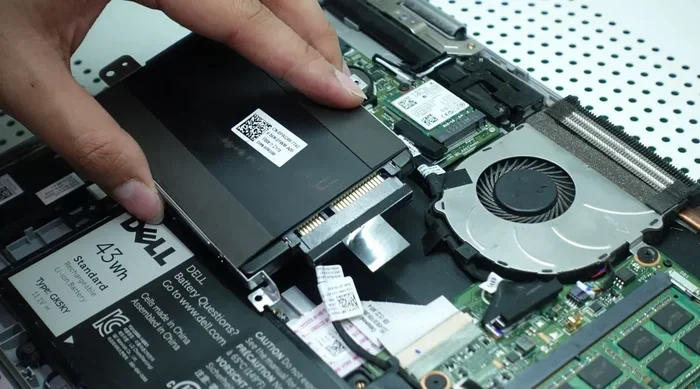
If you are replacing a 2.5 inch drive, carefully disconnect the SATA cables and remove the mounting bracket. Slide the new SSD into the same position and secure it with the bracket. Reconnect the SATA cables and put the panel back on.
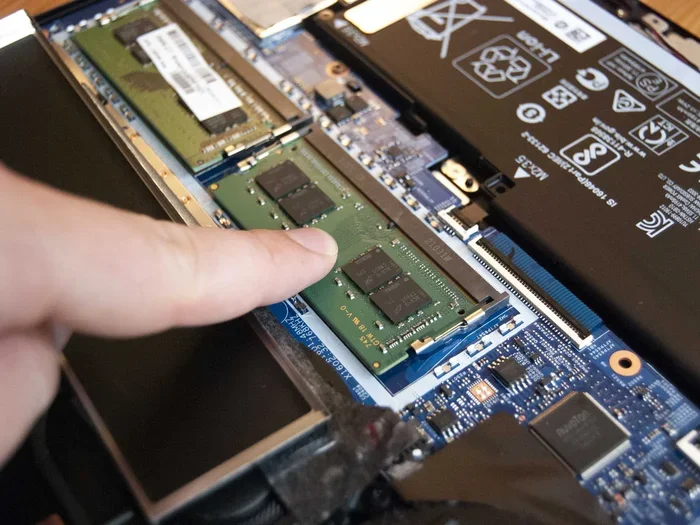
If you are installing an M.2 SSD, locate the M.2 slot on the motherboard. Remove the mounting screw at one end of the slot. Align the notches on the M.2 SSD with the slot. Gently insert the drive at a slight angle and press it down flat. Secure it with the mounting screw. That is it for the physical part.
Software Setup
After the physical installation, you need to set up the software. If you cloned your old drive, the new SSD should already have your operating system and files on it. Power on the laptop and enter the BIOS by pressing the appropriate key during startup (usually F2, F12, Del, or Esc).
In the BIOS settings, check that the new SSD is detected. You may need to adjust the boot order so the laptop boots from the new drive first. Save the settings and exit the BIOS. Your laptop should boot up normally from the new SSD.
If you did not clone the drive, you will need to install the operating system fresh. Insert a USB installation drive, boot from it, and follow the on-screen prompts. Make sure you select the new SSD as the destination drive during the setup process.
After the operating system is installed, install the latest drivers from the laptop manufacturer website. You can also run disk optimization tools to make sure your SSD performs at its best.
Common Mistakes to Avoid
One of the biggest mistakes people make is buying an SSD without checking compatibility. They assume that because it is an SSD, it will work in any laptop. This is not true. Always verify the form factor, interface, and slot type before you buy.
Another common mistake is forgetting to back up data before the installation. Even experienced users can run into issues during a hard drive replacement. A simple backup to an external drive or cloud storage can save you a lot of headaches.
Some users buy the wrong M.2 key type. The B key and M key slots look similar but support different types of drives. Always double-check which key type your laptop uses. Buying the wrong one means the drive will not work, even if the form factor is correct.
Do not forget about the operating system license. In most cases, your Windows license is tied to the motherboard, so you can transfer it to a new SSD without any issues. But if you are using a different operating system, check the licensing terms before you switch drives.
Finally, avoid touching the gold contacts on the SSD. Oils from your fingers can cause connection issues over time. Handle the drive by the edges and keep it in its anti-static bag until you are ready to install it.
Final Thoughts
So, can you put any SSD in any laptop and make it work? The honest answer is no, not without checking compatibility first. The type of SSD you need depends on your laptop model, its storage interface, and its available slots. But once you know what your laptop supports, the upgrade process is straightforward and incredibly rewarding.
An SSD upgrade is one of the most impactful things you can do for an older laptop. It brings new life to a slow machine. Apps launch faster, files transfer quicker, and the whole system feels more responsive. Whether you choose a SATA SSD or an NVMe SSD, you will notice the difference right away.
Take your time, do your research, and follow the steps in this guide. Check your laptop model, verify the storage interface, pick the right form factor, and install the drive carefully. With the right SSD upgrade, your laptop will feel like new again.
Do not let confusion hold you back. The world of laptop storage has become much simpler over the years. You just need a little knowledge and the right tools. Now you have both. Go ahead and give your laptop the speed boost it deserves.
Frequently Asked Questions
What happens if you put the wrong SSD in a laptop?
If you install an SSD that is not compatible with your laptop, it simply will not work. The drive may not be detected in the BIOS, or it may not physically fit in the slot. In some cases, using the wrong SSD can cause errors or prevent the laptop from booting. Always check your laptop specs before buying.
Can I upgrade my laptop HDD to any SSD?
You can upgrade from a hard drive to an SSD, but you need to match the right type. Check whether your laptop uses a 2.5 inch SATA drive bay or an M.2 slot. Then buy an SSD that matches that interface. The upgrade process itself is usually simple and very rewarding.
Do I need to reinstall Windows after replacing my laptop SSD?
Not if you use disk cloning software to copy your old drive to the new one. Cloning transfers your entire operating system, apps, and files to the new SSD. If you do not clone, you will need to install Windows fresh on the new drive.
Is NVMe always faster than SATA SSDs?
Yes, NVMe SSDs are significantly faster than SATA SSDs in terms of read speed and write speed. However, for everyday tasks like web browsing and office work, the difference may not be very noticeable. NVMe drives shine in heavy workloads like video editing and large file transfers.
How do I know if my laptop has an M.2 slot?
Check your laptop model specifications on the manufacturer website. Look for storage or expansion details. You can also open the laptop and visually inspect the motherboard for an M.2 slot. It looks like a small connector with a screw mount. Your laptop manual will also list the supported slot types.
Can I use a 2.5 inch SSD in a laptop that only has an M.2 slot?
No, you cannot. A 2.5 inch SSD requires a SATA data and power connection that is not available in an M.2 slot. You need to use an SSD that matches the slot type in your laptop. Always match the form factor to your laptop’s available storage interface.