Can You Factory Reset A Locked Asus Laptop Step By Step
Yes, you can factory reset a locked Asus laptop even without knowing the password. This guide covers four proven methods, from using the recovery partition to advanced command prompt tricks. Each method is explained in simple, clear steps so you can restore your laptop to factory settings quickly and safely.
Have you ever been stuck staring at a locked Asus laptop screen, wondering if there is any way out? You are not alone. Many people face this exact problem every single day. The good news is that you can indeed factory reset a locked Asus laptop. Whether you forgot your password, bought a secondhand device, or your laptop got locked due to a security issue, this guide will walk you through every method that actually works.
In this article, we will cover how to factory reset a locked Asus laptop using several different approaches. Each method is explained in simple steps so anyone can follow along. We will also share quick tips, common mistakes to avoid, and expert advice to make the process as smooth as possible. By the end, you will know exactly which method suits your situation best.
A factory reset wipes your laptop clean and restores it to the original settings it had when you first unboxed it. This means all your files, apps, and personal data get removed. It is a powerful solution when you cannot access your device normally. Let us dive into the details and explore each method step by step.
Key Takeaways
- Multiple Methods Available: You can reset a locked Asus laptop using the recovery partition, login screen options, Windows installation media, or command prompt.
- No Password Needed: Each method works even when you do not know the login password or cannot access the locked screen.
- Back Up First: Always try to back up your data before performing a factory reset, if at all possible.
- Avoid Common Mistakes: Skipping backups or choosing the wrong reset option can lead to data loss or a failed reset.
- Expert Tips Help: Small details like pressing the right key at boot or using safe mode can make the process much smoother.
📑 Table of Contents
- Why You Might Need to Factory Reset a Locked Asus Laptop
- What Happens When You Factory Reset a Locked Asus Laptop
- Method 1: Using the Asus Recovery Partition
- Method 2: Factory Reset Through the Login Screen
- Method 3: Using Windows Installation Media or Command Prompt
- Comparison of Reset Methods
- Common Mistakes to Avoid When Resetting a Locked Asus Laptop
- Expert Tips for a Smooth Factory Reset
- Conclusion
Why You Might Need to Factory Reset a Locked Asus Laptop
There are many reasons why your Asus laptop might be locked and you need a factory reset. Understanding your situation helps you pick the right method. Here are the most common reasons people find themselves in this spot.
Forgot Your Password
This is the number one reason. You set a password months ago, and now your brain simply will not remember it. Maybe you used a complex factory reset password that you thought you would never forget. Or perhaps someone else set the password and they are not around anymore.
Bought a Secondhand Laptop
If you purchased a used Asus laptop, the previous owner may not have removed their account. You are stuck at the login screen with no way in. A hard reset Asus approach lets you start fresh with your own credentials.
Laptop Locked After Too Many Failed Attempts
Windows locks your account after several wrong password attempts. This is a security feature, but it can feel like a trap. You might see a message saying your account is temporarily blocked or disabled.
Child or Family Member Locked the Device
Sometimes a curious child changes the password or locks the device. In other cases, a family member set up a Windows reset options screen that you cannot navigate. A full reset solves this quickly.
Malware or Virus Locked Your System
In some cases, harmful software locks your laptop and demands payment to unlock it. A factory settings restore removes the threat completely by wiping the system clean.
What Happens When You Factory Reset a Locked Asus Laptop
Before you start, it is important to understand what a factory reset actually does. Knowing the outcome helps you make the right decision.
All Data Gets Deleted
A factory reset removes everything from your laptop. Your personal files, photos, documents, downloaded apps, and saved passwords all get wiped. This is why data backup before reset is so important whenever possible.
Windows Gets Reinstalled
The operating system gets restored to its original state. Your Asus laptop will run the same version of Windows it came with, or the version currently installed, depending on your method.
All Apps and Settings Get Removed
Every program you installed, every setting you changed, and every personalization you added will be gone. The laptop will feel brand new, just like the day you bought it.
Your Microsoft Account Gets Unlinked
A reset removes the connection to your Microsoft account. After the reset, you will set up the laptop as if it were new, creating a fresh account.
Recovery Partition May Be Used
Many Asus laptops come with a hidden recovery partition on the hard drive. This partition contains the original factory image. Using it is one of the fastest ways to perform a power wash Asus reset.
Method 1: Using the Asus Recovery Partition
The recovery partition is a hidden section on your laptop’s hard drive. It contains a backup of the original factory settings. This is often the easiest way to perform a hard reset Asus without needing any special tools.
Step-by-Step Instructions
Follow these steps carefully to use the recovery partition for your Asus laptop reset:
- Turn off your laptop completely. Do not put it to sleep or hibernate.
- Press the power button to turn it on.
- Immediately start tapping the F9 key repeatedly as soon as you see the Asus logo. Do not wait.
- The Windows Recovery Environment should appear on screen.
- Select your keyboard layout and click Next.
- Click on “Troubleshoot” from the options on the screen.
- Select “Reset this PC” from the list of options.
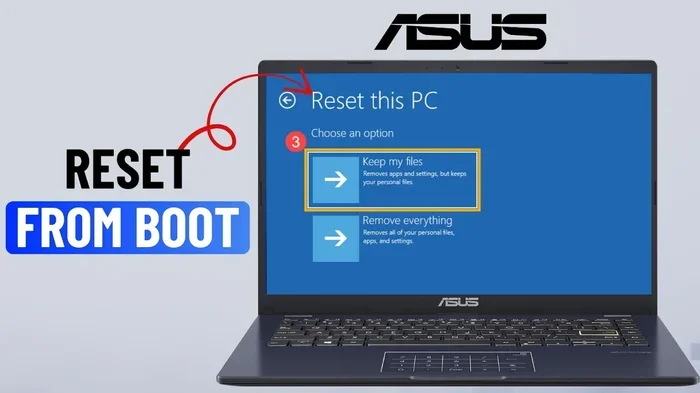
- Choose “Remove everything” if you want a complete factory reset.
- Follow the on-screen prompts to confirm and start the reset process.
- Wait for the process to complete. This can take anywhere from 20 minutes to over an hour depending on your laptop model.
Quick Tips for Recovery Partition Reset
- If F9 does not work, try pressing the Asus recovery key which is sometimes F10 on certain models.
- Make sure your laptop is plugged into power during the reset. A power outage can cause serious problems.
- If the recovery partition is damaged or missing, try Method 2 or Method 3 instead.
- Some newer Asus models use a combination of Alt + F10 instead of just F9.
Expert Insight
According to Asus support reset guidelines, the recovery partition method works on most Asus laptops from 2015 onward. However, if your laptop was never set up with a recovery partition, this method will not work. Always check that the recovery partition exists before relying on this approach.
Method 2: Factory Reset Through the Login Screen
Many people do not know that Windows offers a built-in Windows reset options feature accessible from the login screen. This method works on most Windows 10 and Windows 11 systems.
Step-by-Step Instructions
Here is how to access the reset options from the locked login screen:
- On the login screen, look for the Power icon in the bottom right corner.
- Press and hold the Shift key on your keyboard.
- While holding Shift, click the Power icon and select Restart.
- Your laptop will reboot into the Windows Recovery Environment.
- Select “Troubleshoot” from the menu that appears.
- Click on “Reset this PC”.
- Choose “Remove my files” for a quick reset or “Remove everything” for a thorough reset.
- Follow the prompts to complete the factory settings restore process.
This method is very convenient because it does not require any special tools or USB drives. It works directly from the locked screen you are already looking at.
Quick Tips for Login Screen Reset
- If the Power icon is not visible, try using the on-screen keyboard to access it.
- Make sure you are on the correct screen. The Shift + Restart trick only works from the login or lock screen.
- If your laptop has a touchscreen, you can still use this method by holding Shift and tapping Restart from the power menu.
Common Mistakes to Avoid
- Do not release the Shift key too early. Hold it until the recovery menu appears.
- Do not choose “Go back to the previous version.” This does not reset your laptop and will not solve a locked screen problem.
- Do not skip the backup step. Even if you think you do not have important files, double-check first.
Method 3: Using Windows Installation Media or Command Prompt
When the first two methods do not work, you can use a Windows installation USB or access the administrator command prompt to perform the reset. This method works even when the recovery environment is not accessible.
What You Will Need
- A USB flash drive with at least 8 GB of storage.
- Another computer to create the installation media.
- A copy of the Windows ISO file from the Microsoft website.
Creating Windows Installation Media
- Go to the Microsoft website on another computer.
- Download the Media Creation Tool.
- Run the tool and select “Create installation media for another PC.”
- Choose your language and Windows version.
- Select USB flash drive as the media type.
- Insert your USB drive and wait for the tool to finish.
Using the Installation Media to Reset
- Insert the USB drive into your locked Asus laptop.
- Turn on the laptop and press the boot menu key (usually F12 or Esc).
- Select the USB drive from the boot menu.
- Wait for Windows Setup to load.
- Click “Repair your computer” when you see the option.
- Go to Troubleshoot > Reset this PC.
- Choose “Remove everything” and follow the prompts.
Using Command Prompt for Advanced Users
If you are comfortable with technical steps, you can use the administrator command prompt to reset the Windows reset password or force a reset. This method is more advanced but very effective.
- Boot from the Windows installation USB.
- Select “Repair your computer.”
- Choose Troubleshoot > Advanced Options > Command Prompt.
- Type the following command and press Enter:
cd C:\Windows\System32 - Rename the utilman.exe file by typing:
rename utilman.exe utilman.exe.bak - Copy cmd.exe as utilman.exe by typing:
copy cmd.exe utilman.exe - Restart your laptop.
- On the login screen, click the Ease of Access icon. This will open the command prompt as administrator.
- Type “net user” to list all users or “net user [username] [newpassword]” to reset the password.
- Log in with the new password and then go to Settings > Recovery > Reset this PC.
Expert Insight
The command prompt method is powerful but requires careful typing. One wrong character can cause errors. If you are not comfortable with this approach, stick to Methods 1 or 2. Many people also use this method as a safe mode reset pathway when normal access is blocked.
Comparison of Reset Methods
Not all reset methods work the same way for every situation. Here is a comparison table to help you choose the best method for your locked Asus laptop.
| Method | Difficulty | Tools Needed | Success Rate | Best For |
|---|---|---|---|---|
| Recovery Partition (F9) | Easy | None | High | Laptops with intact recovery partition |
| Login Screen Reset | Easy | None | Medium | Windows 10/11 with Shift access |
| Windows Installation USB | Medium | USB drive, another PC | High | Damaged recovery partition |
| Command Prompt | Advanced | USB drive, technical knowledge | Very High | Experienced users, password reset |
As you can see, each method has its strengths. The recovery partition method is the easiest but requires the partition to be intact. The command prompt method is the most powerful but requires more technical skill. Choose the one that matches your comfort level and situation.
Common Mistakes to Avoid When Resetting a Locked Asus Laptop
Even with the right method, mistakes can happen. Here are the most common errors people make when trying to factory reset a locked Asus laptop and how to avoid them.
Skipping the Backup Step
This is the biggest mistake. Even if you think your data is gone, some files may still be recoverable. If you have even a small chance of saving your files, try connecting the hard drive to another computer as an external drive first.
Using the Wrong Boot Key
Not all Asus laptops use the same key to access the boot menu or recovery environment. While F9 is common for recovery, the boot menu key is often F12 or Esc. Check your specific model online if the standard keys do not work.
Interrupting the Reset Process
A factory reset takes time. Your laptop may restart several times during the process. Do not turn it off or unplug it. Interrupting the process can corrupt your system and make things worse.
Choosing the Wrong Reset Option
When you see “Reset this PC,” you usually get two choices: “Keep my files” and “Remove everything.” If your laptop is locked and you cannot log in, “Keep my files” may not work. Always choose “Remove everything” for a complete factory settings restore.
Ignoring the Power Source
Never perform a factory reset on battery power alone. If your laptop dies mid-reset, it can cause permanent damage. Always keep your laptop plugged into a power outlet during the entire process.
Not Updating After the Reset
After the reset is complete, your laptop will need updates. Go to Settings > Update & Security and check for updates immediately. Running an outdated system after a reset leaves your laptop vulnerable.
Expert Tips for a Smooth Factory Reset
Here are some expert-backed tips to make your Asus laptop reset experience as smooth and successful as possible.
Prepare Before You Start
- Charge your laptop to at least 50% or keep it plugged in.
- Write down your model number. You can find it on the bottom of the laptop or in the system settings.
- Have your Windows product key ready if you need to reinstall Windows manually.
- Know your Microsoft account details so you can set up the laptop after the reset.
Use Safe Mode When Possible
If you can access safe mode, many reset options become available. To enter safe mode, restart your laptop and press F8 or Shift + F8 repeatedly during boot. Safe mode gives you access to the command prompt and other tools that can help with the reset.
Try a Soft Reset First
Before performing a full factory reset, try a soft reset. This simply restarts your laptop and can sometimes clear temporary locks or glitches. Hold the power button for 10 seconds to force a shutdown, then turn it back on.
Contact Asus Support If Needed
If none of the methods work, do not force it. Contact Asus support reset teams for guidance. They can provide model-specific instructions and may offer remote assistance. You can reach Asus support through their website or by calling their customer service line.
Consider Cloud Reset Options
If your laptop was linked to a Microsoft account, you may be able to use a cloud reset Windows feature. Go to another device, sign in to your Microsoft account, and look for “Find my device.” This can sometimes trigger a remote reset of your locked laptop.
Key Takeaways
- Multiple methods exist for resetting a locked Asus laptop, ranging from simple to advanced.
- The recovery partition method (F9) is the easiest and fastest for most users.
- The login screen Shift + Restart trick works well on Windows 10 and 11.
- Windows installation media is a reliable backup method when other options fail.
- The command prompt method is powerful but requires technical comfort.
- Always back up data first and keep your laptop plugged in during the reset.
- Avoid common mistakes like interrupting the process or choosing the wrong reset option.
Conclusion
Factory resetting a locked Asus laptop is absolutely possible, and you have several proven methods to choose from. Whether you use the recovery partition, the login screen options, Windows installation media, or the command prompt, each method can get the job done. The key is to stay calm, follow the steps carefully, and pick the method that matches your situation.
Remember that a factory reset removes all your data, so always try to back up what you can before starting. If you are unsure about any step, reach out to Asus support for help. They are there to guide you through the process.
With the right approach and a little patience, you can restore your Asus laptop to its original factory settings and start fresh. Do not let a locked screen keep you from using your device. Pick the method that works best for you and get started today. Your laptop will be running like new in no time.
Frequently Asked Questions
Can I factory reset my Asus laptop without a password?
Yes, absolutely. All the methods described in this guide work without needing the current password. Whether you use the recovery partition, the login screen reset, Windows installation media, or the command prompt, none of them require you to know the existing password. This is exactly why these methods are so helpful when you are locked out.
How long does it take to factory reset a locked Asus laptop?
The process typically takes between 30 minutes and 2 hours. The recovery partition method is usually the fastest, while the command prompt method may take longer. The exact time depends on your laptop model, the amount of data on the drive, and the speed of your processor. Make sure your laptop is plugged in and do not interrupt the process.
Will I lose all my files after a factory reset?
Yes, a full factory reset removes all files, apps, and personal data from your laptop. This is by design. If you still have some access to your files, try backing them up to an external drive or cloud storage before starting the reset. If your laptop is completely locked, unfortunately, the data will be lost after the reset.
What is the Asus recovery key for factory reset?
The most common recovery key for Asus laptops is F9. However, some models use F10, Alt + F10, or the Novo button (a small pinhole button usually located near the power port). Check your specific Asus model online if F9 does not work. The Novo button is especially common on newer Asus models.
Can I reset my Asus laptop if the recovery partition is damaged?
Yes, you can still reset your laptop even if the recovery partition is damaged or missing. Use the Windows installation USB method (Method 3) to access the reset options. You will need a USB flash drive and access to another computer to create the installation media. This method bypasses the recovery partition entirely.
Do I need the original Windows product key after a factory reset?
In most cases, no. If your laptop came with Windows pre-installed, the product key is linked to your motherboard and is automatically detected during the reset process. However, if you installed Windows yourself or upgraded from an older version, you may need to enter the product key manually. You can find your product key using a command prompt or a third-party tool before the reset.