Can We Extend Wifi By Wire Proven Ways To Boost Signal
Yes, you can absolutely extend wifi by wire and get better signal throughout your home. Using ethernet cables, powerline adapters, and wired access points is one of the most reliable ways to improve your wireless coverage. This guide walks you through every method with practical tips and real-world examples.
Have you ever walked into a room and found your wifi signal completely drops? Maybe your bedroom, basement, or backyard becomes an internet dead zone no matter what you do. It is frustrating when your broadband signal works fine in one room but vanishes the moment you step into the next.
The good news is that you can extend wifi by wire and solve this problem for good. Wired methods are often faster and more reliable than wireless solutions. In this guide, we will explore every proven way to boost your signal using cables and hardware you can buy today.
Whether you are dealing with a large home, thick walls, or just a spotty connection, wired network extension can make a huge difference. Let us dive into the methods that actually work.
Key Takeaways
- Wired extension beats wireless boosters: Ethernet and powerline adapters deliver faster, more stable connections than most wireless repeaters.
- Powerline adapters are easy to set up: You just plug them into wall outlets and connect devices with a cable.
- Ethernet backhaul gives the best speed: Running a cable from your router to an access point provides the strongest signal boost.
- Mesh systems can use wired backhaul too: This combines the convenience of mesh with the speed of a wired connection.
- Old coaxial cables can help: MoCA adapters let you use existing TV cables to extend your network.
- Avoid common placement mistakes: Router location and cable quality matter a lot for results.
- Test your signal after setup: Use speed tests to confirm your wired extension actually improved performance.
📑 Table of Contents
- Why Wired Wifi Extension Beats Wireless Boosters
- Method 1: Ethernet Cable Extension
- Method 2: Powerline Adapters
- Method 3: MoCA Adapters Over Coaxial Cable
- Method 4: Mesh Systems With Wired Backhaul
- Method 5: Access Point Mode on a Second Router
- Comparing Wired Extension Methods
- Common Mistakes to Avoid
- Quick Tips for Maximum Signal Boost
- How to Know If Wired Extension Is Working
- Final Thoughts
Why Wired Wifi Extension Beats Wireless Boosters
Most people reach for a wifi range extender when their signal gets weak. And that is not a bad idea. But wired methods have some serious advantages that wireless boosters simply cannot match.
Speed and Stability
When you extend wifi wirelessly, you lose speed. The extender has to receive the signal and then rebroadcast it. This cuts your bandwidth in half in many cases. A wired connection does not have this problem.
With an ethernet cable or a powerline adapter, your data travels through a physical medium. This means less interference and more consistent network speed. You get the full strength of your internet plan delivered to every corner of your home.
Lower Latency
Latency is the delay between sending a request and getting a response. Gamers and video callers know this as lag. Wireless boosters add latency because of the extra hop. Wired connections keep latency low.
If you play online games or join video meetings, a wired connection will feel noticeably smoother. Even streaming high-quality video benefits from the reduced delay.
Reliability
Wireless signals bounce around your home. They hit walls, furniture, and appliances. All of this causes drops and slowdowns. A LAN cable or a wired access point does not face these problems.
Once you set up a wired extension, it just works. No reconnecting, no signal fluctuations. It is the most dependable way to expand your wireless coverage.
Method 1: Ethernet Cable Extension
The simplest and most effective way to extend wifi by wire is with an ethernet cable. You run a cable from your router to a new location and connect an access point or a router there.
What You Need
- An ethernet cable (Cat5e or Cat6 recommended)
- A wireless access point or a second router set to access point mode
- A cable long enough to reach from your router to the desired location
How to Set It Up
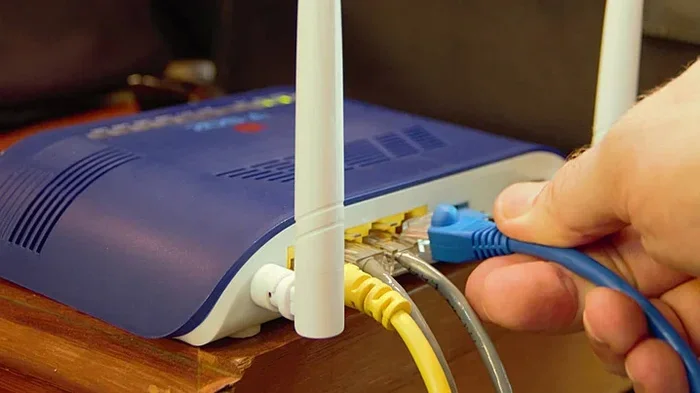
First, plug one end of the ethernet cable into your main router. Run the cable to the room where you need better coverage. Connect the other end to your access point or second router.
If you are using a second router, log into its settings and switch it to access point mode. This turns it into a simple signal broadcaster. It will create a new wifi network or extend your existing one.
When This Works Best
Ethernet extension is ideal when you can route a cable along a baseboard, through a wall, or along a hallway. It works great for home offices, game rooms, or any spot where you need rock-solid signal strength.
Quick tip: Use a cable cover or flat cable to keep it neat and safe. You do not want someone tripping over it.
Method 2: Powerline Adapters
Not everyone can run an ethernet cable through their home. That is where powerline adapters come in. These clever devices use your home’s existing electrical wiring to carry data.
How Powerline Adapters Work
You buy a pair of powerline adapters. Plug one into an outlet near your router and connect it with a short ethernet cable. Plug the second adapter into an outlet in the room where you need better coverage.
The first adapter sends your network signal through the electrical wiring. The second adapter receives it and broadcasts a new wifi signal or provides a wired connection.
Setting Up Powerline Adapters
- Plug adapter A into an outlet near your router.
- Connect adapter A to your router using an ethernet cable.
- Plug adapter B into an outlet in the weak signal area.
- Wait for the power lights to show a solid connection.
- Connect your device to the wifi network broadcast by adapter B.
Pros and Cons
Powerline adapters are super easy to set up. No drilling holes or running cables. They work through most homes without any extra effort. However, performance depends on your electrical wiring. Older homes with thin wiring may see slower speeds.
Also, avoid plugging adapters into power strips. Direct wall outlet connections give the best results. Surge protectors can block the signal.
Method 3: MoCA Adapters Over Coaxial Cable
Did you know your home might already have cables that can carry network data? If you have coaxial cables from your TV setup, you can use MoCA adapters to extend your network through them.
What Are MoCA Adapters
MoCA stands for Multimedia over Coax Alliance. These adapters turn your existing TV cables into high-speed data lines. They are especially useful in homes where coaxial wiring is already in place.
MoCA adapters can deliver speeds up to 2.5 Gbps on some models. That is fast enough for 4K streaming, gaming, and large file transfers.
Setting Up MoCA Adapters
- Plug one MoCA adapter near your router and connect it with an ethernet cable.
- Connect a coaxial cable from that adapter to the second adapter.
- Plug the second adapter into a coaxial outlet in the weak coverage area.
- Connect the second adapter to an access point or use it as a wired connection point.
This method is fantastic for homes that already have coaxial wiring but no ethernet ports. It gives you a hidden, reliable way to boost signal without adding new cables.
Method 4: Mesh Systems With Wired Backhaul
Mesh wifi systems have become very popular. They use multiple nodes placed around your home to create seamless wireless coverage. But did you know you can make them even better with wired backhaul?
What Is Wired Backhaul
Most mesh systems use wireless backhaul. That means the nodes talk to each other over wifi. This works but it cuts speed with every hop. Wired backhaul connects the nodes using ethernet cables.
When you use ethernet backhaul with a mesh system, every node gets full speed from the router. The result is faster connections everywhere in your home.
How to Set Up Wired Backhaul
First, buy a mesh system that supports ethernet backhaul. Most modern systems like Google Nest Wifi, Eero Pro, and Netgear Orbi do. Then, run ethernet cables from your main router to each satellite node.
Some mesh systems have a dedicated backhaul port. Others use any ethernet port. Check your specific model for details. The setup process is usually simple and well-documented.
Who Should Use This Method
Wired backhaul with a mesh system is perfect for large homes or homes with many connected devices. If you have smart home gadgets, multiple phones, and several computers, wired mesh backhaul will keep everything fast and stable.
Method 5: Access Point Mode on a Second Router
If you have an old router lying around, you can turn it into a wired access point. This is one of the most budget-friendly ways to extend wifi by wire.
What You Need
- An old router (any brand works)
- An ethernet cable to connect it to your main router
- Access to the router’s admin settings
Steps to Configure Access Point Mode
- Connect the old router to your main router using an ethernet cable.
- Log into the old router’s admin panel (usually 192.168.1.1 or 192.168.0.1).
- Disable DHCP on the old router. This prevents IP conflicts.
- Assign a static IP address to the old router within your main router’s range.
- Set the wifi name and password to match your main network.
- Save settings and reboot the old router.
Now your old router broadcasts the same network as your main router. Devices will seamlessly switch between the two as you move around your home.
Expert Insight
Many people skip the DHCP step, and that causes problems. When two routers both hand out IP addresses, your devices get confused. Always disable DHCP on the secondary router to avoid this issue.
Comparing Wired Extension Methods
Not every method works for every home. Here is a quick comparison to help you choose the right one.
| Method | Speed | Ease of Setup | Best For |
|---|---|---|---|
| Ethernet Cable | Gigabit speeds | Moderate (requires cabling) | Homes with accessible routes for cables |
| Powerline Adapter | 200 Mbps to 1 Gbps | Very easy | Homes where running cables is hard |
| MoCA Adapter | Up to 2.5 Gbps | Easy | Homes with existing coaxial wiring |
| Mesh with Wired Backhaul | Gigabit speeds | Moderate | Large homes with many devices |
| Access Point Mode | Gigabit speeds | Moderate (requires setup) | Budget-friendly extension with old routers |
As you can see, each method has its strengths. Your choice depends on your home layout, budget, and how much effort you want to put in.
Common Mistakes to Avoid
Even with the best method, mistakes can hurt your results. Here are some common errors people make when trying to extend wifi by wire.
Using Low-Quality Cables
Cheap cables can limit your speed and cause connection drops. Always use Cat5e or Cat6 cables for ethernet runs. They support gigabit speeds and handle interference well.
Placing the Access Point in a Bad Spot
Your access point or second router should be in a central location within the area you want to cover. Hiding it inside a closet or behind a TV can weaken the signal it broadcasts.
Ignoring Firmware Updates
Old firmware can cause performance issues and security vulnerabilities. Always check for updates on your router, access point, and adapters before setting everything up.
Overloading a Single Power Outlet
For powerline adapters, avoid using outlets shared with high-power devices like microwaves or refrigerators. Electrical noise from these devices can interfere with the data signal.
Quick Tips for Maximum Signal Boost
- Test your current signal first. Use a free internet speed test app to find your weak spots before you start.
- Keep cables short and straight. Long ethernet runs can reduce speed. Stay under 100 meters for best results.
- Use a cable tester. After running a cable, test it to make sure all connections are solid.
- Label your cables. If you have multiple cables running through your home, label them at both ends for easy troubleshooting.
- Restart your network after setup. A fresh restart helps all devices recognize the new connections properly.
- Run a speed test after setup. Compare results before and after to confirm your wired extension made a difference.
How to Know If Wired Extension Is Working
After you set up your wired network extension, you need to verify it actually helps. Do not just guess. Use real data.
Run an internet speed test in the areas that were previously weak. Compare the results to what you got before. You should see improved download speeds, lower latency, and fewer disconnects.
Walk around your home with your phone or laptop and check the signal bars. If you see full or strong bars in rooms that used to show one or two bars, your wired extension is working.
For the most thorough test, use a tool like WiFi Analyzer or NetSpot. These apps show you signal strength across your entire home on a visual map. They help you confirm that every dead zone is now covered.
Final Thoughts
Extending your wifi by wire is one of the smartest upgrades you can make to your home network. It is faster, more stable, and more reliable than most wireless-only solutions. Whether you choose ethernet cables, powerline adapters, MoCA, or wired mesh backhaul, the results speak for themselves.
Start with the method that fits your home and budget. Follow the setup steps carefully. Avoid the common mistakes we covered. And always test your results after installation.
With the right wired setup, you can say goodbye to internet dead zones for good. Your network speed and signal strength will improve dramatically. Give it a try and feel the difference in every room of your home.
Frequently Asked Questions
Can I extend my wifi using just a longer ethernet cable?
Yes, you can. A single long ethernet cable can connect your router directly to a device in another room. However, standard ethernet cables work best up to 100 meters (about 328 feet). Beyond that, you may need a switch or repeater to maintain speed.
Are powerline adapters as fast as ethernet cables?
Not quite. Powerline adapters usually deliver lower speeds than a direct ethernet connection. Their performance depends on your home’s electrical wiring quality. In ideal conditions, they can reach near-gigabit speeds, but real-world results vary.
Do I need special equipment to set up a wired access point?
You need a second router or a dedicated wireless access point and an ethernet cable. Most modern routers have an access point mode built into their settings. No special equipment is required beyond that.
Can I use MoCA adapters if I do not have coaxial cables?
No, MoCA adapters require existing coaxial wiring in your home. If your home does not have coaxial outlets, this method will not work for you. In that case, powerline adapters or ethernet cables are better alternatives.
Is wired backhaul better than wireless backhaul for mesh systems?
Yes, wired backhaul is significantly better. It provides full speed to every mesh node without losing bandwidth. Wireless backhaul shares the wifi band with your devices, which reduces overall performance.
How much does it cost to extend wifi by wire?
Costs vary by method. Ethernet cables cost under $20 for short runs. Powerline adapters typically run $30 to $80 for a pair. MoCA adapters cost around $50 to $100 for a pair. Mesh systems with wired backhaul can range from $150 to $400 depending on the brand and coverage area.
=== CONCLUSION ===
Extending wifi by wire is a proven, effective way to boost your home network signal. From ethernet cables and powerline adapters to MoCA and wired mesh backhaul, you have several reliable options. Each method offers real speed gains, lower latency, and dependable coverage where you need it most.
Choose the method that fits your home layout and budget. Follow the setup steps carefully, avoid common mistakes, and always test your results. With the right wired approach, you can eliminate dead zones and enjoy fast, stable internet in every room.
Start today. Pick your method, gather your equipment, and give your home the network boost it deserves.