Can I Use Usb To Hdmi Converter For Tv Without Issues
Yes, you can use a USB to HDMI converter for TV, but it depends on your device and the type of USB port you have. A USB to HDMI converter for TV lets you mirror or extend your screen from a laptop, tablet, or desktop to a bigger display. This guide covers everything you need to know about setup, compatibility, and avoiding common problems.
Have you ever wanted to show something from your laptop or tablet on your TV but did not know how? A USB to HDMI converter for TV might be the simple solution you have been looking for. People search for this topic all the time because it promises an easy way to connect devices to a bigger screen. But the real question is, can you use a USB to HDMI adapter for TV without running into problems?
The short answer is yes, in most cases. But there are a few things you need to know first. Not every USB port can send video to a TV. Not every converter works with every device. And not every setup will give you the picture quality you want. This guide walks you through everything step by step. You will learn how these converters work, which devices they fit, and how to avoid the mistakes that trip most people up.
Whether you want to stream movies, give a presentation, or just enjoy your favorite shows on a larger display, understanding your USB to HDMI converter for TV options makes all the difference. Let us dive in.
Key Takeaways
- USB to HDMI converters work with most modern devices: Laptops, desktops, and tablets with USB-C or USB 3.0 ports can connect to TVs easily.
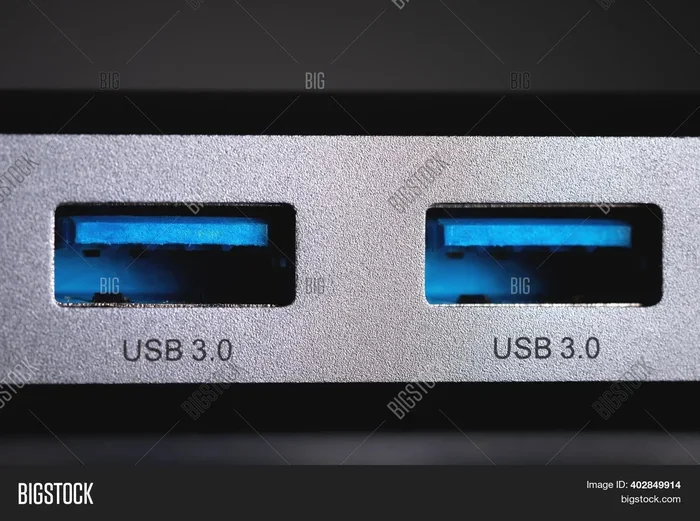
- Not all USB ports support video output: You need a USB port that handles display signals, not just data or charging.
- Plug-and-play models are the easiest to use: Many converters work instantly without installing extra software or drivers.
- Resolution and refresh rate matter: Choose a converter that supports at least 1080p or 4K for a clear picture on your TV.
- Common issues are usually fixable: Driver updates, cable quality, and port selection solve most problems.
- Check your TV’s HDMI input: Make sure your TV has an available HDMI port before buying a converter.
📑 Table of Contents
- What Is a USB to HDMI Converter for TV?
- Which Devices Work with a USB to HDMI Converter?
- How to Choose the Best USB to HDMI Converter for TV
- Step-by-Step Setup Guide for USB to HDMI Converter for TV
- Common Problems and How to Fix Them
- Expert Insights and Pro Tips
- Final Thoughts on Using a USB to HDMI Converter for TV
What Is a USB to HDMI Converter for TV?
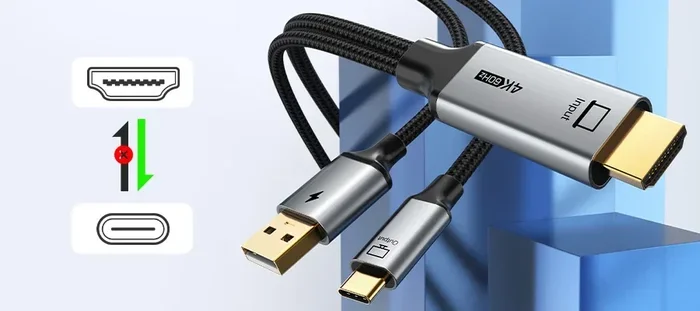
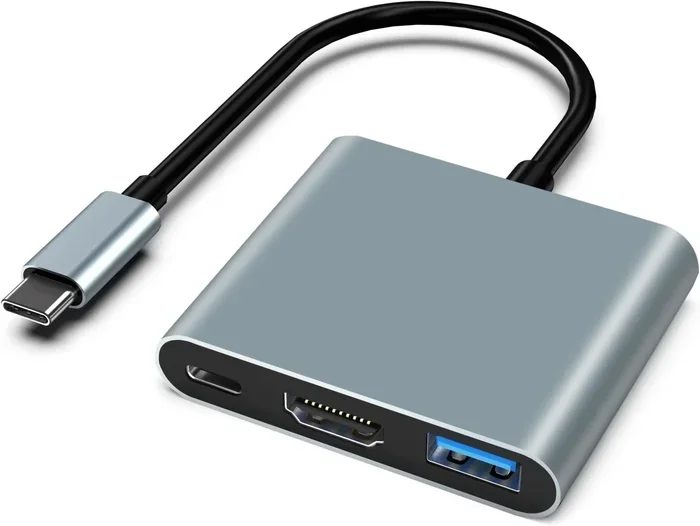
A USB to HDMI converter for TV is a small adapter that changes a USB signal into an HDMI signal. This lets you send video and audio from your computer or tablet to your television through a standard HDMI cable. Think of it as a bridge between your device and your TV.
Most converters come as a small dongle or cable adapter. You plug one end into your device’s USB port and the other end connects to an HDMI cable. That cable then plugs into your TV. Some models are super simple and just work right away. Others may need a driver or a quick software install.
How Does the Signal Conversion Work?
Inside the converter, a tiny chip handles the signal conversion. It takes the data coming from the USB port and turns it into a video and audio signal that your TV understands. The TV then displays that signal on the screen.
There are two main types of USB ports that matter here. The first is USB-A, the classic rectangular port found on older laptops and desktops. The second is USB-C, the smaller, oval-shaped port found on newer laptops, tablets, and phones. USB-C to HDMI converters are the most popular type today because they support both video and data on a single cable.
Some converters also include a power supply or draw power from the USB port itself. This is important because sending a video signal takes energy. Without enough power, you may get a blank screen or a flickering picture.
Which Devices Work with a USB to HDMI Converter?
Not every device plays nice with a USB to HDMI adapter for TV. Compatibility depends on your device’s operating system, its USB port type, and the converter model. Here is a breakdown of what typically works.
Laptops and Desktops
Most modern laptops and desktops can use a USB to HDMI converter for TV. Windows laptops with USB-C ports are usually the easiest to set up. Many Windows machines recognize the converter right away. You plug it in, and the TV shows your screen.
Older laptops with USB-A ports may need a converter that includes its own graphics chip. These are often called “active adapters.” They do the heavy lifting of creating the video signal themselves. Without that chip, a plain USB-A to HDMI cable will not work for video output.
MacBooks and iMacs also work with many USB-C to HDMI converters. Apple devices generally support HDMI output through USB-C. However, you should check your specific Mac model to confirm compatibility before buying.
Tablets and Phones
Android tablets with USB-C ports can often use a USB to HDMI converter for TV for screen mirroring. Samsung tablets, Google Pixel devices, and many others support this feature natively. iPhones and iPads are trickier because Apple uses its own proprietary connector. You would need a Lightning or USB-C to HDMI adapter made specifically for Apple devices.
Gaming Consoles and Streaming Boxes
Some people use USB to HDMI converters for gaming or streaming setups. However, most gaming consoles already have built-in HDMI outputs. So this is mainly useful for PCs or devices that lack a native HDMI port.
How to Choose the Best USB to HDMI Converter for TV
Not all converters are created equal. The market is full of cheap options that promise great results but fall short. Here is what to look for when shopping for a USB to HDMI adapter for TV.
Check the Resolution Support
The resolution your converter supports directly affects your picture quality. If you want sharp, clear images, look for a converter that supports at least 1080p Full HD. Better yet, go for one that handles 4K resolution at 30Hz or 60Hz. This matters a lot if you plan to watch movies or play games on your TV.
Cheap converters often only support 720p or 1080p at lower refresh rates. The picture may look blurry or laggy. Spending a little more on a quality brand pays off in the long run.
Look for Plug-and-Play Compatibility
The best USB to HDMI converter for TV setups are the ones that work without fuss. Plug-and-play models do not require you to download drivers or install software. You connect the adapter, plug in the HDMI cable, and your TV shows the screen instantly.
Some converters come with a CD or a download link for drivers. These can work well but add an extra step. If you want the simplest experience, stick with plug-and-play options from trusted brands.
Consider Audio Support
Video without sound is frustrating. Make sure your USB to HDMI adapter supports audio transfer along with video. Most modern converters handle this automatically. The audio travels through the HDMI cable to your TV or sound system. But it is worth double-checking before you buy.
Read Reviews and Check Brand Reputation
Before spending money, read customer reviews. Look for converters with high ratings and positive feedback about reliability. Brands like UGREEN, Cable Matters, and Sabrent are well known for producing dependable USB to HDMI converters. Avoid no-name brands with suspiciously low prices.
Step-by-Step Setup Guide for USB to HDMI Converter for TV
Setting up your USB to HDMI converter for TV is straightforward. Follow these steps and you should be watching your content on the big screen in minutes.
- Check your device’s USB port. Identify whether you have USB-A or USB-C. This determines which converter you need.
- Plug the converter into your device. Insert the USB end firmly into your laptop, tablet, or desktop.
- Connect the HDMI cable. Plug one end of the HDMI cable into the converter and the other end into your TV’s HDMI input.
- Switch your TV to the correct input. Use your TV remote to select the HDMI port you plugged the cable into.
- Adjust display settings on your device. On Windows, go to Settings > Display and choose “Extend” or “Duplicate” screen. On Mac, go to System Settings > Displays.
- Test the audio and video. Play a video or open a webpage to make sure both sound and picture are working.
That is it. Most setups take less than five minutes. If your converter is plug-and-play, you should see your screen on the TV immediately after step 4.
Quick Tips for a Smooth Setup
- Use a high-quality HDMI cable to avoid signal loss.
- If the screen is black, try a different USB port on your device.
- Restart both your device and TV if the connection does not work right away.
- Keep your device plugged into power during use, especially for high-resolution output.
Common Problems and How to Fix Them
Even with the best USB to HDMI converter for TV, you might run into some hiccups. Here are the most common issues and their solutions.
No Signal on the TV
This is the number one complaint people have. If your TV shows no signal, first check that the HDMI cable is firmly connected on both ends. Then make sure your TV is set to the right input source. If that does not work, try a different USB port on your device. Some USB ports only supply power and cannot send video signals.
On Windows devices, you may need to update your graphics drivers. Go to Device Manager, find your display adapter, and check for updates. On Mac, make sure your system is up to date.
Flickering or Blurry Picture
A flickering screen usually means the converter is not getting enough power. Try using a converter with an external power supply or a USB hub that provides more current. A blurry picture may mean your resolution settings are wrong. Adjust the display resolution on your device to match what your TV supports.
No Sound Through the TV
If the video works but there is no sound, check your device’s audio output settings. On Windows, right-click the speaker icon in the taskbar and select your HDMI output device. On Mac, go to Sound Preferences and choose the HDMI output.
Converter Overheats
Some cheap converters get hot during extended use. This is not normal and can shorten the lifespan of the adapter. If your converter feels hot to the touch, stop using it and invest in a better quality model. Overheating can also signal a power delivery issue.
Device Not Recognizing the Converter
If your computer does not recognize the USB to HDMI adapter, try plugging it into a different USB port. Avoid using USB hubs if possible, as they can reduce power delivery. You may also need to install the latest drivers from the converter manufacturer’s website.
Expert Insights and Pro Tips
Here are some insider tips that can make your experience with a USB to HDMI converter for TV much smoother.
Always buy from reputable sellers. Counterfeit adapters are a real problem. They may look the same as branded products but use inferior chips that fail quickly. Stick with trusted brands and buy from official stores or authorized retailers.
Understand your USB port’s capabilities. Not all USB-C ports are the same. Some only handle data and charging. Others support video output through protocols like DisplayPort Alt Mode or Thunderbolt. Check your device’s specifications to confirm that your USB port can handle video signals.
Use the converter for its intended purpose. Most USB to HDMI converters are designed for display output, not for capturing video input. If you want to use your TV as a second monitor or mirror your screen, these adapters work great. If you want to capture TV signals on your computer, you need a different type of device entirely.
Keep your firmware updated. Some converters have firmware that can be updated for better performance and compatibility. Check the manufacturer’s website for updates after purchase.
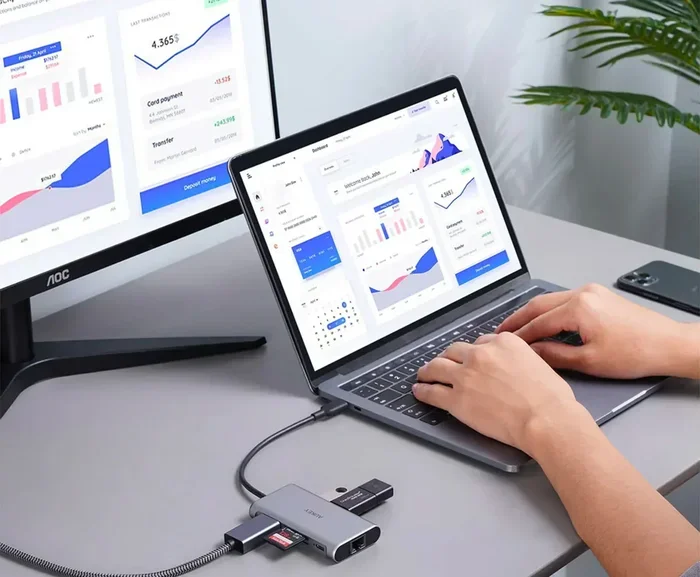
Consider a docking station for frequent use. If you use a USB to HDMI adapter for TV regularly, a docking station might be a better investment. Docks provide multiple ports including HDMI, USB, Ethernet, and charging. They create a permanent connection between your laptop and your TV setup.
Final Thoughts on Using a USB to HDMI Converter for TV
A USB to HDMI converter for TV is a handy and affordable accessory that opens up new ways to use your devices. Whether you want to stream content, share presentations, or simply enjoy a bigger screen, the right converter makes it happen with minimal effort.
The key is to choose a quality adapter that matches your device and your needs. Pay attention to resolution support, audio capability, and compatibility. Follow the setup steps carefully, and you will be up and running in no time.
Most problems people encounter are easy to fix. A loose cable, a wrong display setting, or an outdated driver usually causes them. With a little patience, you can troubleshoot and get everything working perfectly.
So go ahead, grab a USB to HDMI converter for TV, and start enjoying your favorite content on the big screen. You will wonder how you ever managed without it.
Frequently Asked Questions
Can I use any USB to HDMI converter for TV?
Not every converter works with every device. You need to match the converter to your USB port type and your device’s operating system. USB-C converters are the most versatile and work with most modern laptops and tablets. Always check compatibility before buying.
Does a USB to HDMI converter for TV need drivers?
Many modern converters are plug-and-play and do not need drivers. However, some models, especially older or cheaper ones, may require a driver install. Check the product listing or manufacturer website for driver information before purchasing.
Can I use a USB to HDMI converter for TV with a smart TV?
Yes, you can. Smart TVs have standard HDMI inputs just like regular TVs. The converter works the same way regardless of whether your TV is smart or not. You simply select the HDMI input source on your TV.
Will a USB to HDMI converter for TV support 4K resolution?
Some converters support 4K, but not all. Check the product specifications before buying. Look for converters that explicitly list 4K support at 30Hz or 60Hz for the best experience.
Can I charge my device while using a USB to HDMI converter for TV?
This depends on the converter model. Some converters have a passthrough USB port that lets you charge your device while using the HDMI output. Others use the USB port solely for video. Check the product details if you need charging capability.
Is a USB to HDMI converter for TV the same as a streaming stick?
No, they are different devices. A streaming stick like a Chromecast or Roku connects to your TV’s HDMI port and receives content wirelessly. A USB to HDMI converter sends your device’s screen to the TV through a direct cable connection. They serve different purposes.
=== CONCLUSION ===
Using a USB to HDMI converter for TV is a simple and effective way to share your screen on a bigger display. Most modern devices work with these adapters right out of the box. You just need to pick the right model for your setup, follow a few basic steps, and you are good to go.
Remember to check your device compatibility, choose a quality converter, and troubleshoot any issues that come up. With the right USB to HDMI adapter for TV, you can turn any TV into a second monitor, a movie theater, or a presentation screen. The possibilities are endless, and the setup is easier than you think.