Can I Use a Chrome Laptop Without an Internet Connection
Yes, you can use a Chrome laptop without an internet connection. A Chrome laptop without internet still offers many useful features, including offline apps, local file access, and built-in tools. You can work on documents, watch downloaded media, and stay productive even when Wi-Fi is unavailable. This guide covers everything you need to know about using a Chromebook offline effectively.
Can you really use a Chrome laptop without internet? The short answer is yes. Many people assume that a Chrome laptop without internet is nothing more than a fancy paperweight. But that is far from the truth. Chrome OS has come a long way in supporting internet-free computing. You can do a surprising amount of work, play, and creation without ever connecting to Wi-Fi.
Whether you are on a flight, in a remote area, or simply dealing with a spotty connection, knowing what your Chrome laptop offline can do is incredibly valuable. This article walks you through everything. We will cover offline apps, local storage, productivity tools, entertainment options, and the limitations you should know about. By the end, you will feel confident using your device anywhere, anytime.
Key Takeaways
- Offline Mode Works: A Chrome laptop can function without Wi-Fi or internet access for many tasks.
- Google Apps Support Offline Use: Docs, Sheets, Slides, and Gmail all offer offline capabilities when set up in advance.
- Local Storage Is Available: You can save files directly to your device and access them anytime.
- Entertainment Options Exist: Downloaded movies, music, and games work without an internet connection.
- Preparation Is Key: You must enable offline features before losing your Wi-Fi connection.
- Some Features Require Internet: Cloud-based tools, streaming services, and updates need online access.
- Chrome OS Has Improved: Recent updates have made offline productivity much better than before.
📑 Table of Contents
- Understanding Chrome OS and Offline Capabilities
- Setting Up Your Chrome Laptop for Offline Use
- What You Can Do on a Chrome Laptop Without Internet
- Limitations of Using a Chrome Laptop Without Internet
- Comparison: Online vs. Offline Chrome Laptop Use
- Quick Tips for Maximizing Offline Productivity
- Common Mistakes People Make with Offline Chromebook Use
- Expert Insights on Chrome Laptop Offline Use
- Key Takeaways
- Conclusion
Understanding Chrome OS and Offline Capabilities
Chrome OS is the operating system that powers Chromebooks and Chrome laptops. It was originally designed as a cloud-first platform. That meant it relied heavily on internet access. But Google has steadily added Chrome OS capabilities that work without a connection.
Today, Chrome OS is a full-featured operating system. It supports local file management, offline apps, and built-in tools that do not need the web. The key is knowing which features work offline and how to set them up before you lose connectivity.
How Chrome OS Handles Offline Tasks
When you disconnect from Wi-Fi, Chrome OS switches to a local mode. Your device no longer tries to reach cloud servers. Instead, it uses local storage Chromebook resources and installed apps. The transition is usually seamless. You might not even notice the switch.
Some apps will remind you that you are offline. Others will continue working as normal. It depends on how the developer designed the app. But the core Chrome OS experience remains solid even without a Wi-Fi connectivity source.
What Changed in Recent Chrome OS Updates
Google has made significant improvements to offline support. Earlier versions of Chrome OS were very limited without internet. Now, the Chrome OS updates have brought better offline file handling, improved offline app support, and smarter caching. These changes make internet-free computing much more practical for everyday users.
For example, the Files app now works better offline. You can browse local folders, open downloaded files, and manage documents stored on your device. This was not always the case in older versions of Chrome OS.
Setting Up Your Chrome Laptop for Offline Use
You cannot just flip a switch and expect everything to work offline. Some preparation is required. The good news is that setting up your Chrome laptop without internet readiness takes only a few minutes.
Enable Offline Mode in Google Apps
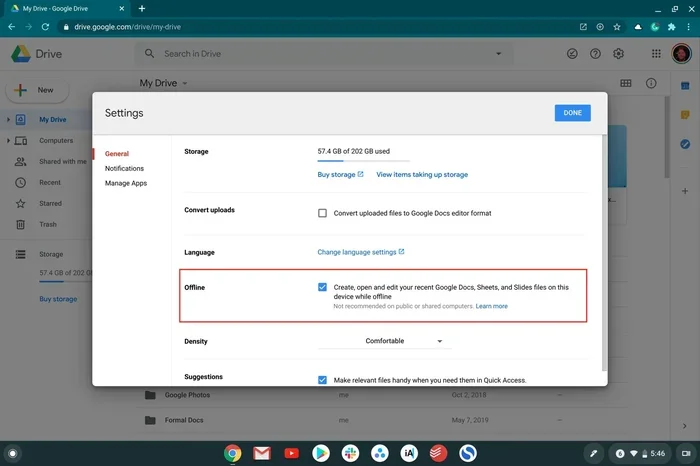
Google Docs, Sheets, and Slides all support offline editing. But you need to turn this on while you still have internet. Here is how:
- Open Google Drive in your Chrome browser.
- Click the Settings gear icon in the top right.
- Toggle on the “Offline” option.
- Wait for Google to sync your files locally.
Once this is done, you can open and edit Google Docs offline anytime. Your changes will sync automatically when you reconnect to the internet. This is one of the most useful offline productivity features available.
Enable Offline Gmail Access
You can also set up offline email access in Gmail. When enabled, you can read, compose, and organize emails without a connection. Your messages will be queued and sent once you are back online.
To enable this, go to Gmail settings, click the “Offline” tab, and check the box for offline mail. You can choose how many days of mail to sync locally. More days mean more storage used on your device.
Install Offline-Ready Apps
Not all apps work without the internet. Before you go offline, install apps that support offline apps. Some great options include:
- Google Docs — for word processing and editing.
- Google Keep — for note-taking and lists.
- Spotify — for downloaded music playback.
- Netflix or YouTube Premium — for downloaded video content.
- Evernote — for notes and document storage.
These apps store data locally on your device. They do not need a constant internet connection to function. This makes them perfect for offline file access and offline productivity.
What You Can Do on a Chrome Laptop Without Internet
Now that your device is set up, let us talk about what you can actually do. The list might surprise you. A Chromebook without WiFi is more capable than most people think.
Work on Documents and Spreadsheets
This is the biggest advantage of a Chrome laptop offline setup. You can create, edit, and save documents locally. Google Docs, Sheets, and Slides all work in offline mode once you have enabled the feature. Your work saves to local storage and syncs later.
You can also use LibreOffice or other offline-compatible office suites. These run directly on Chrome OS and do not need the web. They are great alternatives for heavy document work when you are without connectivity.
Manage and Organize Local Files
The Files app on Chrome OS lets you browse, move, copy, and delete local files. You can access documents, images, videos, and downloads stored on your device. This is essential for offline file access.
You can also plug in a USB drive or external hard drive. Chrome OS supports most external storage devices. This gives you even more local storage Chromebook options for managing your files offline.
Take Notes and Stay Organized
Note-taking apps like Google Keep, Evernote, and Simplenote work offline. You can jot down ideas, create to-do lists, and save important information. When you reconnect, everything syncs to the cloud automatically.
This is a great way to maintain offline productivity during travel or in areas with poor connectivity. You never lose your notes, even without the internet.
Enjoy Downloaded Entertainment
Chromebook entertainment does not require a live internet connection. You can download movies, TV shows, and music for offline playback. Streaming services like Netflix, Spotify, and YouTube Premium all support downloads.
You can also play locally stored games. Many casual games and even some more advanced titles work on Chrome OS without the web. This makes a device without WiFi a great companion for long trips.
Use Built-In Tools and Utilities
Chrome OS includes many built-in tools that work offline. The calculator, clock, calendar, and settings panel all function without internet. You can also use the camera to take photos and save them locally.
The terminal and developer tools also work offline. This is great for developers who need to code without a constant connection. Chrome browser settings allow you to manage these tools easily.
Limitations of Using a Chrome Laptop Without Internet
It is important to understand what a Chrome laptop without internet cannot do. Being aware of these Chromebook limitations helps you plan better.
Cloud-Based Services Will Not Work
Any app or service that relies on the cloud will be unavailable. Google Drive cloud storage, online email, and web-based tools need an internet connection. You cannot access files stored only in the cloud unless you have downloaded them locally first.
This is why preparation matters. If you know you will be offline, download the files you need in advance. Do not wait until you are already disconnected.
Software Updates Require Internet
Chrome OS updates, app updates, and security patches all need the web. When you are offline, your system will not receive new updates. This can be a concern for security and performance over time.
Make sure your device is fully updated before you plan to be without internet for an extended period. This reduces the risk of running outdated software.
Streaming and Online Gaming Are Not Possible
You cannot stream live content or play online games without internet. Services like YouTube, Hulu, and live sports platforms need a connection. The same goes for multiplayer games and browser-based gaming.
However, downloaded content and single-player games work fine. Just manage your expectations when you are in internet-free computing mode.
Printing and Some Peripherals May Not Work
Cloud printing requires an internet connection. If you need to print documents offline, you may need a direct USB connection or a printer with local networking support.
Some Bluetooth and USB peripherals also behave differently offline. Most basic devices like keyboards and mice work fine. But advanced peripherals that rely on cloud services may not function as expected.
Comparison: Online vs. Offline Chrome Laptop Use
| Feature | Online | Offline |
|---|---|---|
| Google Docs Editing | Full access | Available (if pre-enabled) |
| Email (Gmail) | Send and receive | Read and compose (queued) |
| Cloud Storage Access | Full access | Limited to downloaded files |
| Streaming Services | Full access | Only downloaded content |
| App Updates | Available | Not available |
| Web Browsing | Full access | Only cached/local pages |
| Gaming | Online and offline games | Offline games only |
| Video Calls | Available | Not available |
| File Management | Full access | Full local access |
This table shows the clear differences between online and offline use. Planning ahead helps you make the most of both modes. The more you prepare, the less you feel the absence of Wi-Fi connectivity.
Quick Tips for Maximizing Offline Productivity
Want to get the most out of your Chrome laptop offline experience? Follow these practical tips:
- Download files before you go offline. This includes documents, videos, music, and any files you might need.
- Enable offline mode in all Google apps. Do this while you still have a strong internet connection.
- Clear your browser cache regularly. This frees up space and keeps your web browser offline experience smooth.
- Use local email clients. Apps like Thunderbird can store emails locally and work without the web.
- Keep your device charged. Offline work can drain battery faster if you are using local apps heavily.
- Organize your local files. Create folders for offline work so you can find everything quickly.
- Test your offline setup. Turn off Wi-Fi at home and see what works. This helps you identify gaps before you really need offline access.
These simple steps make a huge difference. They turn your Chrome laptop without internet into a reliable productivity tool.
Common Mistakes People Make with Offline Chromebook Use
Avoid these common pitfalls to get the best results from your offline setup:
- Forgetting to enable offline mode. Many people assume Google apps work offline by default. They do not. You must turn this on manually.
- Not downloading files in advance. If a file lives only in the cloud, you cannot access it offline. Always download what you need beforehand.
- Ignoring storage limits. Offline files take up local space. Check your storage regularly to avoid running out of room.
- Assuming all apps work offline. Many apps require an internet connection. Check the app description before relying on it offline.
- Skipping updates before going offline. Running outdated software can cause compatibility issues and security risks.
These mistakes are easy to avoid with a little planning. A few minutes of preparation saves a lot of frustration later.
Expert Insights on Chrome Laptop Offline Use
According to Chrome OS experts, offline capabilities have improved dramatically over the past few years. Google has invested heavily in making cloud-based apps work seamlessly without the internet. The key is proactive setup.
Tech reviewers also emphasize the importance of understanding your device. Not every Chrome laptop has the same storage or processing power. A device with more local storage Chromebook capacity will handle offline work better. Consider this when choosing or upgrading your device.
Experts also recommend using Chrome browser settings to manage offline behavior. You can configure how Chrome handles caching, downloads, and offline pages. These settings give you more control over your internet-free computing experience.
Another expert tip is to use the “Check for Updates” feature before going offline. This ensures your system is current and less likely to encounter issues during offline use. It is a small step that pays off big.
Key Takeaways
- Offline Mode Works: A Chrome laptop can function without Wi-Fi or internet access for many tasks.
- Google Apps Support Offline Use: Docs, Sheets, Slides, and Gmail all offer offline capabilities when set up in advance.
- Local Storage Is Available: You can save files directly to your device and access them anytime.
- Entertainment Options Exist: Downloaded movies, music, and games work without an internet connection.
- Preparation Is Key: You must enable offline features before losing your Wi-Fi connection.
- Some Features Require Internet: Cloud-based tools, streaming services, and updates need online access.
- Chrome OS Has Improved: Recent updates have made offline productivity much better than before.
Conclusion
So, can you use a Chrome laptop without internet? Absolutely. A Chrome laptop offline setup opens up a world of possibilities. You can work on documents, manage files, take notes, enjoy downloaded entertainment, and stay productive throughout the day.
The key is preparation. Enable offline features before you need them. Download the files and apps you will use. Understand the Chromebook limitations so there are no surprises. With the right setup, your device becomes a reliable tool whether you are online or not.
Internet-free computing is no longer a compromise. It is a practical reality for millions of Chrome OS users. Take advantage of the offline features available to you. Your next flight, camping trip, or Wi-Fi outage will be much less stressful.
Start exploring your Chrome laptop without internet capabilities today. You might be surprised by how much you can accomplish without a single Wi-Fi connection.
Frequently Asked Questions
Can I use Google Docs on a Chrome laptop without internet?
Yes, you can use Google Docs offline if you enable offline mode in Google Drive settings beforehand. Your edits save locally and sync to the cloud once you reconnect to the internet.
What apps work on a Chrome laptop without internet?
Many apps work offline, including Google Docs, Google Keep, Spotify, Netflix, and Evernote. You need to download or enable these apps while you still have internet access for them to function offline.
Can I watch movies on a Chrome laptop without Wi-Fi?
Yes, you can watch downloaded movies and TV shows on services like Netflix, YouTube Premium, and Amazon Prime Video. You must download the content while connected to the internet first.
Does a Chrome laptop work without WiFi for everyday tasks?
Yes, everyday tasks like writing documents, taking notes, managing local files, and playing downloaded games all work without WiFi. The experience is smooth as long as you prepare in advance.
How do I know if my Chromebook is in offline mode?
You can check the status area in the bottom right corner of your screen. If you see a “No Internet” icon or a disconnected Wi-Fi symbol, your device is operating in offline mode. Most apps will still function normally.
Can I update my Chrome OS without internet?
No, Chrome OS updates require an internet connection. You should always check for and install updates before going offline for an extended period to ensure the best performance and security.