Can I Use An Hdmi To Displayport Cable And What Happens
Using an HDMI to DisplayPort cable directly usually does not work because the two connectors send signals in opposite directions. You will need an active adapter or converter to bridge the gap between these two different digital display standards. This guide explains exactly what happens, why it matters, and how to get your setup running right.
You just bought a new monitor. It has a DisplayPort input. But your PC or laptop only has an HDMI output. So you grab an HDMI to DisplayPort cable and plug it in. Nothing happens. Sound familiar? This is one of the most common digital display problems people run into. The question seems simple enough. Can I use an HDMI to DisplayPort cable? The short answer is no, not directly. But the full story is more interesting than you might think. Let us break it all down so you never have to guess again.
Understanding how your display connections work can save you time, money, and a lot of frustration. Whether you are setting up a gaming rig, a home office, or a creative workstation, knowing your cable options matters. This article covers everything you need to know about HDMI and DisplayPort compatibility. You will learn why direct cables fail, what adapters you actually need, and how to get the best picture quality from your setup.
Key Takeaways
- Direct connection fails: HDMI and DisplayPort use different signal directions, so a plain cable won’t work.
- Active adapters are the fix: You need a powered converter to make the signal translation happen.
- Resolution and refresh rate depend on your hardware: Not all adapters support 4K or high refresh rates.
- Audio may or may not transmit: Check your adapter specs to confirm audio support.
- Check your port types first: Knowing your GPU and monitor inputs saves time and money.
- Passive cables only work one way: DisplayPort to HDMI passive cables exist, but not the reverse.
- Gaming and creative work need the right adapter: Signal quality matters for demanding tasks.
📑 Table of Contents
- Understanding HDMI and DisplayPort Connections
- Can You Use an HDMI to DisplayPort Cable Directly?
- How to Make HDMI to DisplayPort Work
- What Happens When You Try to Use the Wrong Cable?
- Choosing the Right Adapter for Your Setup
- Common Mistakes People Make
- Expert Tips for the Best Display Experience
- Quick Tips at a Glance
- Frequently Asked Questions
- Final Thoughts
Understanding HDMI and DisplayPort Connections
Before we dive into the cable question, let us talk about what these two connection types actually are. Both HDMI and DisplayPort are digital display standards. They carry video and audio from a source to a screen. But they work quite differently under the hood.
What Is HDMI?
HDMI stands for High-Definition Multimedia Interface. It is one of the most common connector types in the world. You will find HDMI ports on TVs, laptops, game consoles, and Blu-ray players. The HDMI cable carries both high-definition video and audio through a single wire. It has been around since the early 2000s and has gone through several versions. The latest HDMI 2.1 standard supports 4K at 120Hz and even 8K resolution. Most people encounter HDMI every day without even thinking about it.
What Is DisplayPort?
DisplayPort is a digital display interface developed by VESA. It is the go-to connection for PC monitors and graphics cards. DisplayPort was designed specifically for computer displays. It offers high bandwidth and supports advanced features like daisy-chaining multiple monitors from one port. DisplayPort 2.1 can handle extremely high resolutions and refresh rates. If you are a PC gamer or a video editor, you have likely used a DisplayPort connection at some point.
Why Are They Different?
The core difference comes down to how the signal flows. HDMI was designed for consumer electronics like TVs and home theater systems. DisplayPort was built for computer monitors and professional displays. The two standards use different signaling methods. This means the data travels in opposite directions between the two connectors. That is the main reason a direct cable does not work. The HDMI output sends a signal that the DisplayPort input cannot read, and vice versa.
Can You Use an HDMI to DisplayPort Cable Directly?
Here is the honest answer. A standard HDMI to DisplayPort cable will not work for connecting an HDMI output to a DisplayPort input. The signal protocols are incompatible. Plugging one into the other will not damage anything. But it also will not produce any image on your screen. Some people think they can just swap the cable type and expect it to work. That is not how digital display connections operate.
The reason comes down to signal direction. HDMI uses a source-based signaling method where the device sends video out. DisplayPort uses a different protocol where the monitor can also act as a master device. When you try to connect them directly, the two devices simply cannot communicate. They are speaking different digital languages.
What About the Reverse Direction?
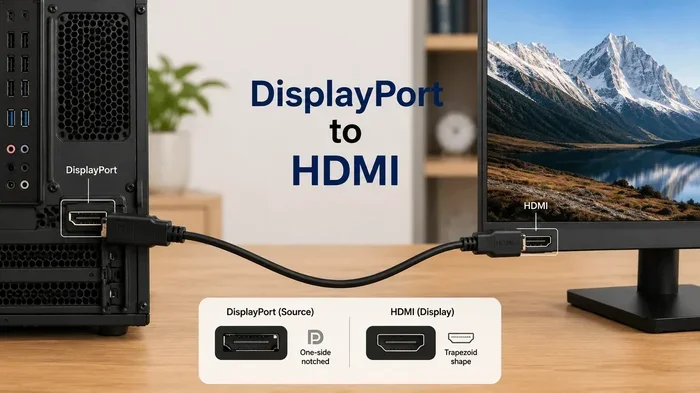
You might wonder about DisplayPort to HDMI cables. Some passive cables exist for that direction. These work because certain graphics cards can output a DisplayPort signal that a passive adapter can convert to HDMI. But this only works one way. It does not mean the reverse will work. Always check the specific direction your cable or adapter supports before buying.
How to Make HDMI to DisplayPort Work
So if a direct cable does not work, how do you connect an HDMI source to a DisplayPort monitor? The answer is an active adapter or converter. This is a small device that translates the HDMI signal into a DisplayPort signal in real time. It requires power, usually through a USB port, to perform this conversion.
Active Adapters Explained
An active HDMI to DisplayPort adapter is the most reliable solution. These devices contain a chip that converts the signal from one format to another. You plug your HDMI cable into the adapter. Then you connect a DisplayPort cable from the adapter to your monitor. The adapter needs a power source, typically through a USB-A or USB-C connection. Once powered on, it translates the HDMI output into a DisplayPort-compatible signal your monitor can read.
Active adapters are widely available online and in electronics stores. They come in different shapes and sizes. Some are small dongles that plug directly into your device. Others are larger boxes with multiple input options. The price varies depending on the features and the resolution support.
USB-C and Thunderbolt Options
If your laptop or PC has a USB-C port, you have more options. Many modern USB-C ports support DisplayPort Alt Mode. This means you can use a USB-C to DisplayPort cable or adapter directly. Some USB-C hubs also include HDMI inputs, giving you even more flexibility. Thunderbolt 3 and Thunderbolt 4 ports support DisplayPort natively, making them excellent choices for display connections.
These alternative port options can sometimes eliminate the need for an HDMI to DisplayPort adapter entirely. It is always worth checking what ports your devices have before purchasing a specific cable or adapter.
What Happens When You Try to Use the Wrong Cable?
Let us talk about what actually happens when you plug an HDMI cable into a DisplayPort port or vice versa. Understanding this helps you troubleshoot problems and avoid wasting money on the wrong products.
No Signal on Screen
The most common result is no signal at all. Your monitor will display a “no input” or “check cable” message. The screen might stay black. Your computer might not detect an external display. This does not mean anything is broken. It simply means the two devices cannot communicate with each other using that cable type.
Audio and Video Issues
Even if you somehow get a partial connection, you might experience audio and video problems. The image could flicker. Colors might look wrong. The resolution might drop to a lower quality. In some cases, you might get video but no audio. These issues happen because the signal is not being properly translated between the two standards.
Will It Damage Your Equipment?
One of the biggest concerns people have is whether using the wrong cable can damage their devices. The good news is that HDMI and DisplayPort ports are designed to handle incorrect connections safely. You will not fry your graphics card or burn out your monitor by plugging in the wrong cable. The ports have built-in protection. However, using cheap, low-quality adapters over long periods can sometimes cause issues. Stick with reputable brands to keep your setup safe.
Choosing the Right Adapter for Your Setup
Not all adapters are created equal. Choosing the right one depends on your specific needs, your hardware, and the resolution you want to achieve. Here is what you should consider before making a purchase.
Check Your Resolution Requirements
Think about what resolution you need. Do you want 1080p for everyday tasks? Or do you need 4K for gaming or video editing? Not every adapter supports the same resolutions. Budget adapters might only handle 1080p at 60Hz. Higher-end adapters can support 4K at 60Hz or even 144Hz. Always check the adapter specifications before buying to make sure it meets your display needs.
Consider Refresh Rate
For gaming, refresh rate matters a lot. A 144Hz or 240Hz monitor needs an adapter that can handle that bandwidth. Cheap adapters often cap you at 60Hz, which feels sluggish for fast-paced games. If you are a serious gamer, invest in an adapter that explicitly supports high refresh rates at your target resolution.
Audio Support
Do you need audio to travel through your adapter? Most active HDMI to DisplayPort adapters support audio transmission. But not all of them do. If you are using your monitor as a speaker output or connecting to a sound system, check the product specs to confirm audio is supported. This is an easy detail to overlook and can cause headaches later.
Build Quality and Brand Reputation
When it comes to adapters, quality matters. Cheap no-name adapters might work initially but can cause problems over time. Look for brands with good reviews and solid warranties. A reliable adapter might cost a bit more, but it will save you from flickering screens, dropped signals, and compatibility headaches.
Common Mistakes People Make
Setting up a display connection can be tricky. Here are some common mistakes to avoid when dealing with HDMI and DisplayPort connections.
- Buying a passive cable for the wrong direction: Passive DisplayPort to HDMI cables exist, but HDMI to DisplayPort passive cables do not work reliably.
- Forgetting to power the adapter: Active adapters need a power source. If you skip the USB connection, the adapter will not function.
- Assuming all adapters support 4K: Many budget adapters only support 1080p. Always check the specs.
- Ignoring refresh rate limits: An adapter that only supports 60Hz will bottleneck a 144Hz monitor.
- Not checking GPU compatibility: Some graphics cards handle certain adapters better than others. Check your GPU manual if you run into issues.
- Using a damaged or worn cable: Frayed cables or bent connectors can cause intermittent signal problems.
Expert Tips for the Best Display Experience
Getting the most out of your display setup takes a little know-how. Here are some tips from experienced users and tech professionals.
First, always update your graphics card drivers before connecting a new display. Updated drivers often fix compatibility issues and improve performance with new adapters. Second, use the shortest cable length you can manage. Longer cables can degrade the signal quality, especially at higher resolutions. Third, test your setup with a known-good cable first. This helps you isolate whether a problem comes from the adapter or from another part of your setup.
If you are building a multi-monitor setup, consistency matters. Try to use the same cable type and adapter model across all monitors. This reduces the chance of one display behaving differently from the others. For competitive gamers, a wired DisplayPort connection directly from the GPU to the monitor will always give the lowest latency and best performance. Use adapters only when you have no other choice.
Quick Tips at a Glance
- Always check your port types before buying a cable or adapter.
- Active adapters are required for HDMI to DisplayPort connections.
- Power your active adapter through a USB port for best results.
- Match your adapter to your resolution and refresh rate needs.
- Buy from reputable brands to ensure reliability and compatibility.
- Keep cables as short as possible for the best signal quality.
- Update your GPU drivers before setting up a new display connection.
Frequently Asked Questions
Can I use an HDMI to DisplayPort cable without an adapter?
No, you cannot. HDMI and DisplayPort use different signal protocols that are not compatible with each other. A direct cable connection will not produce any image on your screen. You need an active adapter or converter to bridge the gap between the two standards.
Will an HDMI to DisplayPort adapter support 4K resolution?
It depends on the adapter. Many active adapters support 4K resolution, but not all of them do. Check the product specifications carefully before purchasing. Higher-quality adapters will support 4K at 60Hz or higher refresh rates, while budget options may be limited to 1080p.
Does an HDMI to DisplayPort adapter transmit audio?
Most active adapters do support audio transmission alongside video. However, this is not universal. Always check the product listing or specifications to confirm that audio is supported. Some adapters are video-only and will not carry any sound to your display.
Can I plug a DisplayPort cable into an HDMI port using an adapter?
Yes, this direction can work with either a passive or active adapter, depending on your graphics card. Many modern GPUs support DisplayPort output that can be converted to HDMI. This is the more common direction for passive adapters to work successfully.
Why does my HDMI to DisplayPort adapter flicker or lose signal?
Flickering or signal loss usually points to a power issue or a low-quality adapter. Make sure your adapter is properly powered through a USB connection. If the problem persists, try a different adapter from a reputable brand. Damaged cables or loose connections can also cause intermittent issues.
Is it better to use DisplayPort or HDMI for gaming?
DisplayPort generally offers better performance for PC gaming. It supports higher refresh rates and resolutions on a single cable. DisplayPort 2.1, in particular, provides massive bandwidth for demanding gaming setups. However, HDMI 2.1 is also excellent and may be the better choice if you are connecting to a TV or home theater system.
Final Thoughts
The question of whether you can use an HDMI to DisplayPort cable comes up more often than you might think. The answer is straightforward but requires the right equipment. A direct cable connection will not work because the two standards use different signal directions. However, with an active adapter, you can bridge the gap and connect your HDMI source to a DisplayPort monitor without any problems.
The key takeaway is simple. Do not waste your money on a direct HDMI to DisplayPort cable. Instead, invest in a quality active adapter that matches your resolution, refresh rate, and audio needs. Check your ports, verify your adapter specs, and power your adapter properly. With the right setup, you will enjoy a crisp, clear display no matter which connection types your devices use.
Display technology continues to evolve, and new standards will keep emerging. But for now, understanding the basics of HDMI and DisplayPort compatibility puts you ahead of most users. You know what works, what does not, and how to solve the problem when it comes up. Share this guide with a friend who is struggling with the same issue. The right connection makes all the difference in your daily computing experience.