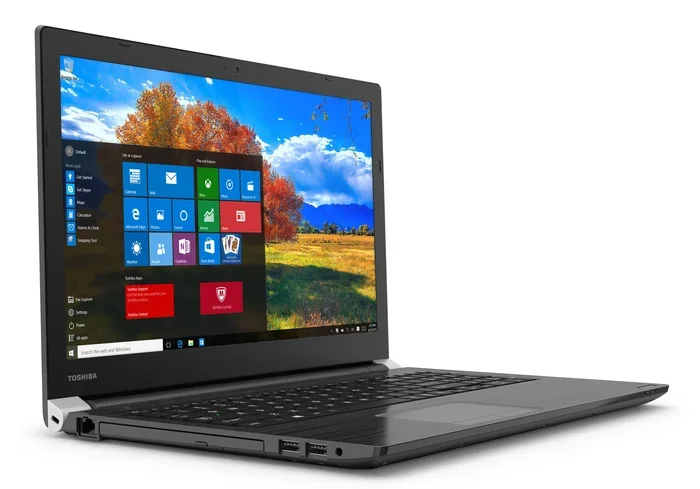
How To Upgrade Your Toshiba Satellite Laptop To Windows 10
Yes, you can upgrade your Toshiba Satellite laptop to Windows 10, but it depends on your model and hardware. Can I upgrade my Toshiba Satellite laptop to Windows 10? This guide answers that question with clear steps, requirements, and tips. You’ll learn about system specs, driver support, and how to avoid common pitfalls.
If you own a Toshiba Satellite laptop, you might wonder whether it can run Windows 10. The good news is that many Satellite models can be upgraded. But the answer is not always a simple yes. It depends on your specific model, processor, memory, and storage. Can I upgrade my Toshiba Satellite laptop to Windows 10? This guide will walk you through every step to find out and get it done safely.
Upgrading your operating system can breathe new life into an older machine. Windows 10 still receives security updates and runs modern apps smoothly. However, older laptops need a bit of extra care. You must check compatibility, back up your files, and sometimes hunt for drivers. I’ll show you exactly what to do, so you avoid frustration and wasted time.
Whether you have a Toshiba Satellite C55, a Satellite P series, or an older model from the Windows 7 era, this article covers it all. I’ll explain the system requirements, the upgrade methods, and how to handle driver issues. By the end, you’ll know if your Satellite can handle Windows 10 and how to make the switch successfully.
Key Takeaways
- Check compatibility first: Not all Toshiba Satellite models support Windows 10, especially older ones.
- Back up your data: Always create a restore point before upgrading.
- Update your BIOS: A current BIOS helps prevent installation issues.
- Use the Media Creation Tool: It’s the official way to create Windows 10 installation media.
- Install drivers manually if needed: Toshiba may not provide Windows 10 drivers for older models.
- Activate with your Windows 7/8 key: Your existing product key often works for Windows 10.
📑 Table of Contents
- Can I Upgrade My Toshiba Satellite Laptop To Windows 10?
- System Requirements for Windows 10
- How to Prepare Your Toshiba Satellite for the Upgrade
- Step-by-Step: Upgrading to Windows 10
- Dealing with Driver and Compatibility Issues
- Activating Windows 10 After the Upgrade
- Is Upgrading an Older Toshiba Satellite Worth It?
Can I Upgrade My Toshiba Satellite Laptop To Windows 10?
The short answer is: it depends on your model. Most Toshiba Satellite laptops made after 2012 can run Windows 10. Older models from 2010 or earlier might struggle. The key factors are the processor type, RAM amount, and storage space. Microsoft sets minimum requirements for Windows 10, but Toshiba also limits driver support for certain models.
To find out if your specific Satellite works, you need to check a few details. First, identify your exact model number. You can usually find it on a sticker on the bottom of the laptop or in the system information. Once you know the model, you can search for Windows 10 compatibility. Toshiba’s support page lists which models received official Windows 10 drivers.
Understanding Your Toshiba Satellite Model
Toshiba released many Satellite series over the years. The C series, L series, and P series are common. Each has different hardware capabilities. For example, a Satellite C55 from 2013 typically has an Intel Core i3 or i5 processor and 4GB of RAM. That setup handles Windows 10 well. But a Satellite L35 from 2009 might have an older single-core processor and only 2GB of RAM. That would be too weak.
Here is a quick way to check your model’s potential. Open the Start menu, type “System Information,” and press Enter. Look for the System Model and Processor name. If your processor is 1GHz or faster and supports PAE, NX, and SSE2, you meet the basic CPU requirement. If you have 2GB of RAM or more and at least 20GB of free storage, you’re in good shape for the upgrade.
System Requirements for Windows 10
Before you start, make sure your Toshiba Satellite meets the Windows 10 system requirements. Microsoft provides clear minimum specs. But for a smooth experience, you should aim higher. Here is what you need to know.
Minimum vs Recommended Specs
The minimum requirements are the bare essentials. Your laptop might boot Windows 10 on these specs, but it could run slowly. The recommended specs give you a comfortable buffer for everyday tasks like browsing, office work, and video calls.
| Component | Minimum Requirement | Recommended for Smooth Use |
|---|---|---|
| Processor | 1 GHz or faster | Intel Core i3/i5 or AMD equivalent |
| RAM | 2 GB (64-bit) | 4 GB or more |
| Storage | 20 GB free space | 64 GB or more (SSD preferred) |
| Graphics | DirectX 9 with WDDM 1.0 | DirectX 11 or later |
| Display | 800 x 600 resolution | 1366 x 768 or higher |
Most Toshiba Satellite laptops from 2012 onward meet the minimum specs. But if your model has only 2GB of RAM, you may want to upgrade the memory first. Adding a cheap RAM stick can make a huge difference in Windows 10 performance. Check your laptop’s manual or the Toshiba website to see if your model supports RAM upgrades.
How to Prepare Your Toshiba Satellite for the Upgrade
Preparation is the most important part of any OS upgrade. Rushing into it without backups or driver checks can lead to data loss or a broken system. Take a little time to get everything ready, and the upgrade process will go much smoother.
Back Up Your Files
Always back up your important files before upgrading. Even though Windows 10 upgrades usually keep your personal files, glitches can happen. Use an external hard drive, a USB flash drive, or a cloud service like OneDrive. Copy your documents, photos, and browser bookmarks to a safe location.
You should also create a system restore point. Windows lets you do this easily. Go to Control Panel, search for “Recovery,” and click “Open System Restore.” Then choose “Create a restore point.” This gives you a safety net. If something goes wrong, you can roll back to the previous state.
Update BIOS and Drivers
Your Toshiba Satellite’s BIOS controls how the hardware starts up. An outdated BIOS can cause Windows 10 installation failures. Visit the Toshiba Support website, enter your model number, and look for a BIOS update. Download and install it before you begin the Windows 10 upgrade.
Also, check for the latest chipset and graphics drivers. Toshiba sometimes provides Windows 10 drivers for older models, but not always. If you cannot find a Windows 10 driver, the Windows Update tool often installs generic drivers that work. Still, having the latest official drivers reduces the risk of issues.
- Plug your laptop into power during the entire upgrade process.
- Disable any antivirus software temporarily to avoid conflicts.
- Connect to a stable Wi-Fi network so you can download updates after installation.
- Write down your product key or locate it in your Microsoft account.
Step-by-Step: Upgrading to Windows 10
Once your Toshiba Satellite is ready, you can start the upgrade. Microsoft offers a free tool called the Media Creation Tool. This tool downloads Windows 10 and creates installation media. You can use it to upgrade your current Windows installation directly, keeping your files and apps.
Using the Media Creation Tool
Go to the Microsoft website and download the Media Creation Tool. Run the tool and accept the license terms. Choose the “Upgrade this PC now” option. The tool will download the necessary files and guide you through the process. It will ask you to keep your personal files and apps or remove them. For most users, keeping everything is the best choice.
The download size is around 4GB to 6GB, so make sure you have a good internet connection. The actual installation takes about 30 to 60 minutes, depending on your laptop’s speed. Your Toshiba Satellite will restart several times during this process. Do not turn it off when it restarts.
Choosing Upgrade or Clean Install
An upgrade keeps your files, settings, and installed programs. It’s the easiest path. But sometimes a clean install works better, especially if your laptop has slow storage or old software clutter. A clean install erases everything and gives you a fresh start.
If you choose a clean install, you must back up all your data first. You’ll also need to reinstall your programs after Windows 10 is set up. For a Toshiba Satellite that has been running slowly for years, a clean install can feel like a new machine. Just make sure you have your Windows 10 product key ready.
- Skipping the BIOS update, which can lead to installation freezes.
- Not backing up files, risking permanent data loss.
- Using a third-party tool instead of the official Media Creation Tool.
- Ignoring driver compatibility, which can cause hardware like the touchpad or Wi-Fi to stop working.
- Upgrading while running on battery power, which can interrupt the process if the battery dies.
Dealing with Driver and Compatibility Issues
After upgrading your Toshiba Satellite to Windows 10, you might notice some hardware not working perfectly. This is normal, especially for older models. Windows 10 includes a vast library of generic drivers, but they don’t always unlock all features. You may need to install specific drivers from Toshiba or the hardware manufacturer.
Finding Windows 10 Drivers for Older Models
Toshiba stopped supporting many Satellite models with official Windows 10 drivers. If you cannot find a driver on the Toshiba website, try these steps. First, open Device Manager and look for devices with a yellow warning icon. Right-click the device and select “Update driver.” Windows will search online for a compatible driver.
If Windows cannot find one, visit the website of the actual hardware maker. For example, if your Toshiba Satellite uses a Realtek audio chip, go to Realtek’s website and download the latest audio driver. The same applies to Intel or AMD graphics, Broadcom or Realtek Wi-Fi, and Synaptics touchpads. You can often find the correct driver by searching for your specific chip model.
“Many Toshiba Satellite users assume their old laptop can’t run Windows 10 because Toshiba doesn’t list it as a supported model. In reality, the core OS works fine on most 64-bit Intel and AMD processors from the last decade. The main hurdle is finding the right drivers for unique hardware features. A little manual driver hunting usually solves the problem.”
Activating Windows 10 After the Upgrade
One of the best parts of upgrading to Windows 10 is that you can often use your old Windows 7 or Windows 8 product key. Microsoft allowed free upgrades from Windows 7 and 8 to Windows 10 for a limited time. Even though the free offer ended, your existing key still works to activate Windows 10 on the same hardware in most cases.
Using Your Windows 7 or 8 Product Key
After the upgrade, go to Settings, then Update & Security, and click Activation. Windows will usually detect your digital license and activate automatically. If it asks for a product key, enter your old Windows 7 or 8 key. It should activate successfully.
If activation fails, you can contact Microsoft Support. They can verify your upgrade eligibility and provide a working key. Keep in mind that if you did a clean install instead of an upgrade, you might need to use the Media Creation Tool’s built-in activation bypass. The tool can link your Microsoft account to the hardware, making activation easier later.
Is Upgrading an Older Toshiba Satellite Worth It?
Not every Toshiba Satellite benefits from a Windows 10 upgrade. If your laptop is from 2008 or 2009, it might be better to use a lightweight Linux distribution or replace the machine entirely. But for models from 2012 to 2015, Windows 10 can make a big difference in security and app compatibility.
Pros and Cons
Consider the advantages and disadvantages before you decide. Here is a quick comparison.
| Pros of Upgrading | Cons of Upgrading |
|---|---|
| Continued security updates and patches | Older hardware may run slowly |
| Better support for modern browsers and apps | Some Toshiba-specific features may lose driver support |
| Free upgrade using your existing product key | Clean install requires reinstalling all software |
| Improved gaming and multitasking performance over Windows 7 | Touchscreen models may have limited Windows 10 touch optimization |
| Access to Microsoft’s latest features and updates | Some older Satellite models lack 64-bit CPU support |
If your Toshiba Satellite meets the recommended specs and you can find the necessary drivers, the upgrade is definitely worth it. You’ll get a more secure, faster, and more modern computing experience. Just take your time, follow the steps, and enjoy your refreshed laptop.
Can I upgrade my Toshiba Satellite laptop to Windows 10? Yes, you can, as long as you check compatibility, prepare your system, and follow the right steps. With a little patience, your Toshiba Satellite can run Windows 10 smoothly for years to come.
Frequently Asked Questions
What Toshiba Satellite models can run Windows 10?
Most Toshiba Satellite models from 2012 and later can run Windows 10. This includes the C55, C55-B, C55-D, P50, P50t, and many L-series models. Always check your specific model number on the Toshiba support website to confirm Windows 10 driver availability.
Do I lose my files when upgrading to Windows 10?
No, not if you choose the upgrade option. The Windows 10 upgrade process keeps your personal files, settings, and most installed apps. However, it’s always smart to back up your data before any major system change, just in case something goes wrong.
Can I use my Windows 7 product key for Windows 10?
Yes, in most cases you can. Microsoft allows you to activate Windows 10 using a valid Windows 7 or Windows 8 product key on the same hardware. The system will link your key to the motherboard, creating a digital license that survives future reinstalls.
What if my Toshiba Satellite has only 2GB of RAM?
You can still install Windows 10 with 2GB of RAM, but the experience will be slow. Windows 10 recommends 4GB of RAM for comfortable use. If your Satellite supports RAM upgrades, adding a second memory stick is an inexpensive way to improve performance significantly.
Why is my Wi-Fi not working after upgrading?
This is a common issue with older Toshiba Satellite models. Windows 10 may not have the correct Wi-Fi driver. Visit the Toshiba support page for your model or check the website of your Wi-Fi chip manufacturer (like Realtek or Broadcom) for the latest Windows 10 driver and install it manually.
Should I do a clean install or an upgrade?
Choose an upgrade if you want to keep your files and apps with minimal effort. Choose a clean install if your laptop is very slow, has lots of old software, or you want a fresh start. A clean install requires more setup time but often results in a faster, more stable system.