Can I Connect My Phone To A Mini Projector Wirelessly
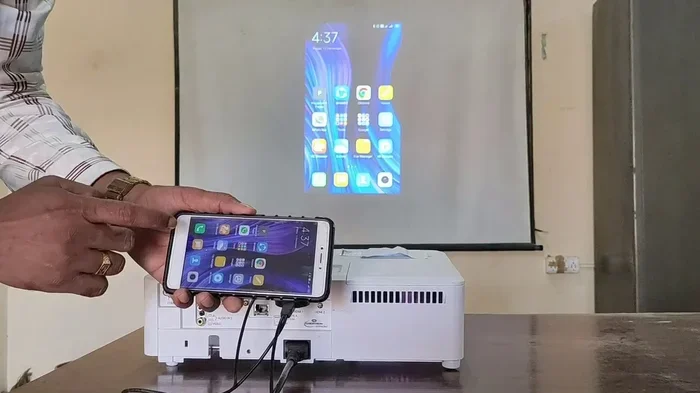
Yes, you can connect your phone to a mini projector wirelessly using several simple methods like screen mirroring, Bluetooth, and wireless HDMI adapters. This guide walks you through every step, from choosing the right projector to troubleshooting common connection issues. Whether you want to stream movies, share photos, or present slides, wireless phone-to-projector connection is easier than you think.
Key Takeaways
- Multiple Wireless Options: You can connect your phone to a mini projector using screen mirroring, Bluetooth, Wi-Fi Direct, and wireless HDMI adapters.
- Compatibility Matters: Not all projectors support all connection types, so check your device specs before buying.
- Setup Is Simple: Most wireless connections take under five minutes to set up with no technical skills needed.
- Best Results Need Good WiFi: A strong and stable wireless network ensures smooth streaming and no lag.
- Troubleshooting Is Easy: Most connection problems have simple fixes like restarting devices or updating software.
📑 Table of Contents
- How to Connect Your Phone to a Mini Projector Wirelessly
- What You Need for a Wireless Connection
- Step-by-Step Guide to Wireless Phone Projection
- Best Mini Projectors for Phone Connectivity
- Common Problems and How to Fix Them
- Tips for the Best Wireless Projecting Experience
- Expert Insights on Wireless Phone Projection
- Conclusion
How to Connect Your Phone to a Mini Projector Wirelessly
Have you ever wanted to watch your favorite show on a big screen without tangled cables? Can I connect my phone to a mini projector wirelessly? The short answer is yes. And the process is simpler than most people think.
Wireless phone-to-projector connection has become a game-changer for movie nights, business presentations, and gaming sessions. You no longer need to carry extra cables or worry about finding the right adapter. With just a few taps, you can cast your phone screen onto any wall or projection surface.
In this guide, we will walk you through every method, every device compatibility detail, and every tip you need. By the end, you will know exactly how to set up your own wireless projection setup at home or on the go.
Why Go Wireless?
Wired connections work, but they come with limits. You are stuck near the projector. Cables can tangle. And adapters can be expensive. A cable-free setup gives you freedom to move around. You can sit on the couch, walk around the room, or even pass your phone to a friend without disconnecting anything.
Wireless projection also means fewer things to carry. No need for HDMI cables, USB adapters, or extra power bricks. Just your phone and your projector. That is the beauty of mobile-friendly projector technology in 2024.
What You Need for a Wireless Connection
Before you start, you need to know what equipment and apps will make this work. The good news is that most modern phones and projectors already have everything built in.
Check Your Phone Compatibility
Almost all smartphones made after 2018 support wireless display technology. Here is a quick breakdown:
- Android phones: Most Android devices support screen mirroring through Miracast or built-in casting features. Look for the “Cast” or “Smart View” option in your quick settings.
- iPhone: Apple devices use AirPlay for wireless projection. If your projector supports AirPlay, you are good to go.
- Older phones: You may need a third-party app or a wireless casting dongle to bridge the gap.
Check Your Projector Compatibility
Not all mini projectors are created equal when it comes to wireless connectivity. Here are the types you should look for:
- Built-in WiFi projectors: These projectors connect directly to your home network and support screen mirroring natively.
- Bluetooth projectors: Some mini projectors include Bluetooth for audio streaming and basic screen sharing.
- Projectors with built-in apps: Many modern projectors come with Netflix, YouTube, and other streaming apps built right in.
- Projectors with USB or HDMI ports: Even if your projector is older, you can add wireless capability with an adapter.
Extra Accessories You Might Need
Sometimes you need a little help to make the connection work. Consider these accessories:
- Wireless HDMI adapter: A small dongle that plugs into your projector’s HDMI port and receives a wireless signal from your phone.
- WiFi casting stick: Devices like Chromecast or Fire TV Stick can turn any projector with an HDMI input into a smart display.
- Portable WiFi hotspot: If you are projecting in a location without WiFi, a mobile hotspot keeps your devices connected.
Step-by-Step Guide to Wireless Phone Projection
Now let us get into the actual setup. Follow these steps for the smoothest wireless projection experience possible.
Method 1: Screen Mirroring via WiFi (Best for Android)
This is the most common way to connect phone to projector wirelessly on Android devices.
- Make sure your phone and projector are on the same WiFi network.
- Open your phone’s quick settings panel by swiping down from the top of your screen.
- Tap the “Cast” or “Smart View” icon.
- Select your mini projector from the list of available devices.
- Wait for the connection to establish. You should see your phone screen on the projected display.
That is it. Your phone screen is now mirrored in real time. Open any app, play any video, and it will show on the big screen.
Method 2: AirPlay for iPhone Users
If you have an iPhone, the process is just as simple with AirPlay.
- Connect both your iPhone and projector to the same WiFi network.
- Swipe up from the bottom of your screen to open Control Center.
- Tap the “Screen Mirroring” button.
- Choose your projector from the list.
- Enter the PIN if your projector asks for one.
Your iPhone screen will now appear on the projector. You can mirror everything from photos to streaming apps.
Method 3: Using a Wireless HDMI Adapter
If your projector does not have built-in WiFi, a wireless HDMI adapter saves the day.
- Plug the adapter into your projector’s HDMI port.
- Connect the adapter to a power source.
- Download the adapter’s companion app on your phone.
- Follow the app instructions to pair your phone with the adapter.
- Your phone screen will now display on the projector through the adapter.
Popular options include the IOGEAR Wireless HDMI adapter and the Microsoft Wireless Display Adapter. These work with almost any projector that has an HDMI input.
Method 4: Using a Streaming Stick
A Chromecast or Amazon Fire TV Stick can transform your projector into a smart display. Here is how:
- Plug the streaming stick into your projector’s HDMI port.
- Connect the stick to your WiFi network using the projector’s remote or a connected app.
- On your phone, open the casting app (Google Home for Chromecast, or the Fire TV app).
- Select your streaming stick and start casting.
This method is great for streaming content directly from apps like Netflix, Hulu, or YouTube without mirroring your entire phone screen.
Best Mini Projectors for Phone Connectivity
Not all mini projectors handle wireless phone connections equally. Some are built for it, and others struggle. Here is a look at the top options for wireless phone projection.
| Projector | Wireless Features | Price Range | Best For |
|---|---|---|---|
| Anker Nebula Capsule 3 | Built-in WiFi, Android TV, AirPlay, Miracast | $300-$400 | Portable movie nights |
| Wanbo T6 Max | WiFi, Bluetooth 5.0, screen mirroring | $150-$200 | Budget-friendly wireless projection |
| XGIMI MoGo 2 | Built-in Android TV, WiFi 6, AirPlay, Chromecast | $400-$500 | Premium portable use |
| AAXA P300 | HDMI input, WiFi dongle support | $200-$250 | Business presentations |
| ViewSonic M2e | Built-in Netflix, WiFi, Bluetooth, AirPlay | $350-$450 | Streaming and entertainment |
When choosing a projector, look for projector resolution of at least 720p for clear images. Higher resolution means sharper text and better video quality. Also check for battery life if you plan to use it away from a power outlet.
Quick Tips for Choosing the Right Projector
- Brightness matters: Look for at least 200 ANSI lumens for indoor use. More lumens means a brighter picture in well-lit rooms.
- Check the ports: Even if you plan to go wireless, having HDMI and USB ports gives you backup options.
- Built-in battery: A built-in battery lets you project anywhere without finding a wall outlet.
- Built-in speakers: Some projectors have decent speakers built in, saving you from needing a separate audio setup.
Common Problems and How to Fix Them
Even with the best setup, you might run into issues. Here are the most common problems people face when trying to connect phone to mini projector wirelessly, along with easy fixes.
Connection Keeps Dropping
If your phone keeps disconnecting from the projector, the most likely cause is a weak WiFi signal. Move closer to your router or use a WiFi extender. Also, make sure no one else in your household is streaming heavy content on the same network at the same time.
Quick fix: Restart both your phone and the projector. This clears temporary connection errors and refreshes the wireless link.
No Sound or Poor Audio
Sometimes the video shows up but there is no sound. This usually happens because the audio output is set to your phone’s speakers instead of the projector.
Quick fix: On Android, pull down your quick settings and tap the audio output icon. Select the projector as the output device. On iPhone, go to Control Center and choose the projector under AirPlay audio settings.
Lag or Delay During Screen Mirroring
Screen mirroring can lag, especially when streaming high-quality video. This is because mirroring sends your entire phone screen in real time, which takes bandwidth.
Quick fix: Use a streaming stick or built-in apps on the projector instead of full screen mirroring. This offloads the video decoding to the projector and reduces lag significantly.
Projector Does Not Show Up in the Device List
If your projector does not appear when you try to cast, the devices might not be on the same network. Double-check that both devices are connected to the same WiFi network.
Quick fix: Turn on WiFi on both devices and make sure they are connected to the same network. If your projector uses a guest network, make sure your phone is on that same guest network too.
Video Quality Is Poor or Blurry
Low image quality often comes from a weak WiFi connection or a projector set to a low resolution. Check your projector’s resolution settings and make sure your phone is sending content at the highest quality possible.
Quick fix: Move closer to the projector and reduce the distance between your router and the projector. Also, close other apps on your phone that might be using bandwidth in the background.
Tips for the Best Wireless Projecting Experience
Want to get the most out of your wireless phone-to-projector setup? Follow these expert-tested tips.
Use a Stable WiFi Network
A strong WiFi connection is the backbone of any wireless projection setup. If possible, use a dedicated WiFi network for your projector and phone. This prevents interference from other devices and keeps your connection stable.
Expert insight: A 5GHz WiFi band provides faster speeds and less interference than a 2.4GHz band. If your router supports it, connect both devices to the 5GHz network for the best results.
Keep Your Devices Updated
Software updates often include fixes for wireless display connectivity issues. Keep your phone’s operating system and your projector’s firmware up to date. This simple step prevents many common connection problems.
Optimize Your Phone Settings
Before you start projecting, turn on “Do Not Disturb” mode on your phone. This prevents notifications from popping up on the big screen. Also, dim your phone screen slightly to save battery, since mirroring uses more power than normal use.
Position Your Projector Correctly
Place your mini projector on a stable surface facing the projection wall. Avoid placing it too close to the wall, or the image will be blurry. Most mini projectors work best at a distance of 3 to 6 feet from the wall.
Use a Portable Projector Screen
While you can project onto any white wall, a portable projector screen gives you a much better image. Screens have a special coating that reflects light more evenly, resulting in a brighter and sharper picture.
Common Mistakes to Avoid
- Skipping the WiFi check: Always confirm both devices are on the same network before trying to connect.
- Ignoring firmware updates: Outdated projector firmware can cause compatibility issues with newer phones.
- Overcrowding your WiFi network: Too many devices on one network slows down wireless projection.
- Forgetting to charge your devices: Wireless mirroring drains your phone battery faster than normal use. Keep a charger nearby for long sessions.
- Using low-quality adapters: Cheap wireless HDMI adapters often have lag and poor video quality. Stick with reputable brands.
Expert Insights on Wireless Phone Projection
Wireless projection technology has improved dramatically in recent years. What used to require expensive equipment now works with affordable mini projectors and the phones most people already own.
The shift toward cable-free setup options has made projector technology more accessible. You do not need a computer or a special cable anymore. Your phone is essentially your remote control, your content source, and your presentation tool all in one.
One thing to keep in mind: screen mirroring is not the same as streaming content directly through a projector’s built-in apps. Streaming directly through the projector uses less battery on your phone and often delivers better video quality. If you are watching Netflix or YouTube, consider using the projector’s built-in apps instead of mirroring your phone screen.
For business users, wireless presentation tools like Airtame or Barco ClickShare offer professional-grade wireless projection. These are more expensive but provide reliable, high-quality connections for conference rooms and boardrooms.
Conclusion
Can I connect my phone to a mini projector wirelessly? Absolutely. With the right projector, the right method, and a stable WiFi connection, you can cast your phone screen to any wall in minutes. Whether you choose screen mirroring, AirPlay, a wireless HDMI adapter, or a streaming stick, the process is straightforward and user-friendly.
The key is to match your projector’s capabilities with your phone’s features. Check compatibility before you buy, follow the setup steps carefully, and keep your devices updated for the best results. A wireless projection setup opens up a world of entertainment and productivity possibilities right at your fingertips.
Now that you know how easy it is to go wireless, grab your phone, your mini projector, and enjoy your content on a bigger screen than ever before. The future of portable entertainment is cable-free, and it starts with the connection you make today.
Frequently Asked Questions
Can I connect any phone to any mini projector wirelessly?
Most modern phones and projectors support wireless connections, but compatibility depends on the specific models. Android phones generally work with Miracast-enabled projectors, while iPhones need AirPlay-compatible projectors. Always check the projector’s specifications before purchasing to ensure wireless phone support is included.
Do I need WiFi to connect my phone to a mini projector wirelessly?
In most cases, yes. Both your phone and projector need to be on the same WiFi network for screen mirroring to work. However, some wireless HDMI adapters create their own direct connection between devices without needing a home WiFi network. These are great for situations where WiFi is unavailable or unreliable.
Is wireless screen mirroring as good as a wired HDMI connection?
Wired connections typically offer slightly better video quality and zero lag. However, modern wireless projection has improved significantly. For most casual uses like watching movies or sharing photos, the difference is barely noticeable. For fast-paced gaming or professional presentations, a wired connection may still be the better choice.
Can I connect multiple phones to the same mini projector wirelessly?
Yes, most projectors that support screen mirroring allow multiple devices to connect. You can switch between phones by selecting a different device from the cast menu. This is especially useful for group settings where multiple people want to share content on the same projector.
Will wireless projection drain my phone battery quickly?
Screen mirroring does use more battery than normal phone use because it is constantly sending video data. To conserve battery, lower your phone’s screen brightness, close unnecessary background apps, and keep your phone plugged in during long projection sessions. Using the projector’s built-in streaming apps instead of mirroring also helps reduce battery drain.
What is the best distance between my phone and the mini projector for wireless connection?
Since both devices connect through WiFi, the physical distance between them does not matter much. What matters is that both devices are within range of the same WiFi router. As long as your phone and projector have a strong WiFi signal, you can be in the same room or even different rooms and still maintain a stable connection.