Are There Different Usb Ports Explained For Everyone
Yes, there are different USB ports, and knowing them matters for everyday tech use. This guide breaks down USB-A, USB-C, USB-B, and more so anyone can understand what fits where. You will learn about speed, power, and compatibility in plain, simple language.
Have you ever looked at a pile of cables and thought, “Wait, are there different USB ports?” The short answer is yes. There are several types of USB ports, and they each serve a different purpose. Understanding them can save you time, money, and a lot of frustration.
USB stands for Universal Serial Bus. It was created to make connecting devices simpler. Before USB, you needed different cables for different jobs. Today, USB connects your phone, keyboard, printer, external hard drive, and much more. But not all USB ports look the same. They come in different shapes, sizes, and speeds.
This guide will walk you through every common USB port type. We will explain what each one does, where you will find it, and how to pick the right one. Whether you are a beginner or just need a quick refresher, this article has you covered.
Key Takeaways
- Multiple USB port types exist: USB-A, USB-B, USB-C, Micro USB, and Mini USB are the main ones you will encounter.
- USB-C is the modern standard: It offers fast data transfer, reversible design, and high power delivery for laptops and phones.
- USB versions affect speed: USB 2.0, USB 3.0, USB 3.1, USB 3.2, and USB 4 each bring faster data transfer rates.
- Thunderbolt uses USB-C connectors: Thunderbolt 3 and 4 share the same port shape but offer much faster performance.
- Compatibility matters: Not all cables and devices use the same port, so adapters and the right cable are essential.
- Power delivery varies by port type: Some USB ports charge slowly while others can fast-charge laptops and tablets.
- Future-proofing is smart: Choosing USB-C devices now ensures better compatibility as technology evolves.
📑 Table of Contents
- What Are USB Ports and Why Do They Matter?
- The Main USB Port Types You Will Encounter
- USB Versions: Speed and Performance Explained
- USB Power Delivery: Charging and Wattage
- Common USB Port Mistakes and How to Avoid Them
- Quick Tips for Choosing the Right USB Port and Cable
- Comparison Table: USB Port Types at a Glance
- The Future of USB Ports
- Final Thoughts
What Are USB Ports and Why Do They Matter?
A USB port is a connection point on your device. It lets you plug in cables to transfer data or charge your device. The term “Universal Serial Bus” tells you the goal: one standard for all connections. In practice, things are a little more complex. Different devices need different connectors.
The most common USB port types you will see are USB-A, USB-B, USB-C, Micro USB, and Mini USB. Each has a unique shape. Each has different capabilities for data transfer speed and power delivery. Knowing which is which helps you avoid buying the wrong cable or adapter.
USB ports also come in different versions. You might see USB 2.0, USB 3.0, USB 3.1, USB 3.2, or USB 4 printed near the port. These numbers refer to the speed and technology inside the port. A USB 3.0 port is much faster than a USB 2.0 port, even if they look the same on the outside.
How USB Ports Have Evolved
USB technology has changed a lot since the late 1990s. The first USB 1.0 was very slow. It could transfer data at just 12 megabits per second. That was enough for early keyboards and mice. But as devices grew, the need for speed grew too.
USB 2.0 arrived in 2000 and offered 480 megabits per second. This was a huge jump. For years, USB 2.0 was the go-to standard. You can still find USB 2.0 ports on older printers and external hard drives. USB 3.0 came along in 2008 and brought speeds up to 5 gigabits per second. That is more than ten times faster than USB 2.0.
Today, USB 4 and Thunderbolt 4 push speeds even further. They can reach 40 gigabits per second. The physical port shape has also changed. USB-C is now the most popular new connector. It is small, reversible, and powerful. But older port types still exist on millions of devices worldwide.
The Main USB Port Types You Will Encounter
Let us look at each USB port type in detail. This section covers the shapes, uses, and key features of every common connector.
USB-A: The Classic Rectangular Port
USB-A is the flat, rectangular port most people recognize. It has been around since the beginning of USB technology. You will find USB-A ports on desktop computers, laptops, TVs, game consoles, and chargers. It is the most common port type for desktop setups.
USB-A connectors only plug in one way. This can be annoying when you are fumbling in the dark. But the design is durable and widely supported. USB-A ports come in USB 2.0 and USB 3.0 versions. A USB 3.0 USB-A port is usually blue inside to tell it apart from USB 2.0.
Most USB cables have a USB-A end on one side. This end plugs into your computer or wall charger. The other end varies depending on the device you are connecting.
USB-B: The Square-Shaped Port
USB-B is a square-shaped port with slightly beveled corners. You will mostly find it on printers and scanners. It is not as common as USB-A, but it still serves an important role. The design is bulky on purpose. It supports the power and data needs of larger devices like printers.
There is also a mini-USB-B version. You might find this on older cameras and portable gadgets. Mini USB was popular before Micro USB took over. Both are being phased out in favor of USB-C on newer devices.
USB-C: The Modern Reversible Connector
USB-C is the most important USB port type today. It is small, oval-shaped, and reversible. You can plug it in either way, which is a huge convenience. USB-C supports fast data transfer and high power delivery. It has become the standard for laptops, tablets, and smartphones.
USB-C ports can support USB 3.1, USB 3.2, or USB 4 standards. This means speeds can range from 5 Gbps to 40 Gbps. The best USB-C cables also support Power Delivery, or PD. This allows charging speeds up to 100 watts or more. You can charge a laptop through a single USB-C cable.
One thing to keep in mind: not all USB-C ports are the same. Some only support basic charging and slow data transfer. Others support video output and fast file transfer. Always check what your USB-C port can do before you rely on it.
Micro USB: The Small Port on Older Devices
Micro USB was the go-to connector for phones and portable devices for many years. It is much smaller than USB-A or USB-B. You will still find Micro USB on budget phones, Bluetooth speakers, and fitness trackers. It has two forms: Micro-A and Micro-B. Micro-B is far more common.
Micro USB is being replaced by USB-C on most modern devices. However, millions of accessories still use it. If you have older gadgets, you will likely need Micro USB cables to keep them running.
Mini USB: The Smaller Sibling
Mini USB appeared before Micro USB. It was used on smaller devices like MP3 players and older cameras. It is even rarer today than Micro USB. Most new devices have moved past Mini USB entirely. You will mostly encounter it on older tech or specialty equipment.
USB Versions: Speed and Performance Explained
The port shape tells you what the connector looks like. The USB version tells you how fast it works. Here is a simple breakdown of the main USB versions you will see.
USB 2.0
USB 2.0 is the older standard. It maxes out at 480 megabits per second. That is fast enough for keyboards, mice, and basic file transfers. Most USB 2.0 ports are black or white inside. They are still very common on budget devices and peripherals.
USB 3.0 and USB 3.1
USB 3.0 brought speeds up to 5 gigabits per second. It is often called USB 3.1 Gen 1. The inside of the port is usually blue. USB 3.1 Gen 2 doubled the speed to 10 Gbps. These ports are great for external hard drives and large file transfers.
USB 3.2 and USB 4
USB 3.2 introduced even faster speeds. USB 3.2 Gen 2×2 can reach 20 Gbps. USB 4 is the newest standard and supports up to 40 Gbps. USB 4 is based on Thunderbolt 3 technology. It offers excellent performance for professionals and gamers.
Thunderbolt and Its Connection to USB
Thunderbolt 3 and Thunderbolt 4 use the USB-C connector shape. They share the same physical port design. However, Thunderbolt offers much faster speeds and more features. A Thunderbolt 4 port can transfer data at 40 Gbps and support two 4K displays. Not every USB-C port is Thunderbolt, though. Look for the lightning bolt icon to identify a Thunderbolt port.
USB Power Delivery: Charging and Wattage
USB ports do more than transfer data. They also charge your devices. The power output depends on the port type and USB version. USB 2.0 ports typically deliver up to 2.5 watts. That is enough for a phone on standby but not for fast charging.
USB 3.0 ports can deliver up to 4.5 watts. USB-C with Power Delivery can go much higher. USB-C PD supports up to 100 watts of power. This means you can charge a laptop, tablet, and phone with one cable type. The Power Delivery protocol negotiates the right amount of power automatically.
Quick Tips for Charging:
- Use USB-C PD cables for the fastest charging on supported devices.
- Check the wattage on your charger to match your device’s needs.
- Avoid cheap cables that may not support the full power delivery rating.
- Look for the USB-IF certification to ensure quality and safety.
Common USB Port Mistakes and How to Avoid Them
Even tech-savvy people make mistakes with USB ports. Here are some common errors and how to fix them.
Assuming All USB-C Cables Are the Same
Not all USB-C cables are created equal. Some only support basic charging at 5 watts. Others support 100 watts of power and 40 Gbps data transfer. Always check the specs before you buy. A cheap cable can limit your device’s performance.
Plugging the Wrong Cable Into the Wrong Port
USB-B cables do not fit into USB-A ports. Micro USB cables do not fit into USB-C ports. Always match the connector shape to the port. Using the wrong cable can damage your device or the port itself.
Ignoring USB Version Numbers
A USB-C port does not automatically mean fast speeds. Some USB-C ports only support USB 2.0 speeds. Always check the USB version listed near the port or in the device manual.
Overloading USB Hubs
USB hubs are handy, but they have limits. Plugging too many power-hungry devices into one hub can cause problems. Use a powered hub for devices that need more current, like external hard drives.
Quick Tips for Choosing the Right USB Port and Cable
Here are some practical tips to help you make smart choices.
- Match the port type to your device. Check what connector your device uses before buying a cable.
- Go with USB-C when possible. It is the most versatile and future-proof option.
- Look for USB 3.0 or higher for faster data transfer speeds.
- Buy certified cables. USB-IF certified cables meet safety and performance standards.
- Keep a spare USB-C cable in your bag. You never know when you will need it.
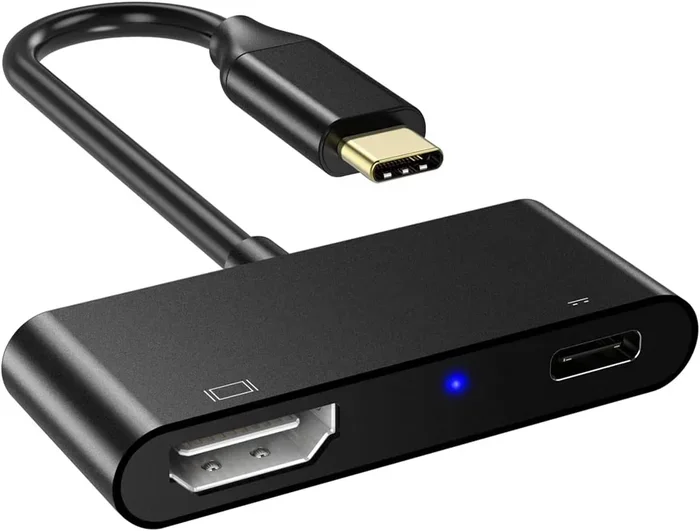
- Use adapters wisely. Adapters can convert USB-C to USB-A or HDMI, but they may limit speeds.
Comparison Table: USB Port Types at a Glance
| Port Type | Shape | Common Uses | Max Speed | Reversible? |
|---|---|---|---|---|
| USB-A | Rectangular | Computers, chargers, TVs | 5 Gbps (USB 3.0) | No |
| USB-B | Square | Printers, scanners | 5 Gbps (USB 3.0) | No |
| USB-C | Oval, small | Laptops, phones, tablets | 40 Gbps (USB 4) | Yes |
| Micro USB | Small, trapezoid | Older phones, speakers | 480 Mbps (USB 2.0) | No |
| Mini USB | Small, rectangular | Old cameras, MP3 players | 480 Mbps (USB 2.0) | No |
The Future of USB Ports
The industry is moving toward USB-C as the one connector to rule them all. Major companies like Apple, Google, and Microsoft now use USB-C as their primary port. The European Union has even passed regulations requiring USB-C on all mobile devices by 2024. This push toward a single standard makes life easier for consumers.
USB4 is leading the way forward. It offers blazing speeds of up to 40 Gbps and supports multiple protocols over a single cable. You can transfer data, charge your device, and connect to a display all through one USB-C cable. The days of carrying multiple cable types are slowly fading away.
However, older port types will stick around for years. Millions of USB-A and USB-B devices are still in use. Manufacturers will continue to include them for backward compatibility. Understanding all the port types ensures you are ready for whatever device you pick up.
Final Thoughts
So, are there different USB ports? Absolutely. The world of USB ports is more varied than most people realize. From the classic USB-A to the modern USB-C, each port type has its own role. USB 2.0, USB 3.0, USB 3.2, and USB 4 determine how fast your data moves. Thunderbolt adds even more power through the USB-C shape.
The good news is that USB-C is simplifying everything. It is fast, reversible, and powerful. If you are buying new cables or devices, USB-C is the way to go. Understanding the basics of USB port types helps you make smarter choices. You will save money, avoid frustration, and keep your devices running smoothly.
Take a moment to look at the ports on your devices now. Identify which type each one is. Check the speed rating if you can. This small step goes a long way in getting the most out of your tech. The more you know about your USB ports, the more confident you will feel navigating the connected world around you.
Frequently Asked Questions
What is the difference between USB-A and USB-C?
USB-A is the classic flat rectangular port that has been around for decades. USB-C is a smaller, oval-shaped port that is reversible and much faster. USB-C also supports higher power delivery, which means it can charge laptops and tablets quickly.
Can I plug a USB-C cable into a USB-A port?
No, you cannot plug a USB-C cable directly into a USB-A port. The shapes are completely different. You would need a USB-C to USB-A adapter or cable that has a USB-A connector on one end and a USB-C connector on the other.
Is USB-C the same as Thunderbolt?
No, USB-C and Thunderbolt are not the same thing. USB-C is a connector shape, while Thunderbolt is a technology standard. Thunderbolt 3 and Thunderbolt 4 use the USB-C connector shape, but they offer much faster speeds and more features than standard USB-C ports.
Why is my USB-C port so slow?
Your USB-C port may be slow because it only supports USB 2.0 speeds. Not all USB-C ports are created equal. Some only handle basic charging and slow data transfer. Check your device specifications to see what USB version your USB-C port supports.
Can I use a Micro USB cable with a USB-C device?
No, Micro USB and USB-C connectors have different shapes and sizes. They are not interchangeable. You would need a Micro USB to USB-C adapter or a new USB-C cable to connect your device properly.
What USB port should I use for fast charging?
For fast charging, use a USB-C port with Power Delivery support. USB-C PD can deliver up to 100 watts of power, which is much faster than standard USB-A ports. Make sure your cable and charger also support Power Delivery for the best results.
=== CONCLUSION ===
Understanding the different USB ports available today is easier than you think. USB-A, USB-B, USB-C, Micro USB, and Mini USB each serve a purpose. The USB version behind the port determines your speed and power options. USB-C is the clear winner for modern devices. It is fast, reversible, and powerful. As technology continues to evolve, USB-C and USB 4 will become even more dominant. Keep this guide handy the next time you are shopping for cables or setting up a new device. You will always know exactly which port is which and why it matters.