Can Purple Screen Be Fixed Easy Fixes You Can Try Today
A purple screen on your computer can be frustrating, but the good news is that it is usually fixable with simple steps. Whether the issue comes from a loose cable, outdated driver, or monitor settings, you can troubleshoot it yourself without spending a lot of money. This guide walks you through every purple screen fix you can try right now, from quick checks to advanced solutions. We cover both software and hardware causes so you can find the real reason behind the screen color distortion. By the end, you will know exactly what to do to restore your display to its normal colors.
Key Takeaways
- Loose or damaged cables are the most common cause of a purple screen and are easy to fix.
- Updating your GPU driver often resolves color distortion problems quickly.
- Monitor settings and color calibration can correct tint issues without any cost.
- Hardware problems like a failing graphics card or monitor need professional attention.
- Simple restart and reseating steps solve the majority of purple screen cases.
- Prevention tips can help you avoid future display problems.
📑 Table of Contents
- What Is a Purple Screen and Why Does It Happen?
- What Causes a Purple Screen on Your Computer?
- Easy Purple Screen Fixes You Can Try Right Now
- Hardware vs Software: Finding the Real Cause
- How to Diagnose Your Purple Screen Issue Step by Step
- When to Seek Professional Help for a Purple Screen
- Preventing Purple Screen Problems in the Future
- Key Takeaways
- Conclusion
What Is a Purple Screen and Why Does It Happen?
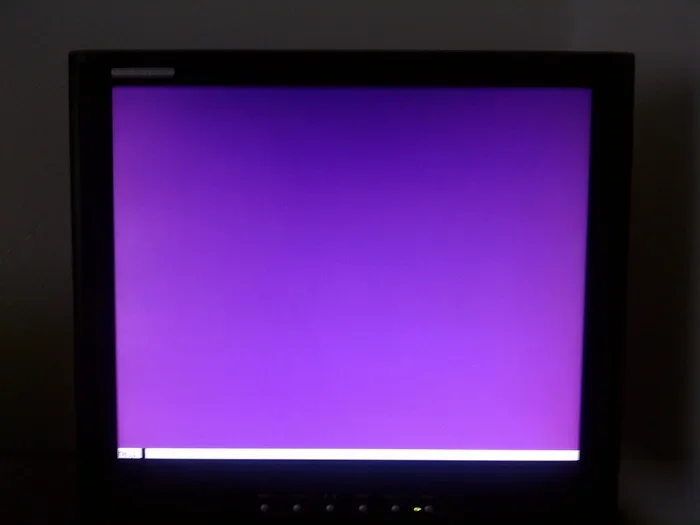
A purple screen is exactly what it sounds like. Your entire display turns purple or gets a strong purple tint. Sometimes it looks like a purple gradient across the screen. Other times, the screen flickers between normal colors and purple. Either way, it is alarming when your monitor suddenly looks like a different device entirely.
The purple screen problem is more common than most people think. It can happen on desktop computers, laptops, and even external monitors. The issue usually points to a problem with the display cable, the graphics card, or the monitor itself. In most cases, the fix is simple and does not require a technician. Let us walk through everything you need to know.
Before you panic, take a deep breath. A purple screen on monitor is rarely a sign of a completely broken computer. More often than not, it is a loose connection or a software glitch. The steps in this guide will help you identify the cause and apply the right purple screen fix for your situation.
Common Signs of a Purple Screen Issue
Not all purple screens look the same. Here are the most common signs people notice:
- The entire screen has a purple or violet tint.
- The screen flickers between normal colors and purple.
- A purple gradient appears on one side or corner of the display.
- The purple color shows up only when moving the mouse or opening certain apps.
- The screen turns purple after waking from sleep mode.
Each of these signs points to a slightly different cause. The good news is that we will cover fixes for all of them below.
What Causes a Purple Screen on Your Computer?
Understanding the root cause of your purple screen makes fixing it much easier. There are several reasons this happens, and they fall into two main categories. One category involves software, and the other involves hardware. Let us look at each one closely.
Loose or Damaged Display Cables
The number one cause of a purple screen is a loose or damaged display cable. Your monitor connects to your computer through an HDMI cable, a DisplayPort cable, or a VGA cable. Over time, these cables can become loose. They can also get bent, pinched, or worn out. When the connection is weak, the video signal gets interrupted. This interruption often shows up as a purple tint on the screen.
Think of it like a garden hose with a kink in it. Water still flows, but not properly. The same thing happens with your display signal. A small kink or loose connection changes what you see on the screen.
Outdated or Corrupted Graphics Drivers
Your GPU driver is the software that tells your graphics card how to send images to your monitor. When this driver becomes outdated or corrupted, the color output can change dramatically. A purple screen is one of the most common symptoms of a driver problem.
This happens a lot after a Windows update or when you install a new game. The new software might conflict with your current driver. The result? Your screen turns purple and you are left wondering what went wrong.
Monitor Settings and Color Calibration Issues
Sometimes the problem is not your computer at all. It is your monitor settings. Monitors have built-in color settings that control tint, brightness, and contrast. If these settings get changed accidentally, your screen can take on a purple hue.
This is especially common on monitors with on-screen display (OSD) menus. A button press or a power surge can reset your color settings to default values that look purple. The good news is that adjusting these settings back is usually very easy.
Failing Graphics Card or GPU
A more serious cause is a failing graphics card. Your GPU handles all the visual output on your computer. When it starts to go bad, you get strange colors on the screen. Purple, green, and pink screens are all common signs of GPU failure.
This usually happens in older computers or in systems that run very hot. Overheating is a big factor here. If your computer runs hot and your screen turns purple, the GPU might be the culprit.
Bad Ports on Your Computer or Monitor
Sometimes the port itself is the problem. The HDMI or DisplayPort on your computer or monitor can get damaged. Dust, dirt, or physical impact can harm the port. When the port is bad, the signal does not transmit correctly. A purple screen is a common result.
Easy Purple Screen Fixes You Can Try Right Now
Now that you know the causes, let us get to the fixes. These are the steps you should try first. Most of them are free and take only a few minutes. Start from the top and work your way down.
Fix 1: Check and Reseat Your Display Cable
This is the first thing you should do when your screen turns purple. A loose cable causes more purple screen problems than almost anything else. Here is what to do:
- Turn off your computer and monitor.
- Unplug the display cable from both the computer and the monitor.
- Inspect the cable for any visible damage, bends, or frayed wires.
- Plug the cable back in firmly on both ends.
- Turn on your computer and check the screen.
If you have a spare cable, try swapping it out. A new cable costs very little and can solve the problem instantly. This simple step fixes the majority of purple screen on monitor cases.
Fix 2: Try a Different Cable or Port
If reseating the cable does not work, try a different one. But also try a different port on your computer or monitor. Sometimes the port itself is damaged. Switching to another port can bypass the problem entirely.
For example, if you are using an HDMI port, try a DisplayPort cable instead. Or switch from VGA to HDMI. Different ports use different signal types, and one might work better than the other for your setup.
Fix 3: Update Your Graphics Card Driver
An outdated GPU driver is a very common reason for color problems. Updating it is simple and often fixes the purple screen right away.
Here is how to do it on Windows:
- Right-click on the Start button and open Device Manager.
- Expand the Display Adapters section.
- Right-click on your graphics card and select Update Driver.
- Choose Search Automatically for Drivers.
- Follow the on-screen instructions to complete the update.
You can also visit the website of your GPU manufacturer. NVIDIA, AMD, and Intel all offer free driver downloads. Installing the latest version often resolves screen color distortion issues completely.
Fix 4: Adjust Monitor Color Settings
If your monitor settings are off, the screen will look wrong. You can fix this by adjusting the color controls on your monitor. Most monitors have buttons on the back or side that open the OSD menu.
Look for settings like Color Temperature, Tint, or RGB Balance. Set the color temperature to a neutral or warm setting. Reset the tint to the center position. These small adjustments can remove the purple tint from your screen in seconds.
Fix 5: Run Windows Display Troubleshooter
Windows has a built-in tool that can automatically detect and fix display problems. This is a great option if you are not sure what is causing the purple screen.
Here is how to use it:
- Go to Settings and open System.
- Click on Display and scroll down to find Troubleshoot.
- Run the display troubleshooter and follow the prompts.
The tool checks for common issues and applies fixes automatically. It is a quick and easy way to solve monitor display issues without any technical knowledge.
Hardware vs Software: Finding the Real Cause
One of the trickiest parts of fixing a purple screen is figuring out whether the problem is hardware or software. Both can cause the same purple tint, but the fixes are very different. Here is how to tell them apart.
Quick Comparison: Hardware vs Software Causes
| Factor | Software Cause | Hardware Cause |
|---|---|---|
| When it happens | After updates or driver changes | Random or after physical impact |
| Cable connection | Cable is secure but issue persists | Cable is loose or damaged |
| Driver status | Outdated or corrupted | Driver updates do not help |
| Other devices | Issue only on one device | Issue appears on multiple devices |
| Physical signs | No visible damage | Visible damage to cable or port |
| Fix difficulty | Easy, software-based | May require replacement parts |
If the purple screen started after a Windows update or a driver installation, it is likely a software issue. If the screen turned purple after your computer got bumped or dropped, it is probably a hardware issue. Use this table as a quick guide to narrow down the cause.
How to Diagnose Your Purple Screen Issue Step by Step
Diagnosing the problem properly saves you time and frustration. Instead of trying random fixes, follow this step-by-step process to find the real cause of your purple screen.
Step 1: Check the Cable First
Always start with the simplest explanation. A loose or damaged cable is the most common cause. Reseat it, try a different one, and see if the problem goes away. This step alone fixes many cases.
Step 2: Test with Another Monitor
If you have access to another monitor, connect it to your computer. If the second monitor shows normal colors, your original monitor is probably fine. The problem is likely the cable or the graphics card. If the second monitor also shows purple, the issue is with your computer or GPU.
Step 3: Boot into Safe Mode
Safe Mode loads only the essential drivers and software. If your screen looks normal in Safe Mode, the problem is likely a driver or software conflict. If the purple screen still appears in Safe Mode, it is probably a hardware issue.
Step 4: Check Your GPU Temperature
Overheating can cause color problems on your screen. Use a free tool like HWMonitor or MSI Afterburner to check your GPU temperature. If it is running above 85 degrees Celsius, your graphics card is overheating. Clean the fans, improve airflow, or replace the thermal paste to fix the issue.
When to Seek Professional Help for a Purple Screen
Most purple screen problems are easy to fix at home. But there are times when you need professional help. Knowing when to stop troubleshooting and call an expert can save you money and prevent further damage.
You should seek professional help if:
- None of the fixes in this guide work after you have tried them all.
- Your graphics card is physically damaged or making unusual noises.
- The purple screen appears on multiple computers with the same monitor.
- Your monitor has visible physical damage like cracks or bleeding colors.
- Your GPU temperature is extremely high and the computer shuts down frequently.
A professional technician can run deeper diagnostics and replace faulty components. They have the tools and experience to fix issues that are not visible to the average user. Do not hesitate to reach out if you have tried everything and the problem persists.
Preventing Purple Screen Problems in the Future
The best fix is prevention. Once you solve your purple screen issue, you want to make sure it does not come back. Here are some simple habits that keep your display working perfectly.
Keep Your Drivers Updated
Set a reminder to check for driver updates every month. New drivers fix bugs and improve compatibility with the latest software. Keeping your GPU driver current is one of the best ways to prevent color problems.
Handle Cables With Care
Do not bend your display cable sharply or put heavy objects on it. Cables last longer when they are handled gently. If you need to move your computer, unplug the cables carefully instead of pulling them by the cord.
Keep Your Computer Cool
Overheating damages your GPU over time. Make sure your computer has good airflow. Clean the dust from fans and vents regularly. A cool computer is a healthy computer and a happy monitor.
Use Quality Cables and Adapters
Cheap cables can cause all kinds of display problems. Invest in good quality HDMI cables or DisplayPort cables from reputable brands. A quality cable costs a little more but lasts much longer and provides a more stable signal.
Key Takeaways
- Loose or damaged cables are the most common cause of a purple screen and are easy to fix.
- Updating your GPU driver often resolves color distortion problems quickly.
- Monitor settings and color calibration can correct tint issues without any cost.
- Hardware problems like a failing graphics card or monitor need professional attention.
- Simple restart and reseating steps solve the majority of purple screen cases.
- Prevention tips can help you avoid future display problems.
Conclusion
A purple screen is a stressful problem, but it is almost always fixable. You do not need to be a tech expert to solve it. Most of the time, a loose cable or an outdated driver is to blame. The fixes in this guide are simple, free, and effective. Start with the basic steps and work your way up to more advanced solutions if needed.
Remember to check your cables first, update your drivers, and adjust your monitor settings. These three steps solve the vast majority of purple screen on monitor issues. If the problem persists, it may be a hardware issue that needs professional attention.
Now that you know how to fix a purple screen, you can tackle the problem with confidence. Try these steps today and get your display back to looking its best. Your eyes will thank you, and your computer will feel like new again.
Frequently Asked Questions
Can a purple screen damage my monitor permanently?
In most cases, a purple screen does not cause permanent damage. It is usually a sign of a connection or software issue that can be fixed. However, if the problem is caused by a failing GPU or physical damage to the monitor, ignoring it for a long time could lead to bigger problems. It is best to address the purple screen quickly.
Why does my screen turn purple when I wake my computer from sleep?
This is a common issue that usually happens because the display driver has a temporary glitch when waking up. Updating your GPU driver often fixes this problem. You can also try reseating your display cable or adjusting your power settings to prevent the screen from going into deep sleep.
Is a purple screen a sign of a bad graphics card?
Not always. A purple screen can be caused by many things, including loose cables, outdated drivers, or monitor settings. A bad graphics card is one possible cause, but it is not the most common one. Try the simpler fixes first before assuming your GPU is the problem.
How much does it cost to fix a purple screen?
Most fixes for a purple screen are completely free. You just need to reseat a cable, update a driver, or adjust monitor settings. If the problem is a hardware failure like a bad GPU or monitor, the cost depends on the part that needs replacement. A new cable costs under $20, while a new GPU can cost much more.
Can a bad HDMI cable cause a purple screen?
Yes, absolutely. A bad or loose HDMI cable is one of the most common causes of a purple screen. The cable carries the video signal from your computer to your monitor. When the signal is interrupted or weakened, colors can shift and turn purple. Replacing the cable is an easy and inexpensive fix.
What should I do if none of the fixes work?
If you have tried all the steps in this guide and your screen is still purple, it is time to seek professional help. The issue may be a hardware failure that requires expert diagnosis. Take your computer or monitor to a qualified technician who can run deeper tests and replace faulty components if needed.