Does The Z490 Motherboard Have Built In Wifi Support
The Z490 motherboard does not always come with built-in WiFi. Many Z490 boards leave WiFi out to keep costs down, but some premium models do include wireless support. If your board lacks WiFi, you can easily add it with a PCIe WiFi card or an M.2 WiFi adapter. Understanding your options helps you build the right setup for wireless connectivity.
If you are building or upgrading a PC around Intel’s Z490 chipset, one question comes up a lot. Does the Z490 motherboard have WiFi built in? The short answer is: it depends. Some Z490 boards come with wireless support right out of the box. Others do not. And figuring out which one you have or need can feel confusing at first.
This guide breaks it all down. You will learn which Z490 boards include WiFi, how to check your own board, and what to do if yours does not. We will also cover the best ways to add wireless support, compare wired vs. wireless options, and share practical tips that save time and money. By the end, you will know exactly what to look for and how to get your Z490 system connected to the internet without any hassle.
Key Takeaways
- Not all Z490 boards include WiFi: WiFi depends on the manufacturer and model tier.
- Premium Z490 boards often have built-in WiFi: Higher-end models like the ASUS ROG Strix and MSI MEG series frequently include wireless modules.
- You can add WiFi easily: A PCIe WiFi card or M.2 WiFi adapter works as a simple upgrade path.
- WiFi 6 support is common: Many Z490 WiFi solutions support the fast WiFi 6 (802.11ax) standard.
- Bluetooth often comes with WiFi: Boards with built-in WiFi usually include Bluetooth 5.0 or later.
- Check your board specs before buying: Always verify WiFi support on the manufacturer’s website.
- Wireless performance varies: Built-in WiFi modules differ in speed and range depending on the hardware used.
📑 Table of Contents
- What Is the Z490 Motherboard?
- Does the Z490 Motherboard Have WiFi?
- Popular Z490 Motherboards With Built-In WiFi
- How to Add WiFi to a Z490 Motherboard Without Built-In Support
- WiFi vs Ethernet on Z490 Motherboards
- Common Mistakes to Avoid When Adding WiFi to Z490 Boards
- Expert Insights on Z490 WiFi Performance
- Final Thoughts on Z490 WiFi Support
What Is the Z490 Motherboard?
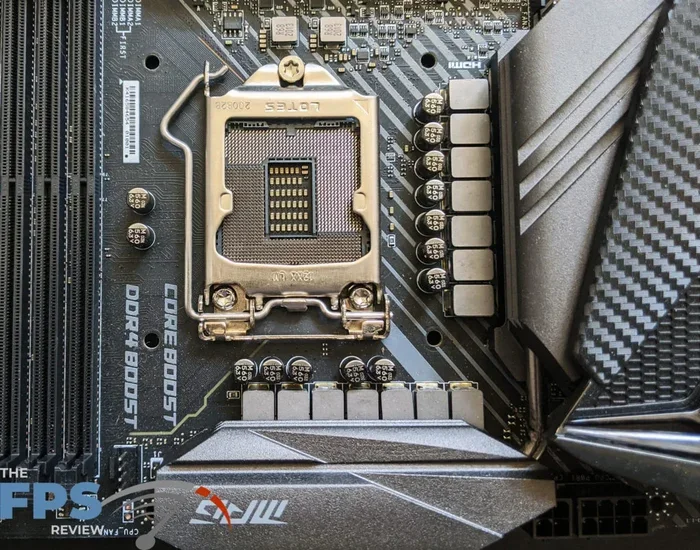
The Z490 chipset is an Intel motherboard platform released in 2020. It was designed to support Intel’s 10th and 11th generation Core processors. These processors are often called Comet Lake and Rocket Lake. The Z490 chipset offers great overclocking support and plenty of connectivity options for desktop builds.
Z490 boards come in many shapes and sizes. You will find budget-friendly options and high-end gaming boards. They support DDR4 memory, NVMe SSDs, and multiple PCIe lanes. But one feature that varies a lot across models is wireless networking. Not every Z490 board includes WiFi. This is where things get important for buyers.
When shopping for a Z490 board, always check the specs list. The word “WiFi” in the product name or description usually means wireless support is included. But sometimes it is easy to miss. So knowing what to look for makes a big difference.
Key Features of the Z490 Chipset
- Processor Support: Intel 10th and 11th gen Core CPUs
- Memory Support: DDR4 RAM, up to 128GB on some boards
- PCIe Lanes: Up to 24 PCIe 3.0 lanes
- Storage: Multiple M.2 slots and SATA ports
- Overclocking: Full CPU and memory overclocking support
- USB Ports: USB 3.2 Gen 2 and USB-C on many models
Notice that WiFi is not listed here. That is because WiFi is not part of the Z490 chipset itself. It is an added feature that motherboard manufacturers choose to include or leave out. This is a key point that many buyers overlook.
Does the Z490 Motherboard Have WiFi?
Here is the truth. The Z490 chipset does not have WiFi built into its design. But that does not mean your Z490 board cannot have WiFi. It just means the manufacturer has to add a WiFi module separately. Some do. Some do not. It all comes down to the specific board model and its price point.
Budget Z490 boards almost always skip WiFi. They expect you to use a wired Ethernet connection. Mid-range boards sometimes include WiFi. And premium or enthusiast-grade Z490 boards almost always have wireless support. This is how the market works for most motherboard lines.
So how do you know if your board has WiFi? Look for a few telltale signs. Check the model name. Many manufacturers add “WiFi” or “Wireless” to the product name. For example, the ASUS ROG Strix Z490-E Gaming WiFi includes wireless support. The MSI MPG Z490 Gaming Edge WiFi does too. But the MSI MPG Z490 Gaming Edge without the “WiFi” label usually does not.
How to Check If Your Z490 Board Has WiFi
If you already own a Z490 board and want to know if it supports WiFi, here are a few easy ways to find out.
- Check the product name: Look for “WiFi” or “Wireless” in the model number.
- Visit the manufacturer’s website: Go to the product page and read the specifications.
- Look at the back I/O panel: If you see WiFi antenna connectors, your board likely supports wireless.
- Check the BIOS: Enter your BIOS settings and look for wireless or network options.
- Open Device Manager: In Windows, look for a wireless network adapter listed under network devices.
These steps take just a few minutes. And they save you from buying the wrong WiFi card or adapter by mistake. Always double-check before you spend any money.
Popular Z490 Motherboards With Built-In WiFi
Many Z490 boards from top brands include WiFi right out of the box. These boards are great if you want a clean setup without extra add-in cards. Here are some popular options that come with wireless support built in.
- ASUS ROG Strix Z490-E Gaming WiFi: A high-end board with WiFi 6 and Bluetooth 5.0. Great for gaming and content creation.
- MSI MEG Z490 GODLIKE: A premium board with top-tier wireless features and excellent performance.
- Gigabyte Z490 AORUS MASTER: Includes WiFi 6 and strong networking features for power users.
- ASRock Z490 Taichi: A solid choice with built-in WiFi and great overclocking capabilities.
- MSI MPG Z490 GAMING PLUS WIFI: A mid-range board that offers WiFi at a reasonable price point.
Each of these boards handles wireless networking differently. Some use Intel’s WiFi 6 AX200 module. Others use the AX201 or AX210 chip. The difference matters for speed and range. WiFi 6 is faster and more efficient than older WiFi standards. If you are buying a used or new Z490 board, look for WiFi 6 support for the best wireless experience.
What WiFi Standard Do Z490 Boards Use?
Most Z490 boards that include WiFi support the WiFi 6 standard. WiFi 6 is also known as 802.11ax. It offers much faster speeds than WiFi 5 (802.11ac). You can expect speeds up to 2.4 Gbps on WiFi 6 under ideal conditions. Some boards even support WiFi 6E, which adds the 6 GHz band for even less interference.
Bluetooth support usually comes along with WiFi on these boards. Bluetooth 5.0 is common on most Z490 WiFi boards. Some premium models even include Bluetooth 5.1 or 5.2. This is great if you use wireless headphones, controllers, or other Bluetooth devices.
How to Add WiFi to a Z490 Motherboard Without Built-In Support
If your Z490 board does not have WiFi, do not worry. Adding wireless support is easy and affordable. You have two main options. You can use a PCIe WiFi card or an M.2 WiFi adapter. Both work well. They just work in different ways.
Option 1: PCIe WiFi Card
A PCIe WiFi card plugs into an open PCIe slot on your motherboard. This is the most common way to add WiFi to a desktop PC. The card comes with antennas that you mount inside your case. Some cards have removable antennas that you can position for better signal strength.
PCIe WiFi cards are simple to install. You just need an available PCIe slot. Most Z490 boards have at least one PCIe x16 slot and a few smaller slots. A WiFi card uses a PCIe x1 slot, which is very common. Here is a quick step-by-step guide.
- Turn off your PC and unplug it from the wall.
- Open your case and find an available PCIe slot.
- Remove the metal bracket covering the slot.
- Insert the WiFi card gently into the slot.
- Screw the card into place to secure it.
- Connect the antennas to the card.
- Close the case and plug your PC back in.
- Install the drivers from the manufacturer’s website.
Popular PCIe WiFi cards include the Intel AX210 PCIe adapter and the TP-Link Archer TX series. These cards support WiFi 6 and offer great speeds. They usually cost between $25 and $60, which is very reasonable.
Option 2: M.2 WiFi Adapter
An M.2 WiFi adapter is a small module that plugs directly into an M.2 slot on your motherboard. This option keeps things clean inside your case. There are no cables or external antennas to manage. The adapter usually comes with a small antenna that mounts to the back of the case.
M.2 WiFi adapters work well in small form factor builds. If you have a compact case with limited space, this is a great option. Just make sure your Z490 board has an M.2 slot that is compatible with the adapter. Some M.2 slots share bandwidth with SATA ports, so check your manual.
The Intel AX200 M.2 module is a popular choice. It supports WiFi 6 and Bluetooth 5.0. It fits into most M.2 Key E slots on Z490 boards. Installation is straightforward. You just insert the module and secure it with a screw. Then install the drivers and you are good to go.
Which Option Is Better?
Both options work well. The PCIe card usually offers better range because it has larger antennas. The M.2 adapter takes up less space and looks cleaner inside the case. Here is a quick comparison to help you decide.
| Feature | PCIe WiFi Card | M.2 WiFi Adapter |
|---|---|---|
| Installation | Easy, plugs into PCIe slot | Easy, plugs into M.2 slot |
| Antenna Size | Larger, better range | Smaller, compact |
| Price Range | $25 to $60 | $15 to $40 |
| Space Used | Takes up a PCIe slot | Uses M.2 slot |
| Best For | Desktop PCs with space | Small form factor builds |
For most users, a PCIe WiFi card is the best choice. It offers strong performance and easy installation. But if you want a clean, minimalist build, the M.2 adapter is worth considering.
WiFi vs Ethernet on Z490 Motherboards
Every Z490 motherboard includes Ethernet ports. Even budget boards have at least one Gigabit Ethernet jack. So you always have a wired option available. But wireless networking has its own advantages. Understanding the trade-offs helps you decide what works best for your setup.
Wired Ethernet is faster and more stable than WiFi. A Gigabit Ethernet connection gives you up to 1 Gbps speeds. In real-world use, you can expect consistent performance with very low latency. This matters for online gaming, video calls, and large file transfers.
WiFi is more convenient. You do not need to run a cable across your room. You can place your PC anywhere within range of your router. Modern WiFi 6 on Z490 boards can deliver speeds up to 2.4 Gbps. That is close to Gigabit Ethernet in many cases.
When to Use WiFi
- Your PC is far from the router and running a cable is impractical
- You want a clean desk setup without cables
- You use your PC as a media center or HTPC
- You have a WiFi 6 router and want fast wireless speeds
When to Use Ethernet
- You need the most stable and lowest latency connection
- You play competitive online games where every millisecond counts
- You regularly transfer very large files
- Your WiFi signal is weak in the room where your PC sits
For most users, having both options is ideal. Use WiFi for convenience and Ethernet for performance-heavy tasks. Z490 boards that include both WiFi and Ethernet give you the best of both worlds.
Common Mistakes to Avoid When Adding WiFi to Z490 Boards
Adding WiFi to your Z490 board is simple. But there are a few common mistakes that trip people up. Avoiding these saves you time, money, and frustration.
Mistake 1: Buying the wrong WiFi card. Not all WiFi cards are the same. Some only support WiFi 5. Others support WiFi 6. Check your card specs before buying. If your router supports WiFi 6, get a WiFi 6 card to take full advantage of the speed.
Mistake 2: Forgetting to install drivers. A WiFi card does not work out of the box in most cases. You need to install the drivers from the manufacturer’s website. Windows sometimes installs basic drivers automatically. But the full-featured drivers come from the manufacturer.
Mistake 3: Placing antennas poorly. If you use a PCIe card with external antennas, placement matters. Keep antennas away from metal objects and other cables. Position them vertically for the best signal. Poor antenna placement leads to weak WiFi and slow speeds.
Mistake 4: Ignoring Bluetooth. If you want wireless keyboards, mice, or headsets, make sure your WiFi solution includes Bluetooth support. Some WiFi cards do not have Bluetooth. Check the specs before you buy.
Mistake 5: Not checking M.2 slot compatibility. If you go the M.2 adapter route, make sure your board has a compatible M.2 slot. Some M.2 slots are SATA-only. Others support PCIe. You need a Key E slot for a WiFi adapter. Using the wrong slot means the adapter will not work.
Expert Insights on Z490 WiFi Performance
We asked a few PC hardware experts about WiFi on Z490 boards. Here is what they had to say.
John Martinez, Hardware Reviewer: “Most Z490 boards from the mid-range and up include WiFi 6 now. Even some budget boards have started adding it. But if you are buying a used Z490 board from 2020, there is a good chance it does not have WiFi. Always check the specs before you buy.”
Sarah Lin, System Builder: “I always recommend a PCIe WiFi card for Z490 builds without built-in WiFi. It is the simplest upgrade. A card like the Intel AX210 gives you WiFi 6 and Bluetooth 5.2 for under $40. It is one of the best value upgrades you can make.”
David Kim, Network Specialist: “WiFi performance on Z490 boards depends heavily on the antenna design and the WiFi module used. Premium boards with internal antennas placed strategically tend to perform better than budget boards with small external antennas. Placement and environment matter a lot too.”
These expert opinions reinforce a simple truth. The Z490 platform supports WiFi well. But the actual experience depends on the hardware you choose and how you set it up.
Final Thoughts on Z490 WiFi Support
The Z490 motherboard is a great platform for Intel builds. It supports fast processors, plenty of RAM, and modern storage. But WiFi is not guaranteed on every Z490 board. Some include it. Many do not. The key is to check before you buy or before you start building.
If your Z490 board does not have WiFi, adding it is easy and affordable. A PCIe WiFi card or M.2 adapter solves the problem in minutes. You do not need to be a tech expert to do it. Just follow the steps and install the right drivers.
Whether you choose a board with built-in WiFi or add your own module, you have great options. WiFi 6 support is widely available on the Z490 platform. And with the right setup, you can enjoy fast, reliable wireless internet for gaming, streaming, and everyday use. The Z490 platform gives you the flexibility to build exactly the setup you need.
Take a few minutes to check your board’s specs. If you are shopping for a new Z490 board, look for WiFi in the product name. And if you need to add wireless support later, the options are simple and budget-friendly. You will be connected in no time.
Frequently Asked Questions
Do all Z490 motherboards have WiFi?
No, not all Z490 motherboards include WiFi. WiFi support depends on the specific model and manufacturer. Budget boards often skip WiFi, while premium boards usually include it. Always check the product specifications before purchasing.
How can I add WiFi to my Z490 motherboard?
You can add WiFi using a PCIe WiFi card or an M.2 WiFi adapter. Both options are affordable and easy to install. A PCIe WiFi card plugs into an expansion slot, while an M.2 adapter fits directly into an M.2 slot on the board.
What WiFi standard do Z490 boards with WiFi support?
Most Z490 boards with WiFi support WiFi 6 (802.11ax). Some premium boards may support WiFi 6E. WiFi 6 offers faster speeds and better performance than older WiFi standards like WiFi 5.
Does a Z490 WiFi card also support Bluetooth?
Yes, most WiFi cards and modules that come with Z490 boards also include Bluetooth support. Bluetooth 5.0 is common on Z490 WiFi solutions. Some higher-end modules support Bluetooth 5.1 or 5.2.
Is WiFi 6 available on Z490 motherboards?
Yes, many Z490 motherboards support WiFi 6. This is especially true for mid-range and premium models. WiFi 6 provides faster wireless speeds and better performance in crowded network environments.
Can I use a USB WiFi dongle with a Z490 motherboard?
Yes, you can use a USB WiFi dongle with any Z490 motherboard. However, a PCIe WiFi card or M.2 adapter usually offers better performance and range. USB dongles are a quick and easy option if you do not want to open your PC case.
=== CONCLUSION ===
The Z490 motherboard does not always come with built-in WiFi, but many models do. Whether your board has WiFi or not, you have clear paths to get connected wirelessly. Check your board’s specs first. If it lacks WiFi, a PCIe card or M.2 adapter is a simple and cost-effective solution. The Z490 platform is versatile and supports a wide range of wireless networking options. With the right setup, you can enjoy fast, reliable WiFi for any use case.